
How to Create and Submit a New Exam
Learn how to register a new exam on the UniRadio platform by uploading files and filling in the patient information.
Step by Step
1. Access the Exams page
Navigate to app.uniradio.vet.br/exams
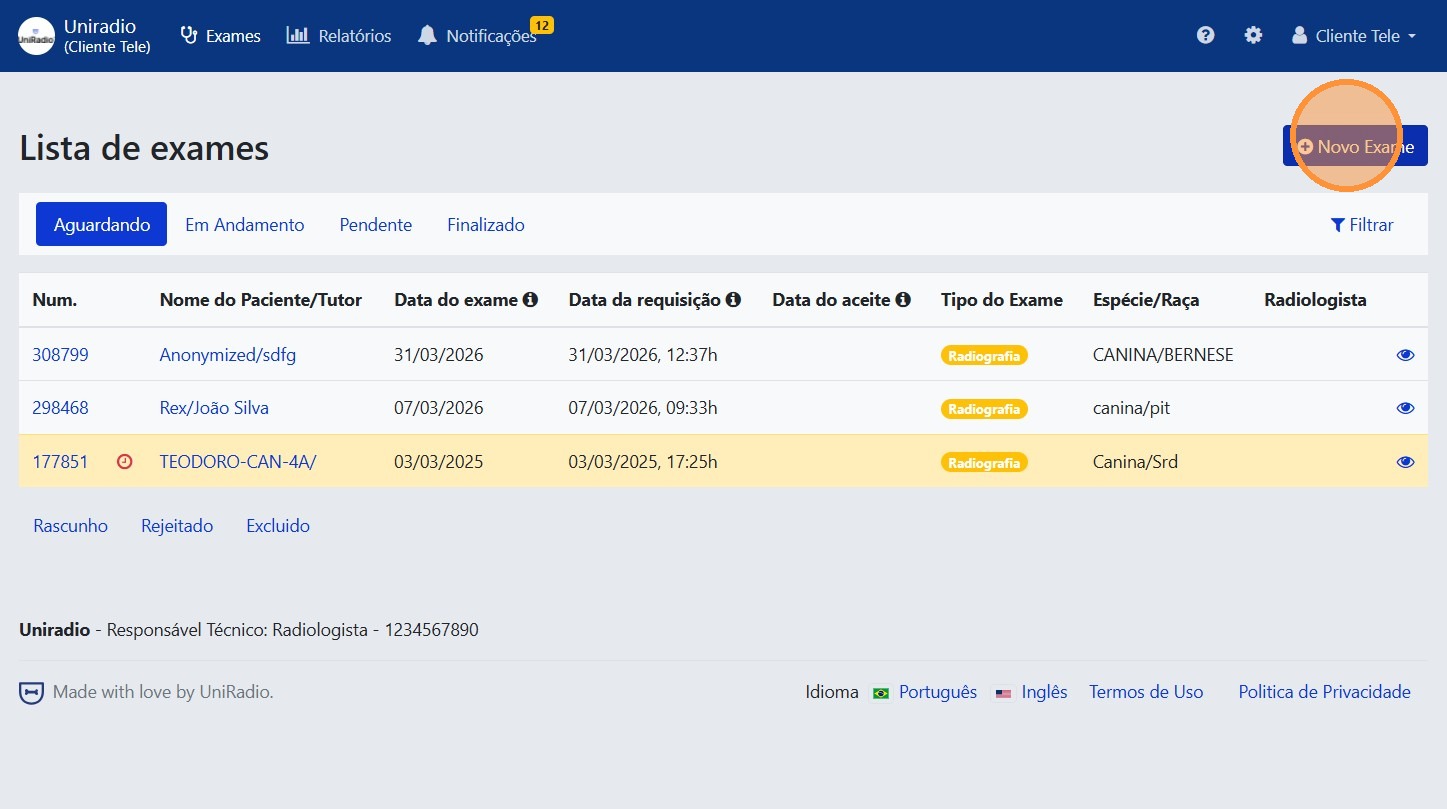
2. Click "New Exam"
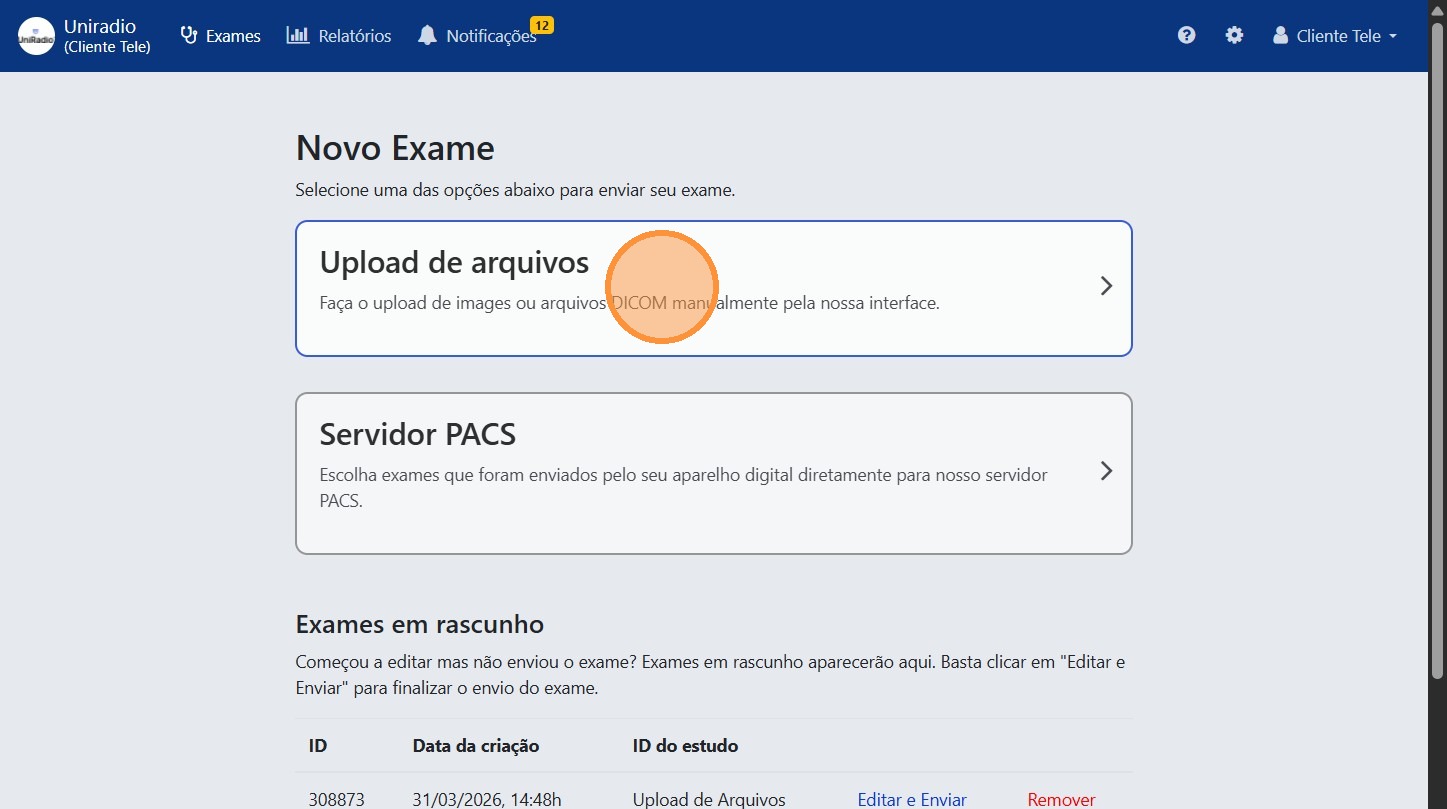
3. Click "Upload files"
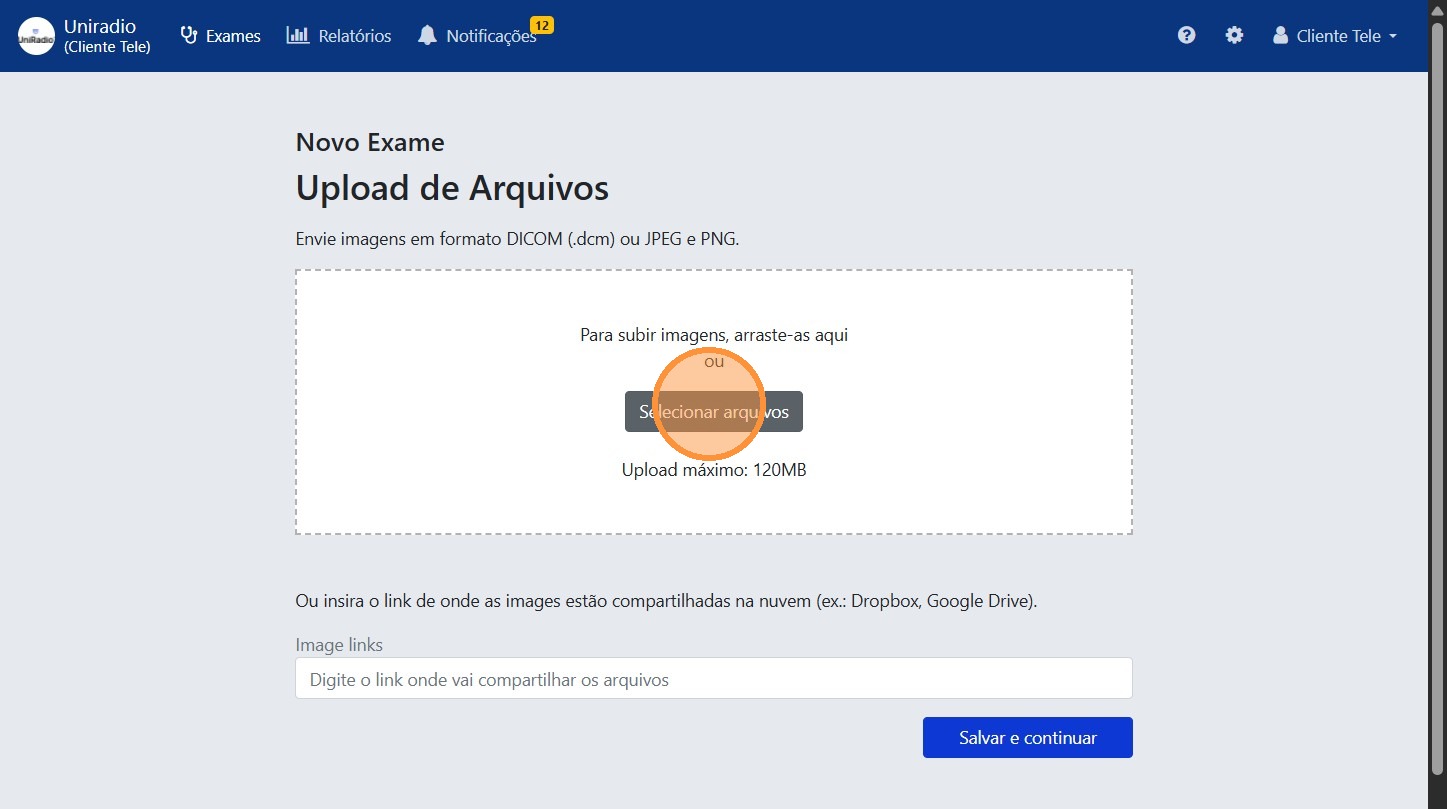
4. Click "Select files"
Choose the exam images from your computer.
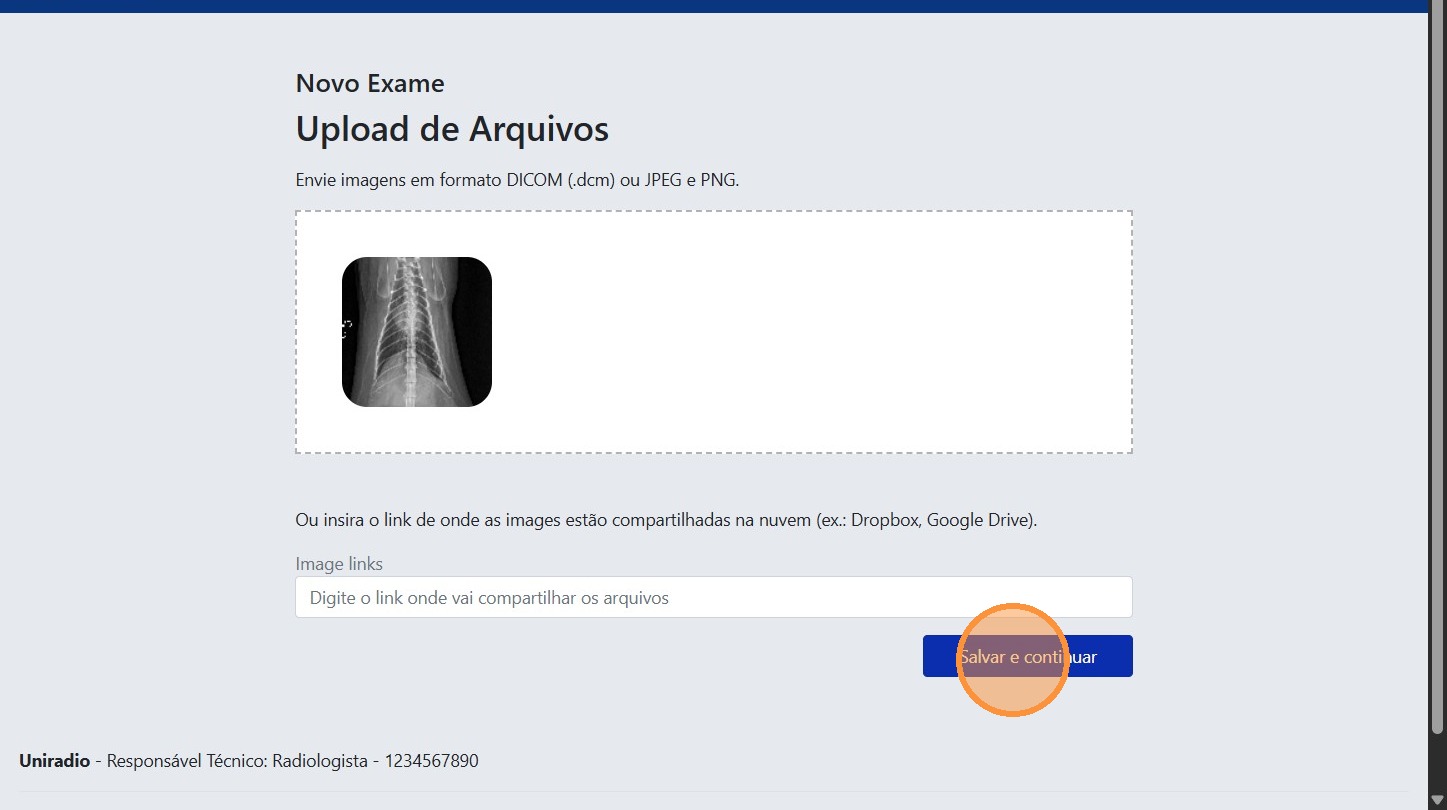
5. Click "Save and continue"
6. Fill in the exam information
Fill in all required fields in the form, such as exam type, regions, patient data, clinical history, etc.
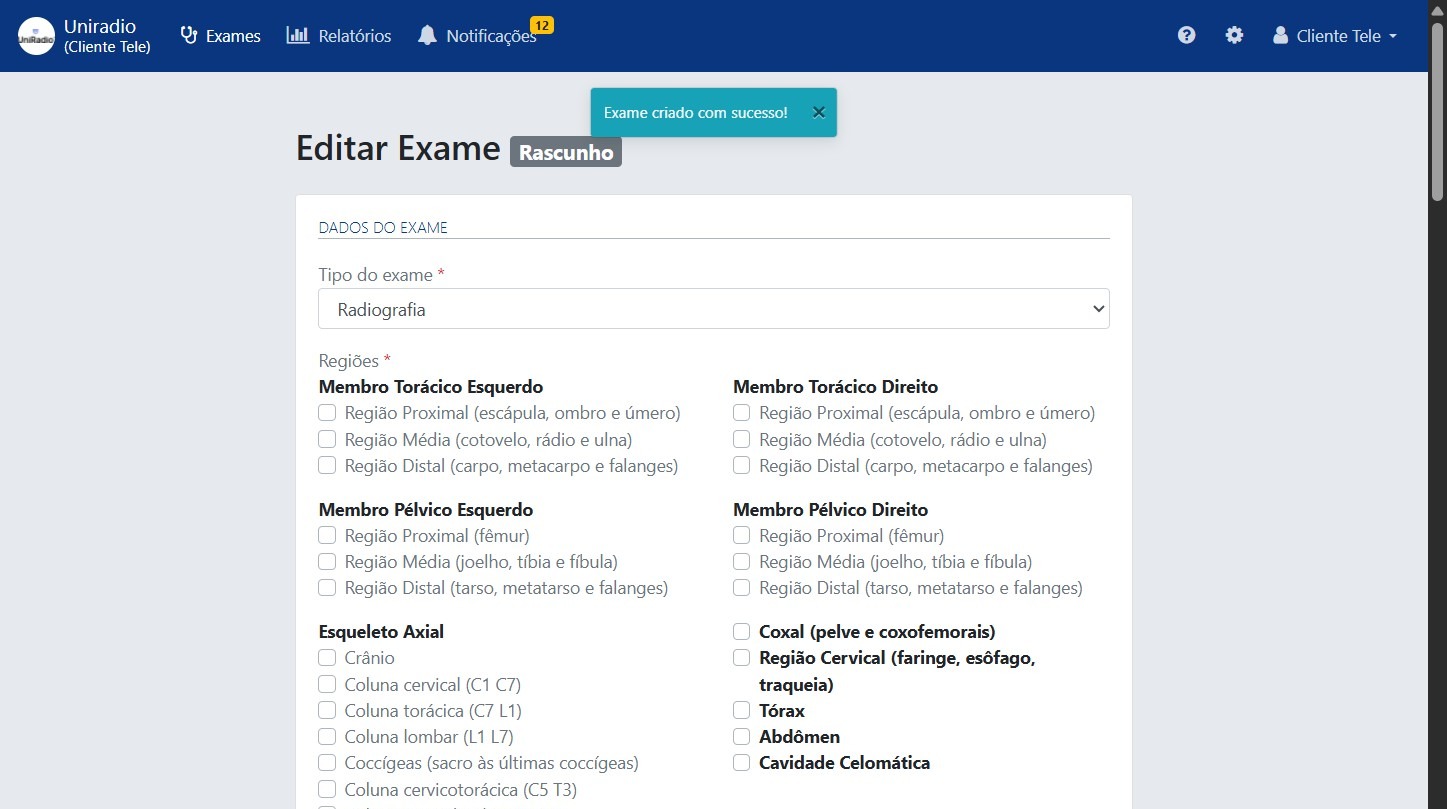
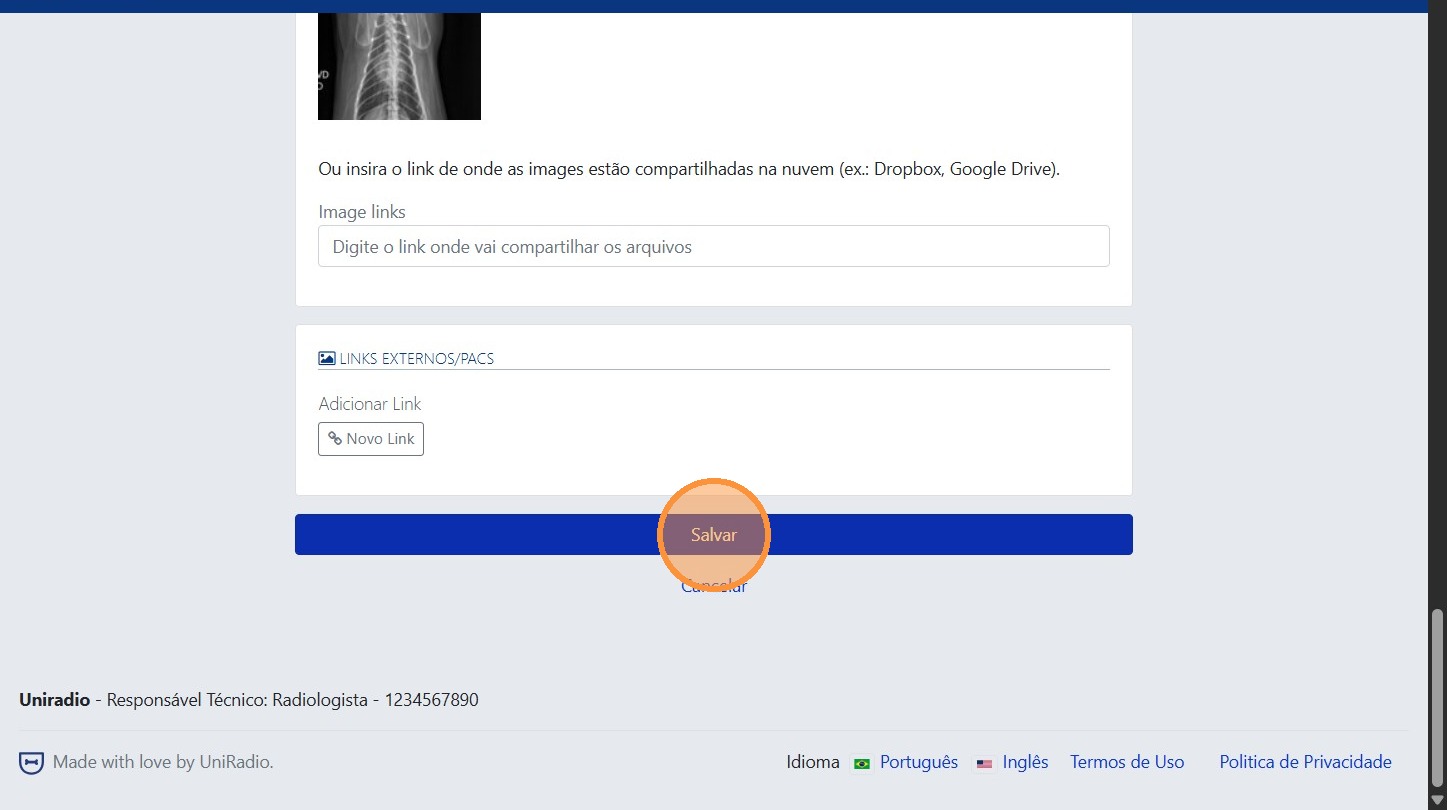
7. Click "Save" to submit the exam
Field Descriptions
To understand the meaning of each field in this form, see Exam Creation Fields.
Need Help?
Check our FAQ or contact your radiologist if you encounter any issues.