
How to Configure Ultramedic to Send Exams to the PACS Server
Learn how to configure the Ultramedic software to connect and send exams directly to the UniRadio cloud PACS server.
Prerequisites
Before you begin, you will need the following information from your UniRadio PACS server:
- AE Title
- Server IP address
- Port
Where to find this information?
Go to PACS Server Settings on the UniRadio platform and enable the PACS Port to view the connection details.
Part 1: Register the PACS Server in Ultramedic
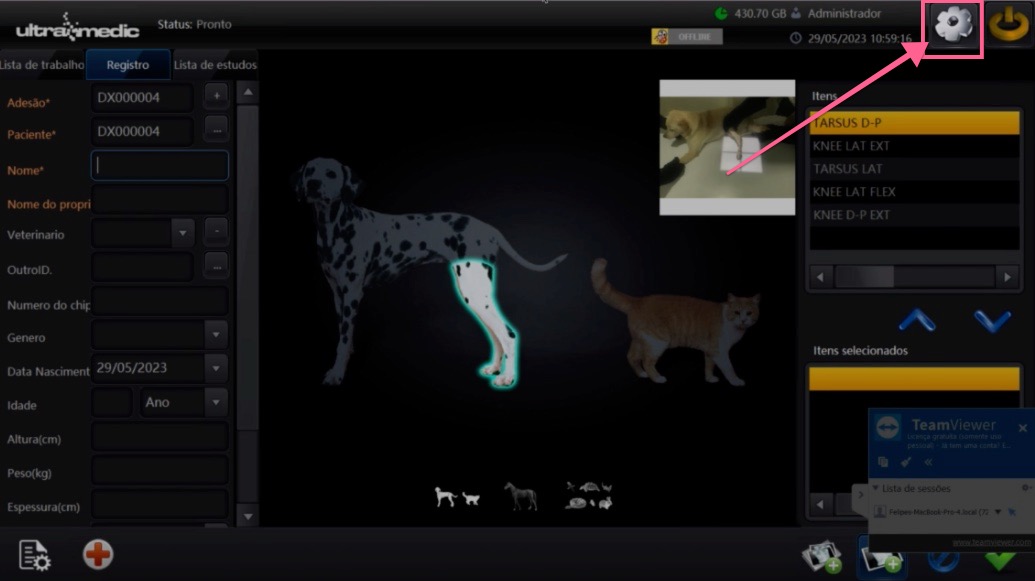
1. Open the System Manager
On the Ultramedic main screen, click the gear icon (settings) in the upper-right corner.
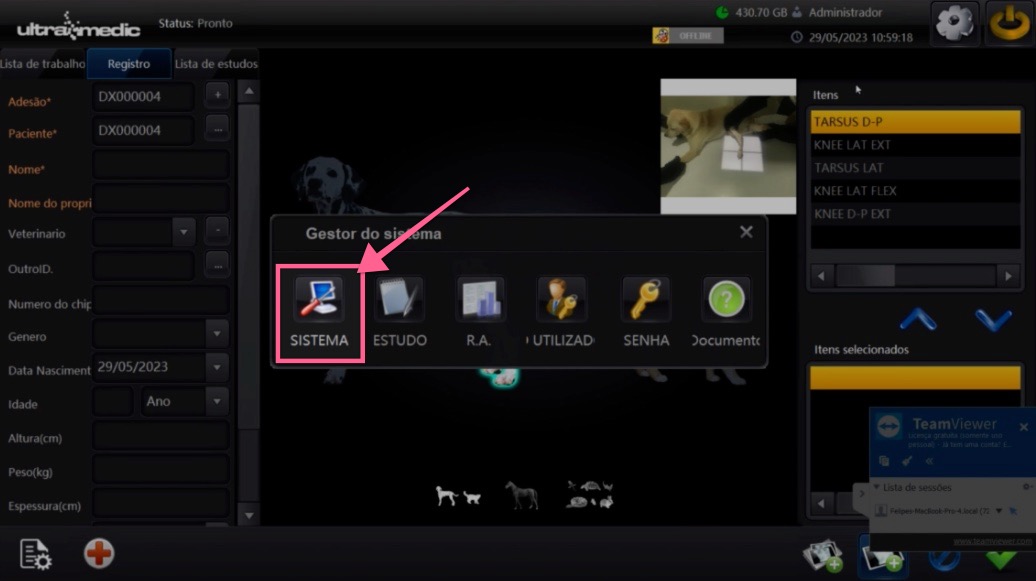
2. Open the System settings
In the "System Manager" menu, click "SYSTEM" to access the software's general settings.
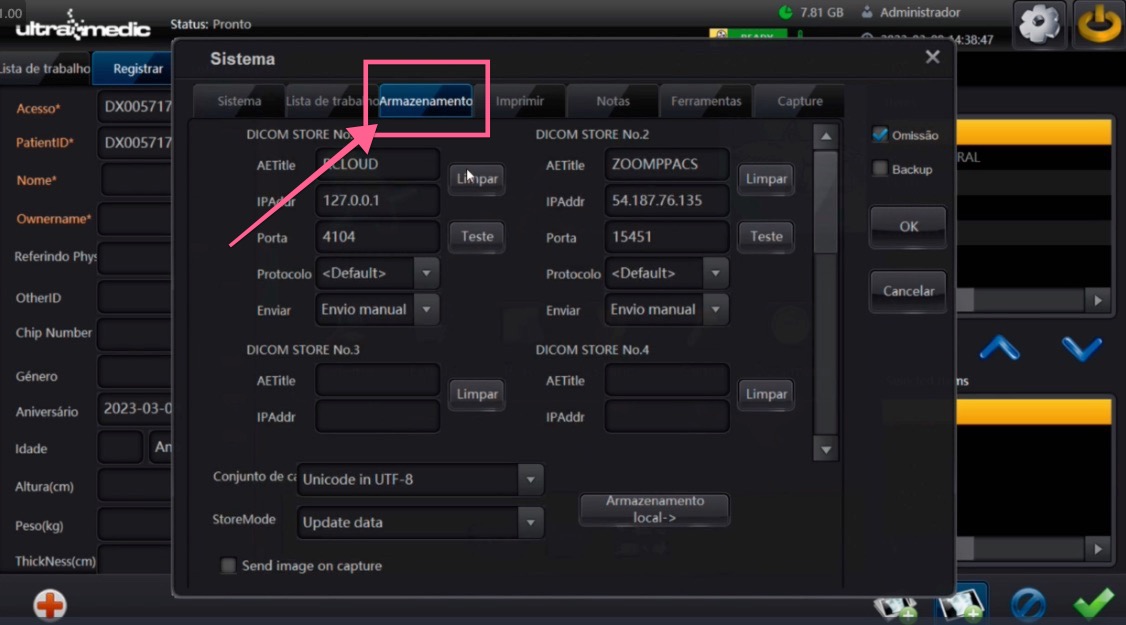
3. Go to the Storage tab
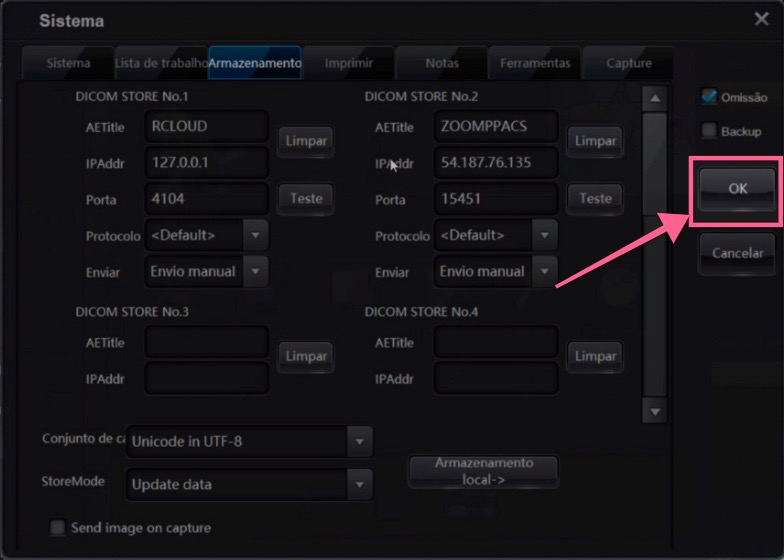
In the "System" window, click the "Storage" tab to access the DICOM server settings.
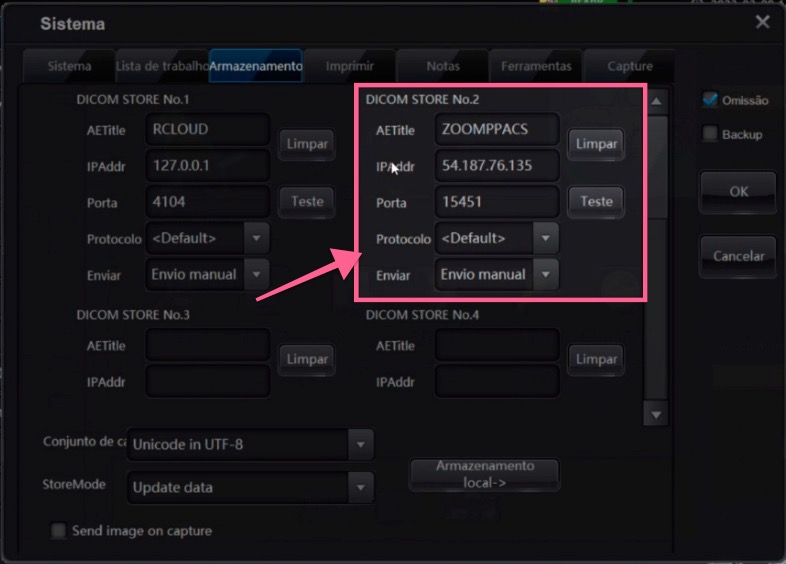
4. Fill in the PACS server details
Find an available slot (e.g. DICOM STORE No.2) and fill in the fields with the information provided by UniRadio:
- AETitle — enter the server AE Title (e.g.
ZOOMPPACS) - IPAddr — enter the server IP address (e.g.
54.187.76.135) - Port — enter the server port (e.g.
15451) - Protocol — keep as
<Default> - Send — select
Manual send
Where to find this information?
Go to PACS Server Settings on the UniRadio platform and enable the PACS Port to view the connection details.
5. Save the settings
Click "OK" to save the PACS server settings.
Part 2: Send an Exam to the PACS
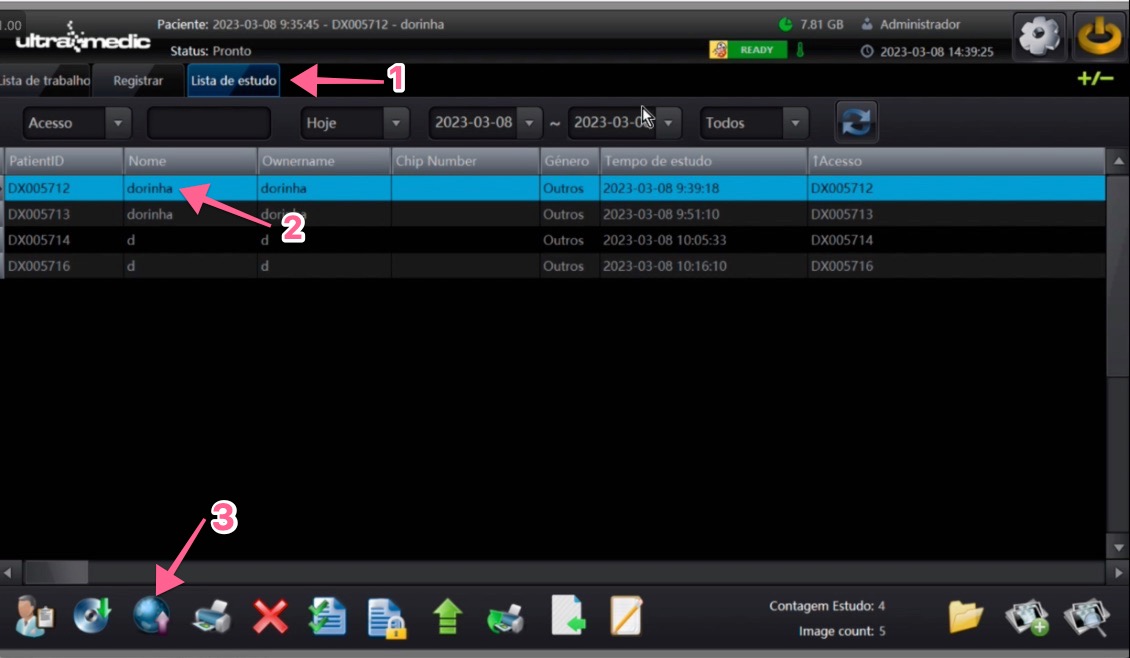
6. Select the exam in the Study List
- Click the "Study List" tab at the top of the screen
- Select the exam you want to send by clicking on it in the list
- Click the DICOM send icon (globe icon) in the bottom toolbar
7. Confirm the destination and send
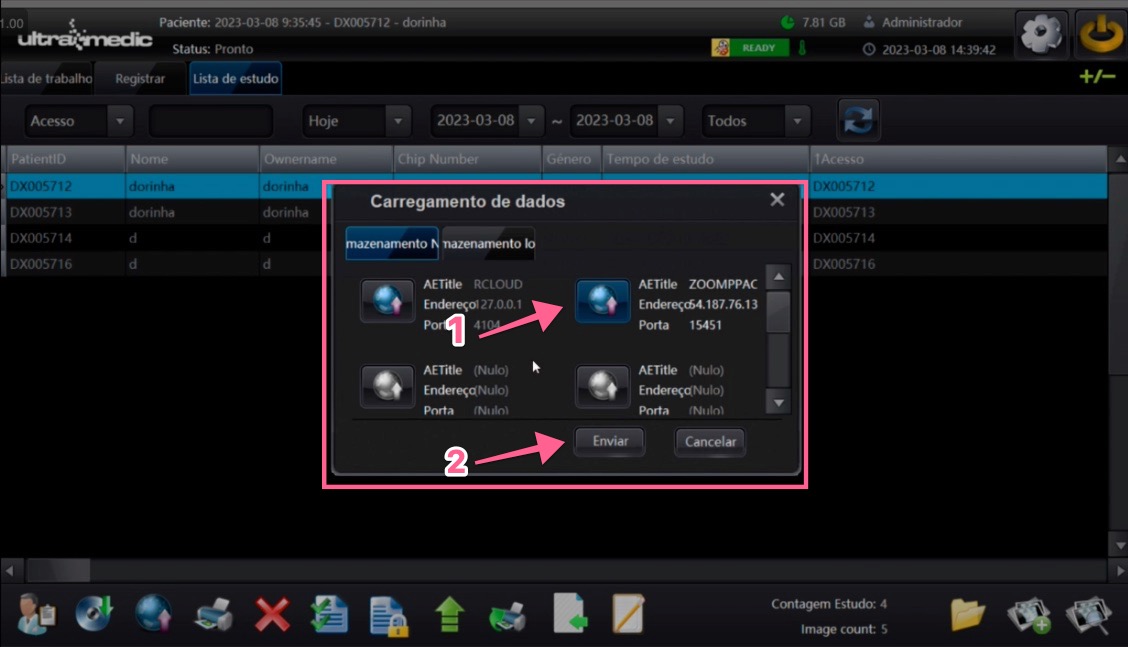
In the "Data Loading" window:
- Select the ZOOMPPACS server as the destination
- Click "Send" to start the exam transfer
The exam will be sent to the UniRadio PACS server and will be available on the platform for reporting.
Need Help?
Check our FAQ or contact support if you run into issues configuring or sending exams through Ultramedic.