
How to Configure ZView to Send Exams to the PACS Server
Learn how to configure the ZView software to connect and send exams directly to the UniRadio cloud PACS server.
Prerequisites
Before you begin, you will need the following information from your UniRadio PACS server:
- AE Title
- Server IP address
- Port
Where to find this information?
Go to PACS Server Settings on the UniRadio platform and enable the PACS Port to view the connection details.
Part 1: Register the PACS Server in ZView
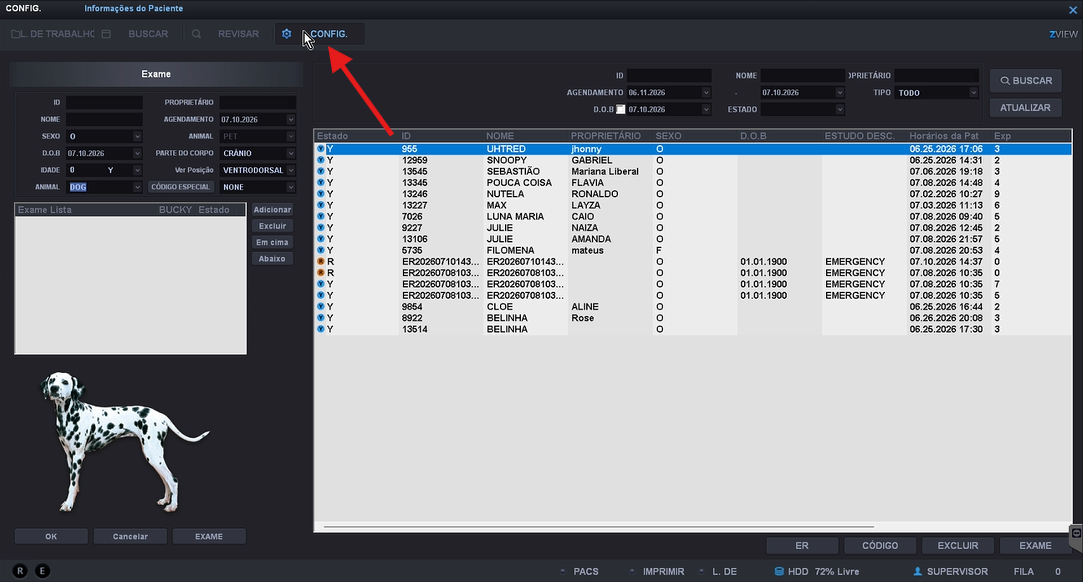
1. Open Settings
On the ZView main screen, click the "CONFIG." button in the top bar to open the system settings.
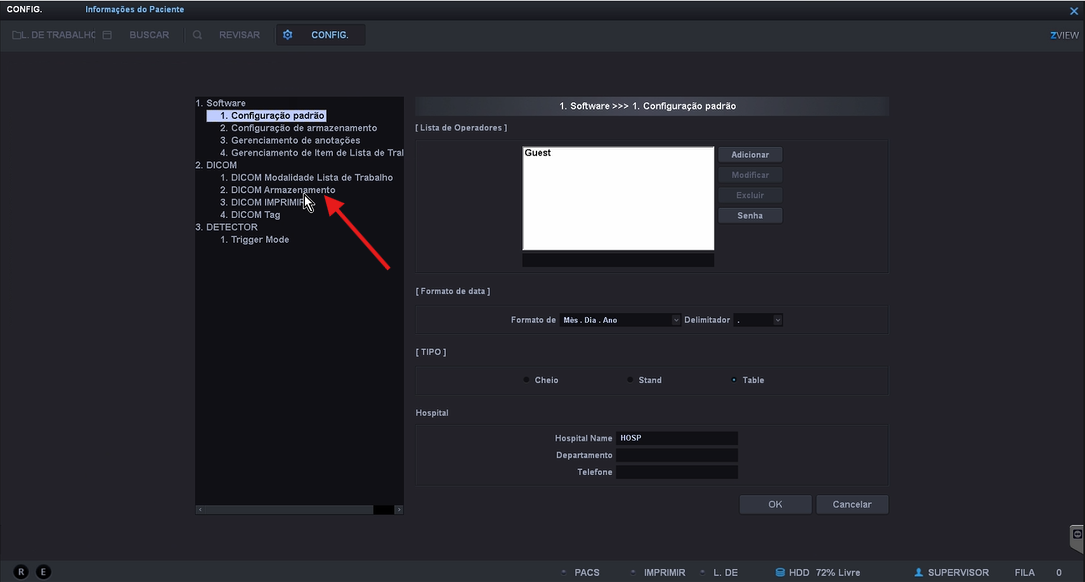
2. Navigate to DICOM Storage
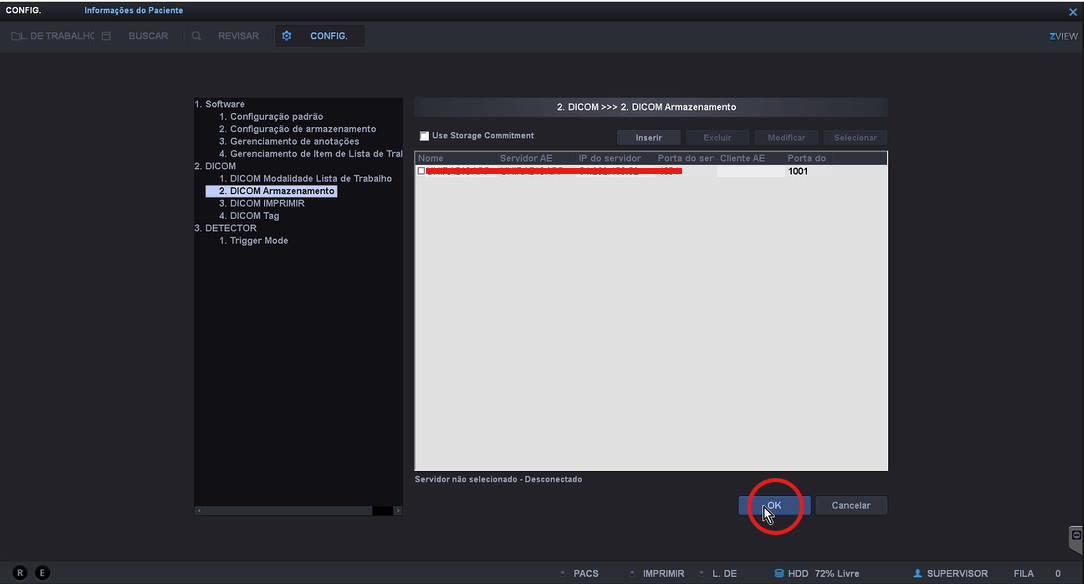
In the settings tree, expand the "2. DICOM" group and click "2. DICOM Armazenamento" to access the destination PACS servers.
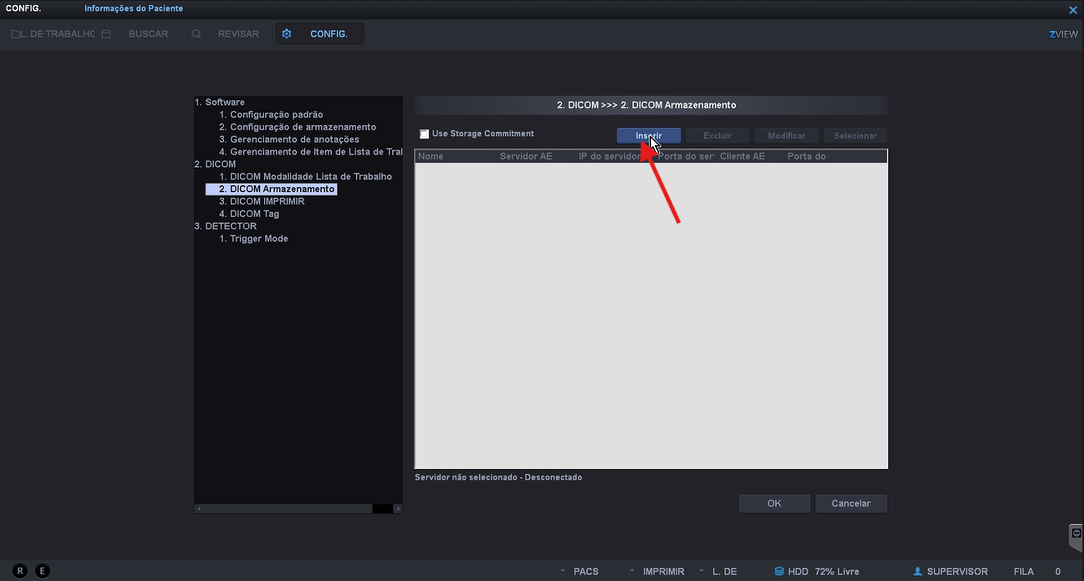
3. Click Insert
On the "DICOM Armazenamento" screen, click "Inserir" to register a new PACS server.
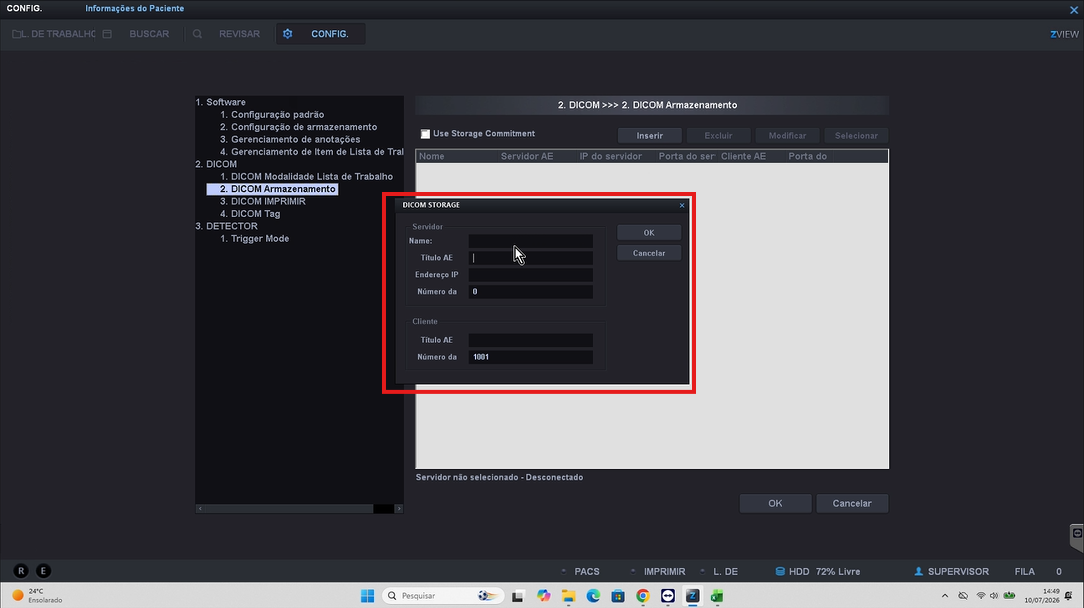
4. Fill in the connection details
In the "DICOM STORAGE" window, fill in the fields with the information provided by UniRadio:
- Name — an identifying name (e.g.
UNIRADIO) - Título AE — enter the server AE Title (e.g.
UNIRADIOAPP) - Endereço IP — enter the server IP address
- Número da Porta — enter the server port
Where to find this information?
Go to PACS Server Settings on the UniRadio platform and enable the PACS Port to view the connection details.
There is no need to change the fields in the Cliente section. When done, click "OK" to save.
5. Confirm the registration
The registered server will appear in the list on the "DICOM Armazenamento" screen. Click "OK" to save and close the settings.
Part 2: Send an Exam to the PACS
6. Open Search
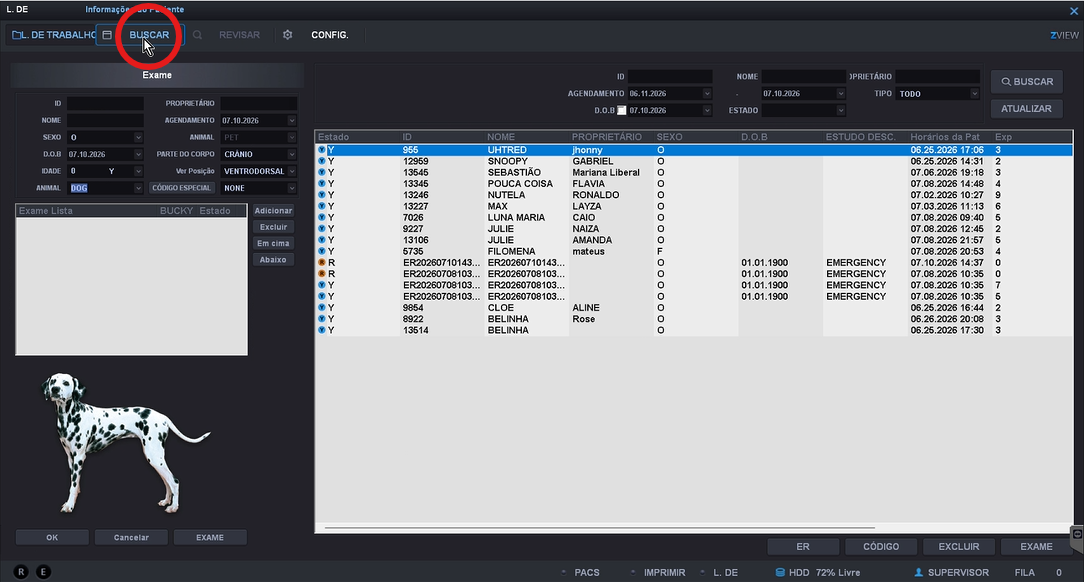
On the ZView main screen, click the "BUSCAR" button in the top bar to access the list of completed exams.
7. Select the exam
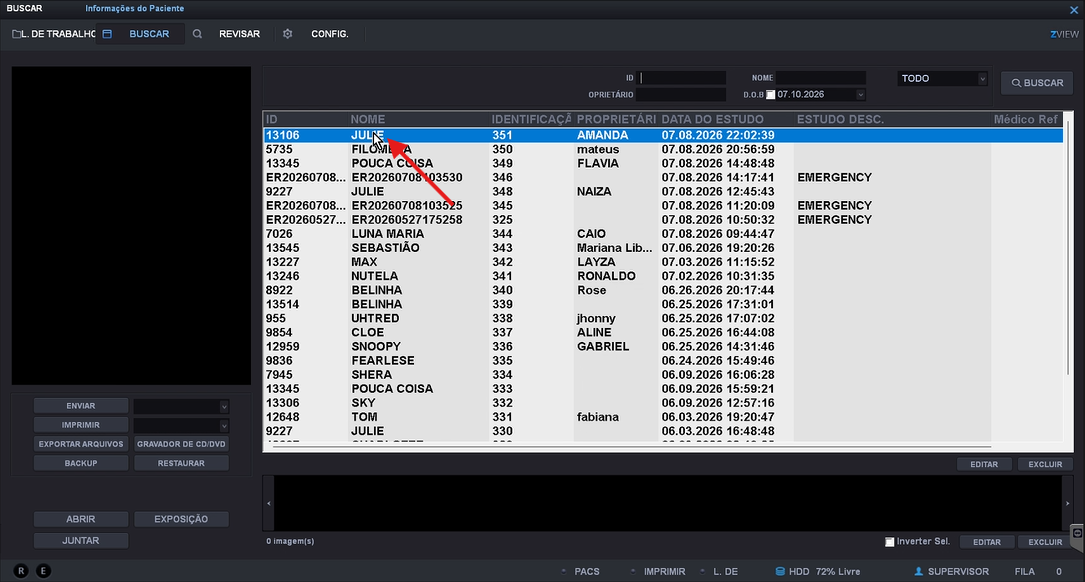
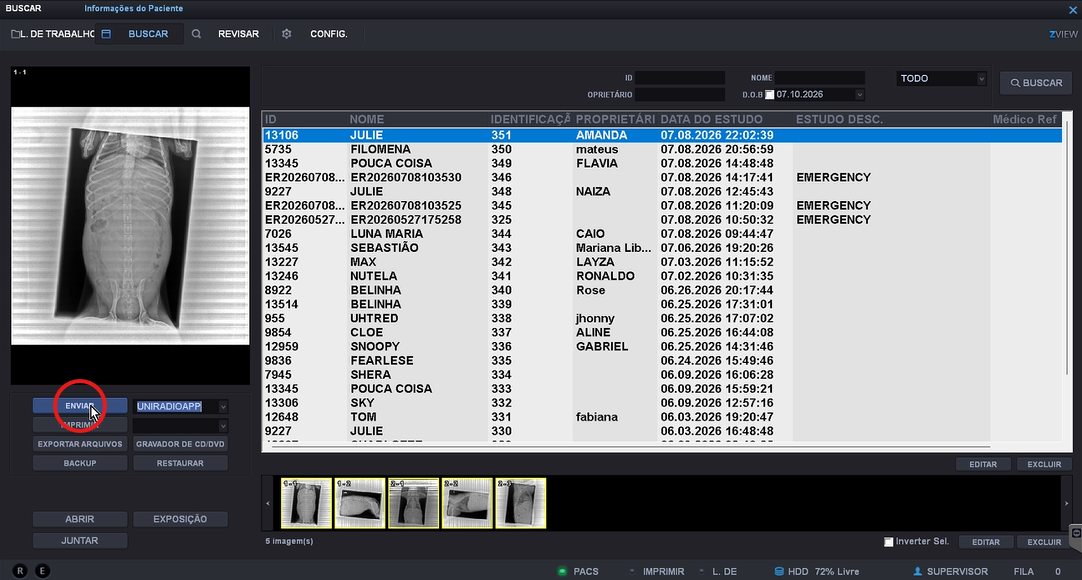
In the study list, click the exam you want to send to the PACS server to select it.
8. Select the destination server
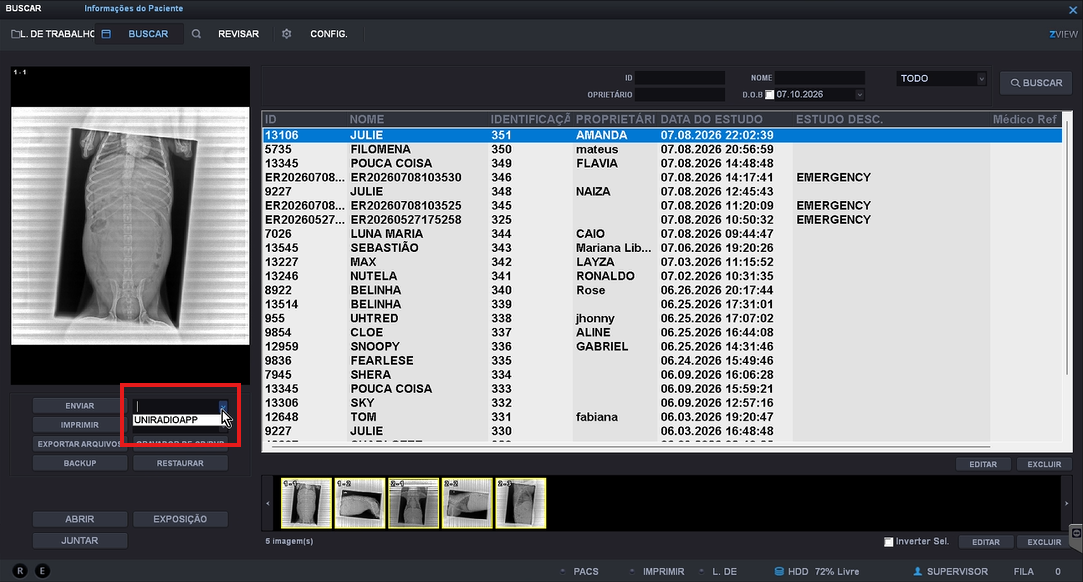
In the bottom left panel, select "UNIRADIOAPP" from the dropdown next to the "ENVIAR" button.
9. Click Send
With the exam and server selected, click the "ENVIAR" button to transfer the images to the UniRadio PACS server.
10. Confirm the send
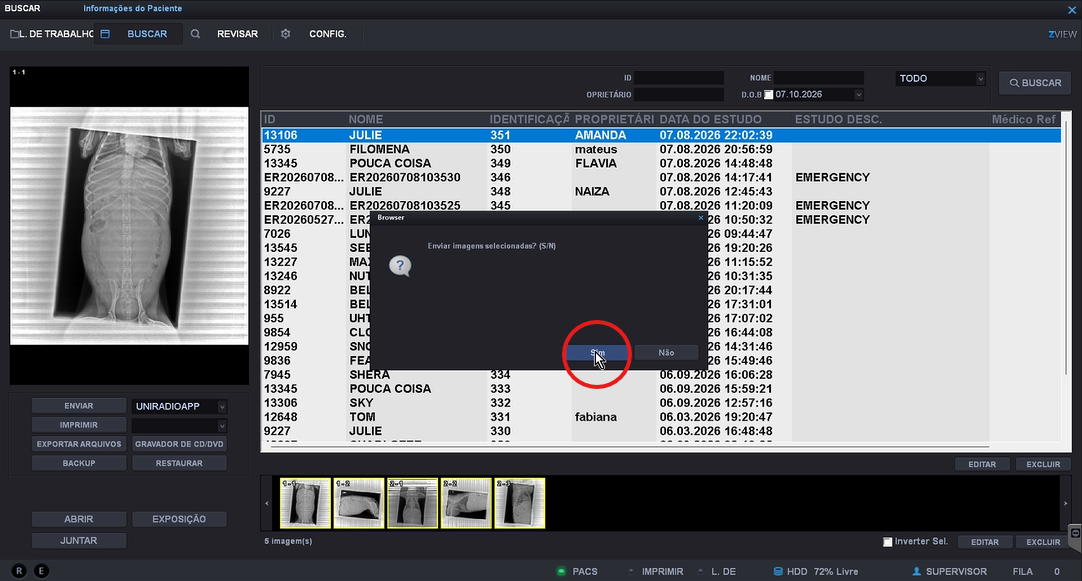
A confirmation window will appear asking "Enviar imagens selecionadas? (S/N)" ("Send selected images?"). Click "Sim" ("Yes") to confirm the send.
The exam will be available on the platform for reporting once the transfer is complete.
Need Help?
Check our FAQ or contact support if you run into issues configuring or sending exams through ZView.