
How to Filter Reports
Learn how to use the search filters to find specific reports on the UniRadio platform.
Filters by status
Filters are applied within the selected status. That is, the search does not scan all statuses simultaneously — first select the desired status (e.g., "Finalized") before applying the filters.
Step by Step
1. Access the UniRadio platform
Navigate to app.uniradio.vet.br/exams
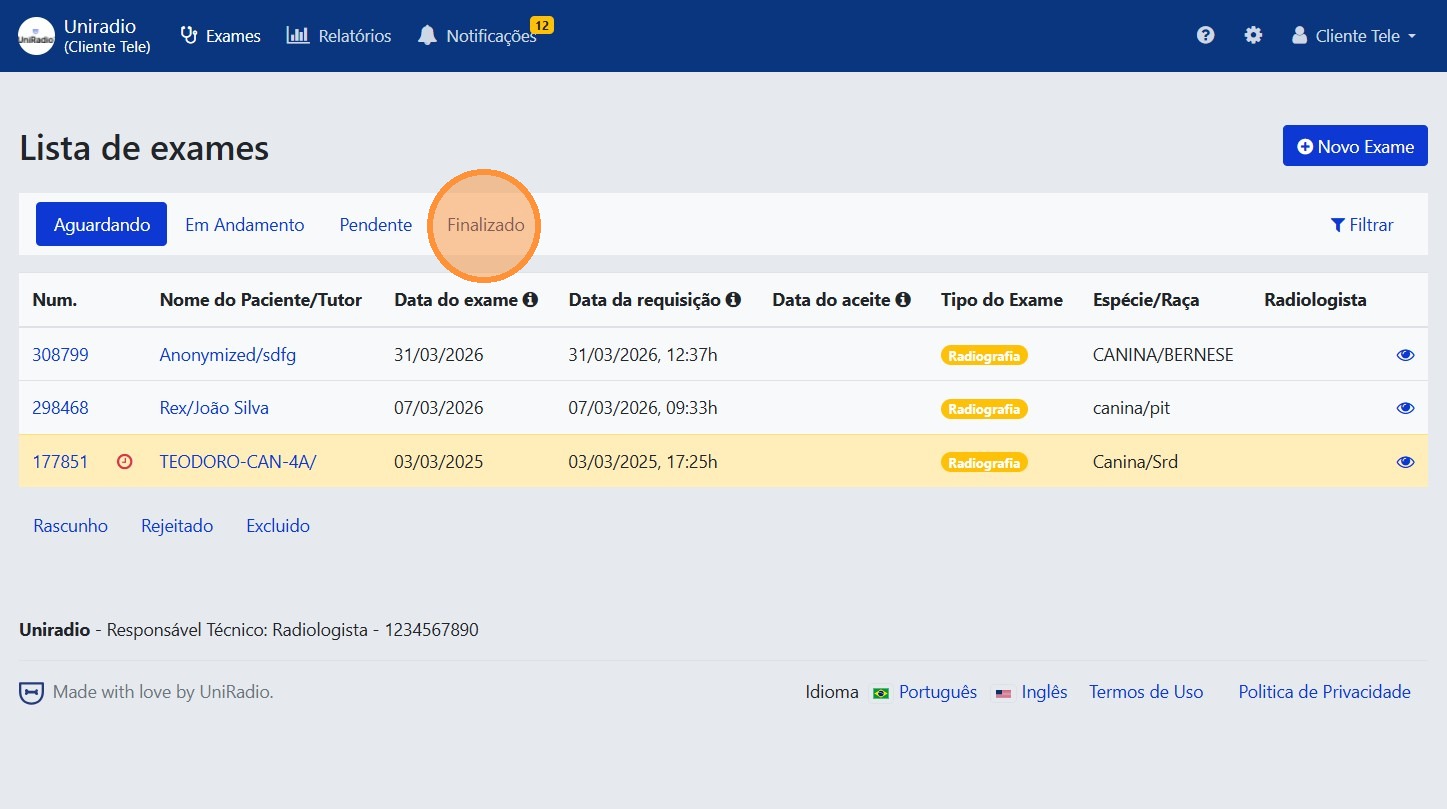
2. Access the reports tab
Click the "Finalized" status to view the list of reports.
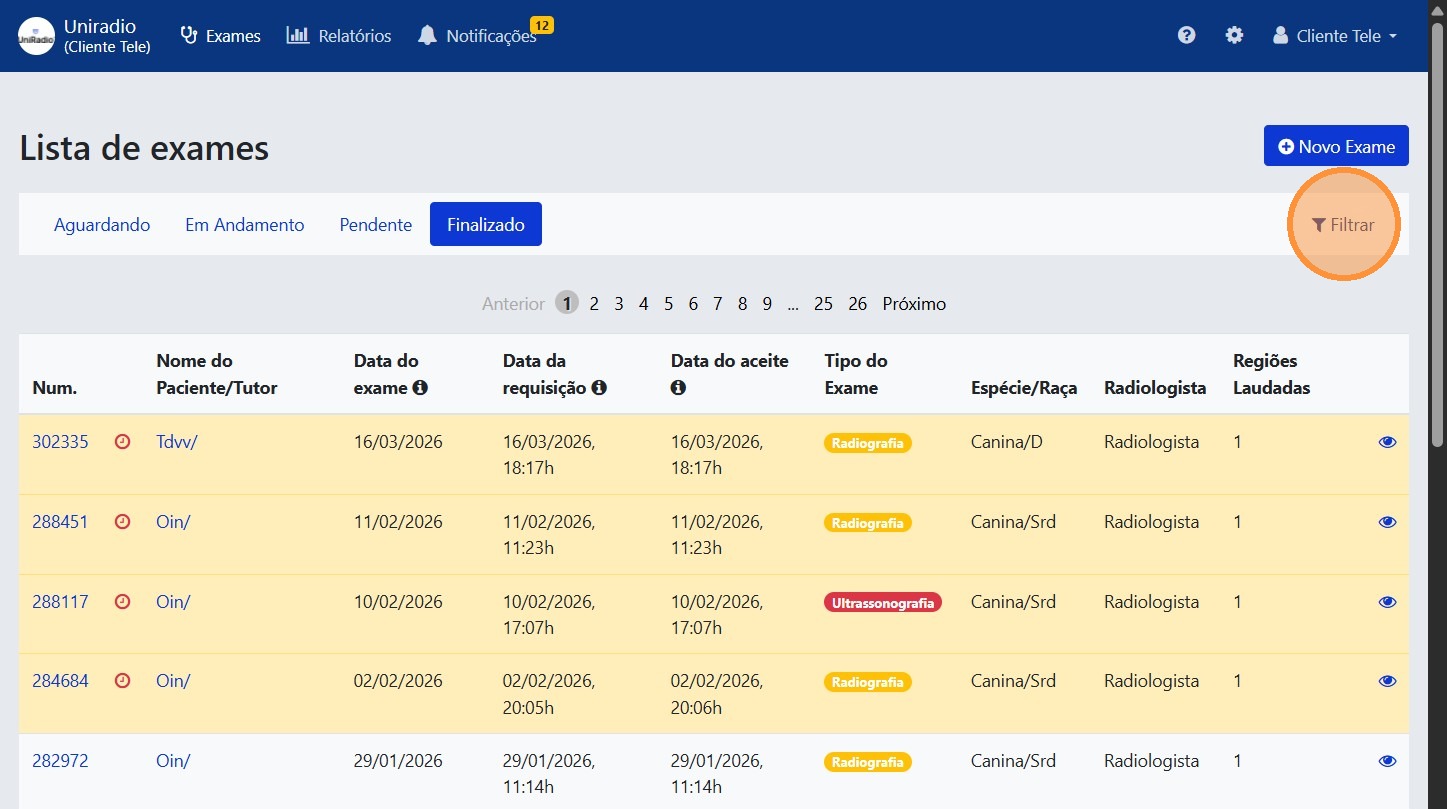
3. Click the "Filter" button
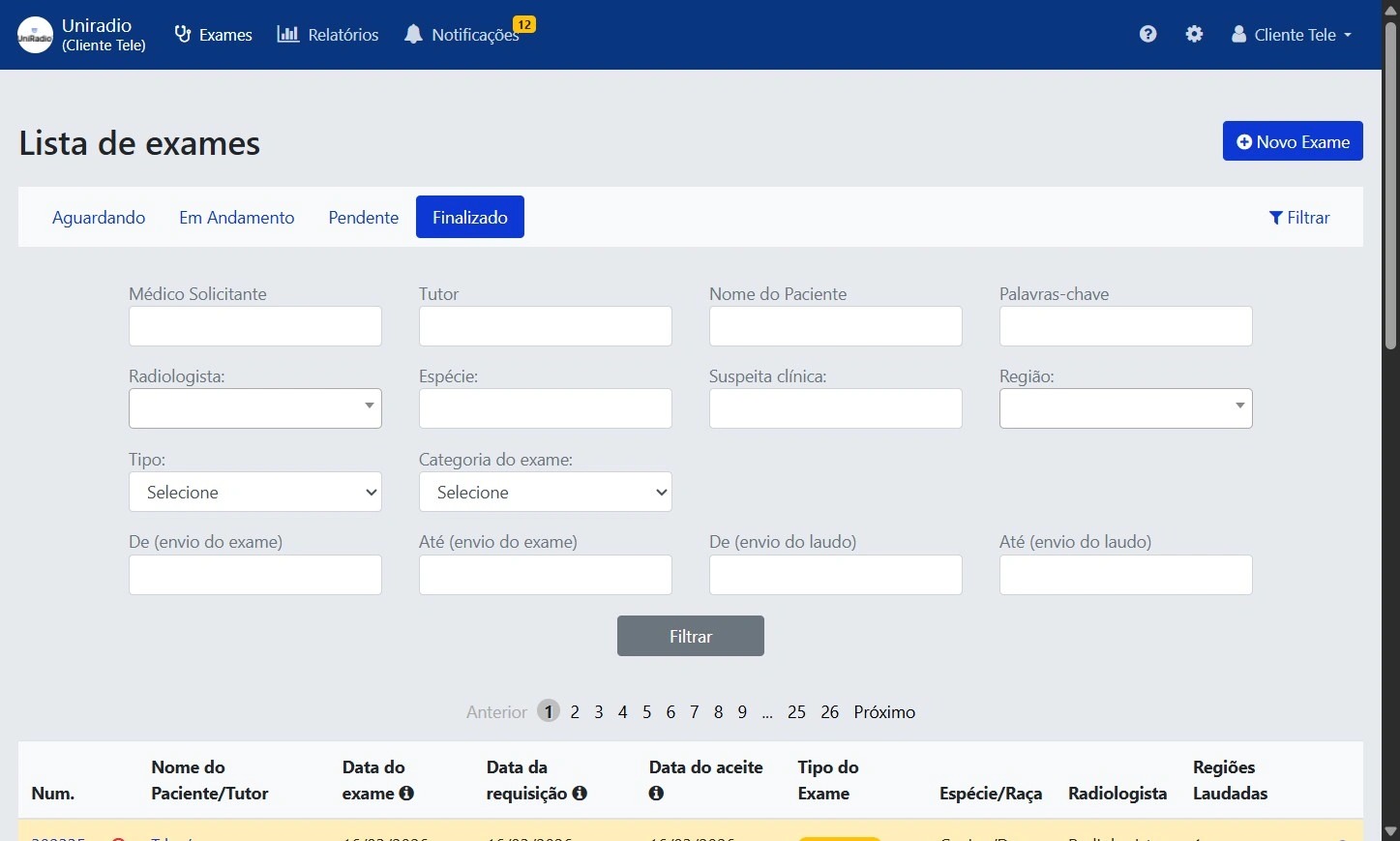
4. Fill in the desired filter fields
Use one or more fields to refine the results. It is not necessary to fill in all of them.
Available fields
- Requesting Veterinarian — name of the veterinarian who requested the exam.
- Owner — name of the animal's owner.
- Patient Name — name of the animal.
- Keywords — terms present in the report or exam.
- Radiologist — name of the radiologist responsible for the report.
- Species — species of the animal (e.g., Canine, Feline).
- Clinical suspicion — diagnostic hypothesis provided when submitting the exam.
- Region — anatomical region examined (e.g., Abdomen, Thorax).
- Type — exam modality (e.g., Radiography, Ultrasound).
- Exam category — classification assigned to the exam.
- From / To (exam submitted) — date range when the exam was submitted to the platform.
- From / To (report submitted) — date range when the report was issued.
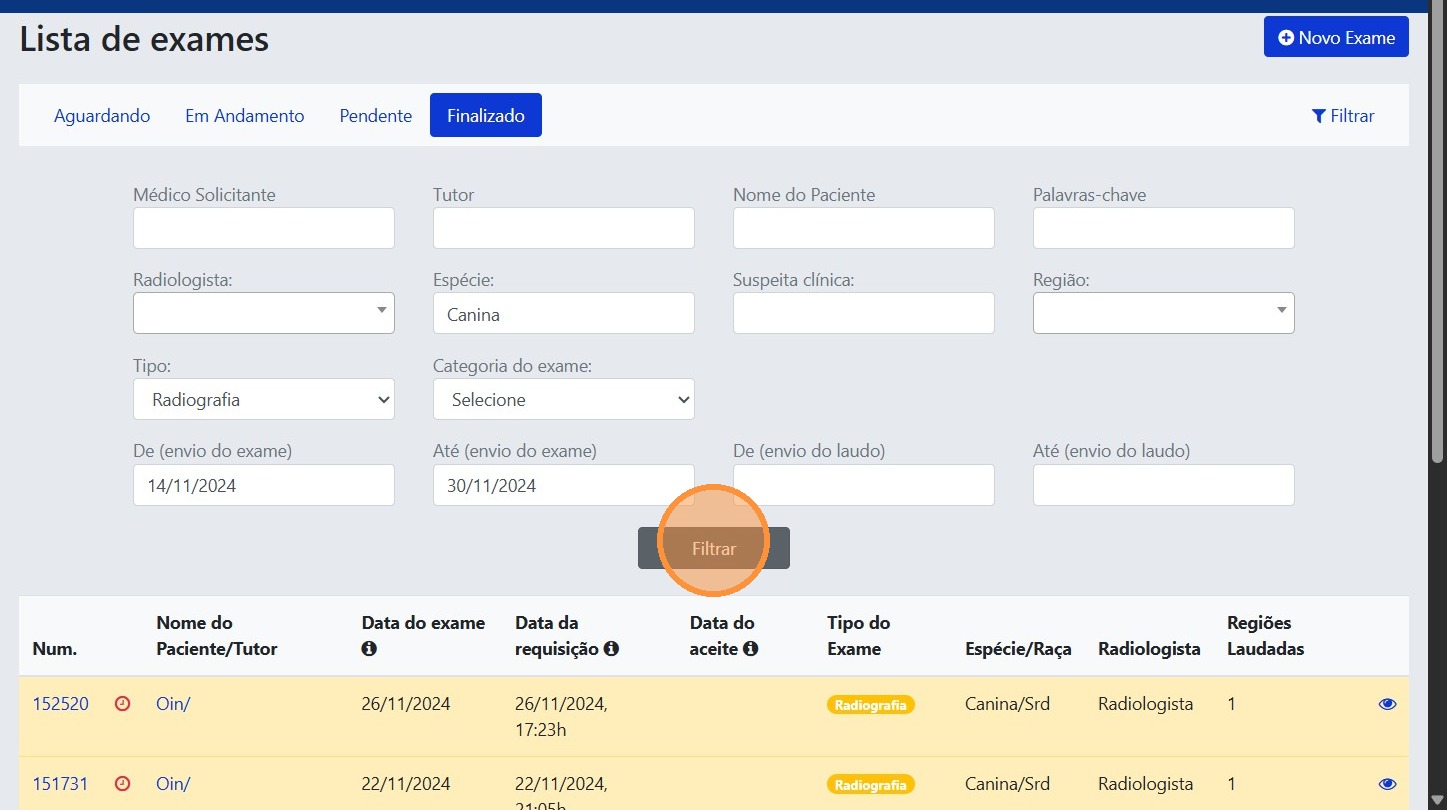
5. Click "Filter" to apply
Need Help?
Check our FAQ or contact your radiologist if you encounter any issues.