
How to Edit a User's Permissions in the Account
Learn how to update the role and access permissions of a user linked to your account on the UniRadio platform.
Step by Step
1. Access the UniRadio platform
Navigate to app.uniradio.vet.br/exams
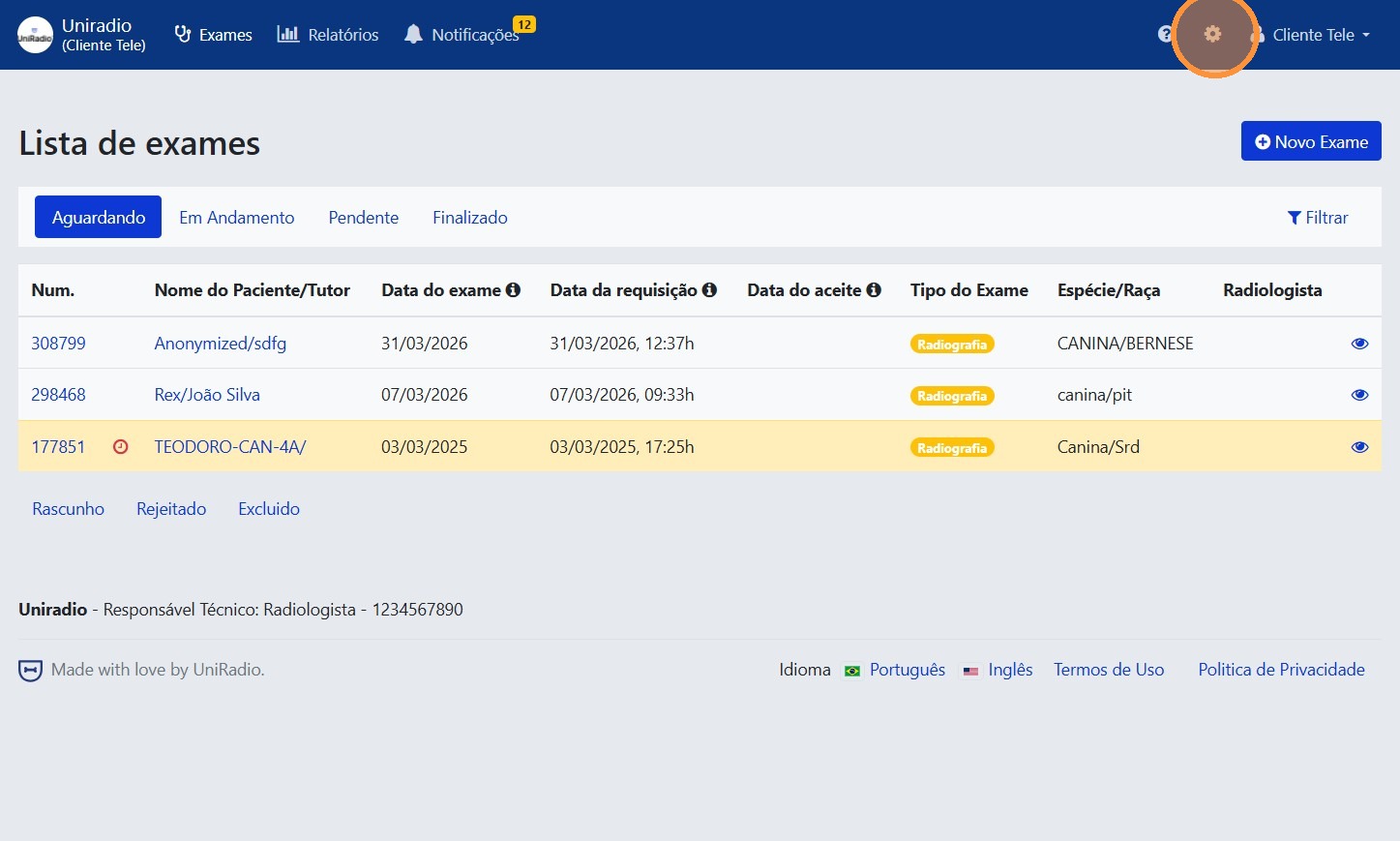
2. Access the account settings
Click the gear icon in the top-right corner to access the account settings.
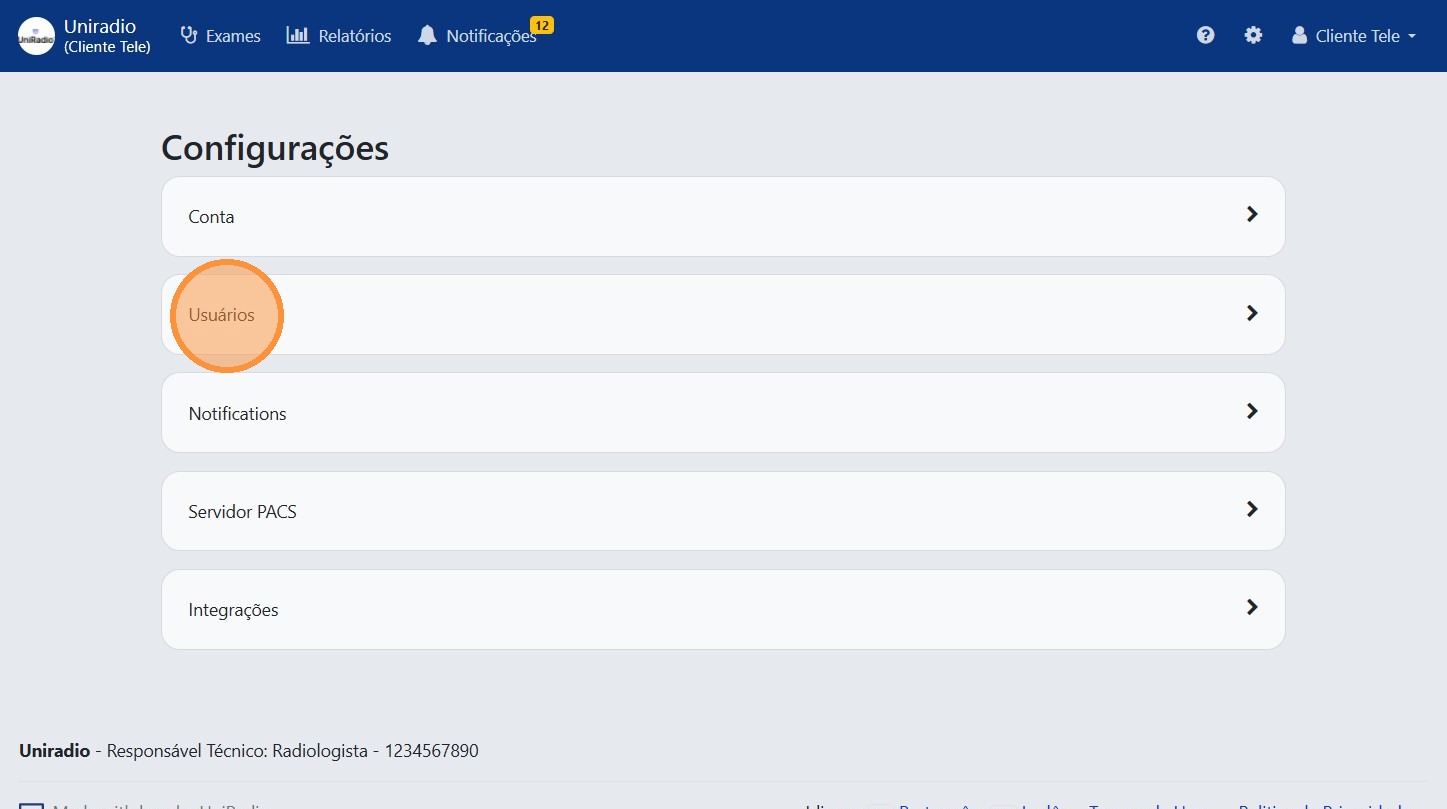
3. Click "Users"
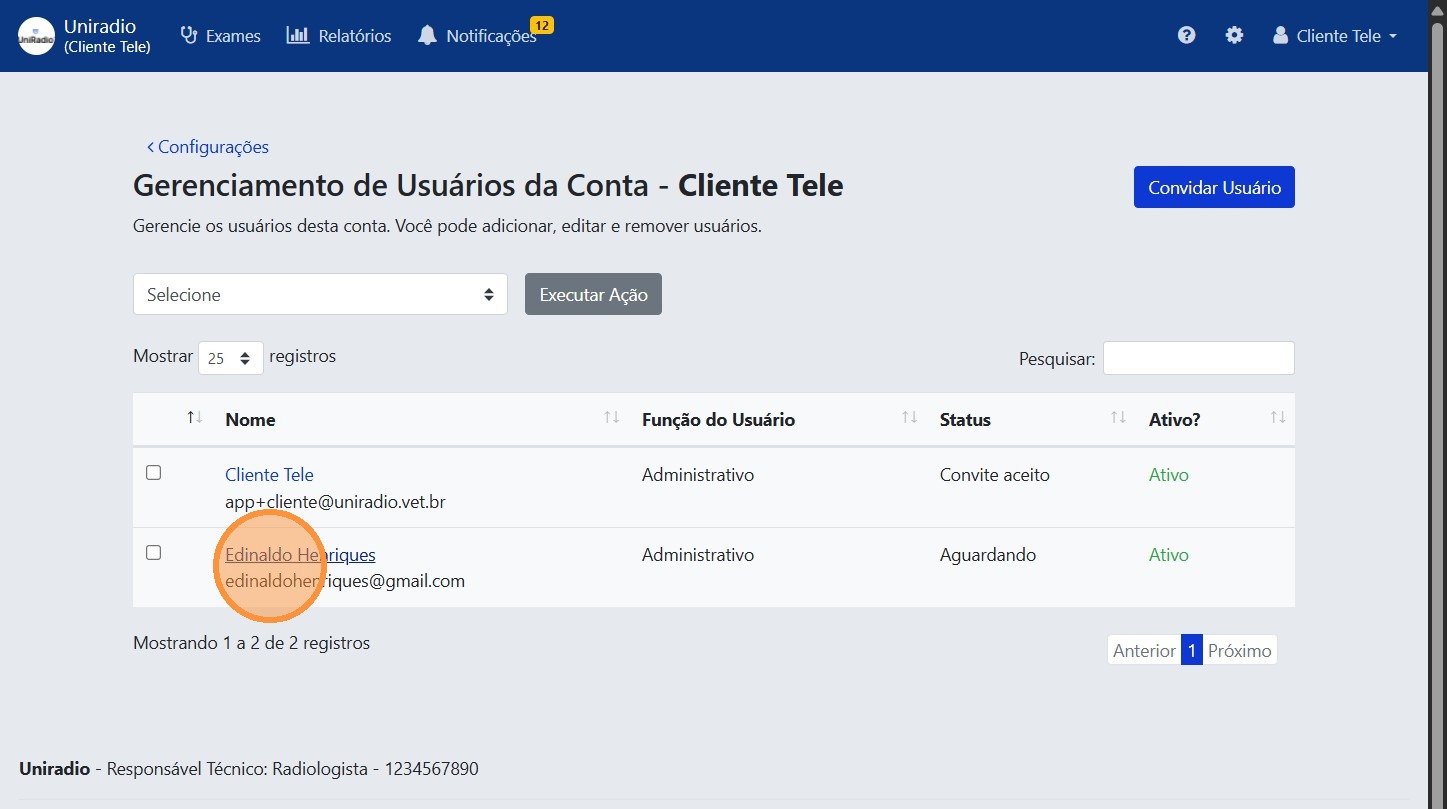
4. Select the user you want to edit
Click on the user in the list.
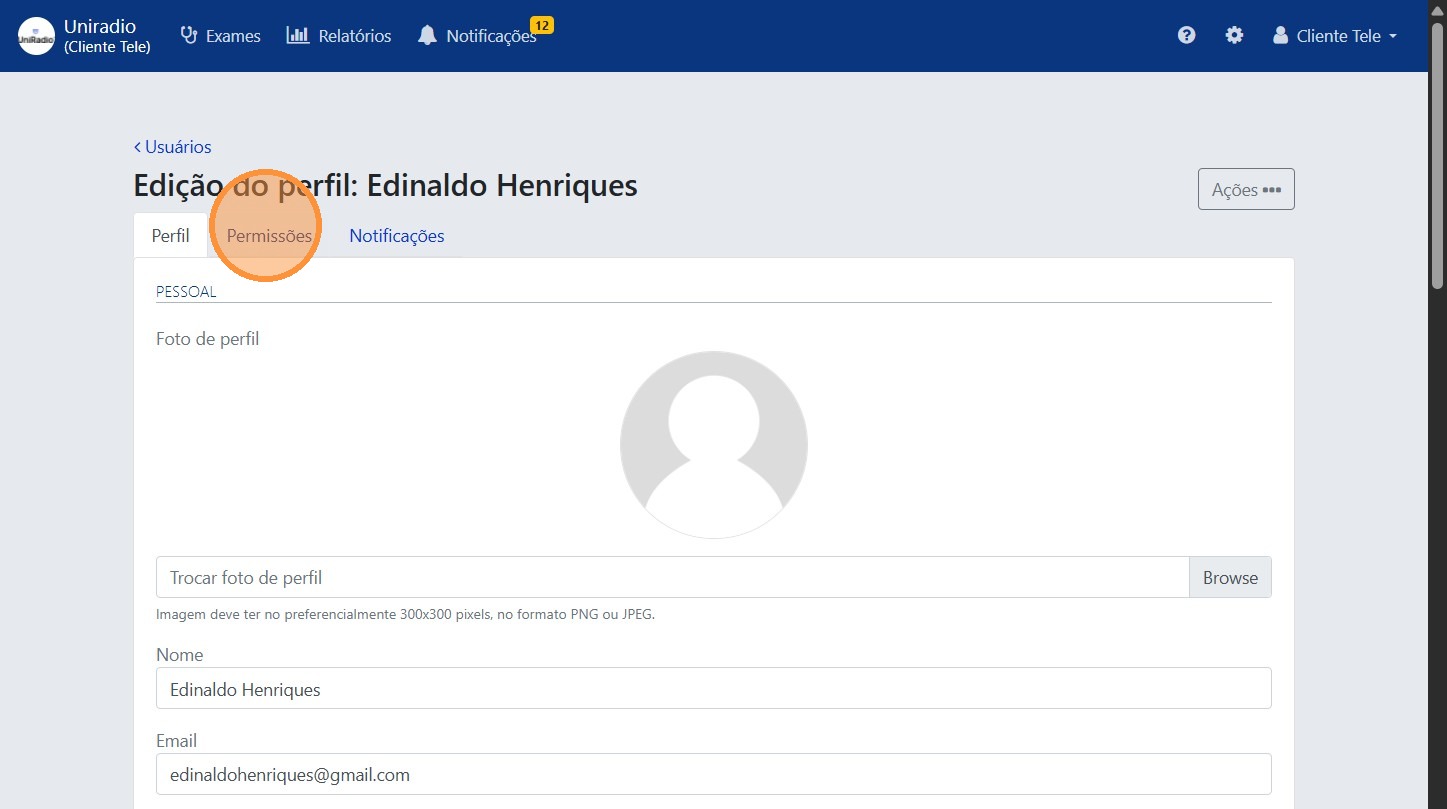
5. Click "Permissions"
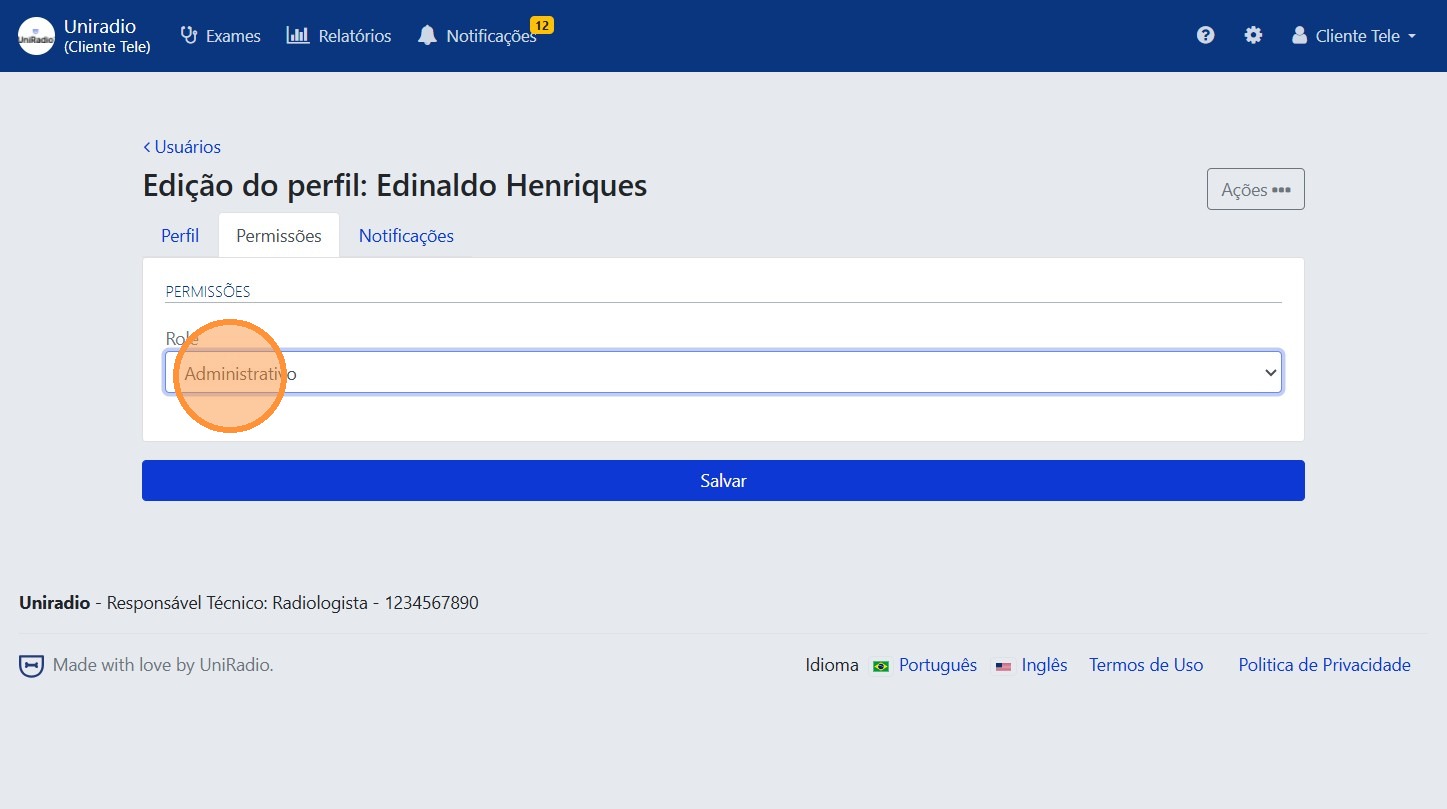
6. Select the user's role
Choose between Administrator or Member from the dropdown menu.
Available roles
- Administrator: has full access to the account, and can manage users, exams, and settings.
- Member: restricted access. When selecting this role, you can define individually what permissions the user will have within the platform.
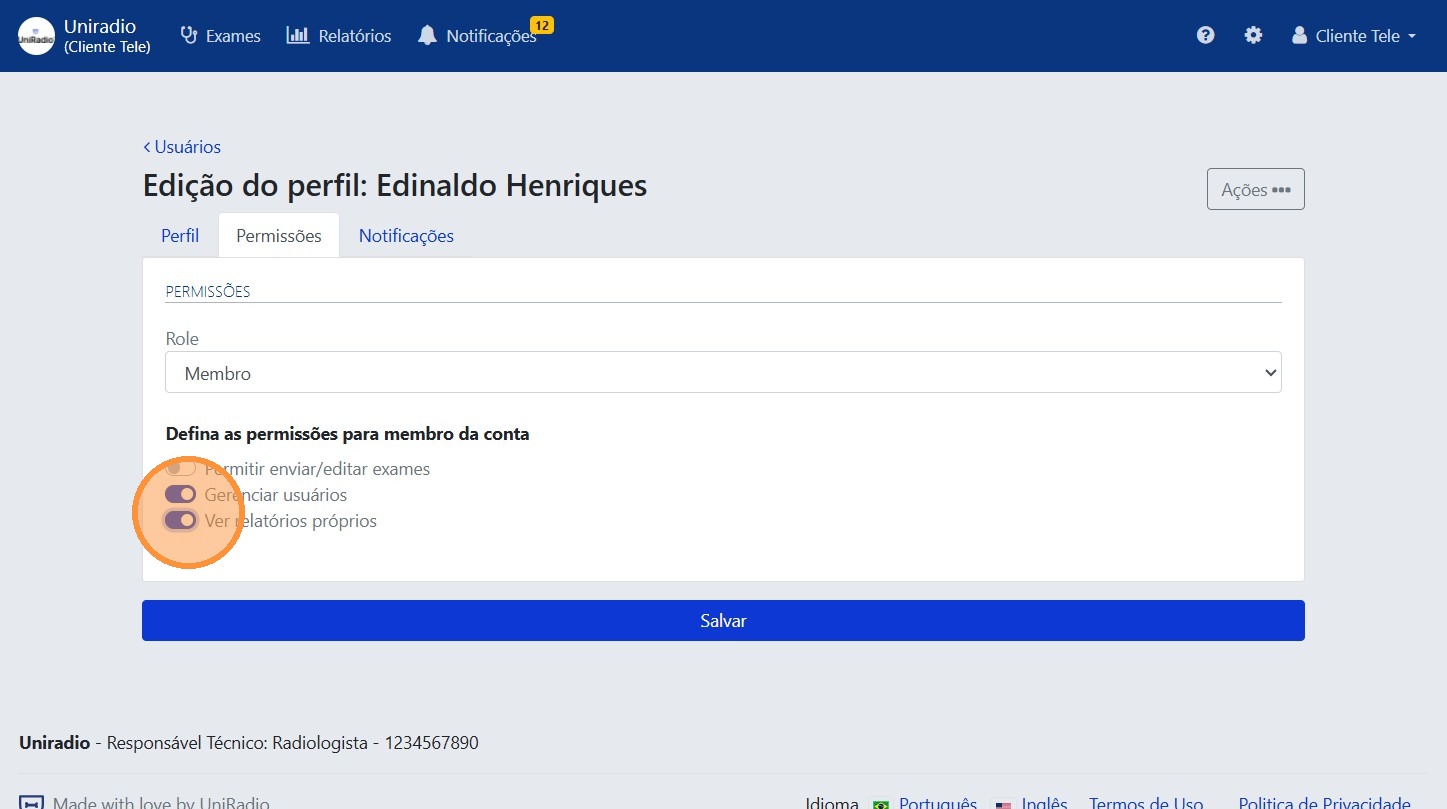
7. Select the User's permissions in the Account
If you chose the Member role, check the permissions you want to grant to the user.
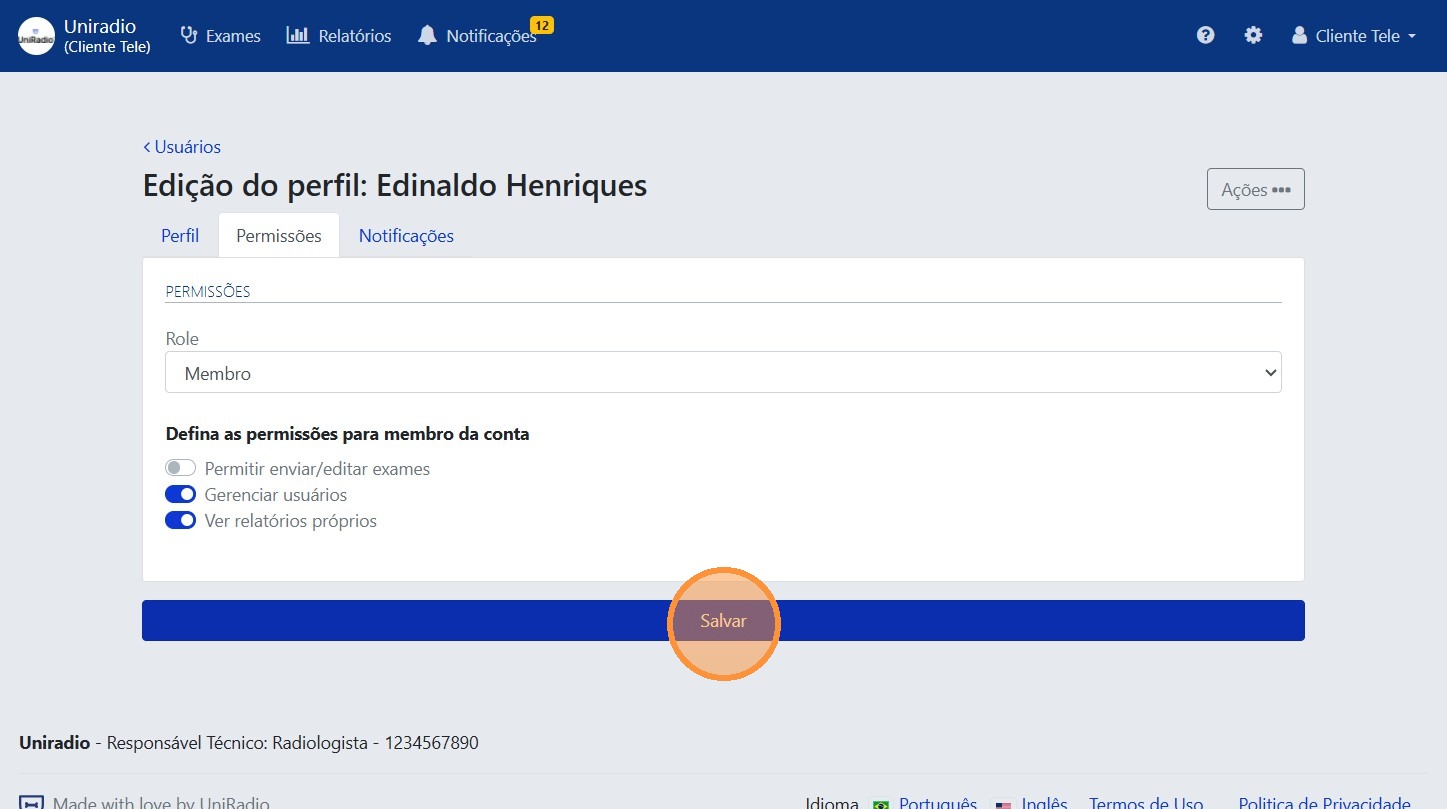
8. Click "Save"
Need Help?
Check our FAQ or contact your radiologist if you encounter any issues.