
How to Edit Permissions for a Client Account User
Learn how to configure the access permissions of a user linked to a client account on the UniRadio platform.
Step by Step
1. Access the UniRadio platform
Sign in to your account and go to app.uniradio.vet.br/exams
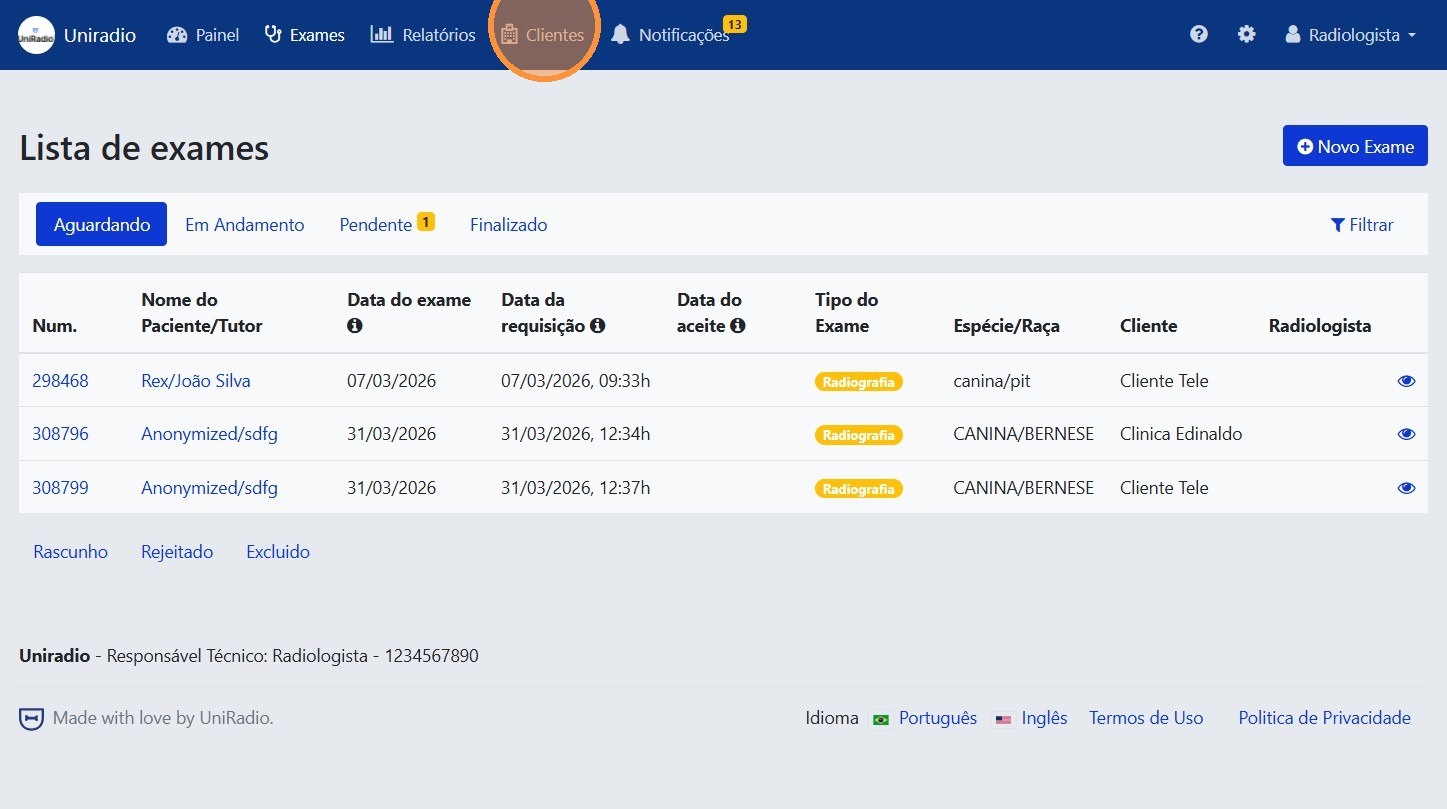
2. Access "Clients"
In the side menu, click on "Clients" to view the list of registered clients.
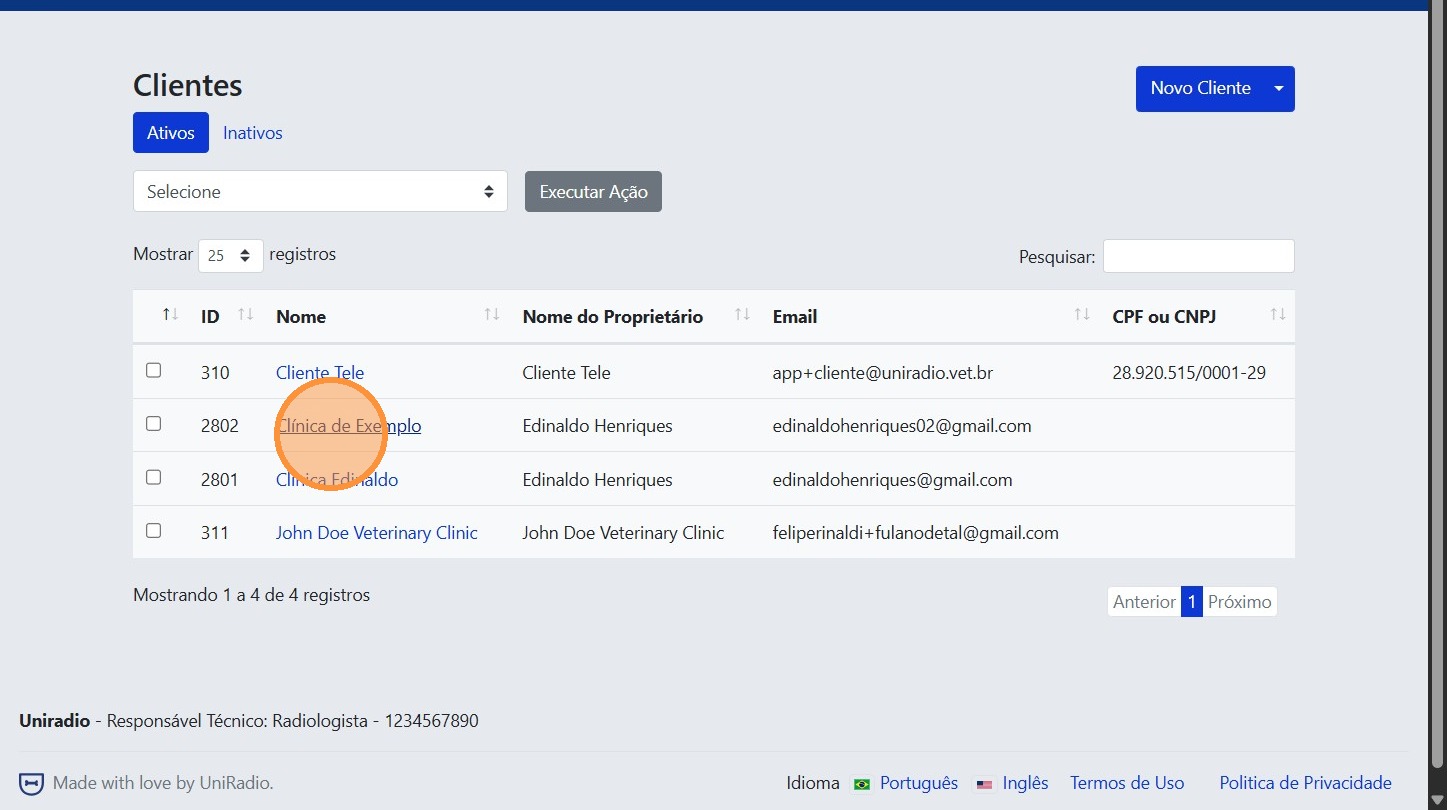
3. Select the clinic
Click on the clinic to open its management page.
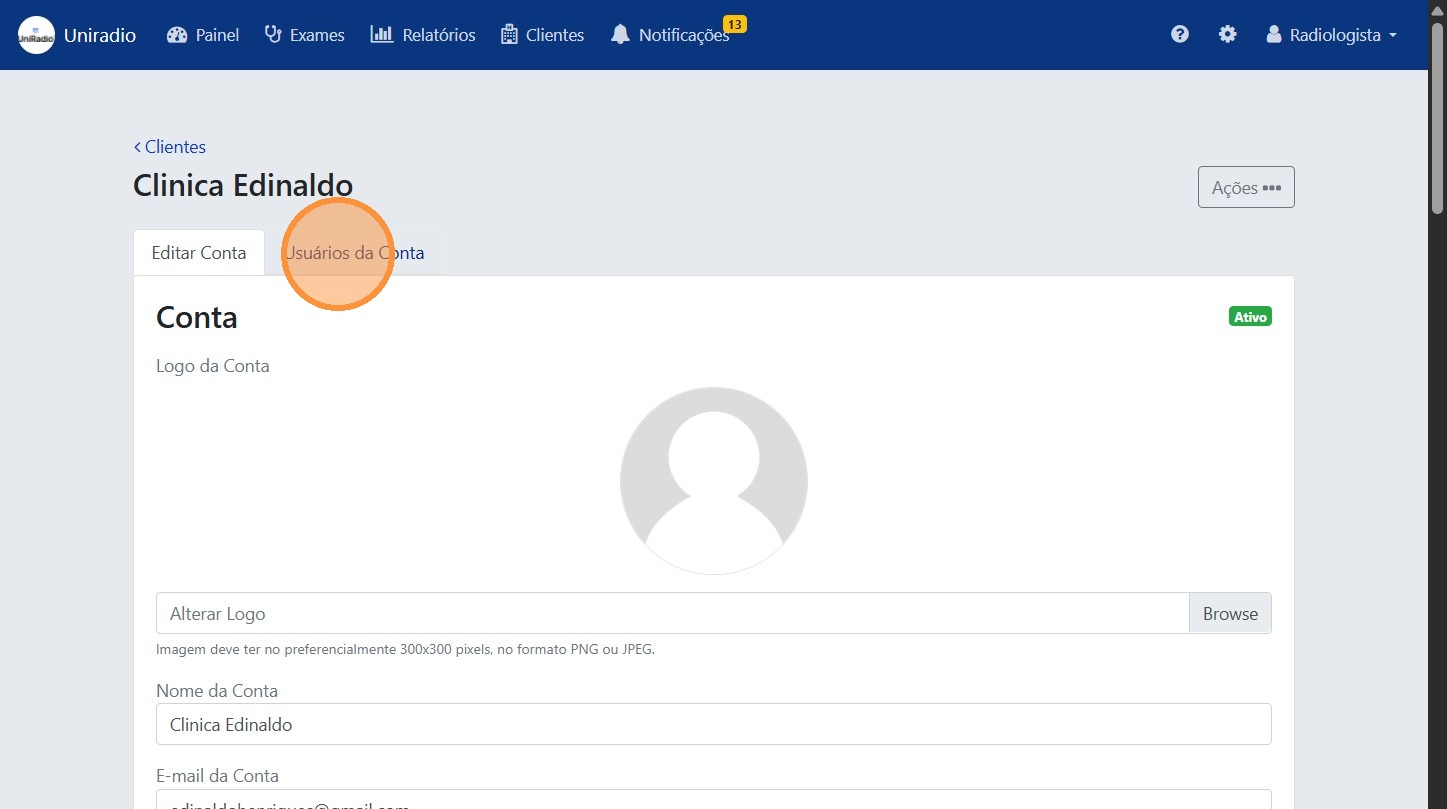
4. Access "Account Users"
Inside the client profile, click on "Account Users" to view the users linked to it.
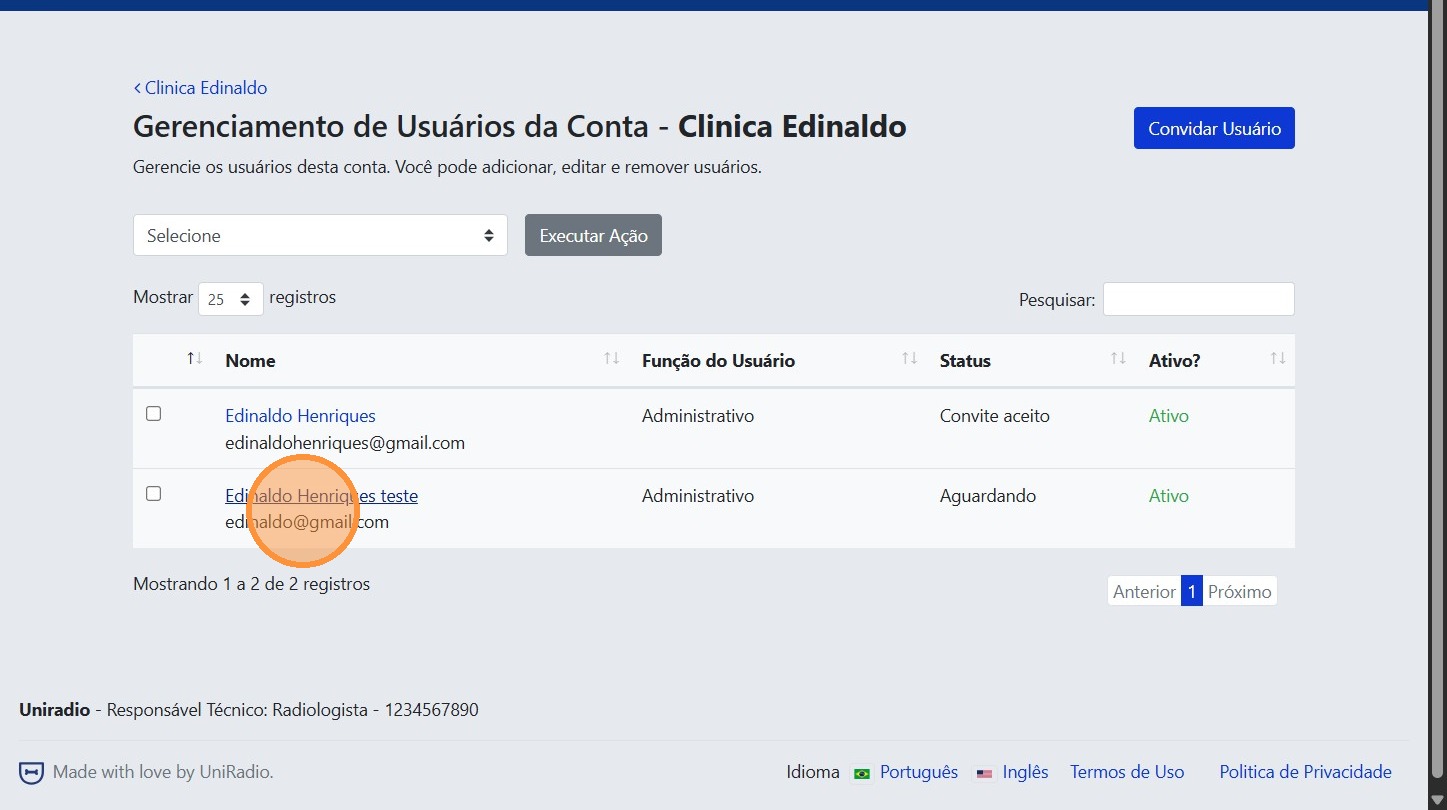
5. Select the user
Click on the name of the user whose permissions you want to edit.
6. Click on "Permissions"
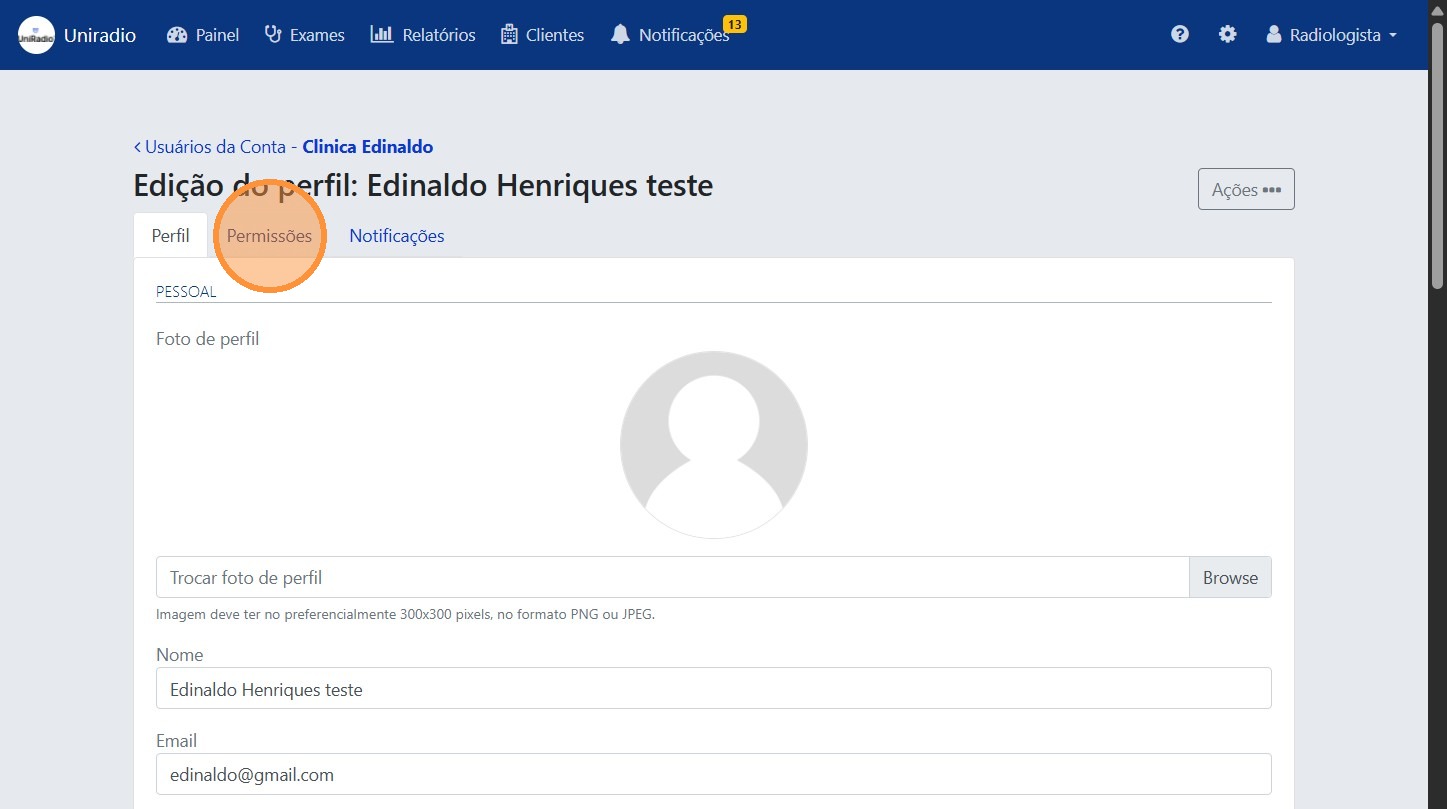
On the user page, click the "Permissions" tab to access the access settings.
7. Select the user role
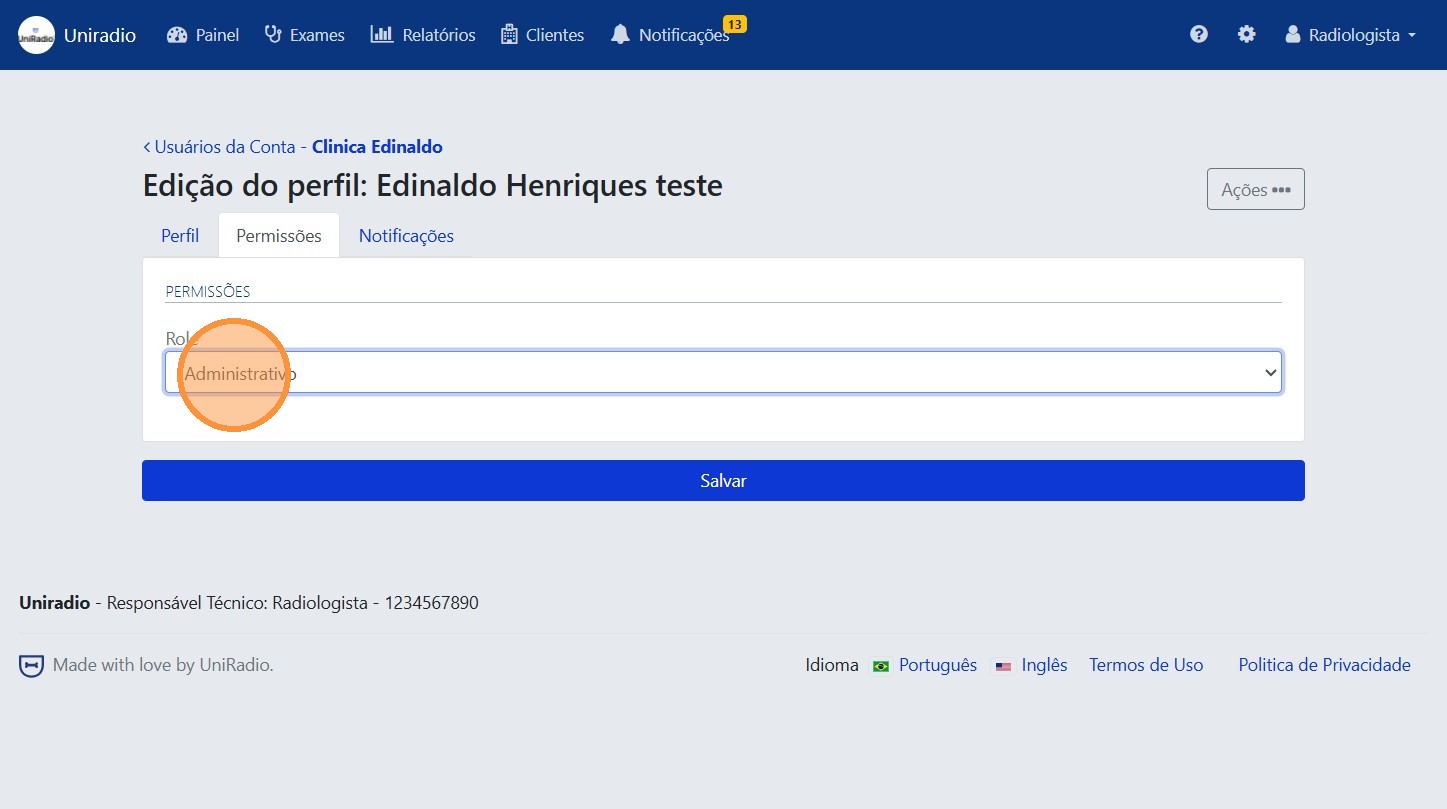
Click the dropdown to choose the user role: Administrative (full access) or Member (configurable access).
8. Configure permissions (if Member)
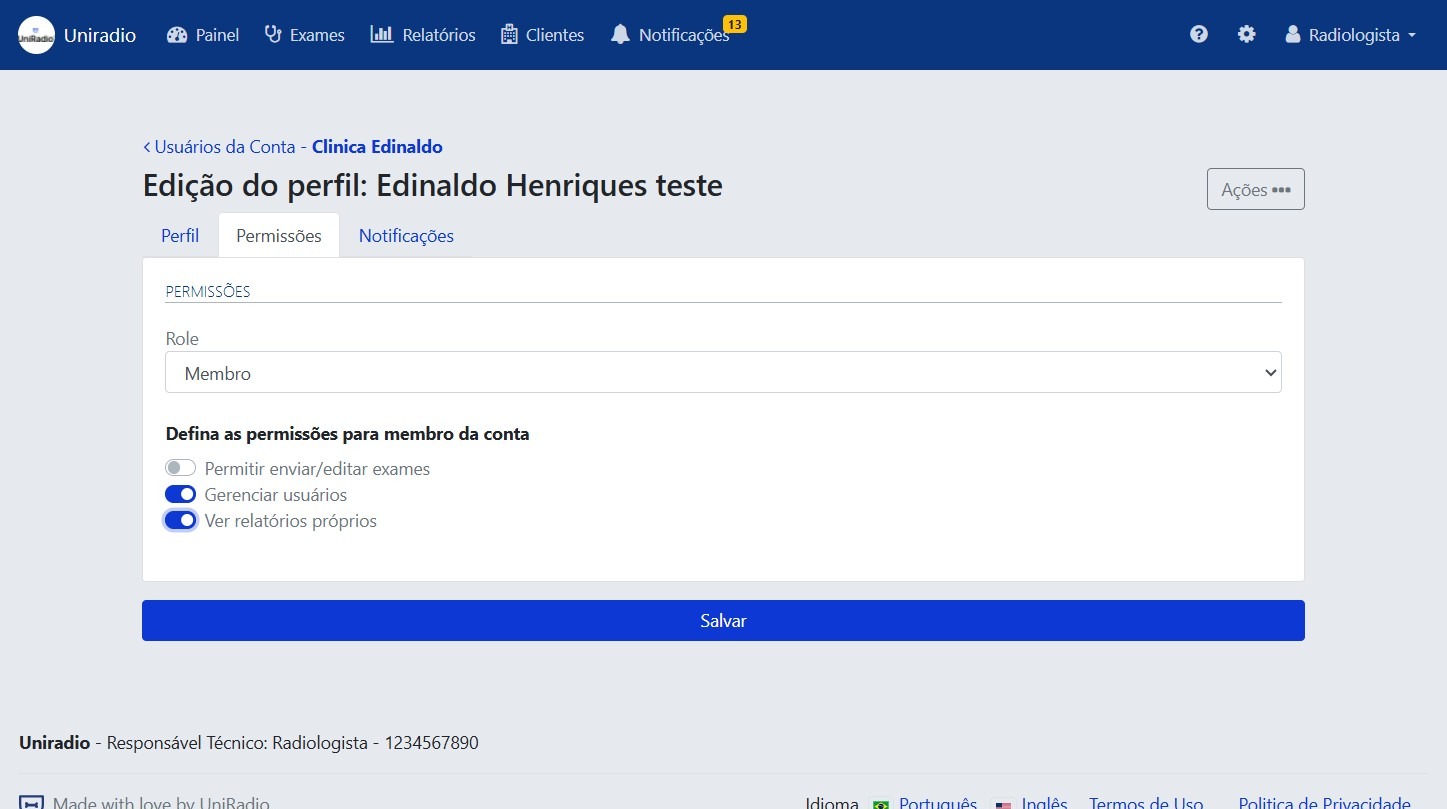
If the selected role is Member, check the specific permissions the user should have.
9. Click "Save"
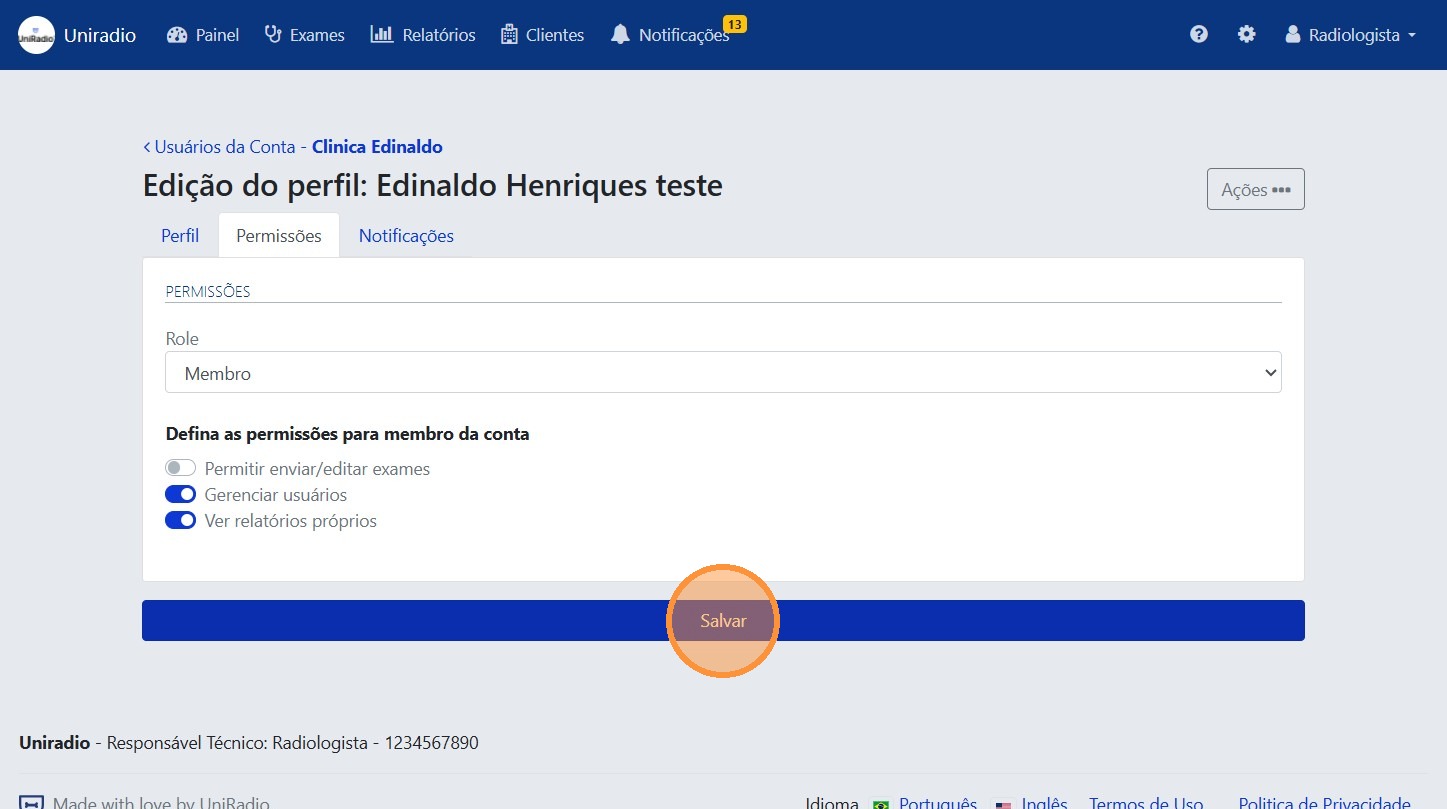
After configuring the permissions, click "Save" to confirm the changes.
Need Help?
Check our FAQ or contact support if you encounter any issues editing user permissions.