
How to Bulk Deactivate Users
Learn how to deactivate access for multiple clinic users at once on the UniRadio platform.
Step by Step
1. Access the UniRadio platform
Sign in to your account and go to app.uniradio.vet.br/exams
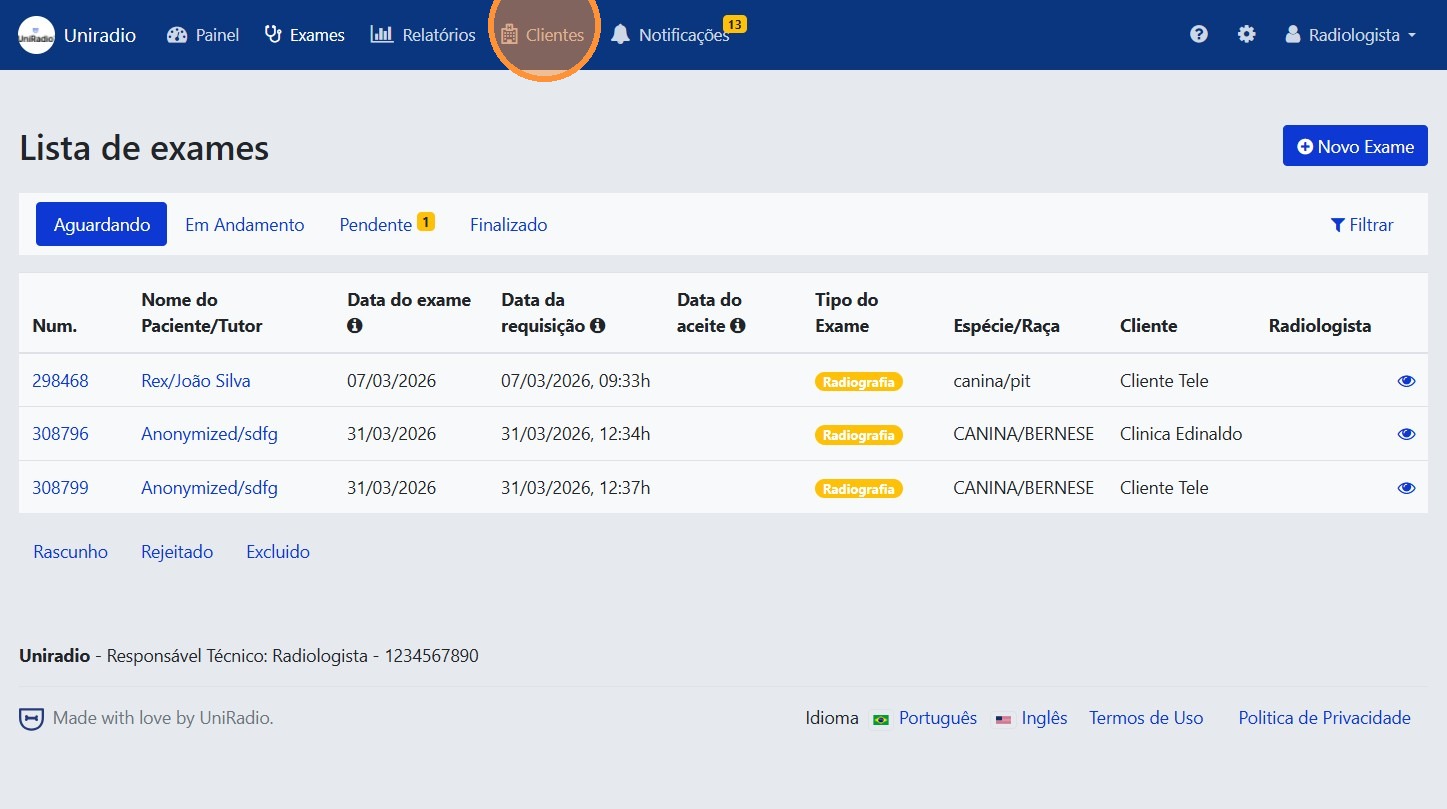
2. Access the client list
In the side menu, click on "Clients" to view the registered clinics.
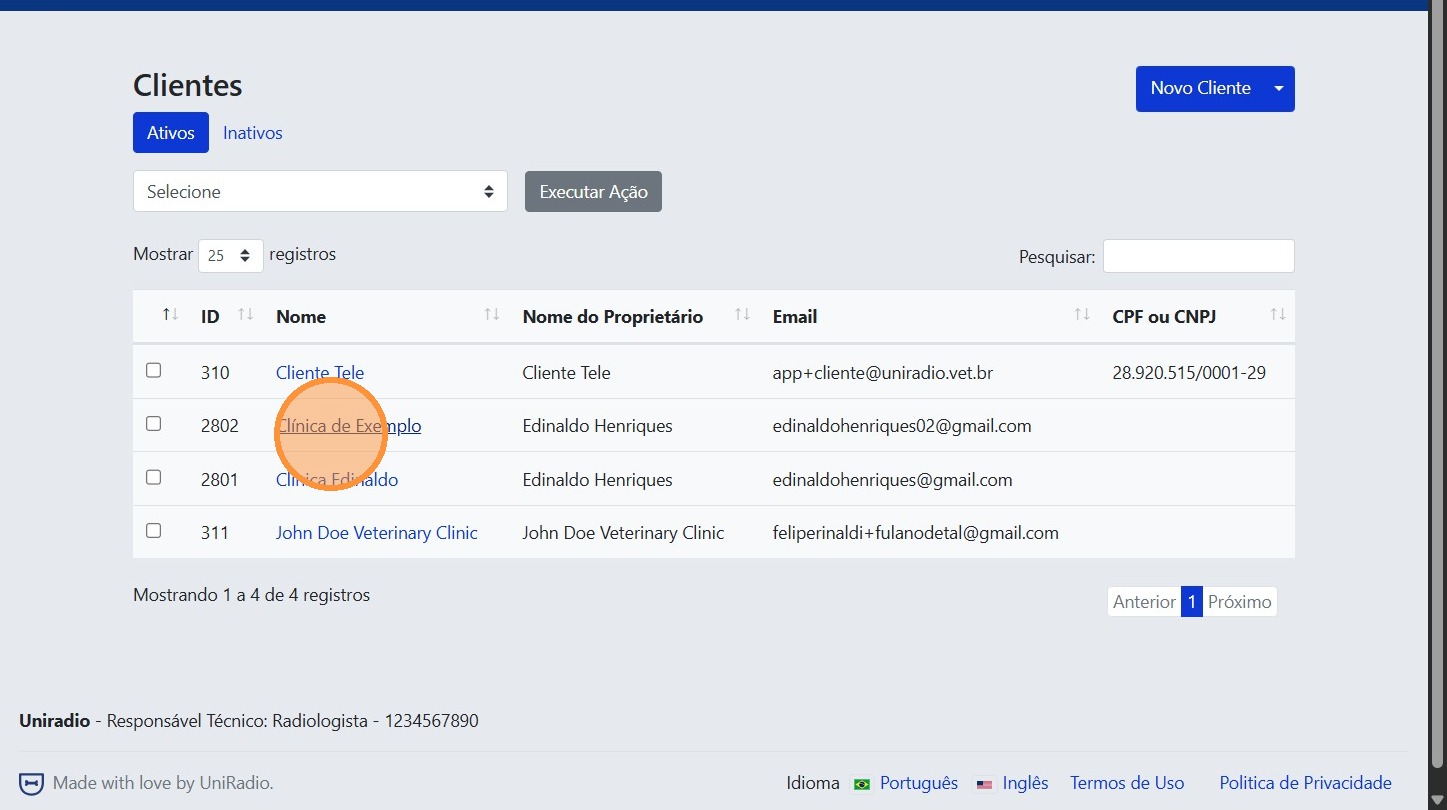
3. Select the clinic
Click on the clinic whose users you want to manage.
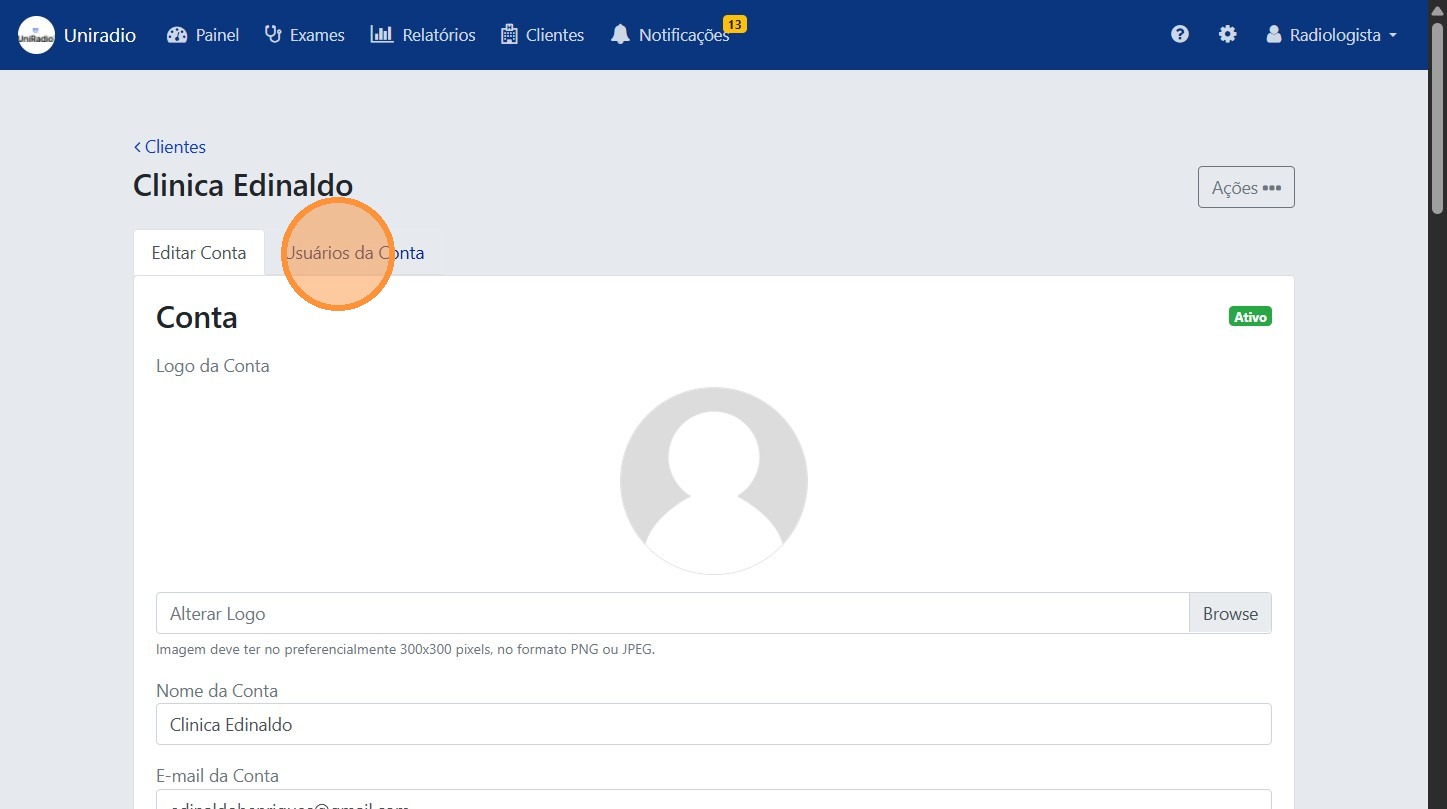
4. Access the account users
Inside the clinic, click on the users tab to view the registered users.
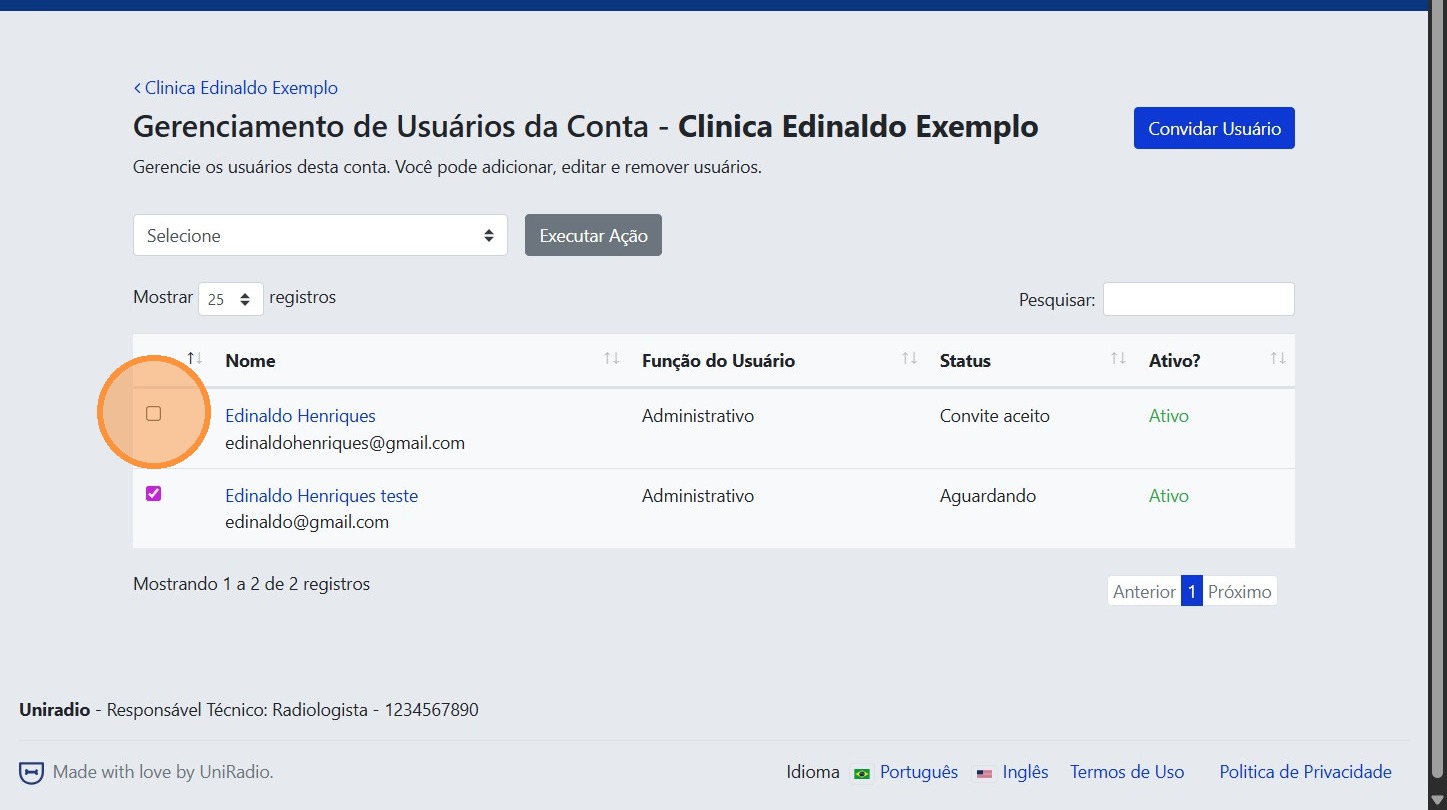
5. Select the desired users
Check the selection boxes of the users you want to deactivate.
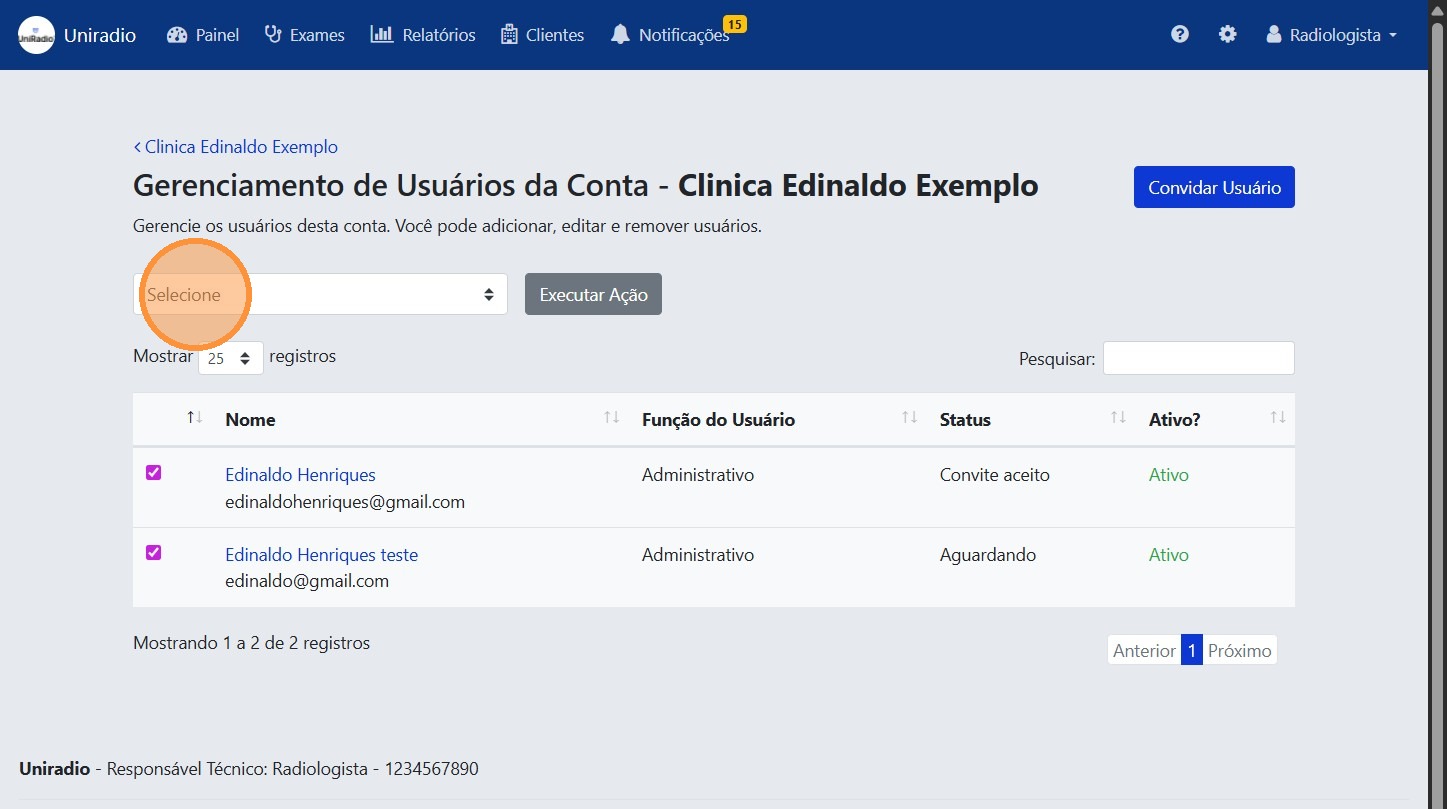
6. Click the actions dropdown
With the users selected, click the bulk actions dropdown menu.
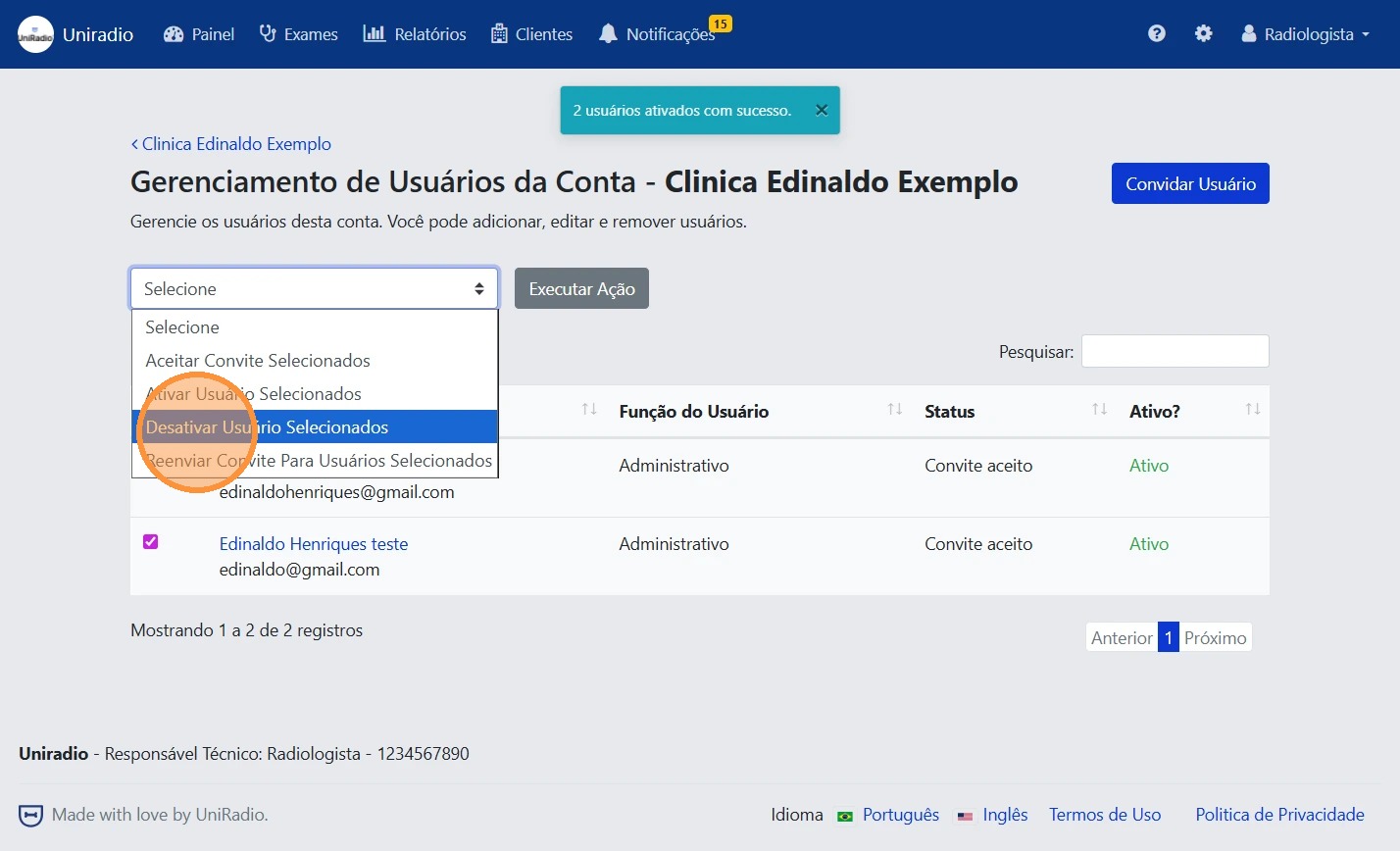
7. Select "Deactivate Selected Users"
In the menu, choose the "Deactivate Selected Users" option.
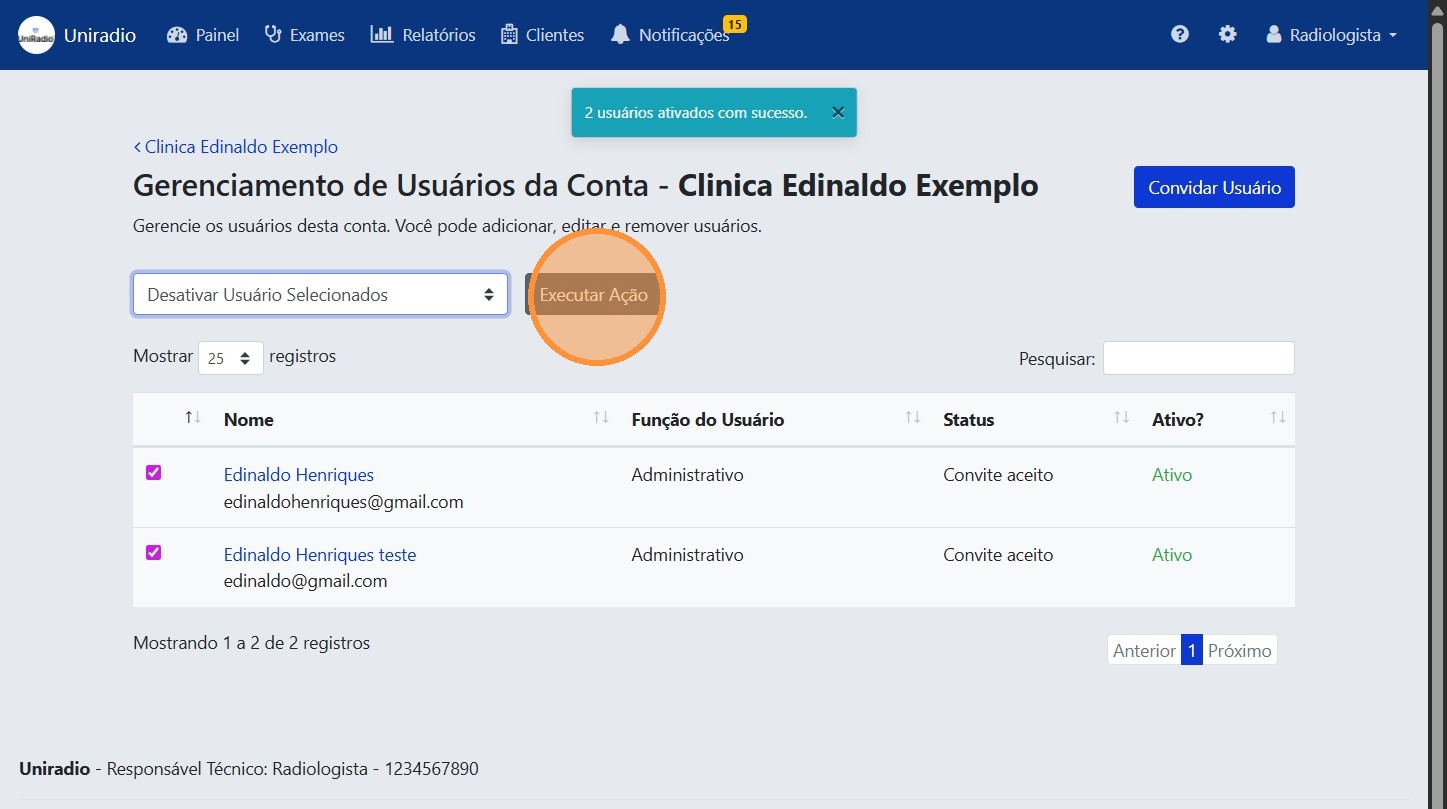
8. Click "Execute Action"
Confirm the operation by clicking "Execute Action" to deactivate access for the selected users.
Need Help?
Check our FAQ or contact support if you encounter any issues bulk deactivating users.