
How to Invite a User to a Client Account
Learn how to invite new users to access a client account on the UniRadio platform.
Step by Step
1. Access the UniRadio platform
Sign in to your account and go to app.uniradio.vet.br/exams
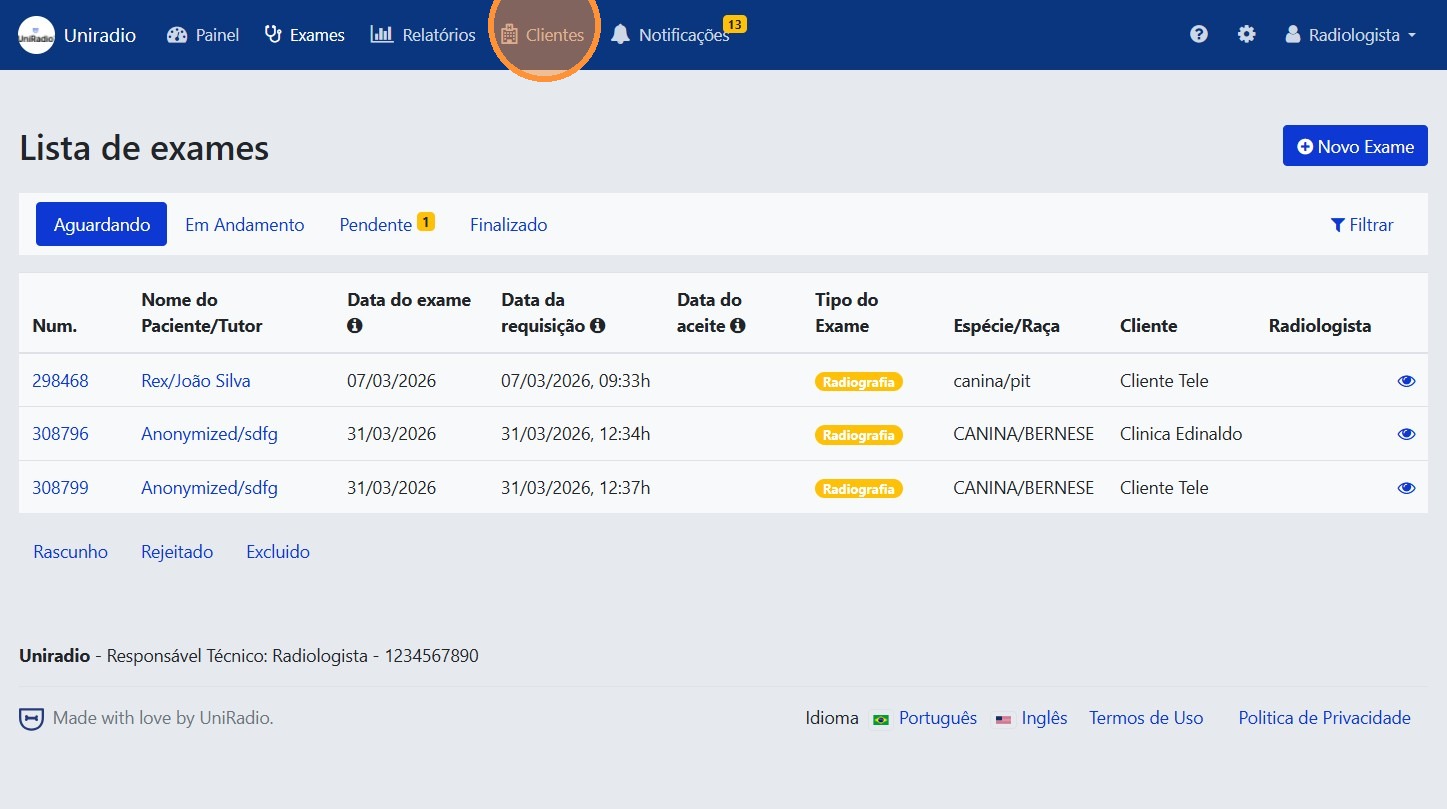
2. Access "Clients"
In the side menu, click on "Clients" to view the list of registered clients.
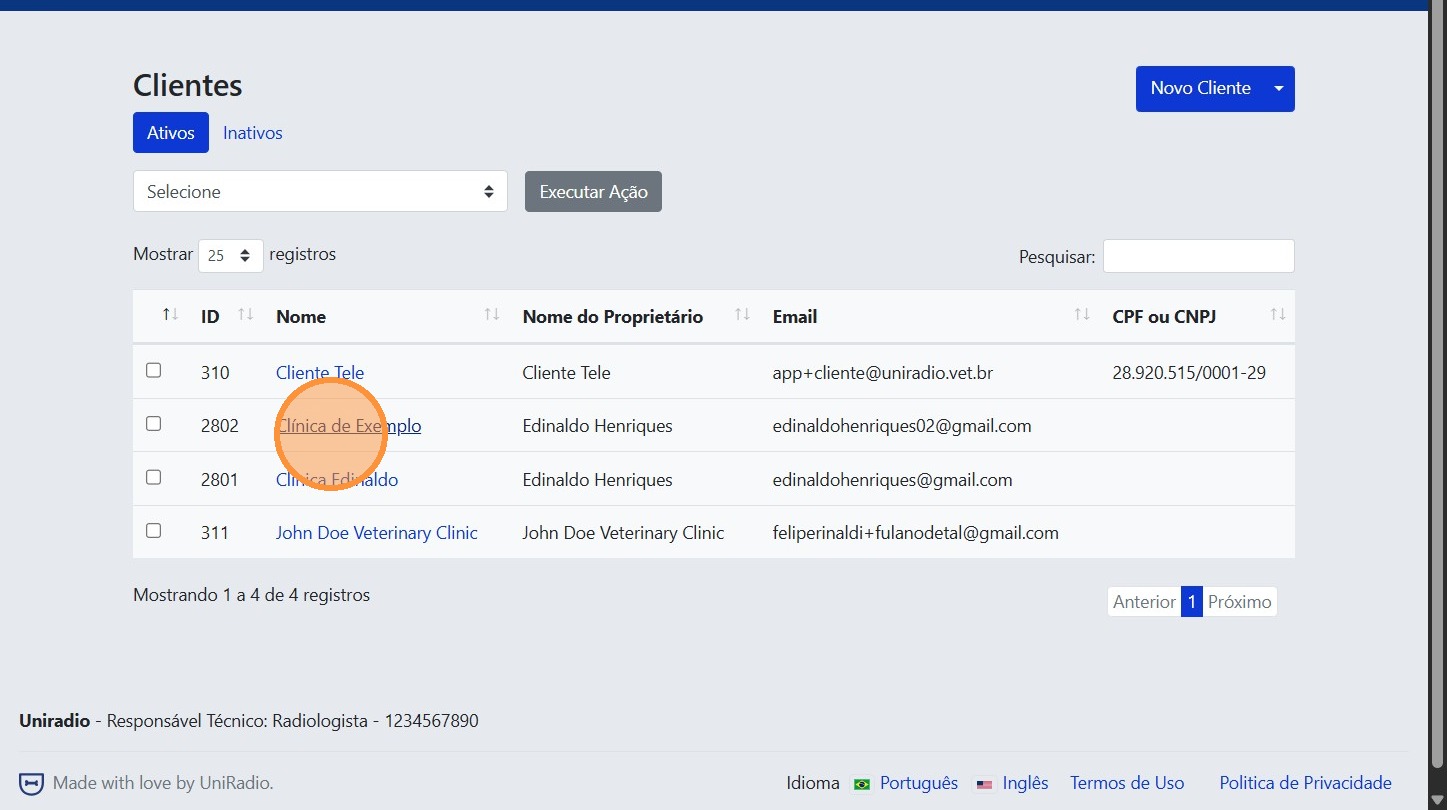
3. Select the clinic
Click on the clinic to open its management page.
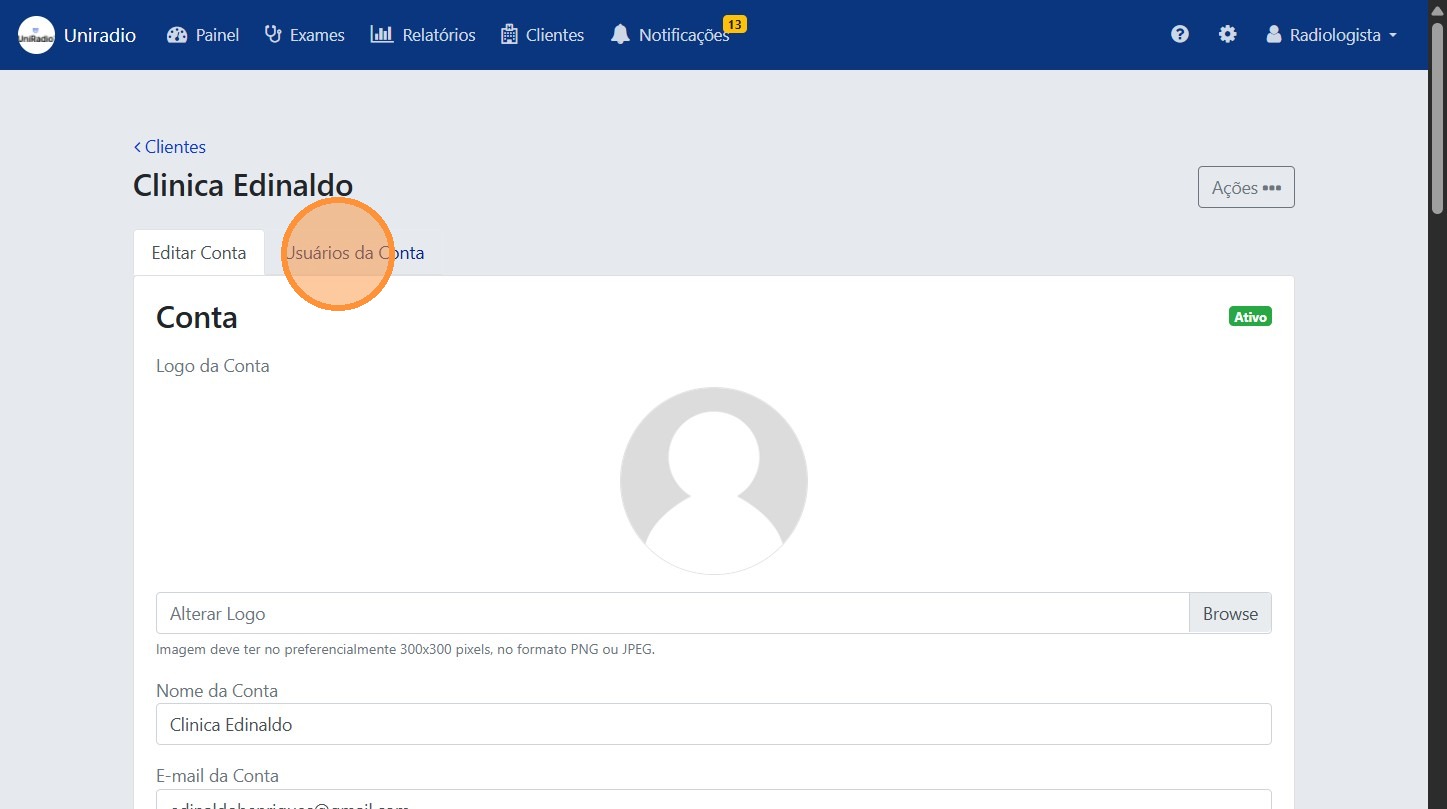
4. Access "Account Users"
Inside the client profile, click on "Account Users" to manage the users linked to it.
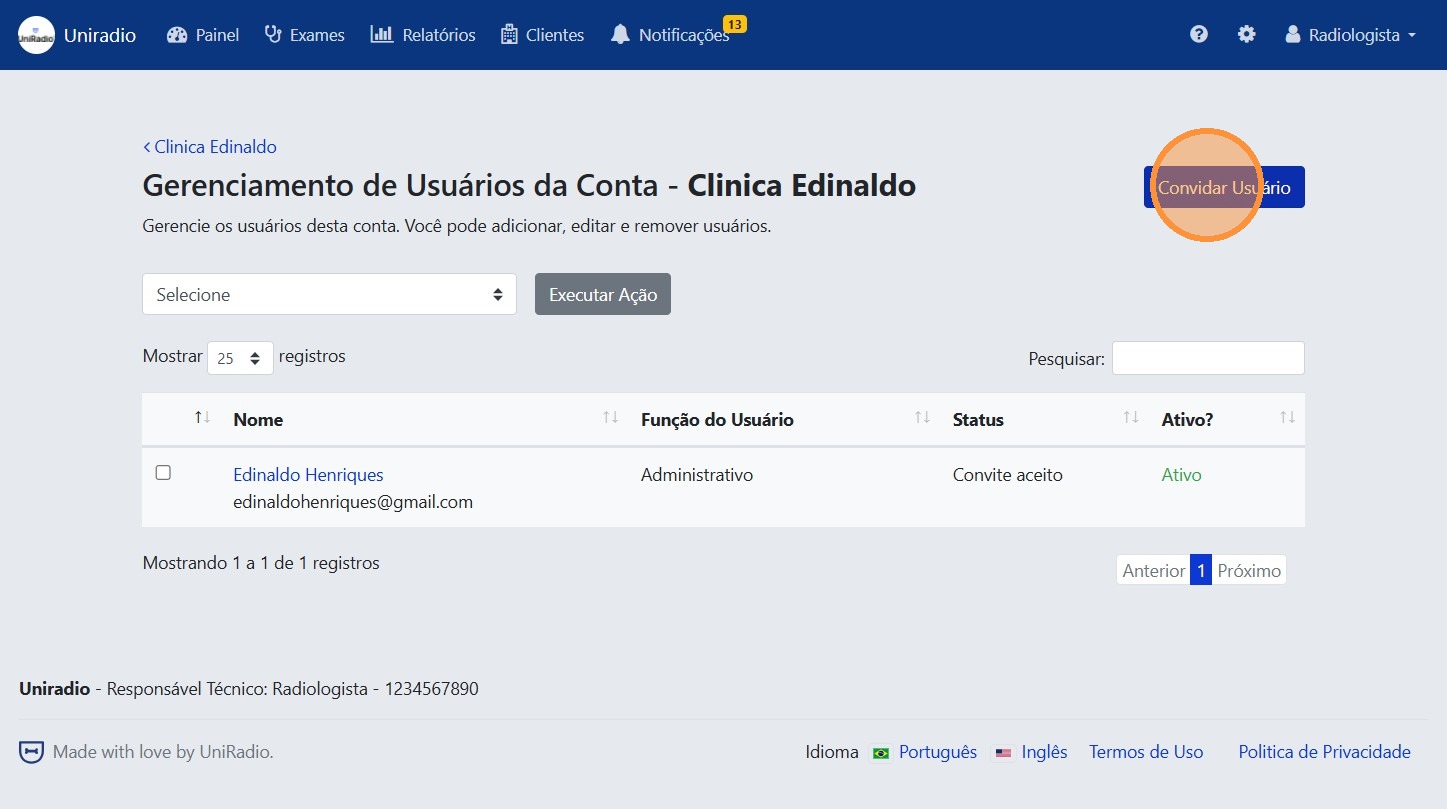
5. Click on "Invite User"
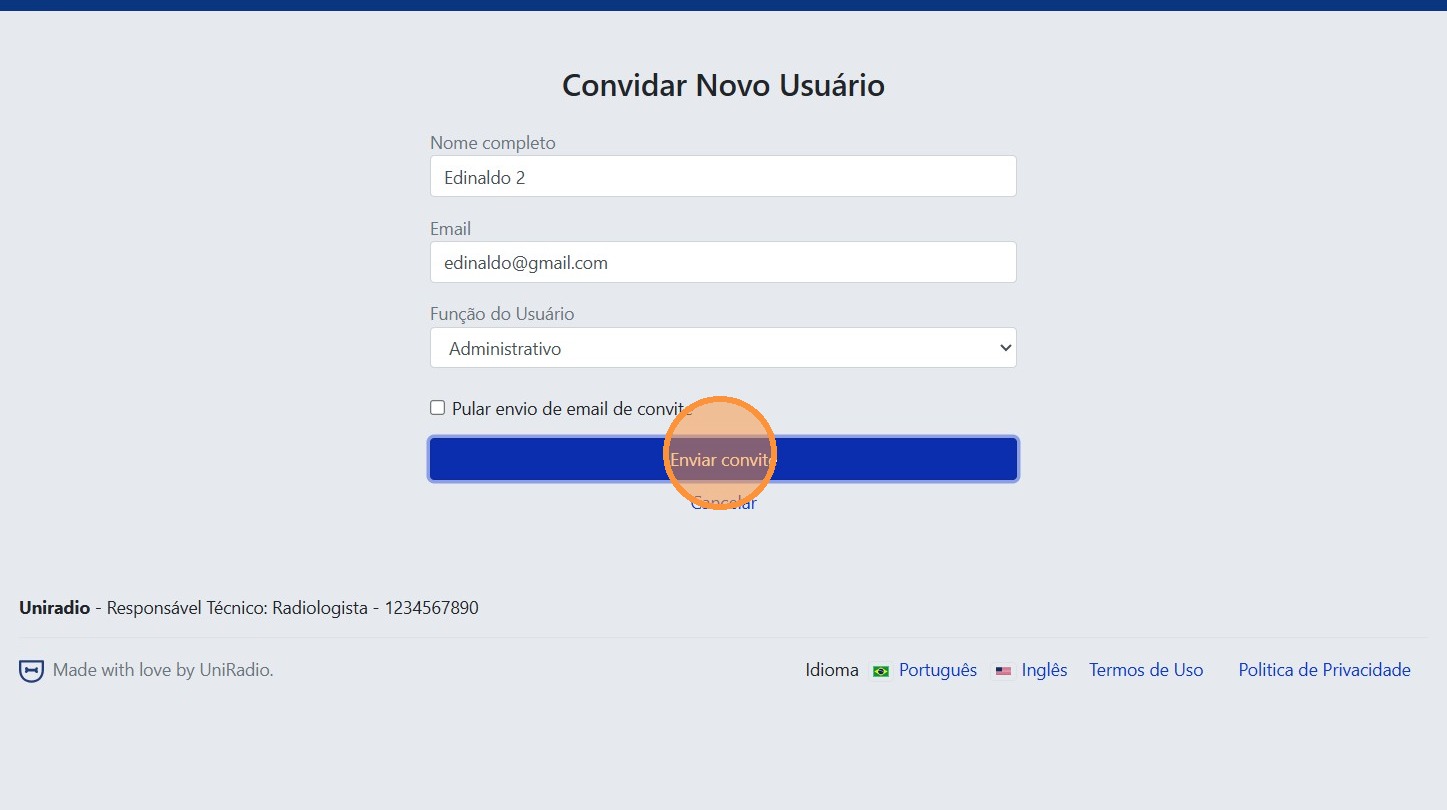
Click the "Invite User" button to open the invitation form and fill in the new user's details.
User role
When inviting a user, you can define their role:
- Administrative: full access to the client account.
- Member: limited access. When selecting this role, you can configure the user's specific permissions.
New user
If the provided email address is not yet registered on the platform, the user will be created automatically upon accepting the invitation.
Skip email sending
If the "Skip invitation email" option is checked, the invited user will not receive any email notification and will be activated automatically.
6. Click "Send invitation"
After filling in the details, click "Send invitation" to complete the process.
Field descriptions
To understand the meaning of each field in this form, see Invite user to account.
Need Help?
Check our FAQ or contact support if you encounter any issues inviting users.