
How to Filter Reports
Learn how to use the UniRadio platform filters to quickly and efficiently locate completed reports.
Step by Step
1. Access the UniRadio platform
Sign in to your account and go to app.uniradio.vet.br/exams
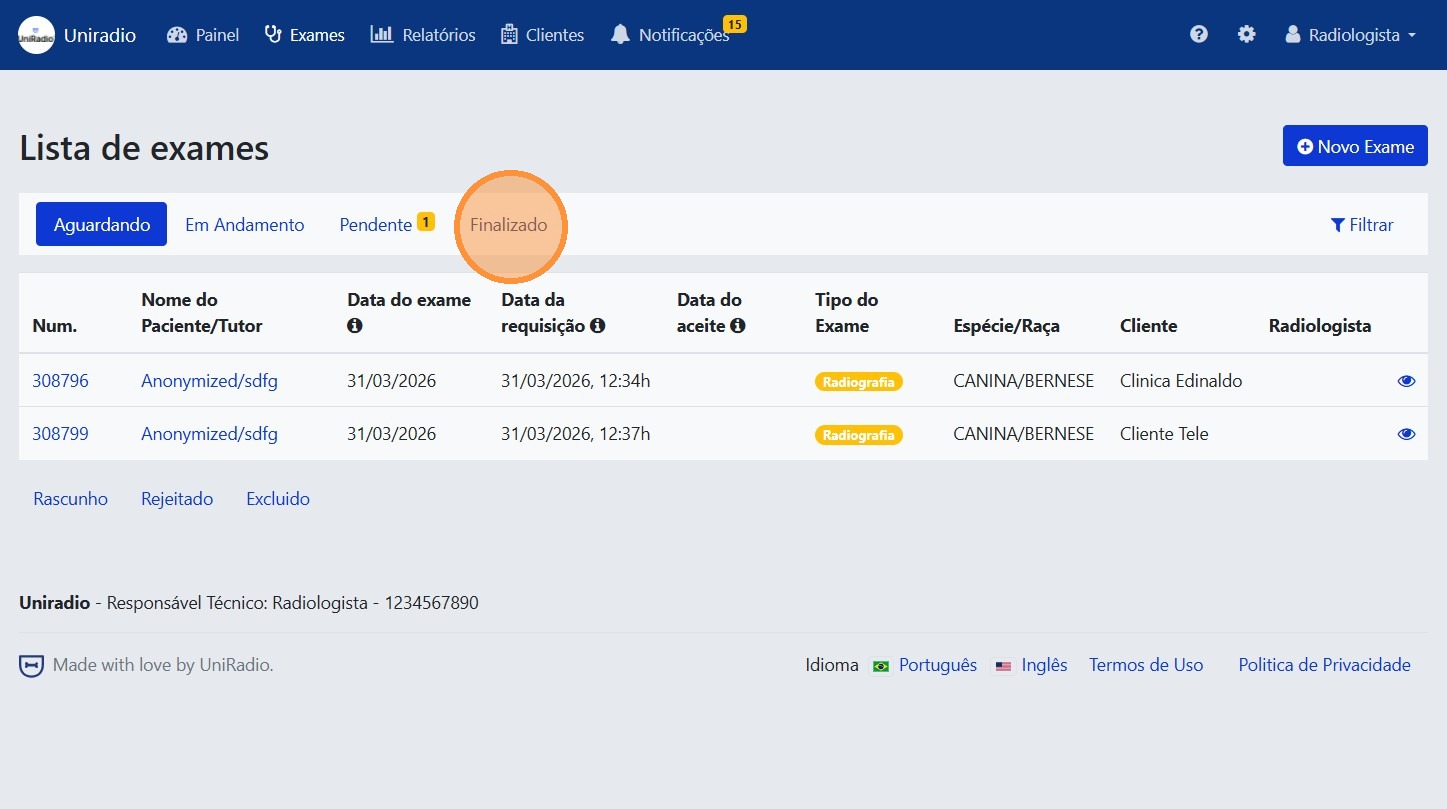
2. Click "Completed"
Filter exams by the "Completed" status to view finished reports.
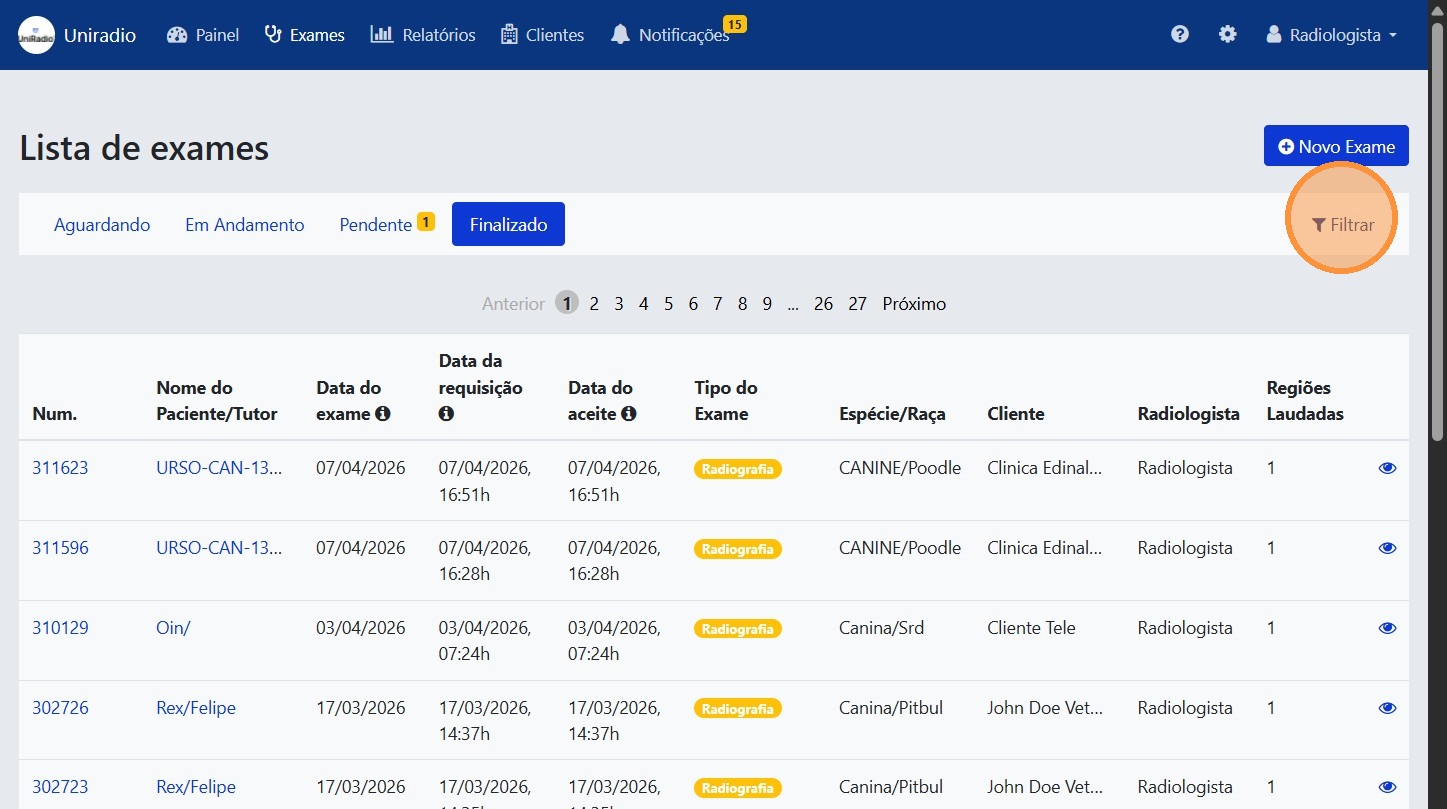
3. Click "Filter"
Open the available filters panel.
4. Select the desired filters
Choose the filtering criteria, such as date range, client, species, exam type, and others.
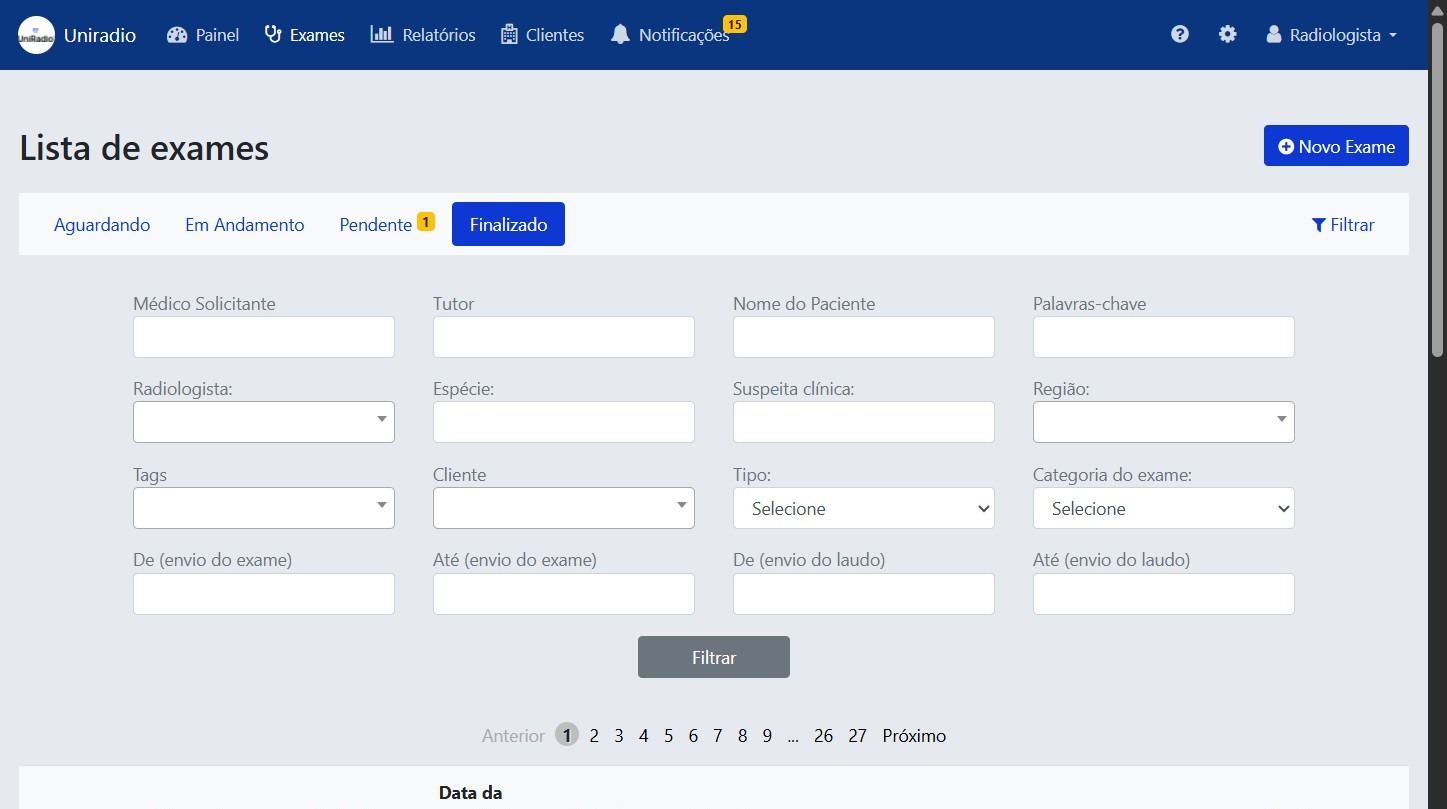
Available fields
- Requesting Physician — name of the physician who requested the exam.
- Guardian — name of the animal's owner.
- Patient Name — name of the animal.
- Keywords — terms present in the report or exam.
- Radiologist — name of the radiologist responsible for the report.
- Species — species of the animal (e.g., Canine, Feline).
- Clinical suspicion — diagnostic hypothesis provided when submitting the exam.
- Region — anatomical region examined (e.g., Abdomen, Thorax).
- Tags — labels assigned to the report.
- Client — name of the client clinic or institution.
- Type — exam modality (e.g., Radiography, Ultrasound).
- Exam category — classification assigned to the exam.
- From (exam submission) — start date of the period when the exam was submitted to the platform.
- To (exam submission) — end date of the period when the exam was submitted to the platform.
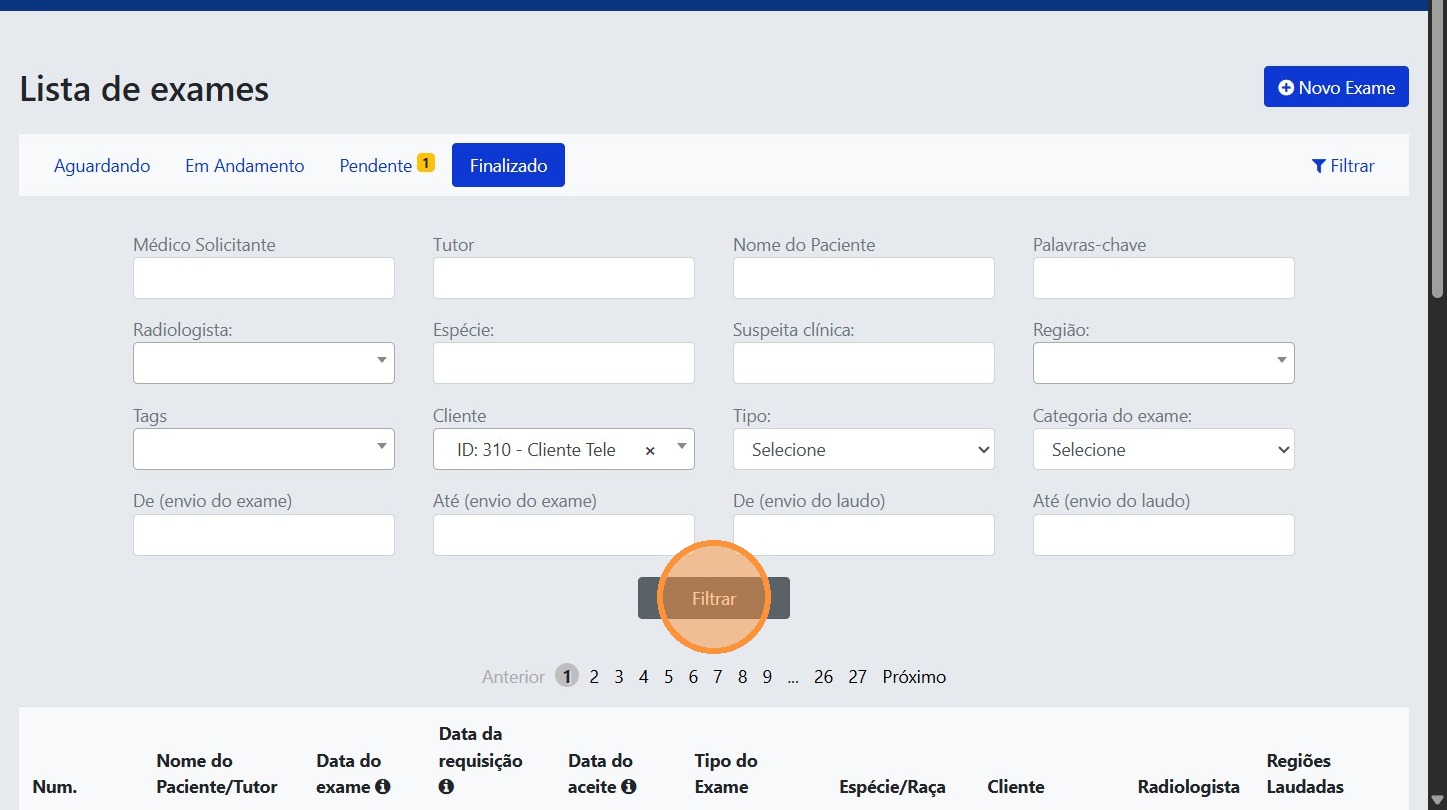
5. Click "Filter" to apply
Reports will be listed according to the selected filters.
Need Help?
Check our FAQ or contact support if you have trouble filtering reports.