
How to Connect WhatsApp to the UniRadio Platform
Learn how to connect a WhatsApp number to your UniRadio account to send reports directly to your clients.
Step by Step
1. Access the UniRadio platform
Sign in to your account and go to app.uniradio.vet.br/exams
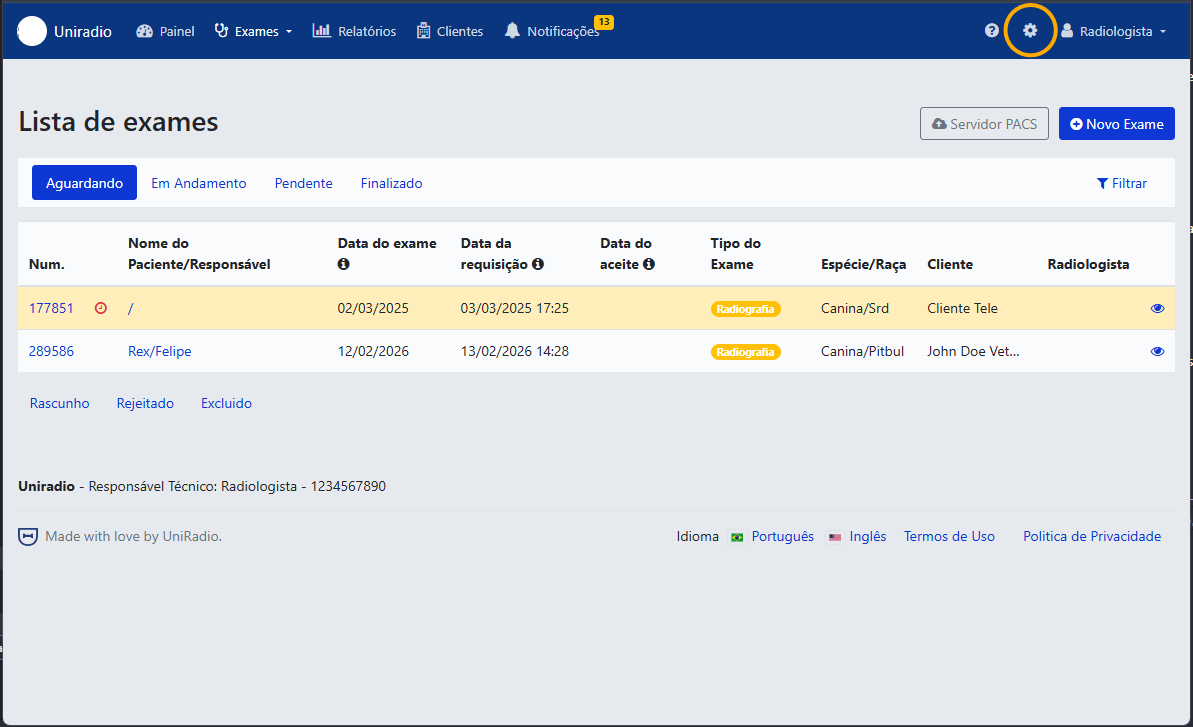
2. Click the settings icon
In the top right corner, click the gear icon to open the settings menu.
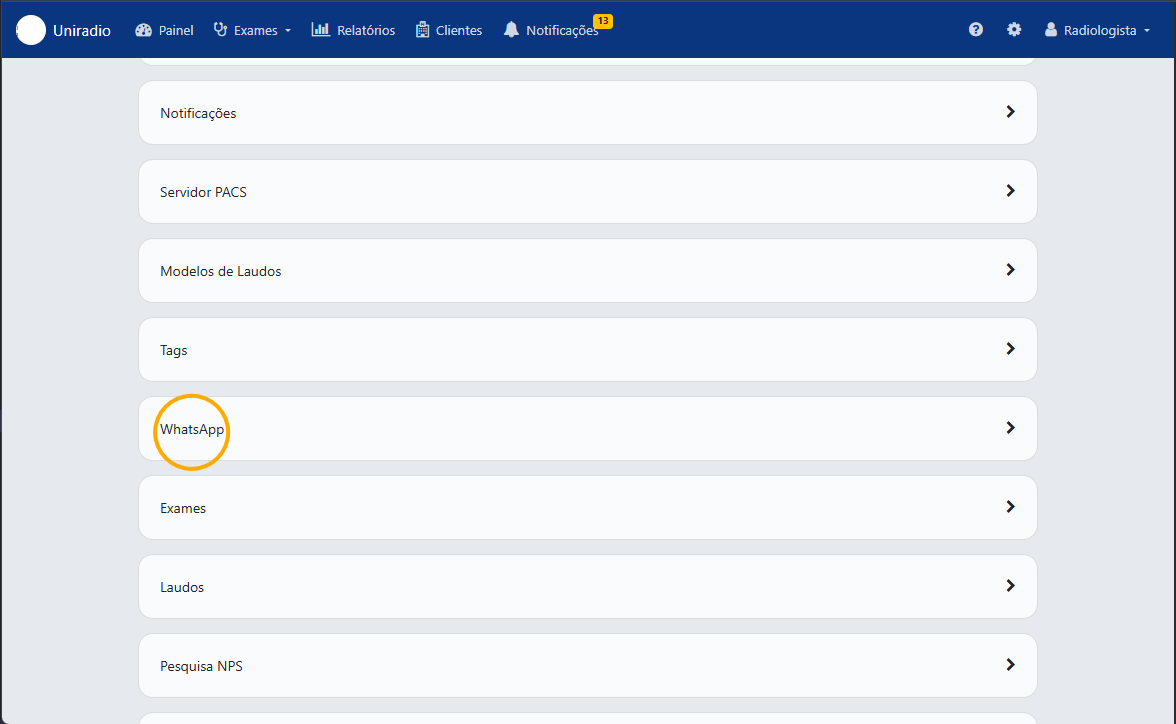
3. Click "WhatsApp"
In the settings menu, click "WhatsApp".
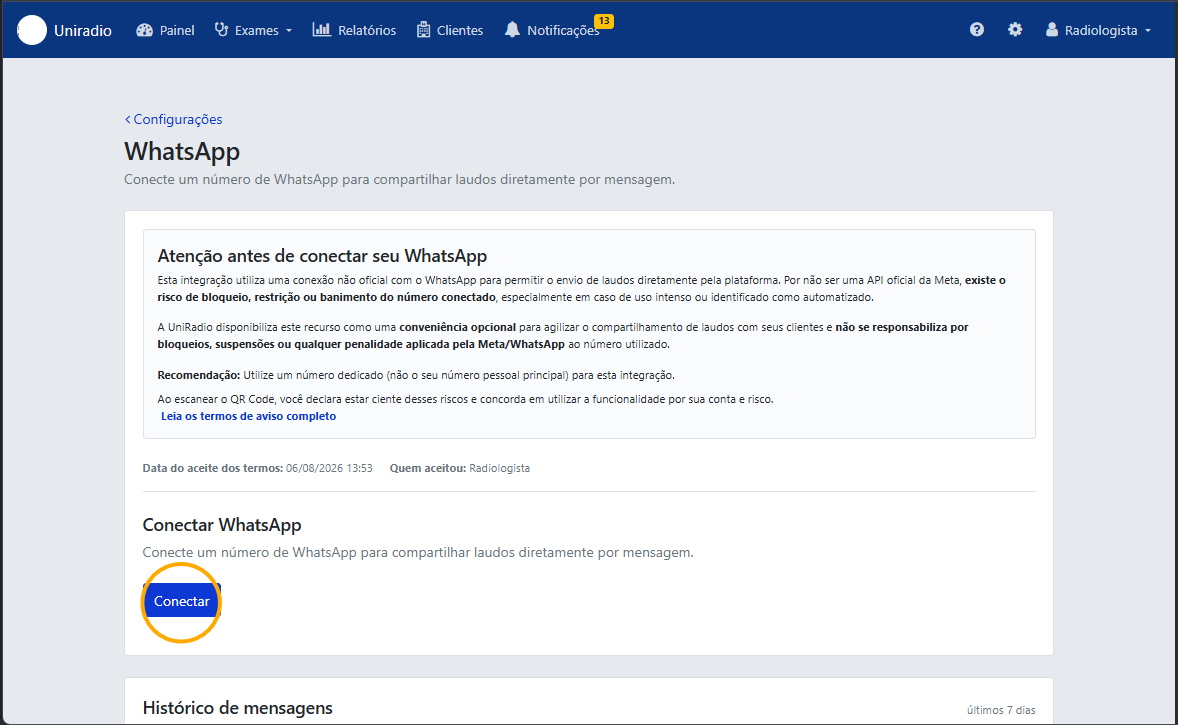
4. Read the integration notice and click "Conectar" (Connect)
About the WhatsApp integration
UniRadio offers a WhatsApp integration that lets you send reports directly from the platform's interface to your clients' WhatsApp, speeding up communication and result sharing.
How it works: the connection is made by scanning a QR Code, similar to WhatsApp Web, linking the radiologist's or clinic's number to the platform.
Important risks: this integration uses an unofficial connection to WhatsApp's servers (via Evolution API), and not a channel officially approved by Meta for this type of use. For this reason, WhatsApp may, at any time and without prior notice, limit, restrict, or permanently ban the connected number, especially in cases of:
- High volume of messages sent in a short period;
- Many different recipients being contacted for the first time;
- Reports from recipients (marked as spam/blocked);
- Changes to Meta's usage policies.
Disclaimer: the WhatsApp sending feature is made available by UniRadio as an additional, optional benefit to make sharing reports faster. UniRadio does not guarantee the continuous availability of this integration and is not responsible for blocks, suspensions, bans, or any damage resulting from the use of WhatsApp for this purpose, since such actions are the sole responsibility and discretion of Meta/WhatsApp.
Usage recommendations:
- Preferably use a dedicated number for sending reports, avoiding your main personal number;
- Avoid mass sending or sending to many new contacts within a short period of time;
- Keep other report delivery channels (email, portal, etc.) as an alternative in case WhatsApp gets blocked.
By enabling this feature, you declare that you are aware of the risks described above and agree to the integration's terms of use.
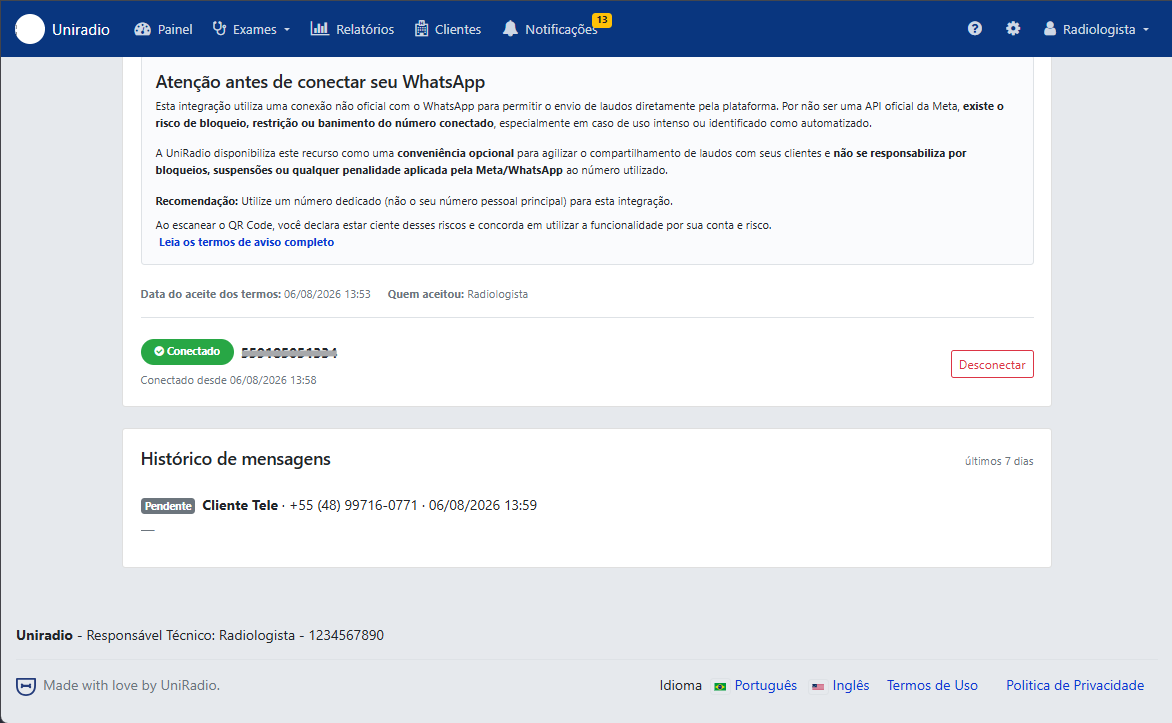
On the WhatsApp page, read the notice carefully and, once you agree, click "Conectar" (Connect).
5. Scan the QR Code
On your phone, open WhatsApp, go to Linked Devices and scan the QR Code shown on the screen.
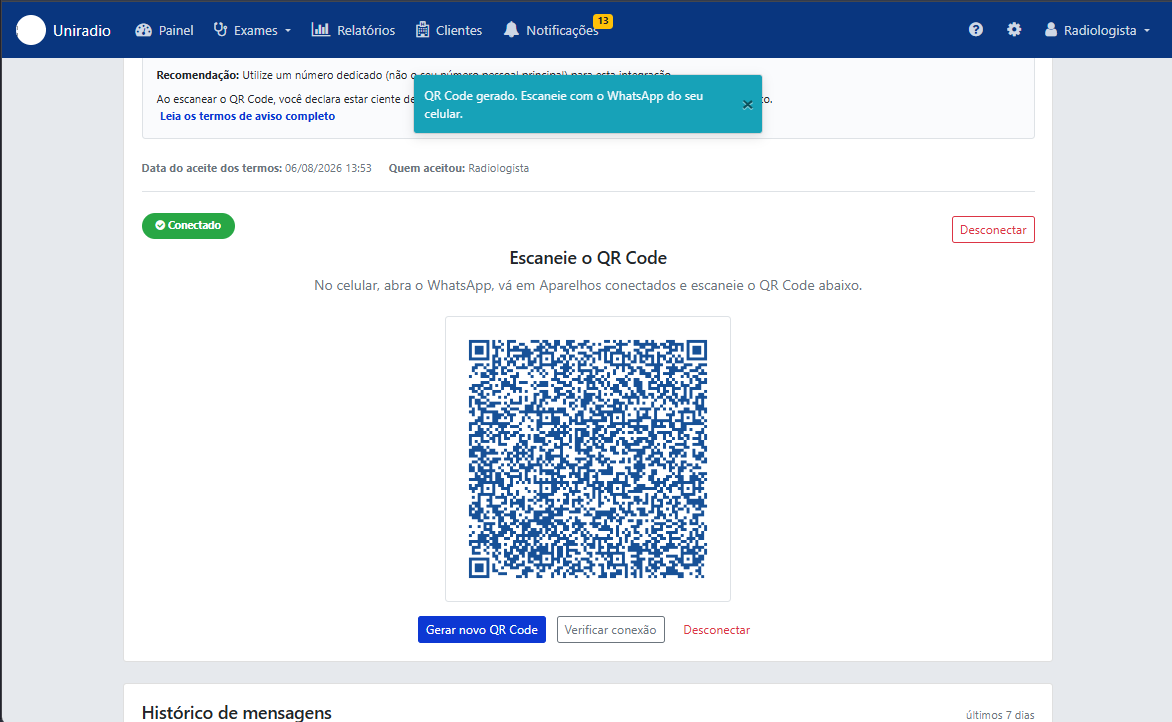
6. Confirm the connection
After scanning the QR Code, the status changes to "Conectado" (Connected) and the number becomes available for sending reports via WhatsApp.
Need Help?
Check our FAQ or contact support if you run into any issues connecting WhatsApp.