
How to Edit Exam Settings
Learn how to access and customize the exam settings for your account in the UniRadio platform.
Step by Step
1. Access the UniRadio platform
Sign in to your account and go to app.uniradio.vet.br/exams
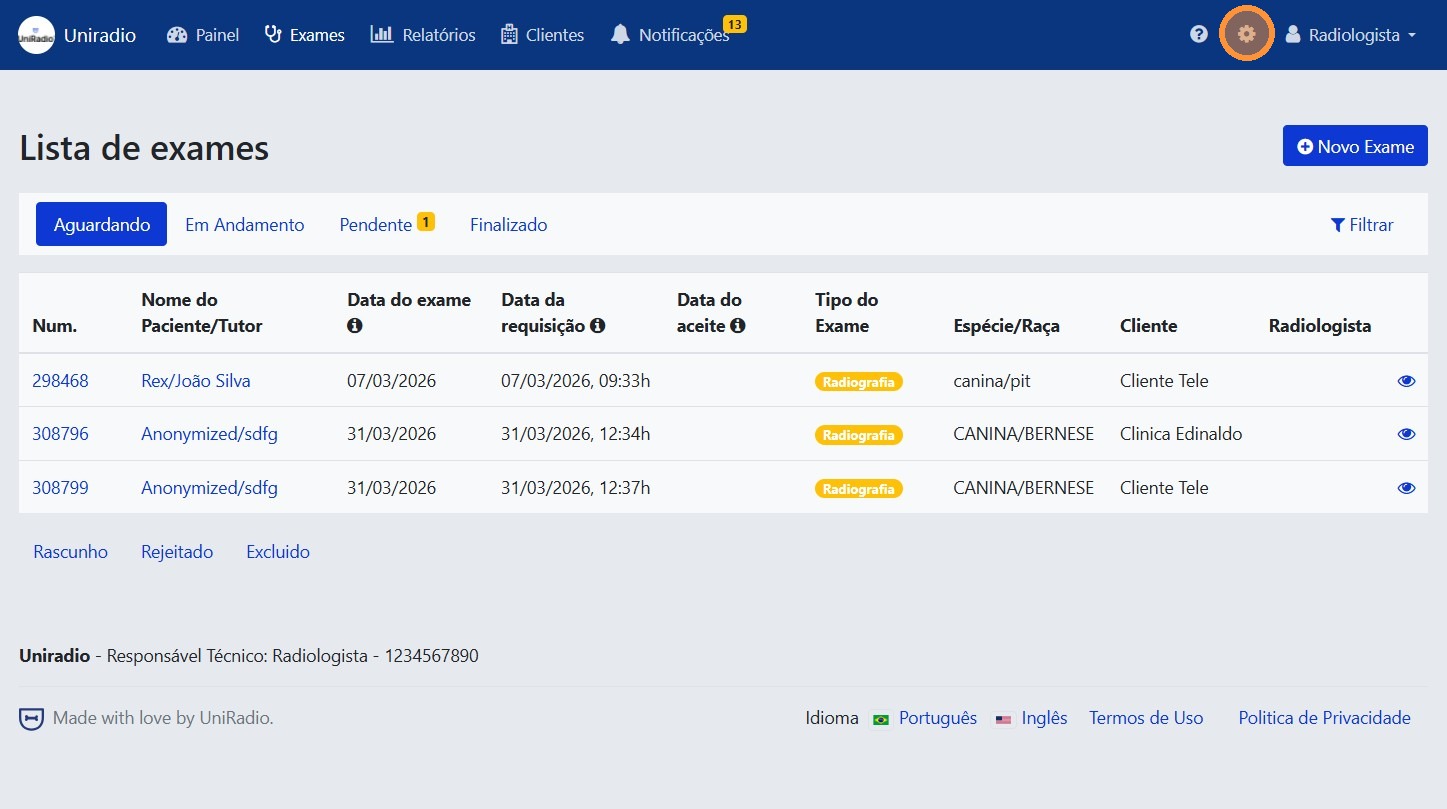
2. Access the settings menu
In the sidebar menu, click the settings icon to open the account options.
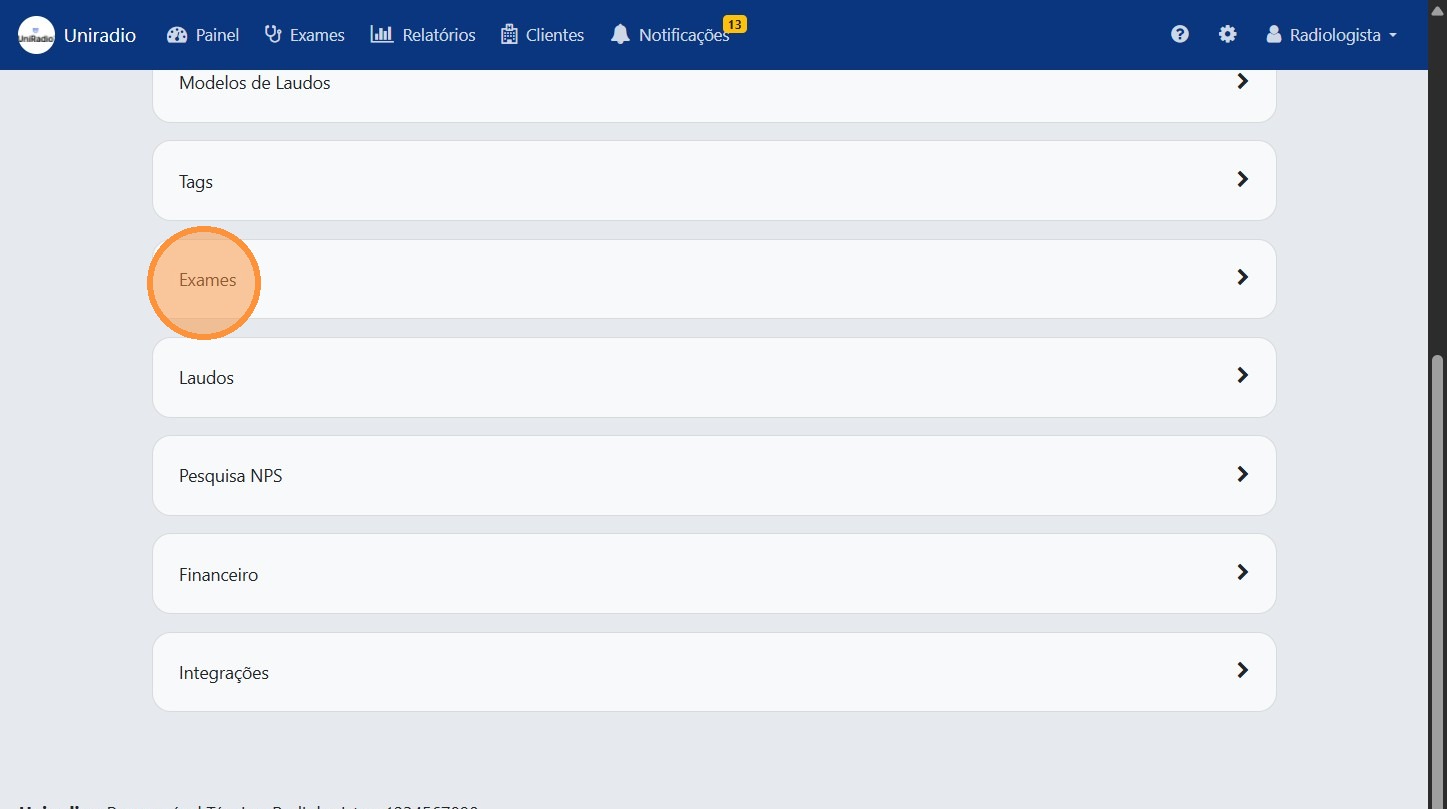
3. Click on "Exams"
In the settings menu, click on "Exams" to access the exam settings.
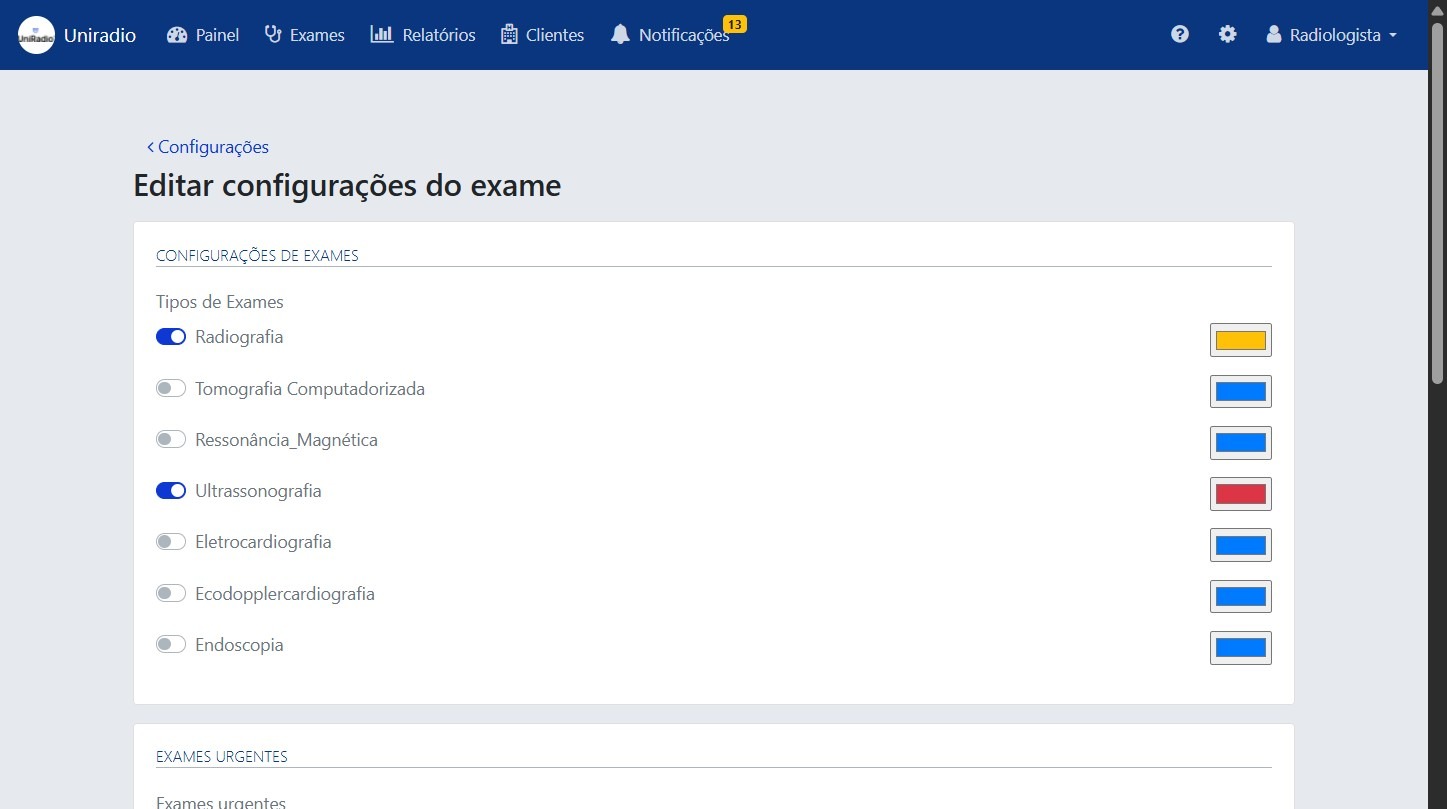
4. Configure the desired options
Adjust the settings according to your account's needs.
Available options
- Exam Settings — Select the exam types available to your clients.
- Urgent Exams — Enable this option to allow clients to mark exams as urgent. You can add an optional description, such as the fee charged for emergency services.
- Customize Fields — Define which fields will be displayed and which will be required when creating or editing an exam.
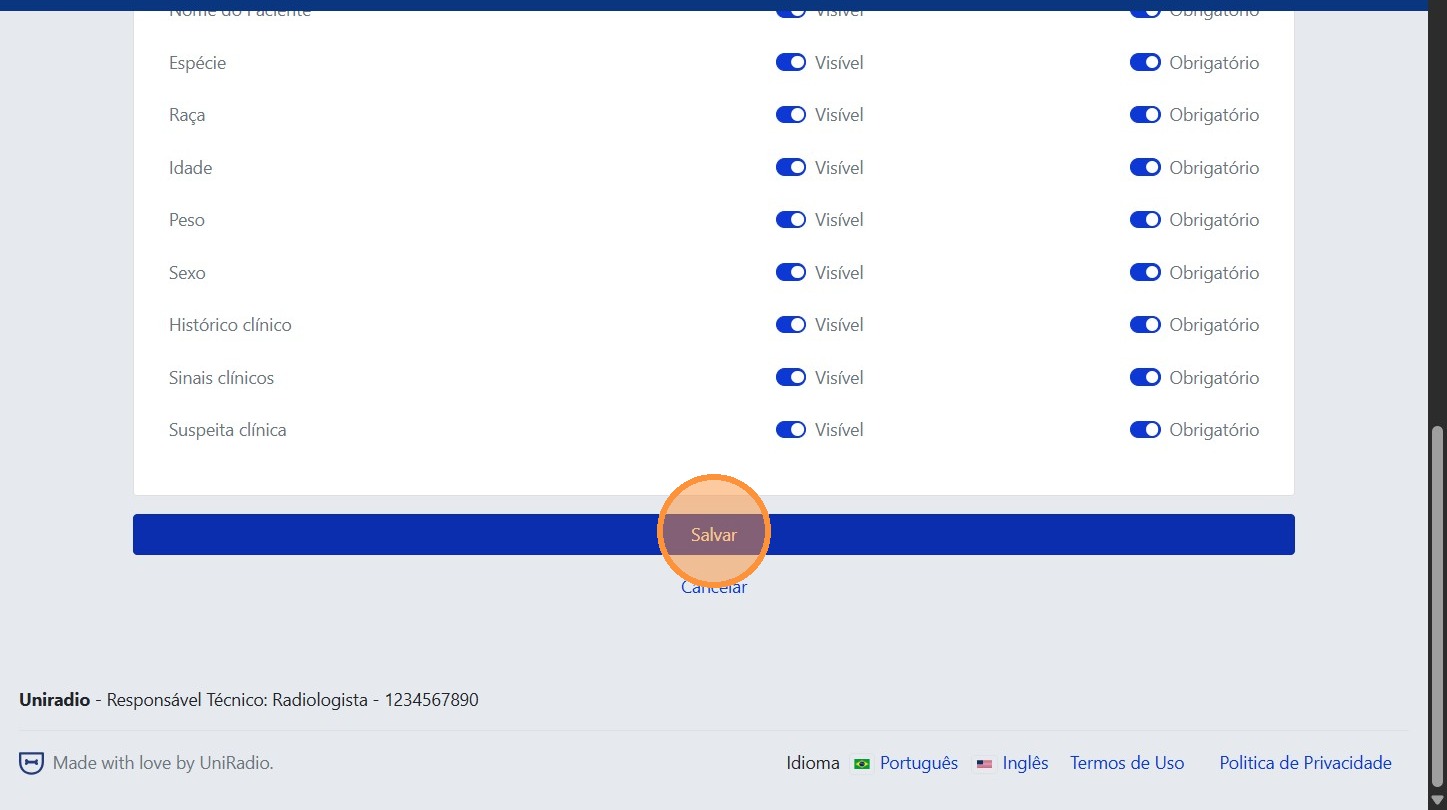
5. Click "Save"
After making the desired changes, click "Save" to confirm the settings.
Need Help?
Check our FAQ or contact support if you encounter any issues when configuring exams.