
How to Register a New Webhook
Learn how to configure a new webhook in your UniRadio account to integrate external services and receive automatic notifications about platform events.
Step by Step
1. Access the UniRadio platform
Sign in to your account and go to app.uniradio.vet.br/exams
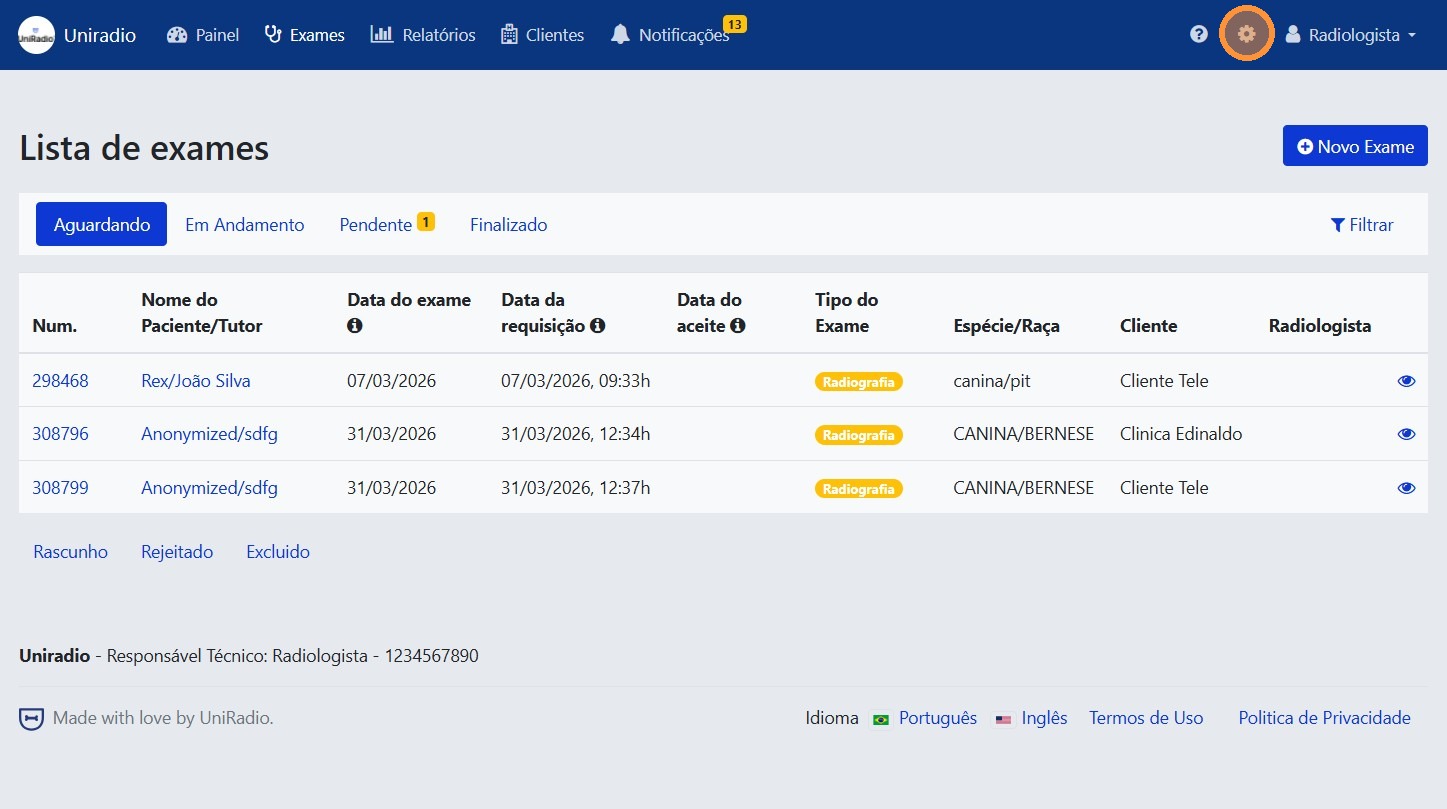
2. Open the settings menu
In the side menu, click the settings icon to open the account options.
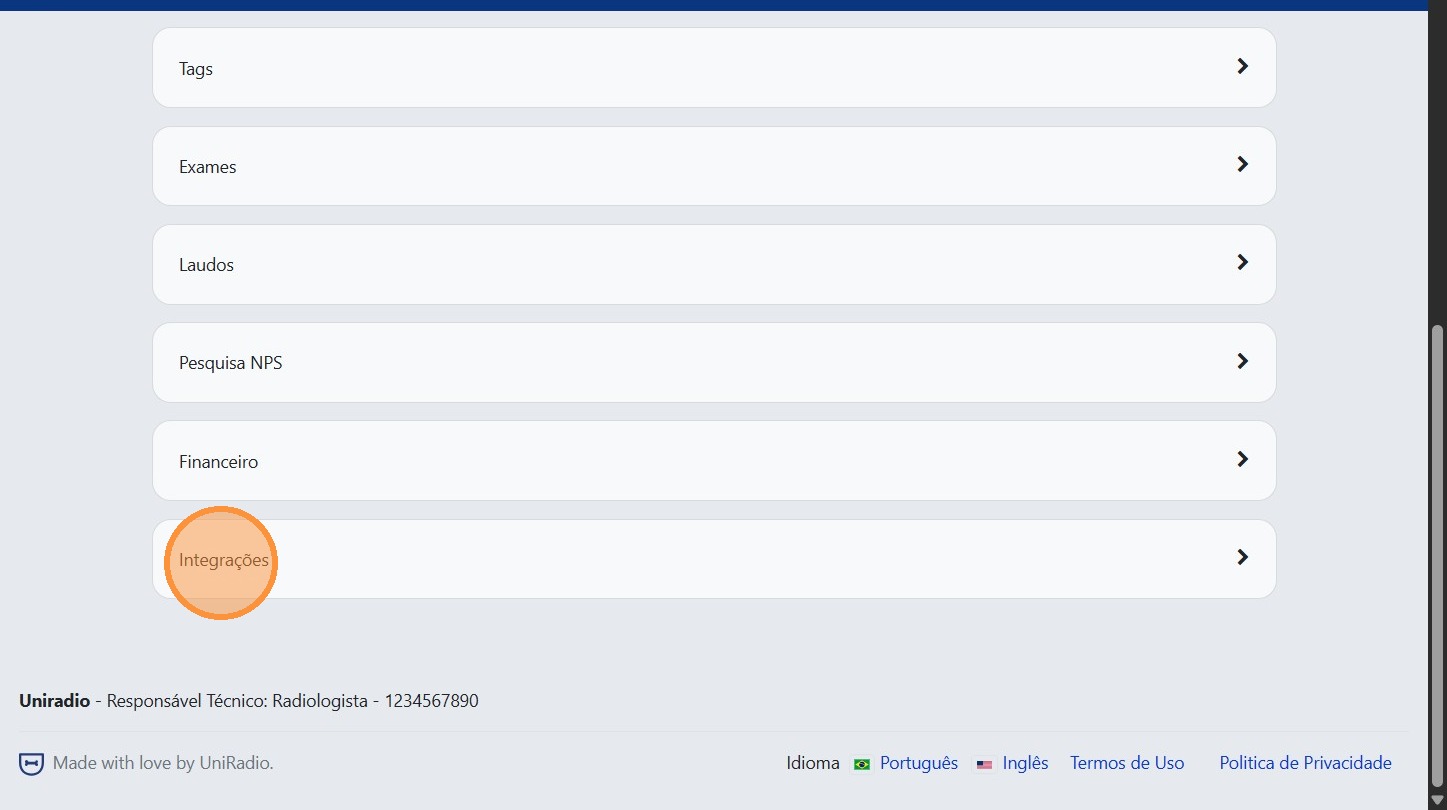
3. Click "Integrations"
In the settings menu, click "Integrations" to access the integration options.
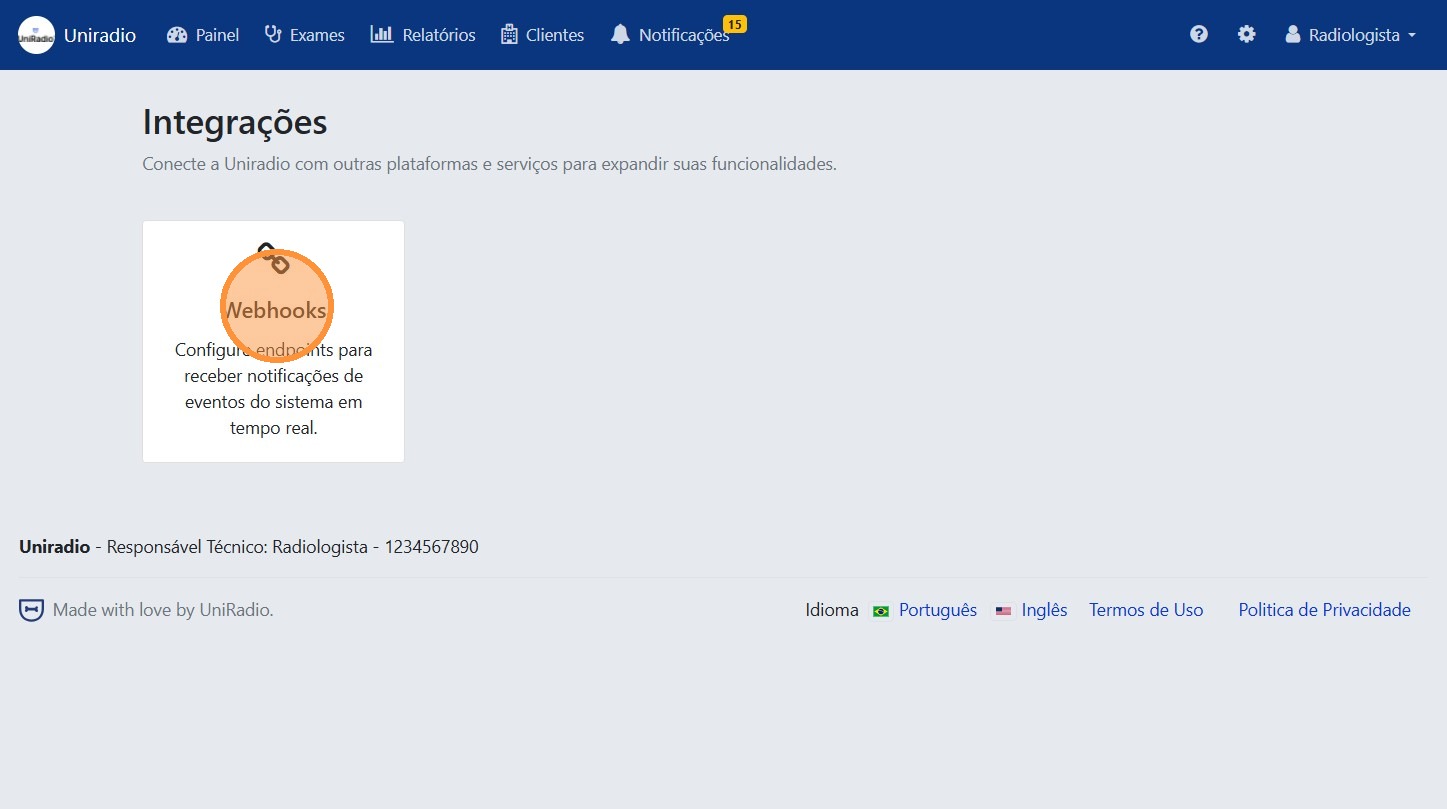
4. Click "Webhooks"
Inside integrations, click "Webhooks" to manage the account webhooks.
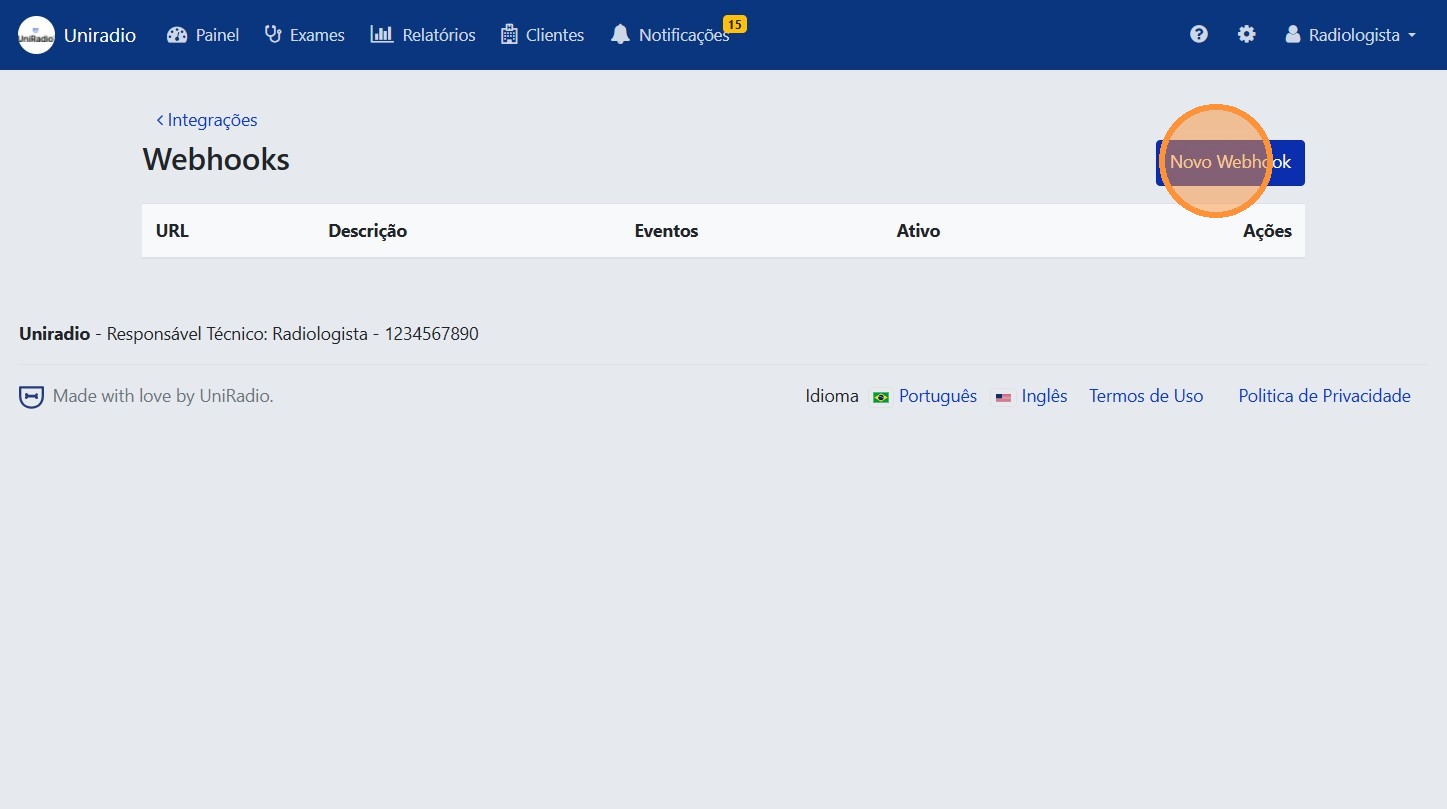
5. Click "New Webhook"
Click the "New Webhook" button to start the registration.
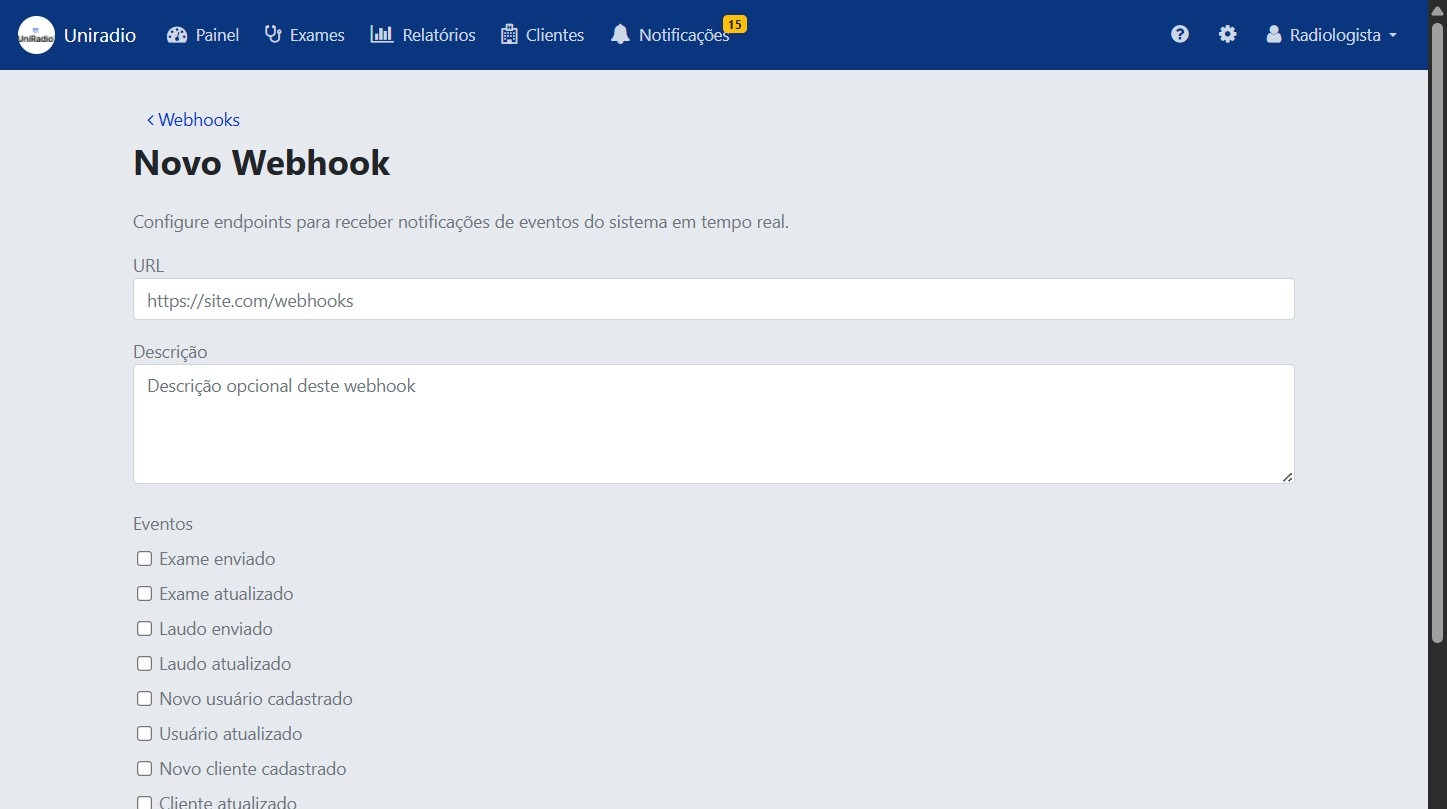
6. Fill in the fields and select the events
Enter the destination URL for the webhook and select the events you want to monitor.
Available events
Select one or more events to trigger the webhook automatically:
- Exam submitted — notified when a new exam is submitted to the platform.
- Exam updated — notified when an exam's data is changed.
- Report submitted — notified when a report is issued.
- Report updated — notified when an existing report is modified.
- New user registered — notified when a new user is created in the account.
- User updated — notified when a user's data is changed.
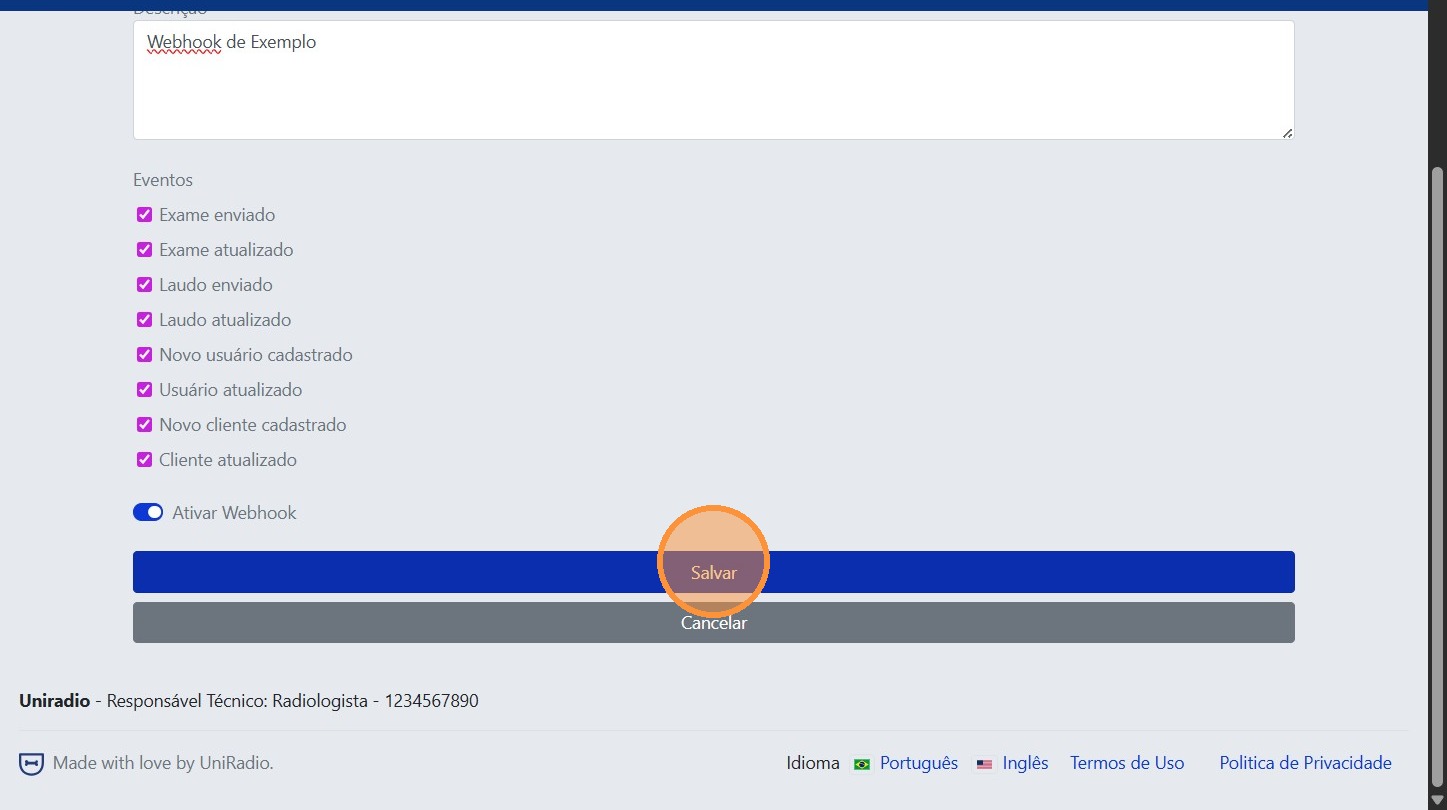
7. Click "Save"
After filling in the information, click "Save" to confirm the webhook registration.
Need Help?
Check our FAQ or contact support if you have trouble configuring webhooks.