
How to Insert a Report Template into an Exam
Learn how to apply pre-defined report templates to your exams on the UniRadio platform, speeding up the filling process and ensuring consistency in your records.
Step by Step
1. Access the UniRadio platform
Sign in to your account and go to app.uniradio.vet.br/exams
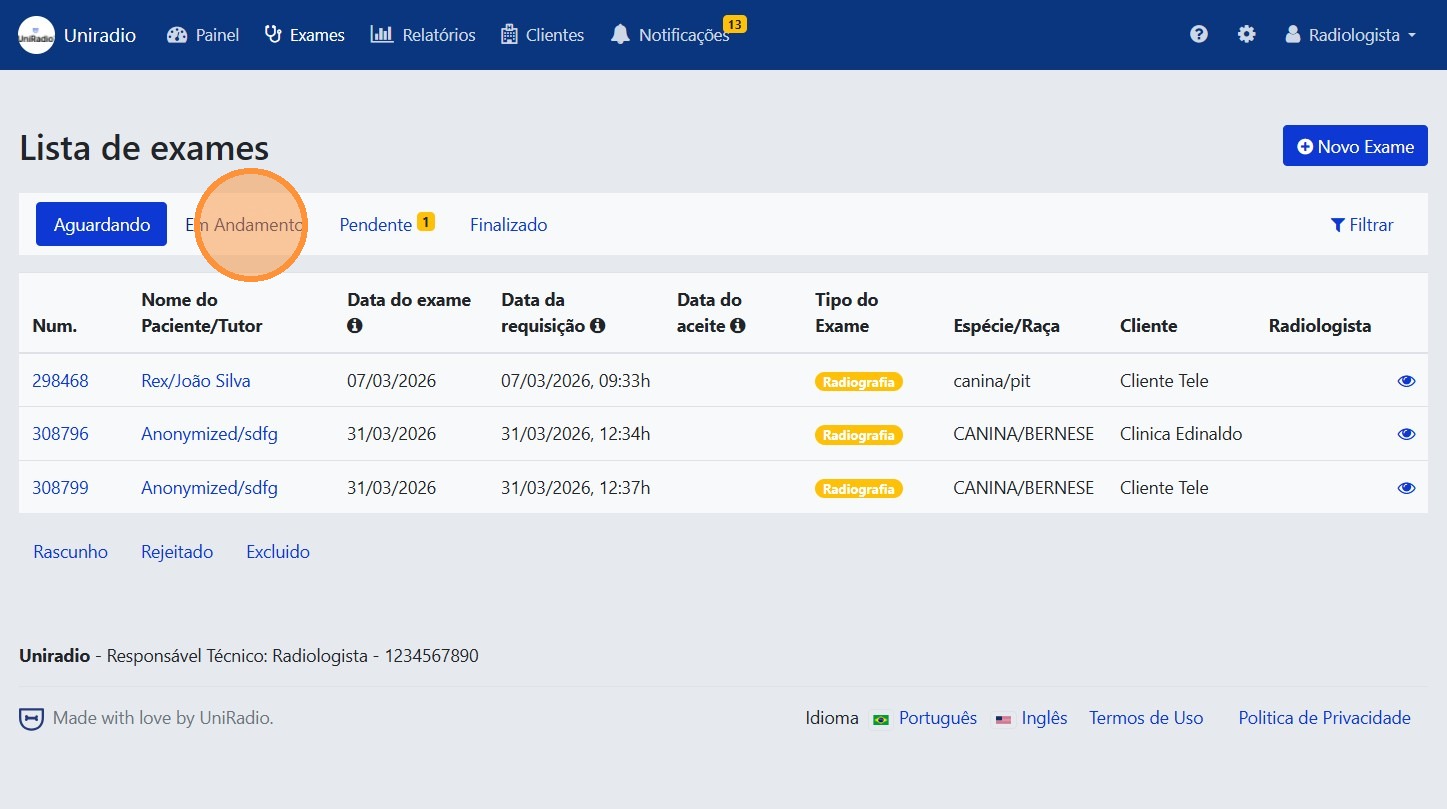
2. Filter by in-progress exams
Click the "In Progress" tab to list the exams awaiting a report.
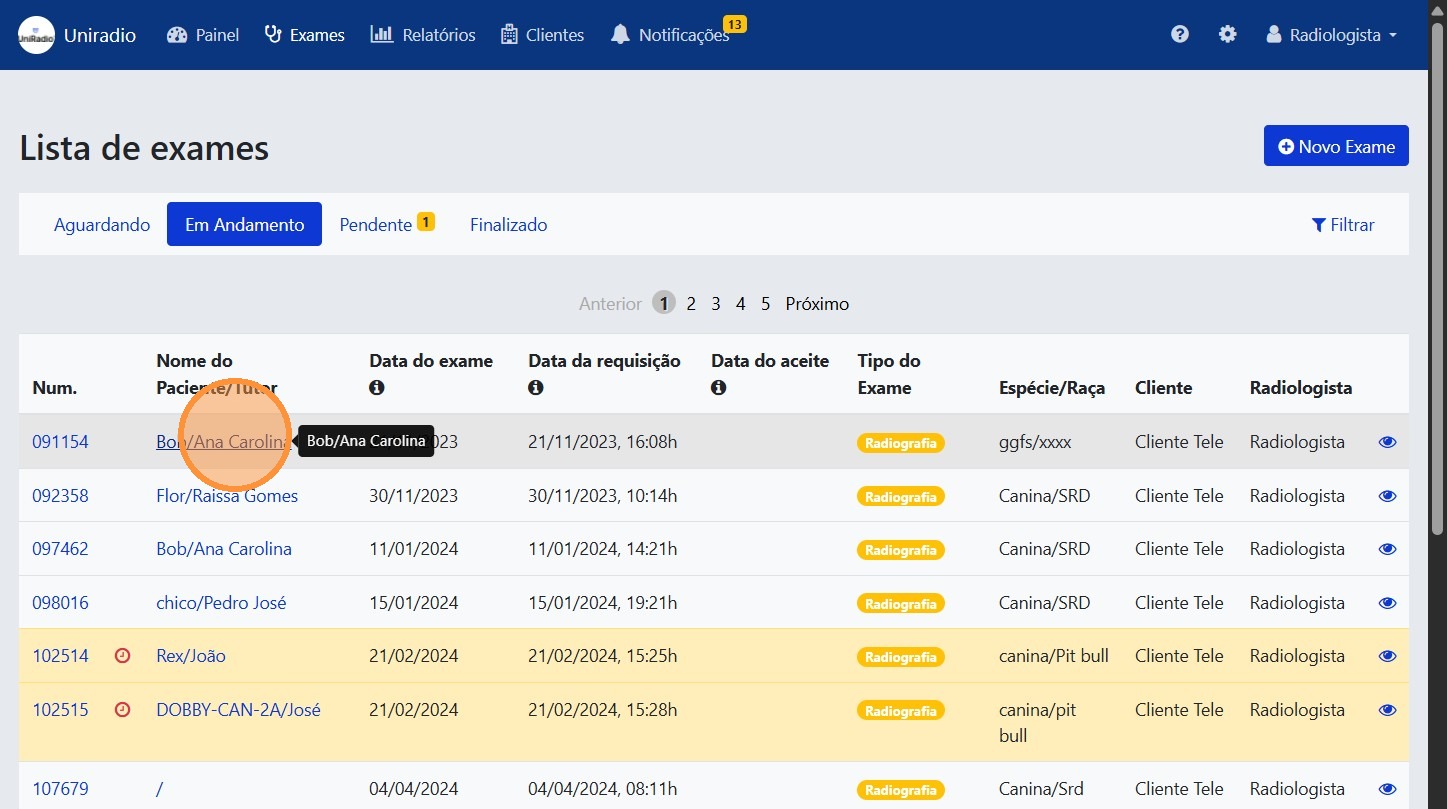
3. Select the exam
Click the exam in which you want to insert the report template.
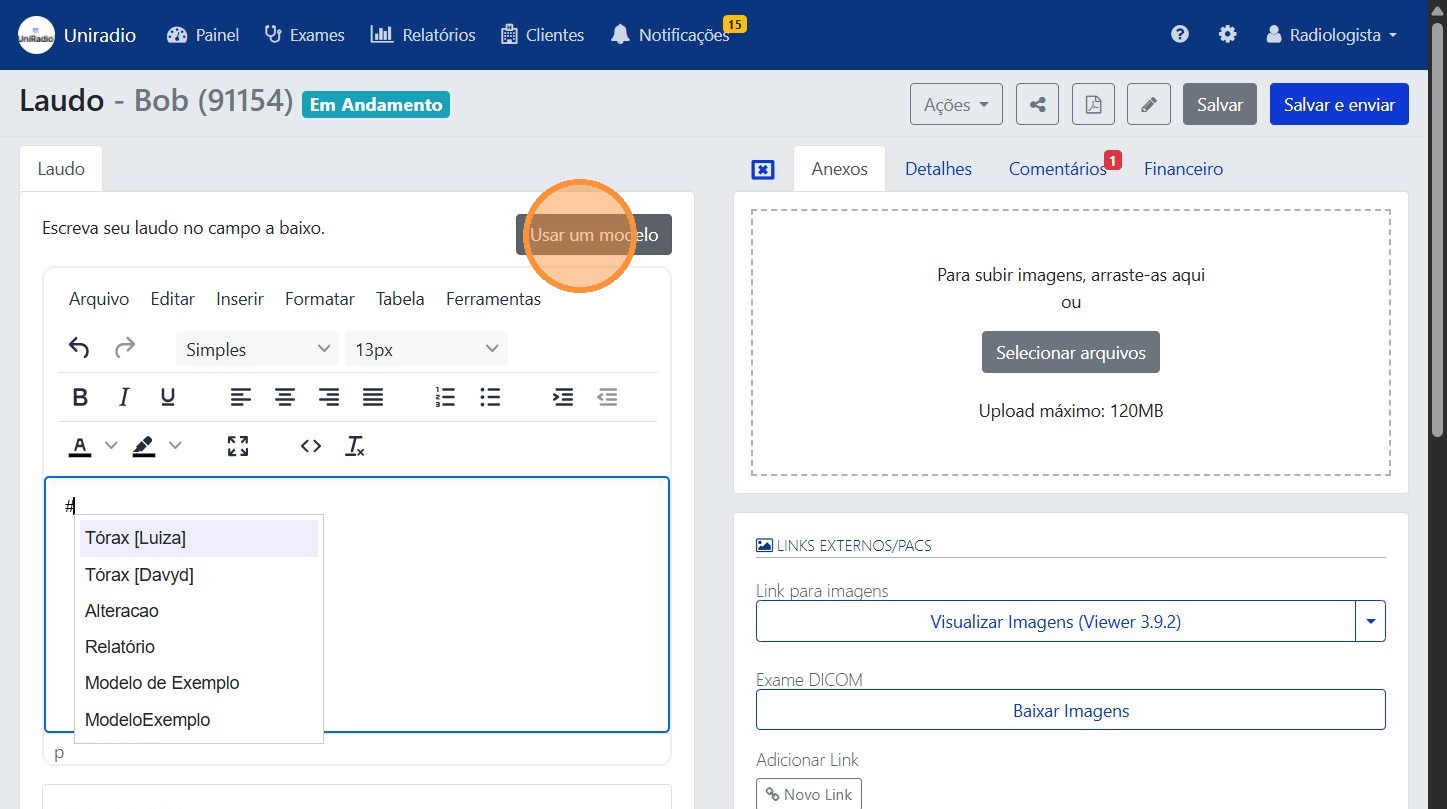
4. Click "Use a template"
There are two ways to insert a report template into the editor:
Option 1: Using the "Use a template" button
Click the "Use a template" button to open the list of available templates.
Option 2: Using the "#" shortcut
Type "#" followed by the template name (e.g., #xray-template, #ultrasound_template) directly in the report editor. This activates the autocomplete and lists available templates for quick selection.
5. Select the desired template (when using "Use a template")
Choose the report template you want to apply to the exam.
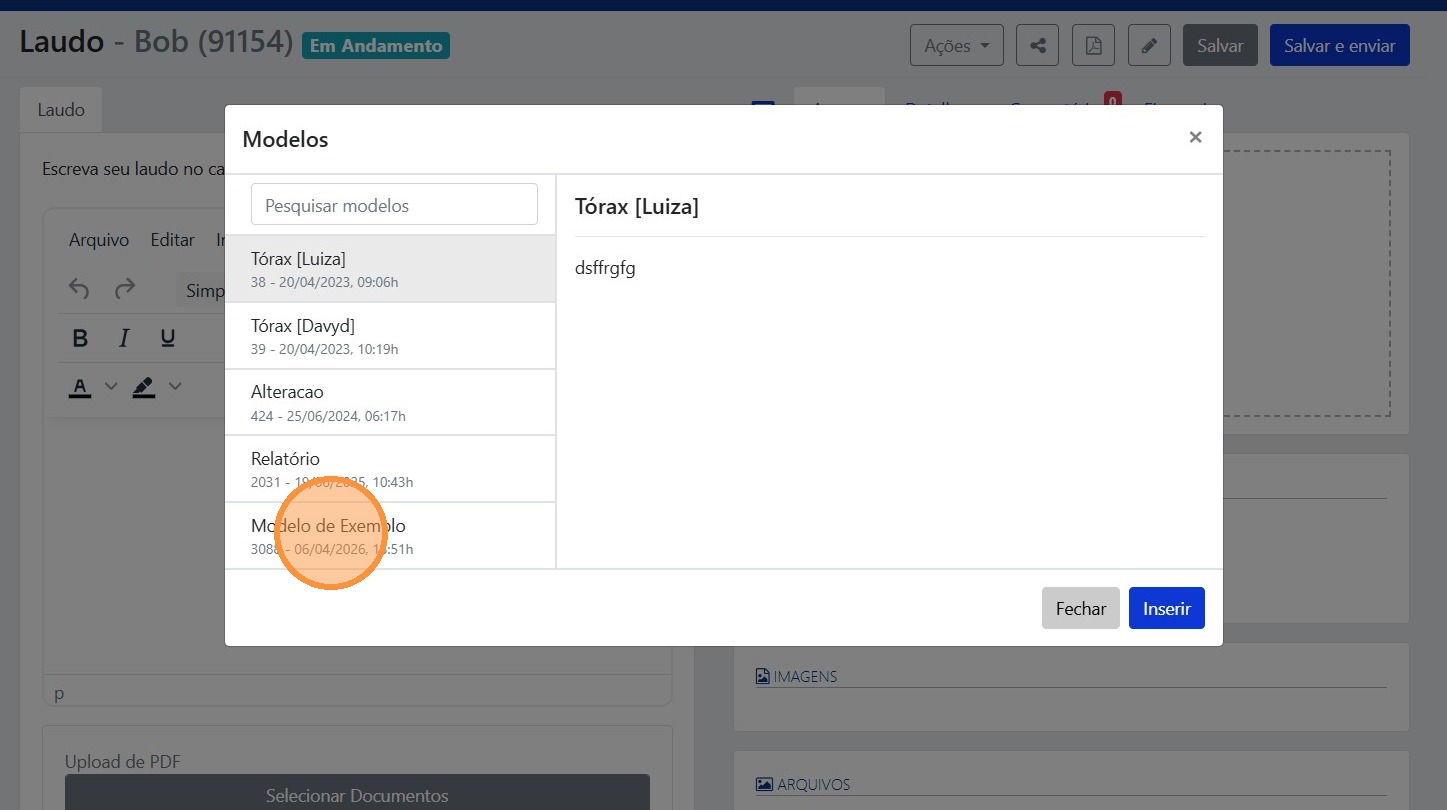
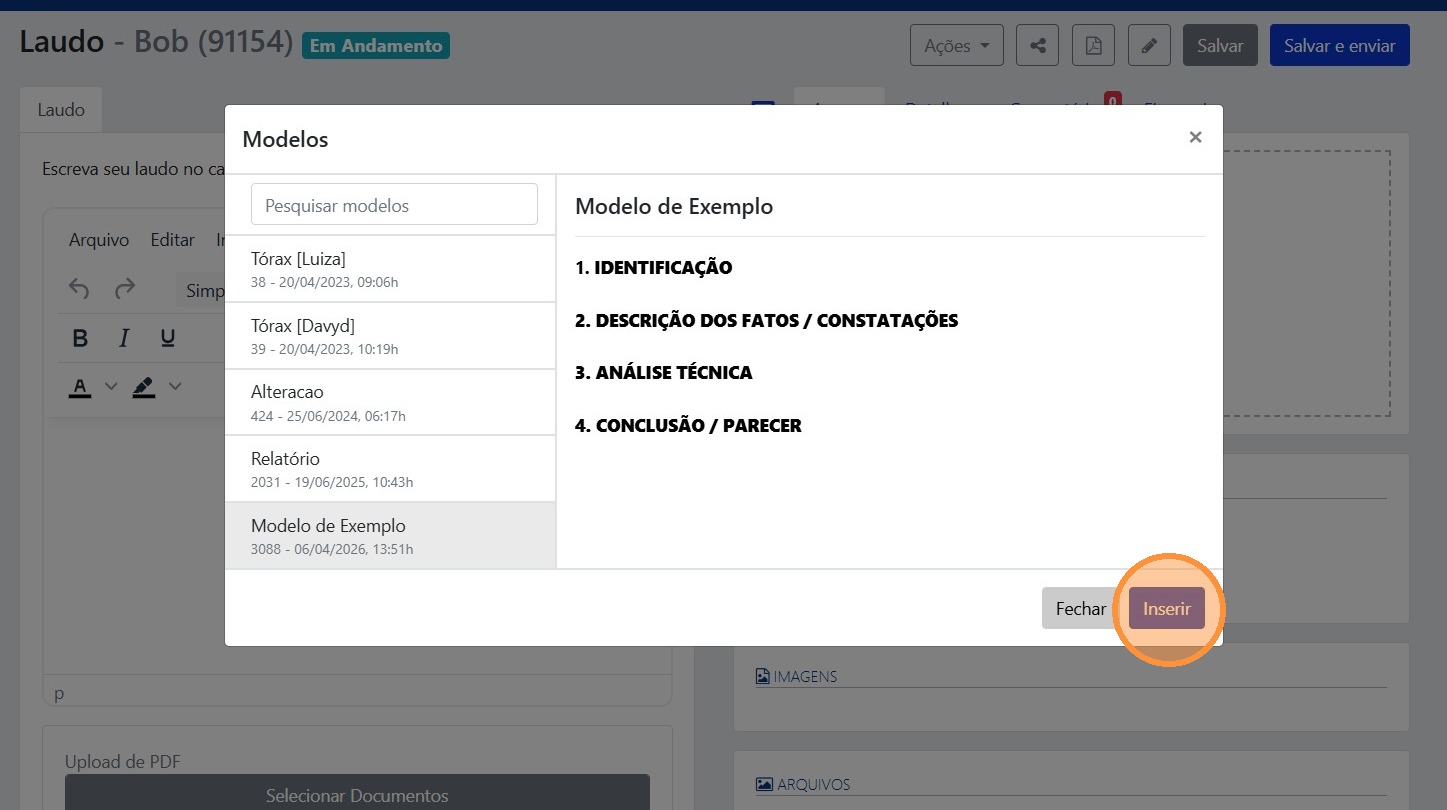
6. Click "Insert"
Click "Insert" to apply the template to the report. The content will be automatically filled in the editor.
Field Descriptions
To understand the meaning of each field in the report editor, see Report Fields.
Need Help?
Check our FAQ or contact support if you have trouble inserting report templates.