
How to Edit a Webhook
Learn how to access and modify the settings of an existing webhook on the UniRadio platform to keep your integrations active and up to date.
Step by Step
1. Access the UniRadio platform
Sign in to your account and go to app.uniradio.vet.br/exams
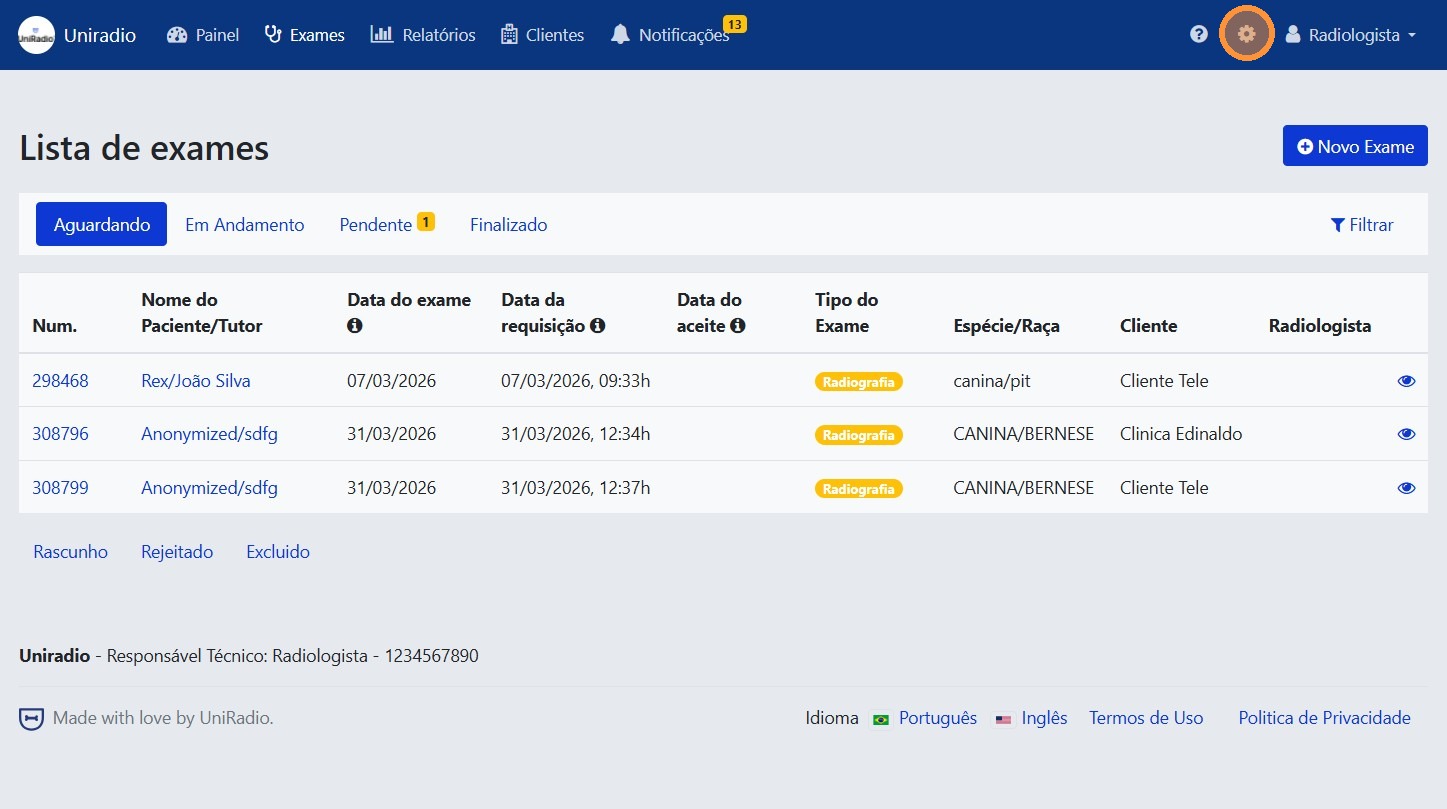
2. Open the settings menu
In the side menu, click the settings icon to open the account options.
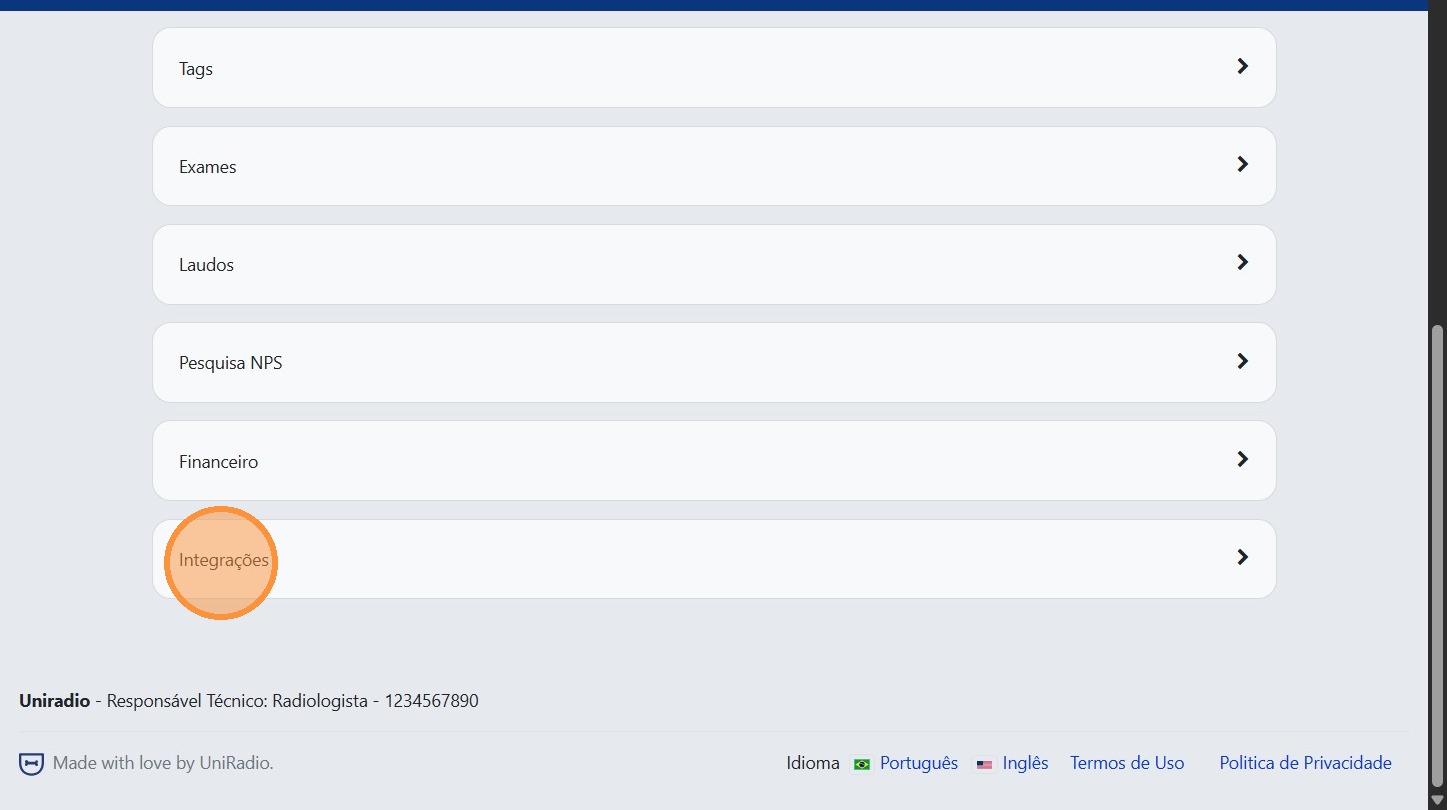
3. Click "Integrations"
In the settings menu, click "Integrations" to access the integration options.
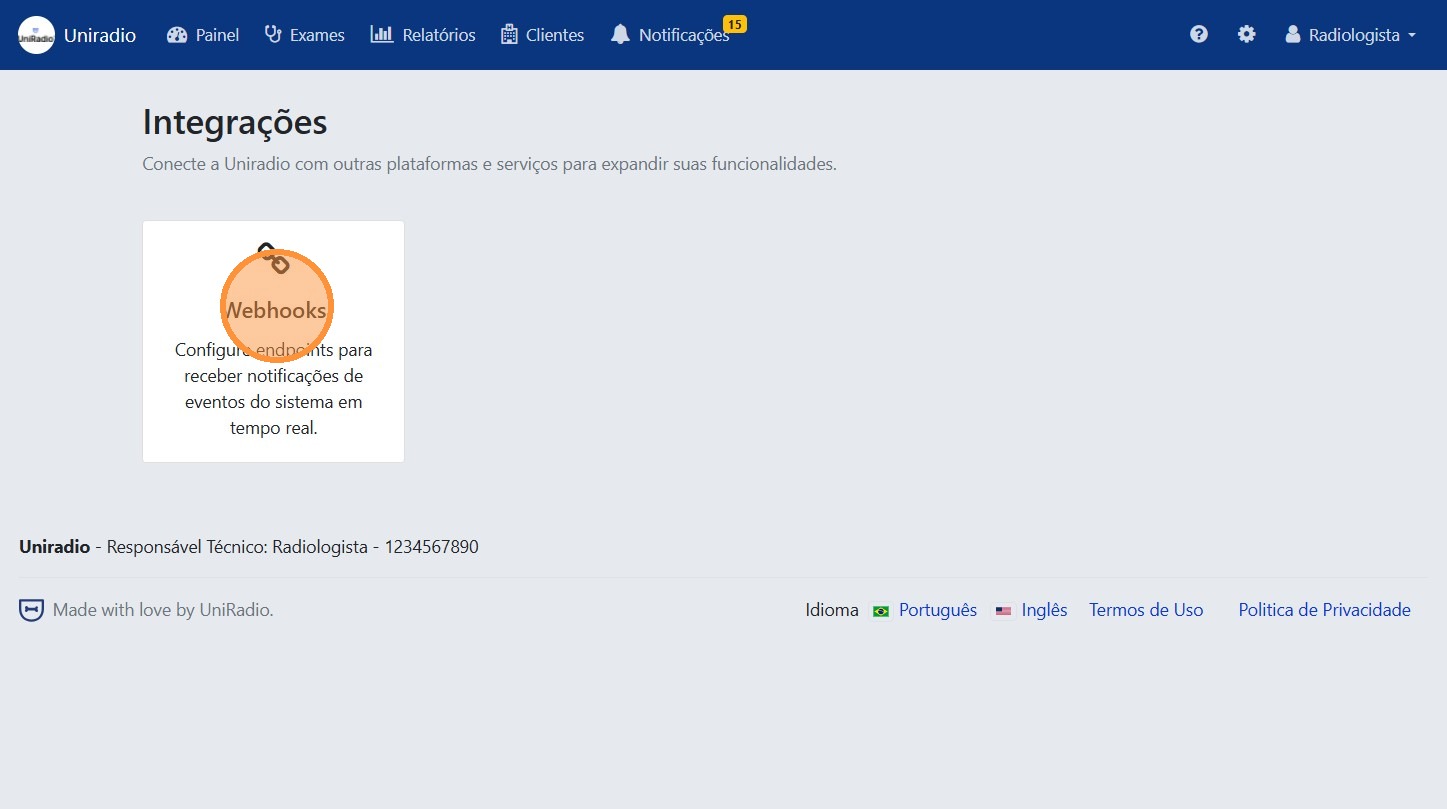
4. Click "Webhooks"
Inside integrations, click "Webhooks" to view the registered webhooks.
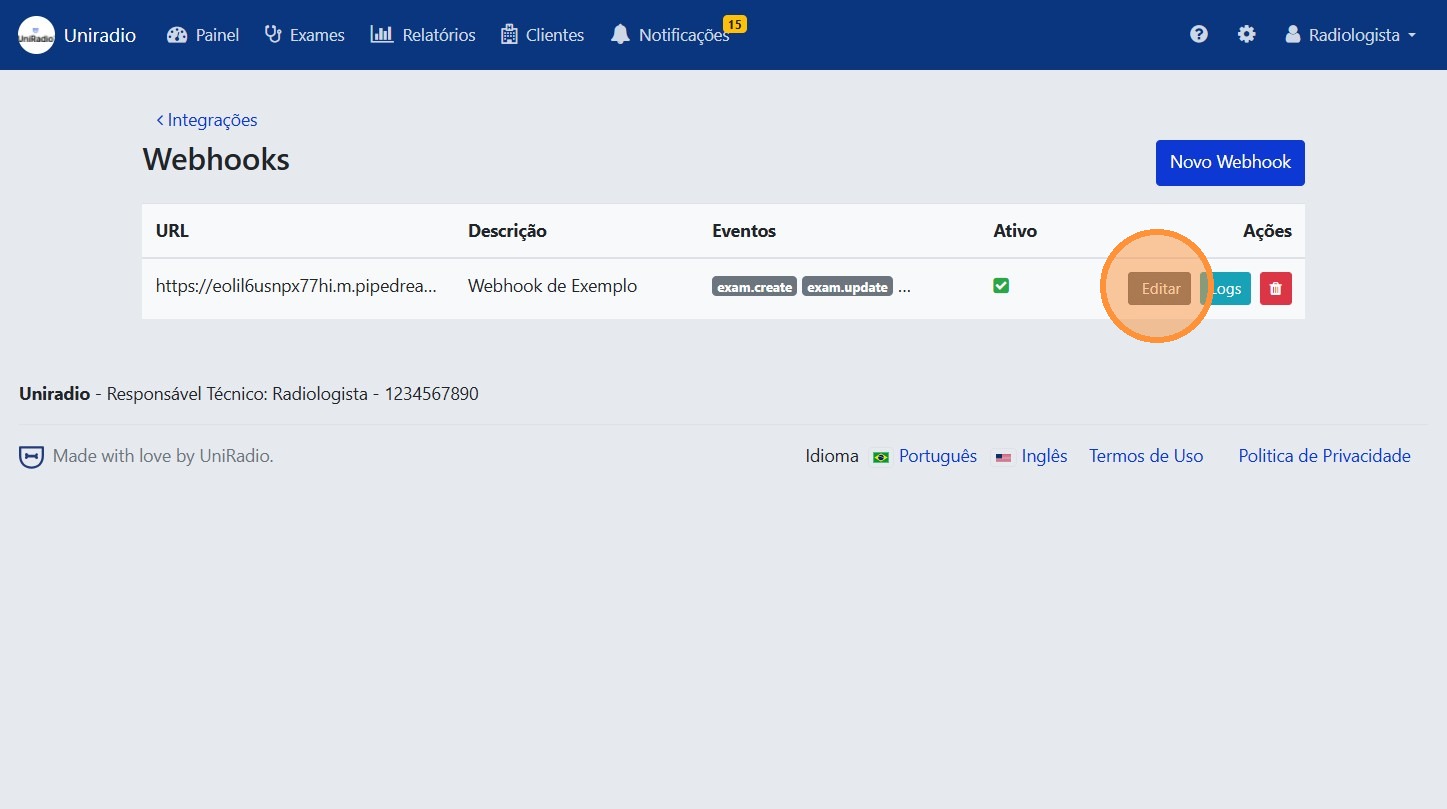
5. Click "Edit"
Locate the webhook you want to modify and click "Edit".
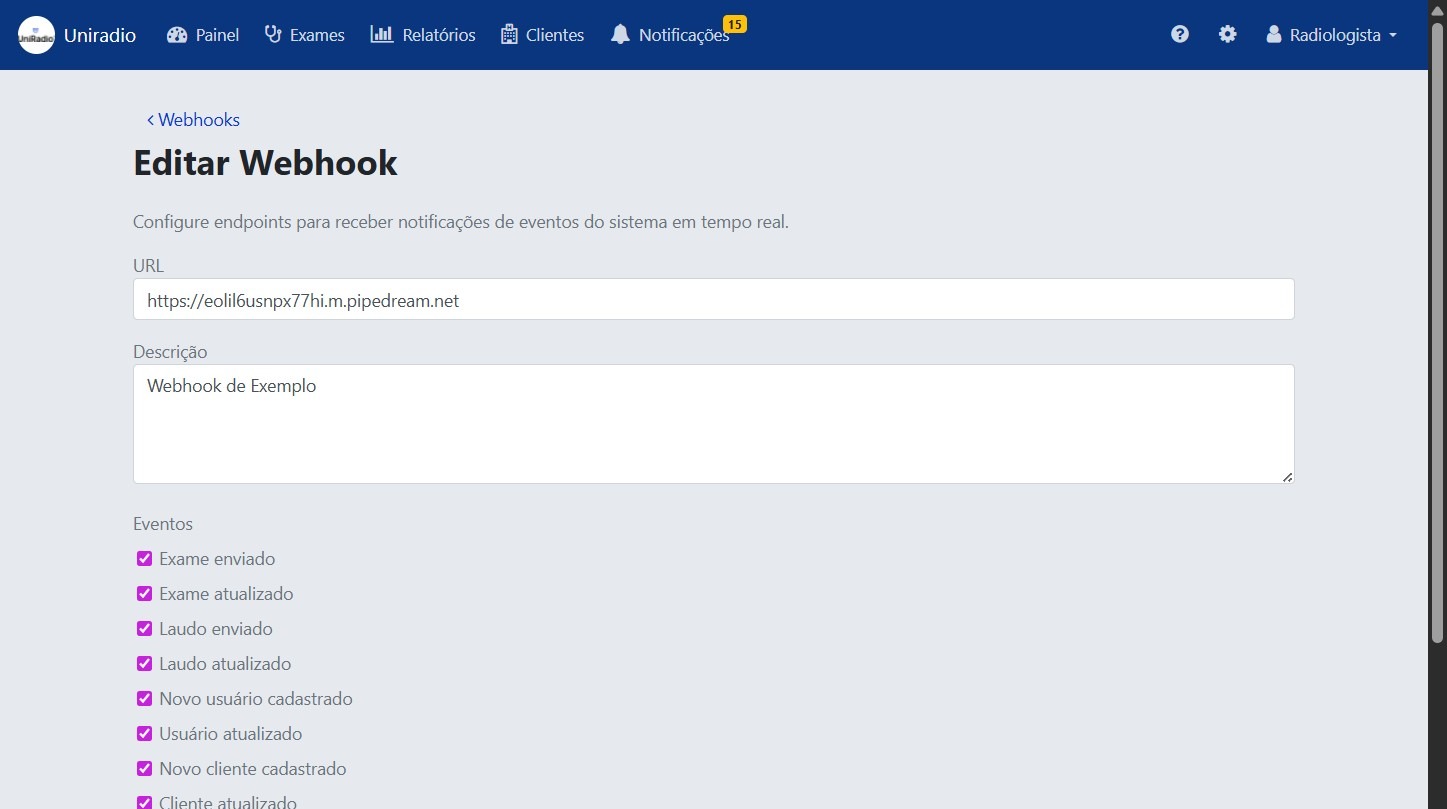
6. Update the desired information
Modify the destination URL, name, or events monitored by the webhook.
Disable webhook
The form has an option to uncheck the webhook activation. When disabled, it stops firing events but is not deleted from the platform. Use this option if you want to temporarily pause the integration without losing your settings.
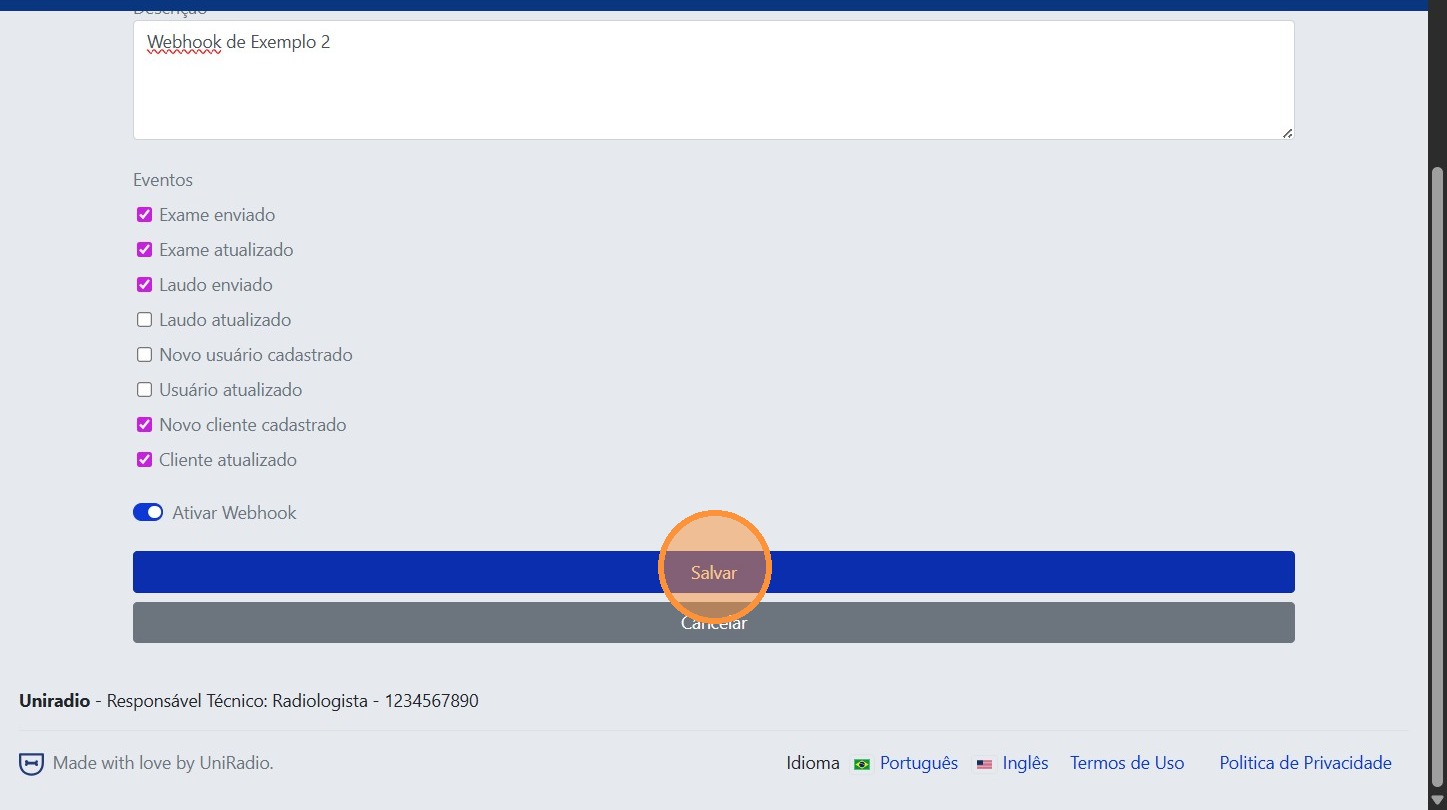
7. Click "Save"
After making the desired changes, click "Save" to confirm.
Need Help?
Check our FAQ or contact support if you have trouble editing webhooks.