
How to Edit Account User Notifications
Learn how to adjust the notification preferences for a user in your account on the UniRadio platform.
Step by Step
1. Access the UniRadio platform
Sign in to your account and go to app.uniradio.vet.br/exams
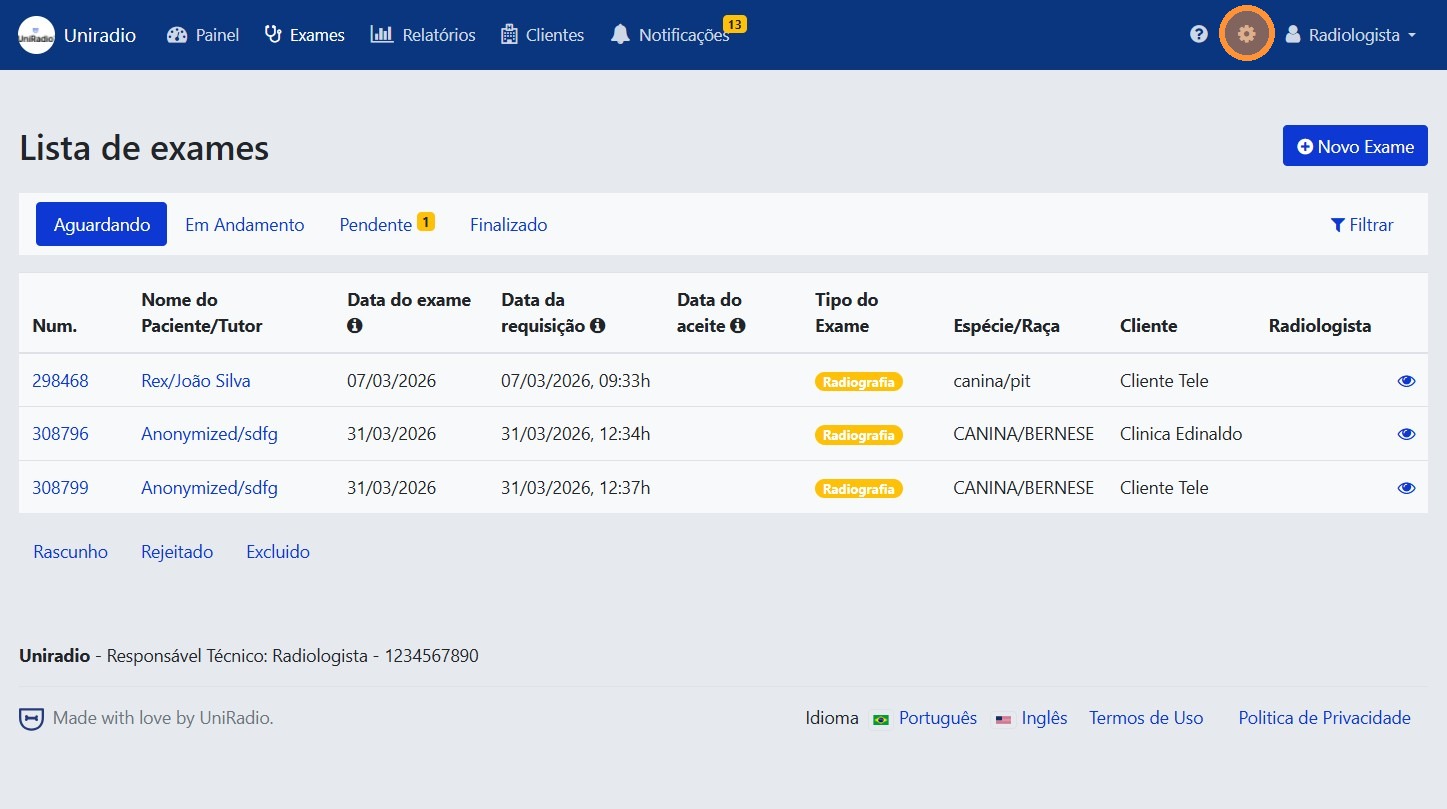
2. Open the settings menu
In the side menu, click the settings icon to open the account options.
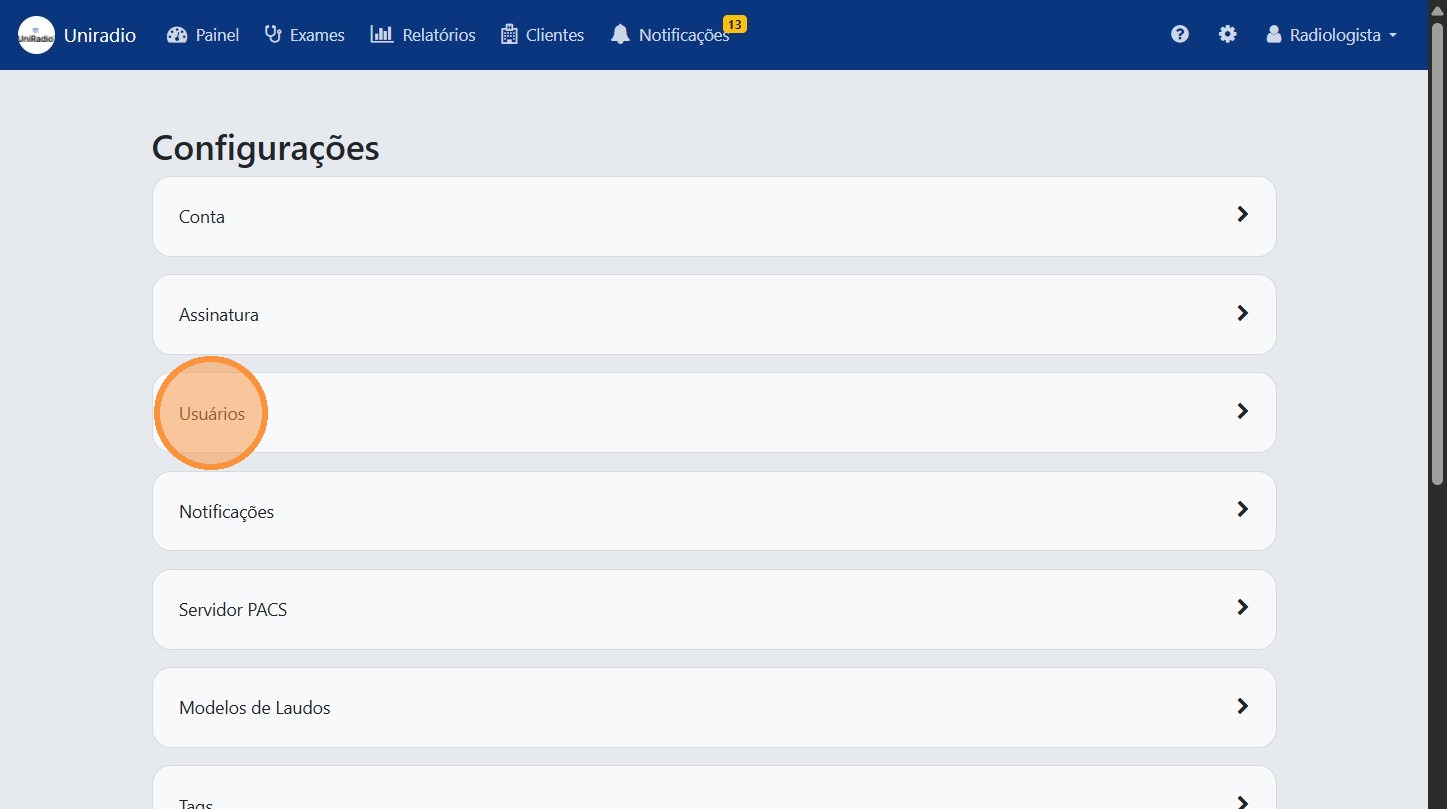
3. Click "Users"
In the settings menu, click "Users" to view the members of your account.
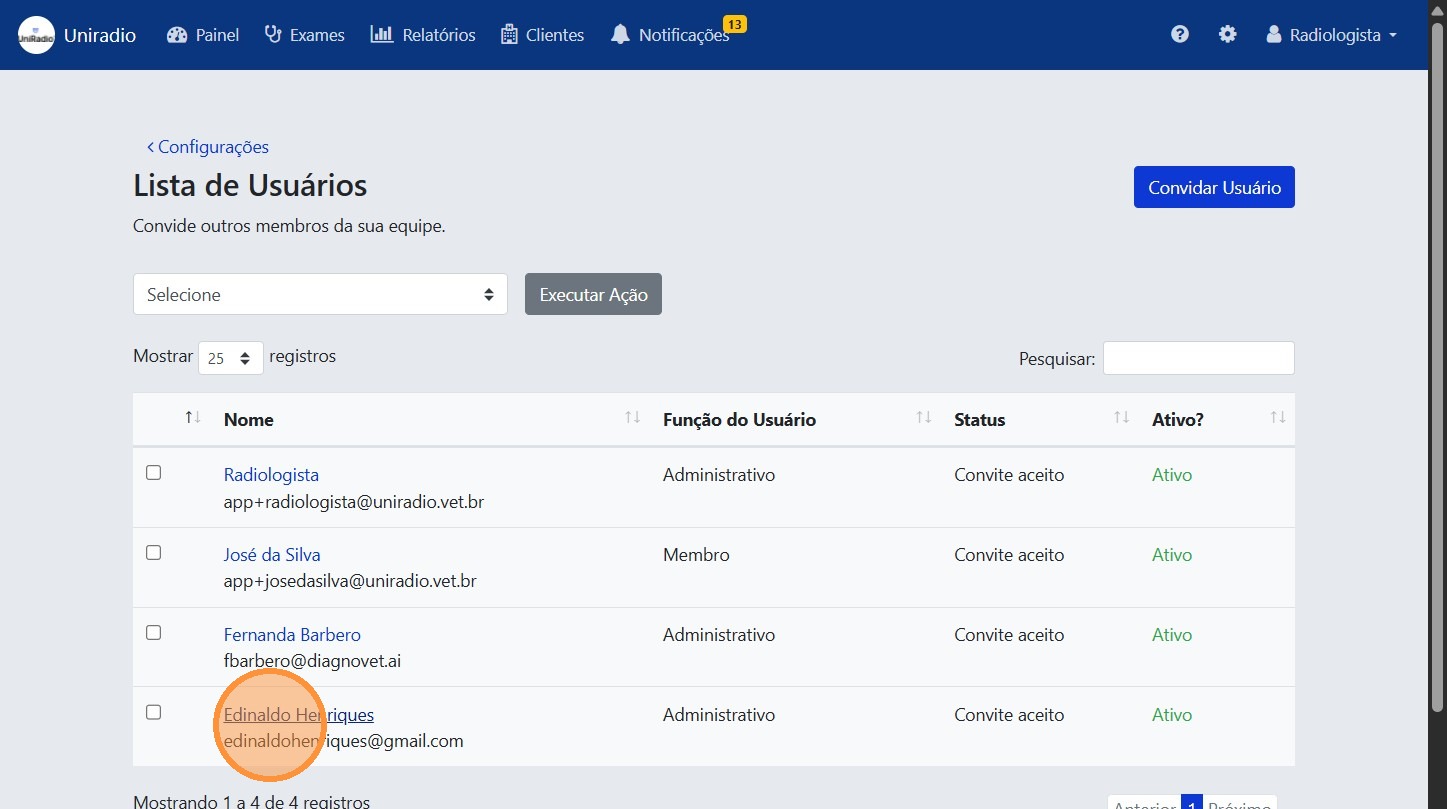
4. Select the user
Click the name of the user whose notifications you want to configure.
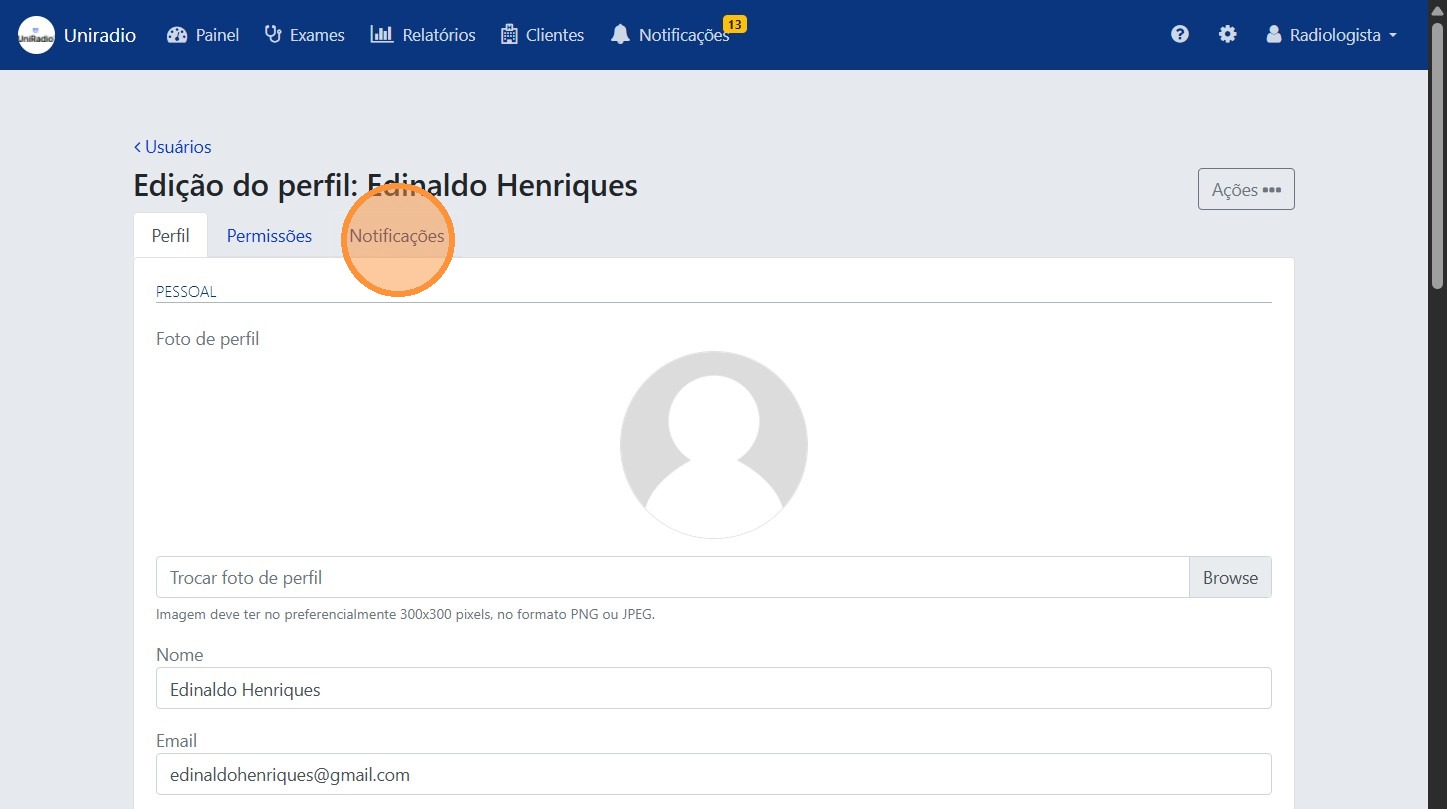
5. Click "Notifications"
On the user's page, click the "Notifications" tab to access the alert preferences.
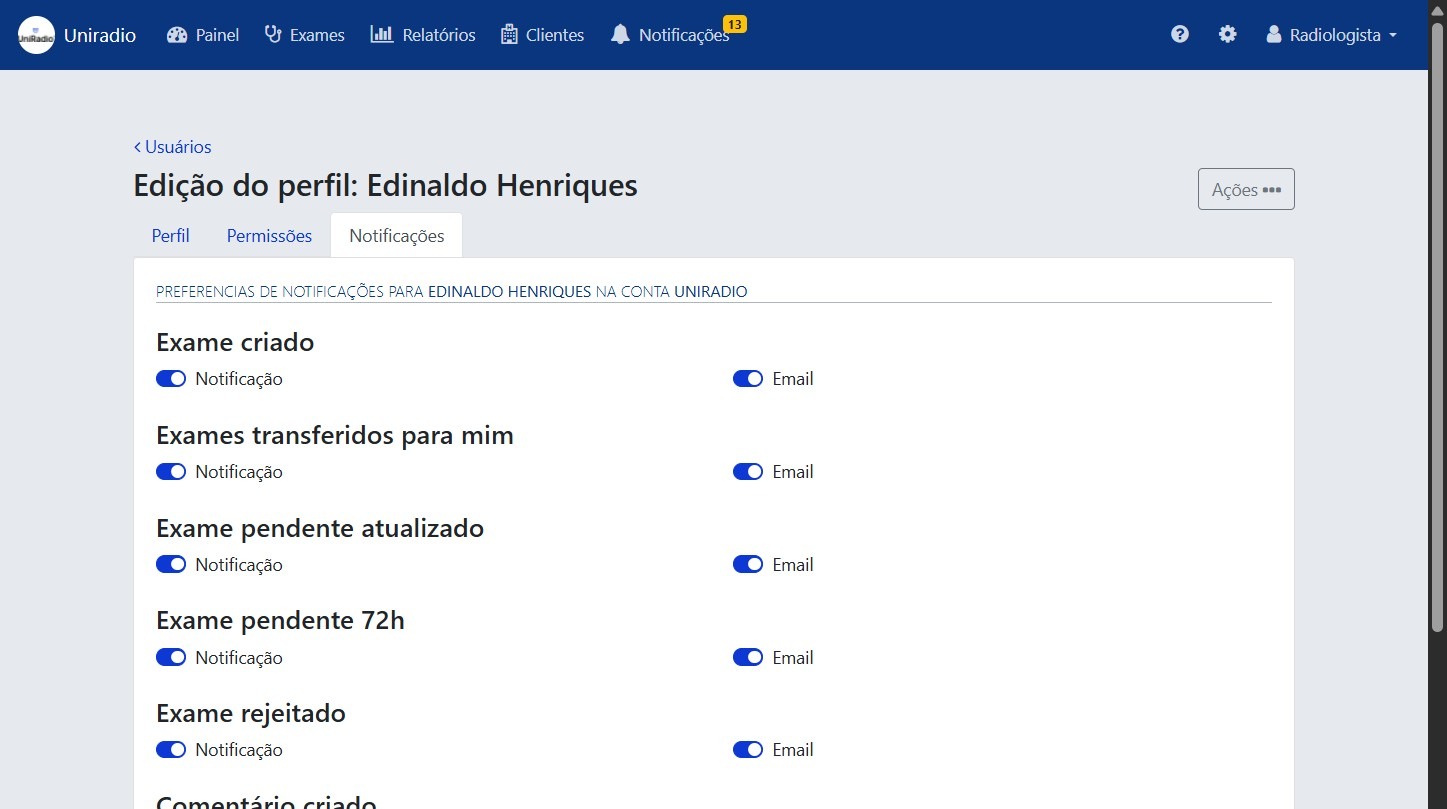
6. Select notification preferences
Check or uncheck the notification options as desired, such as alerts for new exams, issued reports, and other account activities.
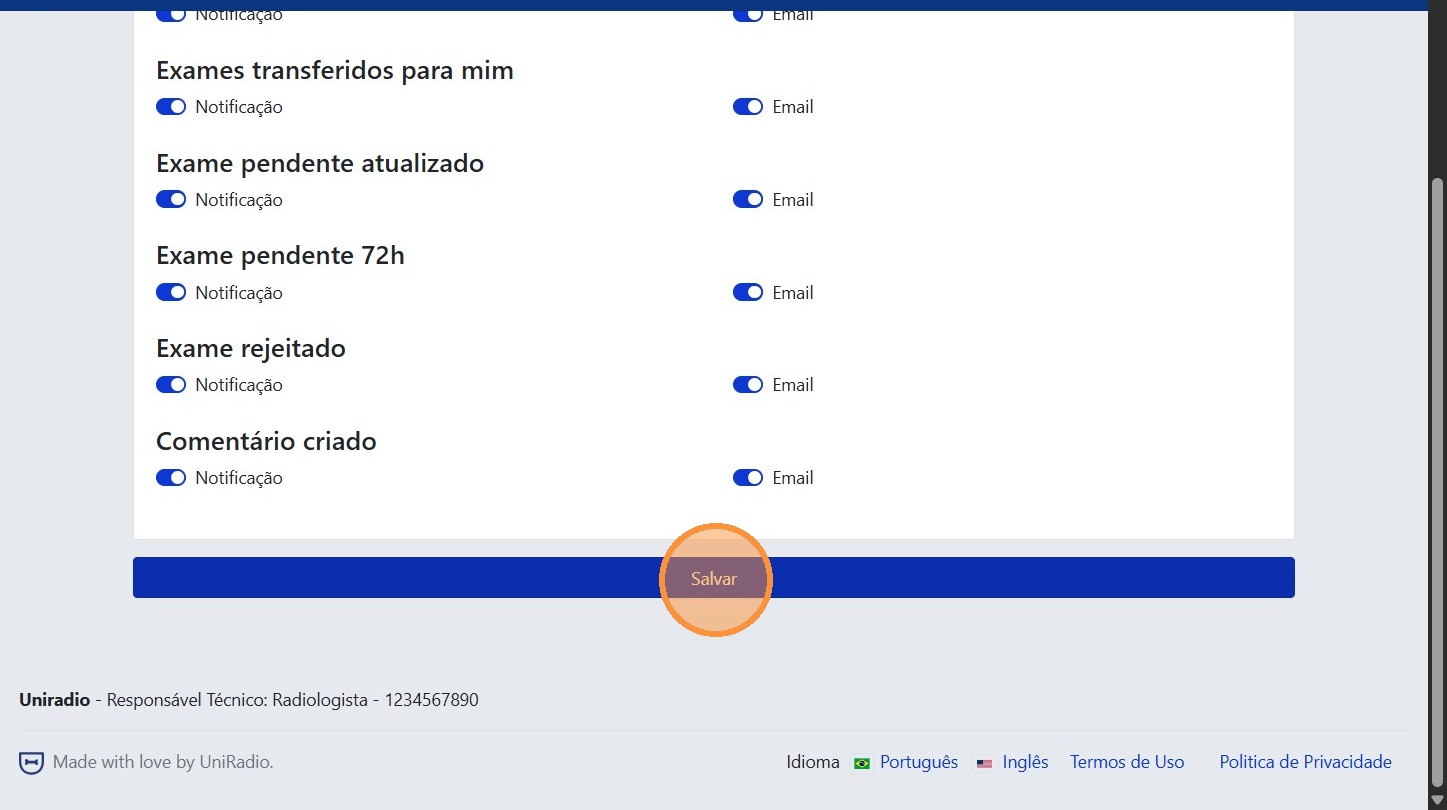
7. Click "Save"
After adjusting the settings, click "Save" to confirm the changes.
Field Descriptions
To understand the meaning of each notification option, see Notification Preferences (Radiologist).
Need Help?
Check our FAQ or contact support if you have trouble editing user notifications.