
How to Configure the PACS Server
Learn how to access and configure the PACS server integration options in your UniRadio account.
Step by Step
1. Access the UniRadio platform
Sign in to your account and go to app.uniradio.vet.br/exams
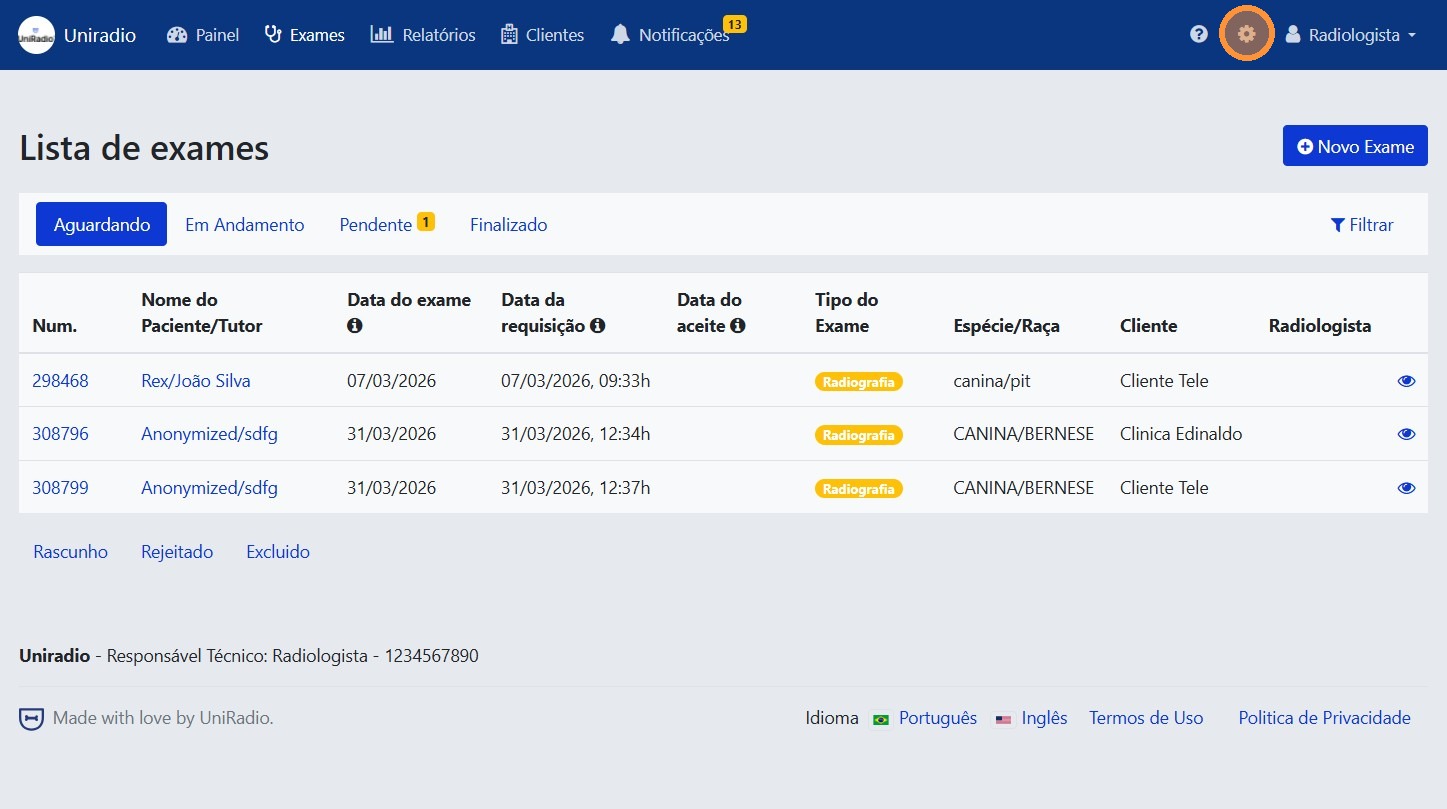
2. Open the settings menu
In the side menu, click the settings icon to open the account options.
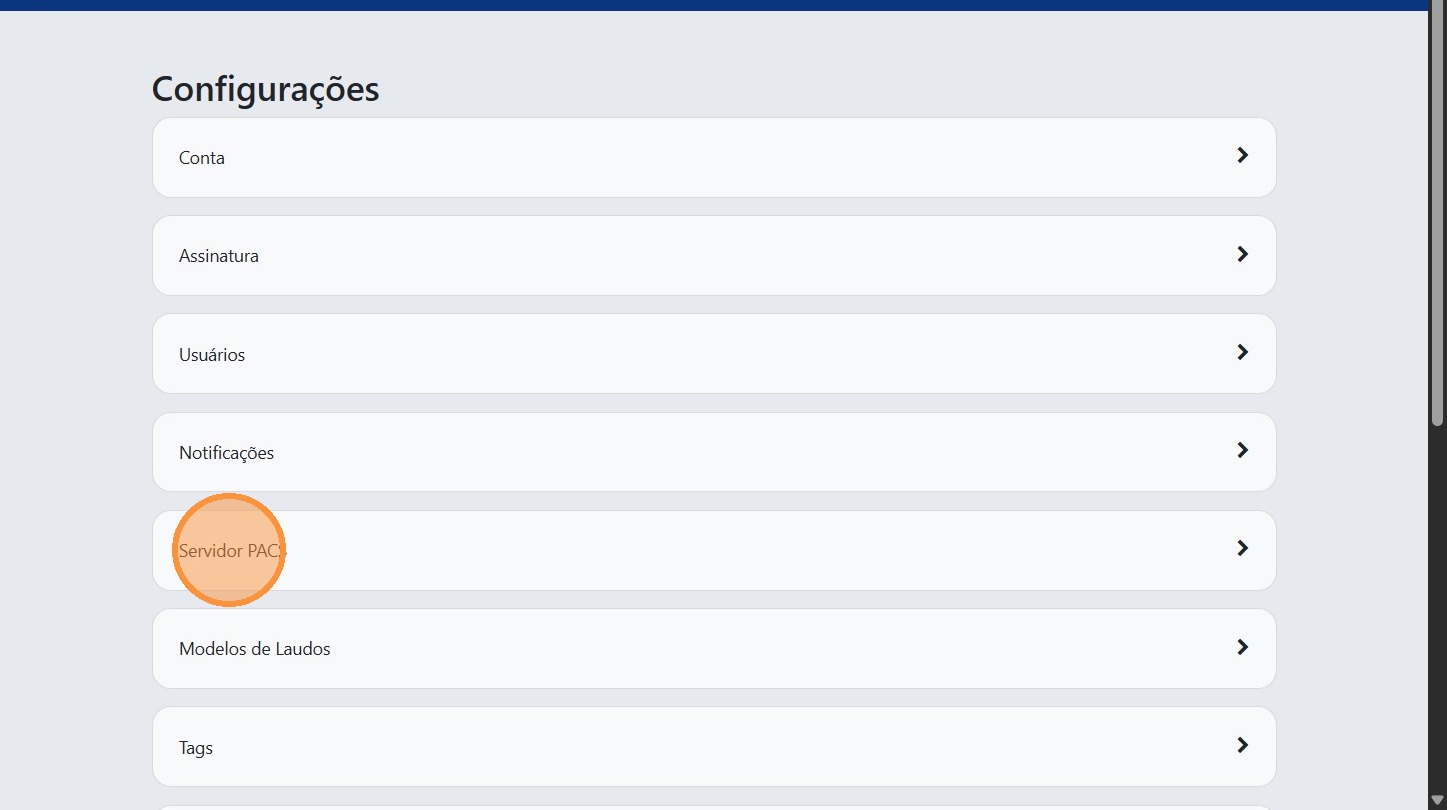
3. Click "PACS Server"
In the settings menu, click "PACS Server" to access the integration settings.
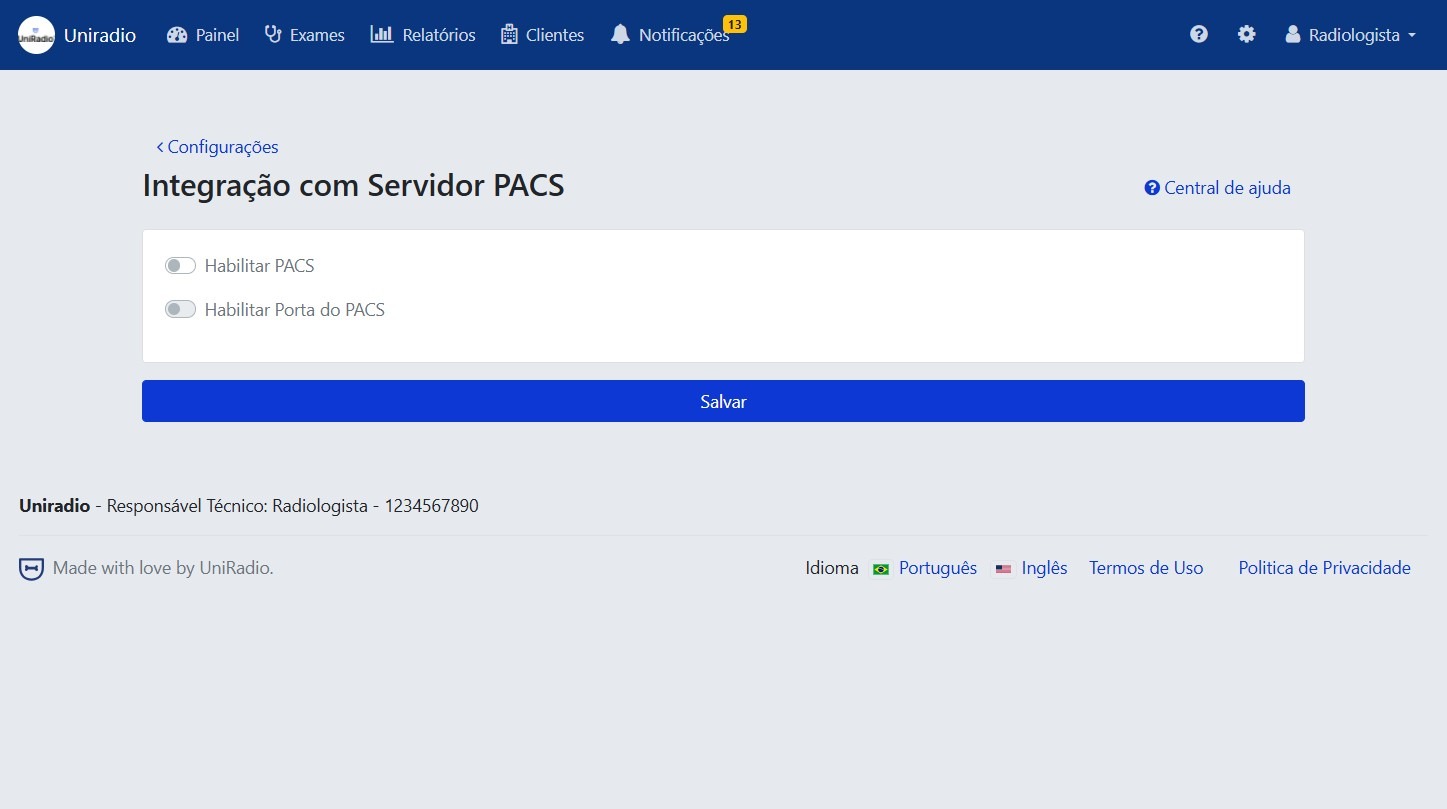
4. Configure the PACS server options
Fill in the required information and select the integration options according to your needs.
Available options
- Enable PACS — Turn this on to allow exam creation using the PACS server.
- Enable PACS Port — Turn this on to integrate your imaging equipment or PACS software with the UniRadio App, using the displayed information (server address, port and AE Title).
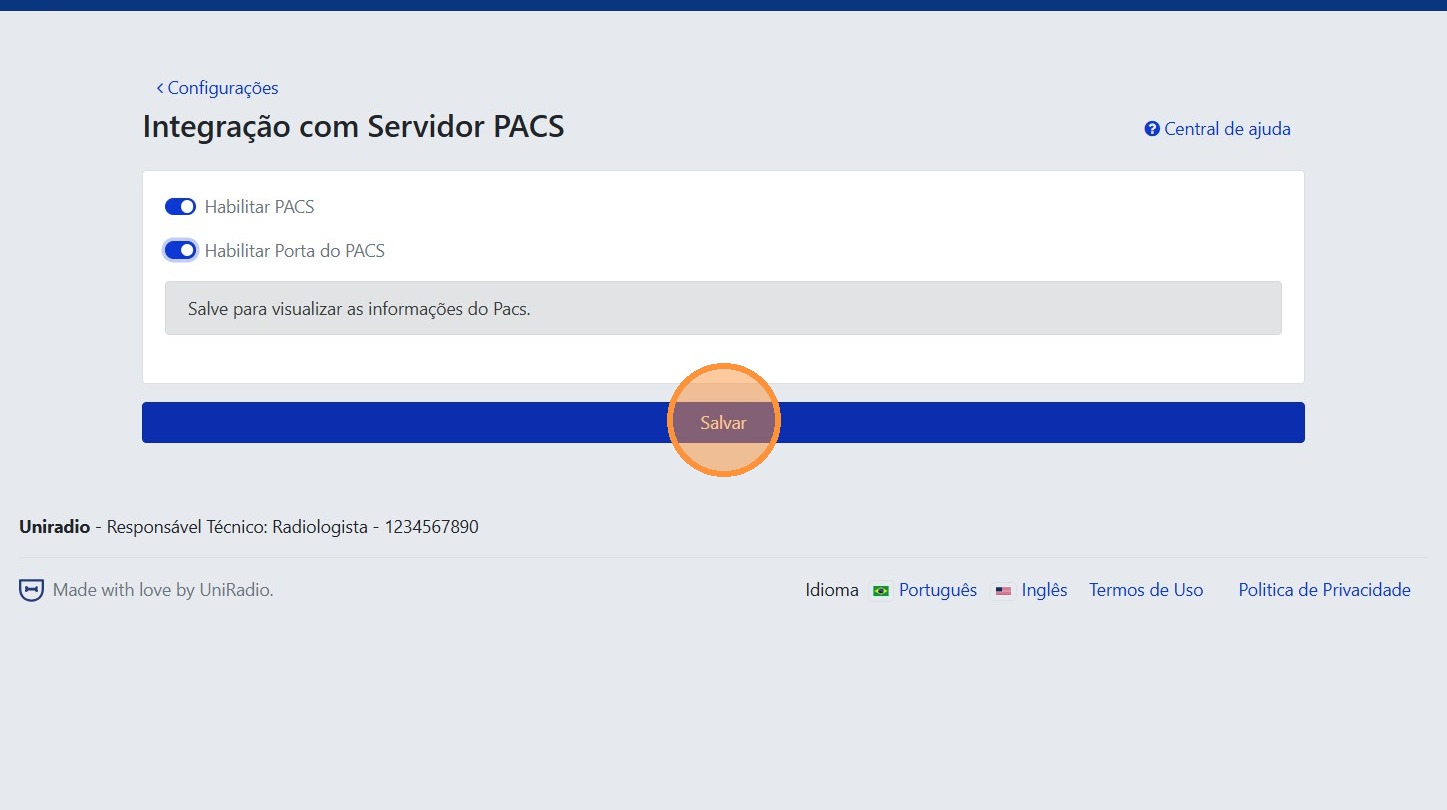
5. Click "Save"
After configuring the desired options, click "Save" to confirm the changes.
Which software do you use?
After configuring the PACS server on the platform, follow the tutorial for your imaging software to connect it to UniRadio:
Need Help?
Check our FAQ or contact support if you run into issues configuring the PACS server.