
How to Bulk Deactivate Multiple Clients
Learn how to select and deactivate multiple client accounts at once on the UniRadio platform.
Step by Step
1. Access the UniRadio platform
Sign in to your account and go to app.uniradio.vet.br/exams
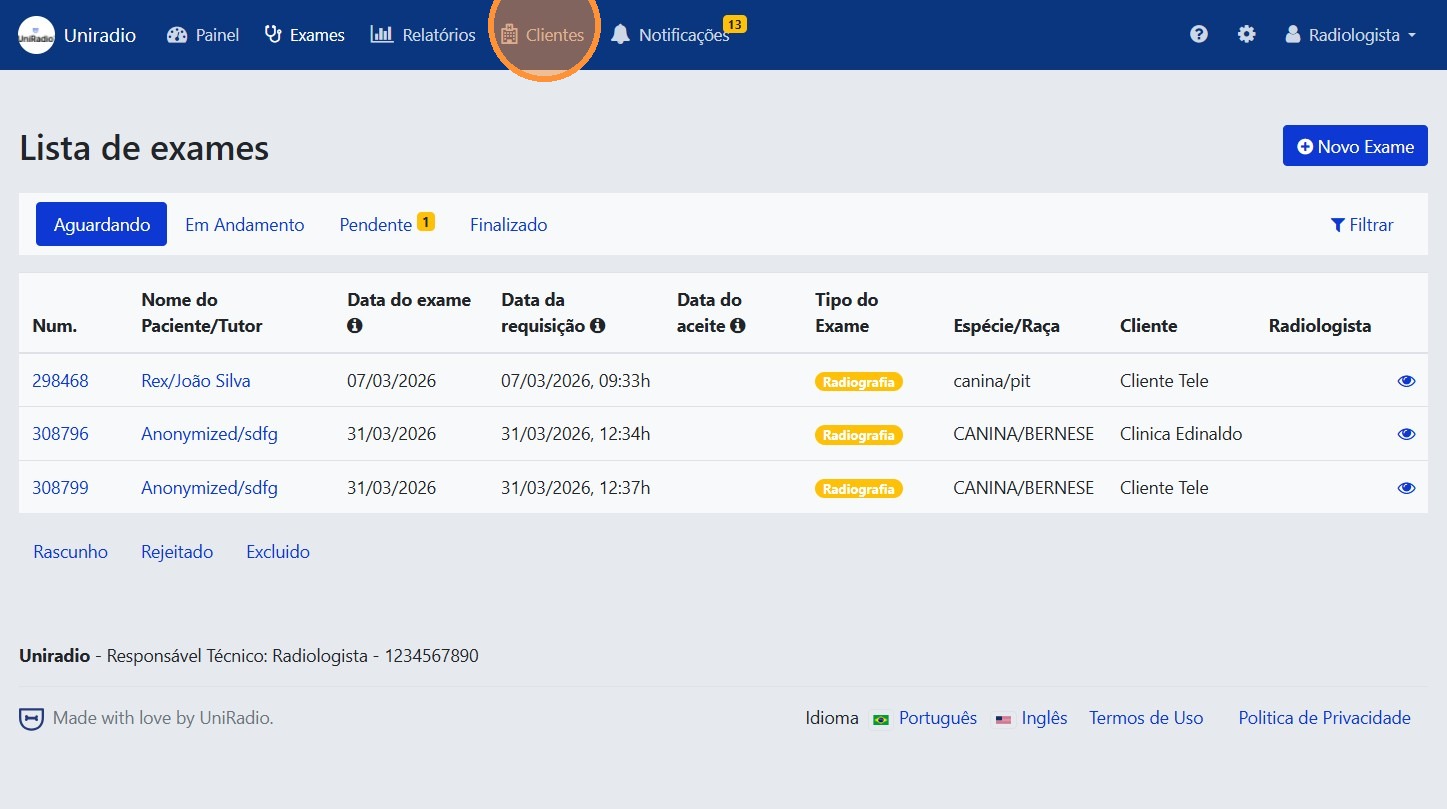
2. Open "Clients"
In the side menu, click "Clients" to view the list of registered clients.
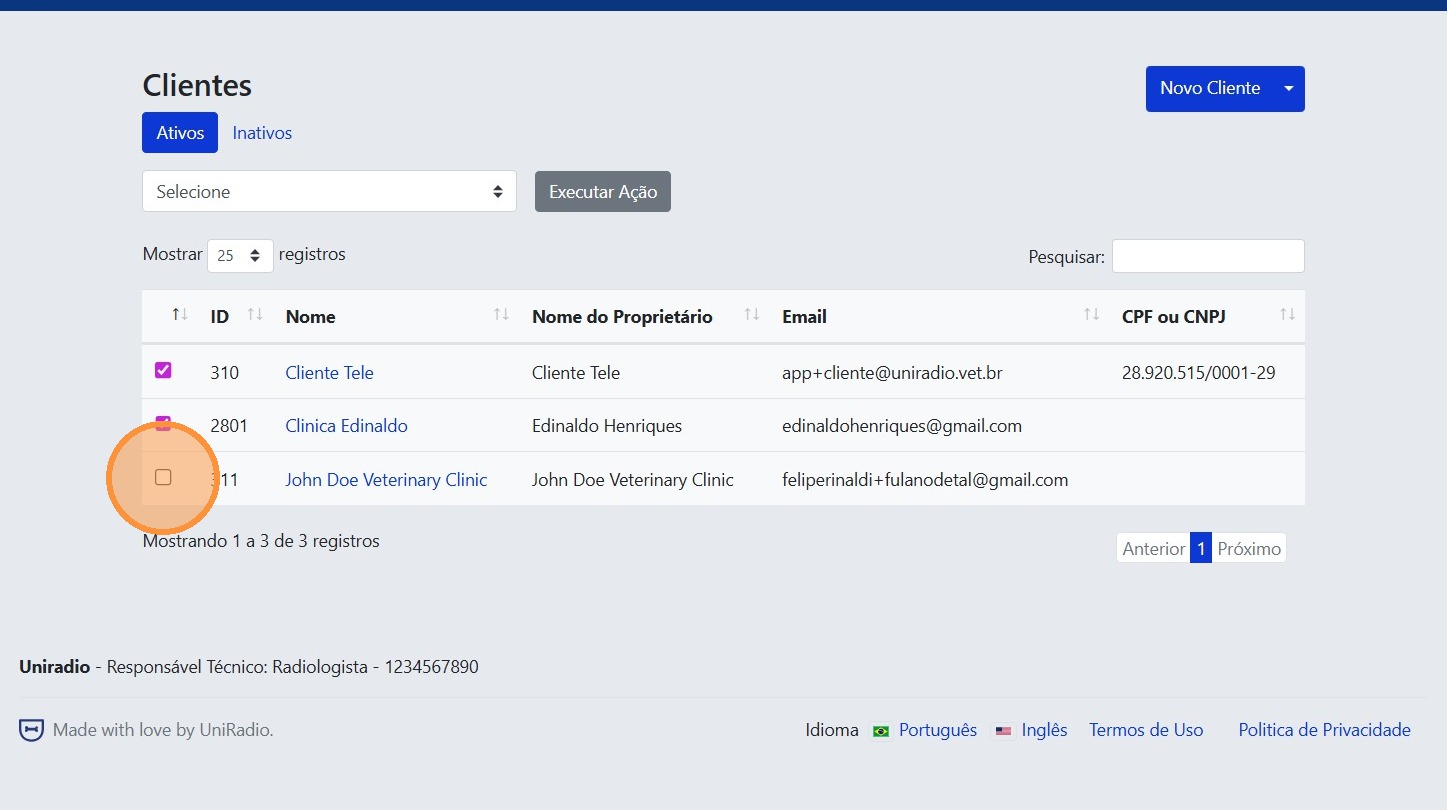
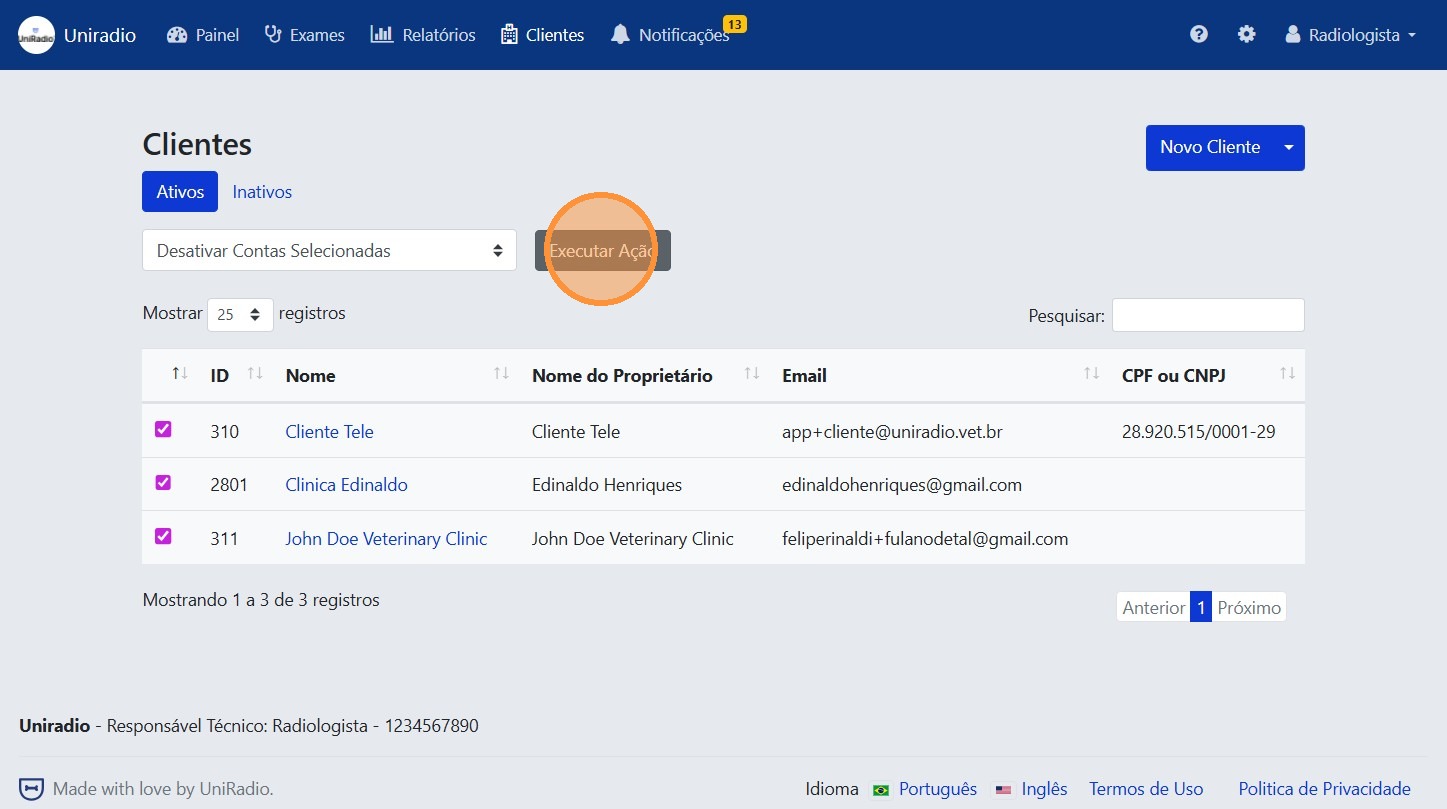
3. Select the accounts you want to deactivate
Check the checkbox next to each client you want to deactivate. You can select as many clients as needed.
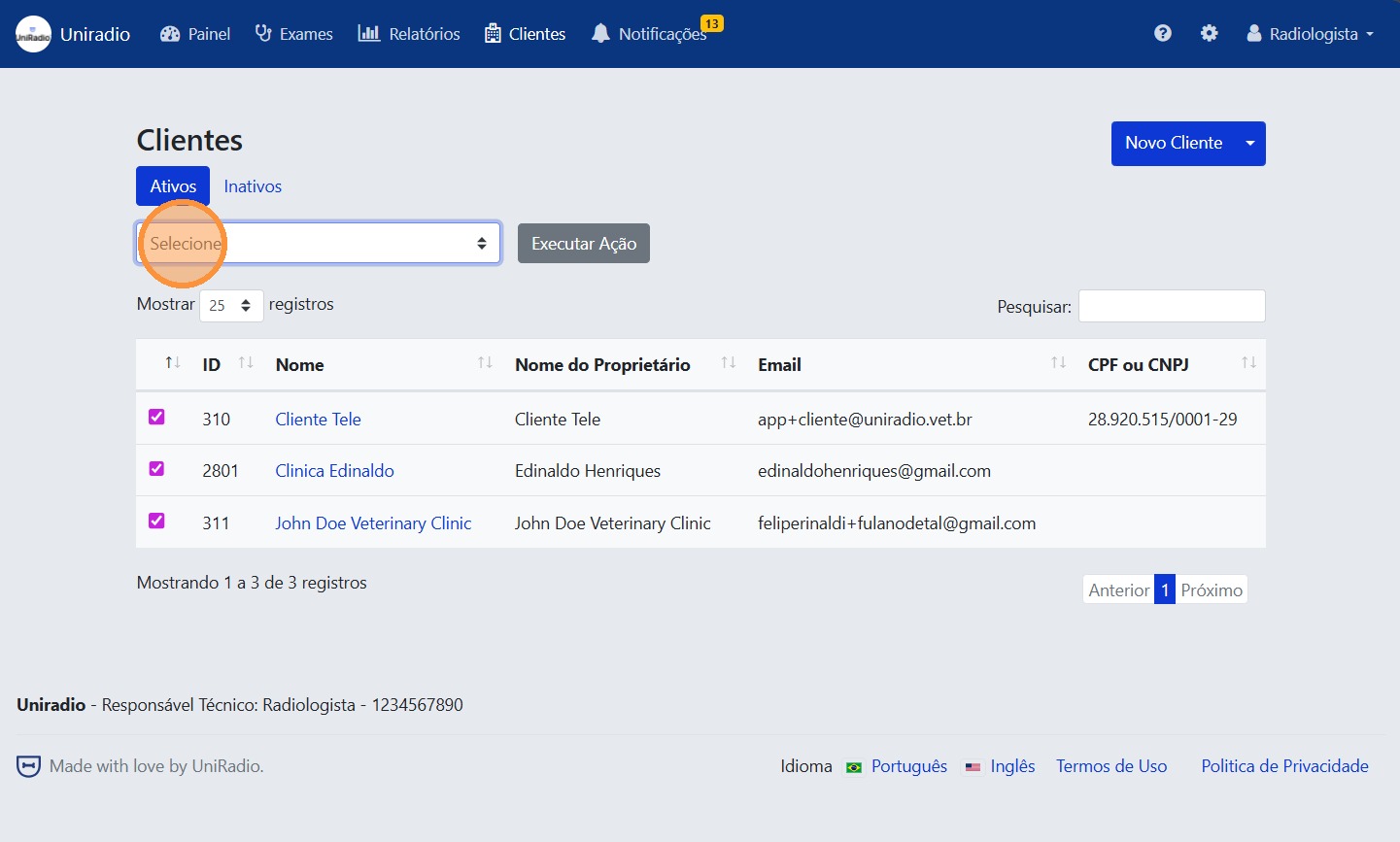
4. Open the bulk actions menu
Click the bulk actions dropdown to view the available options.
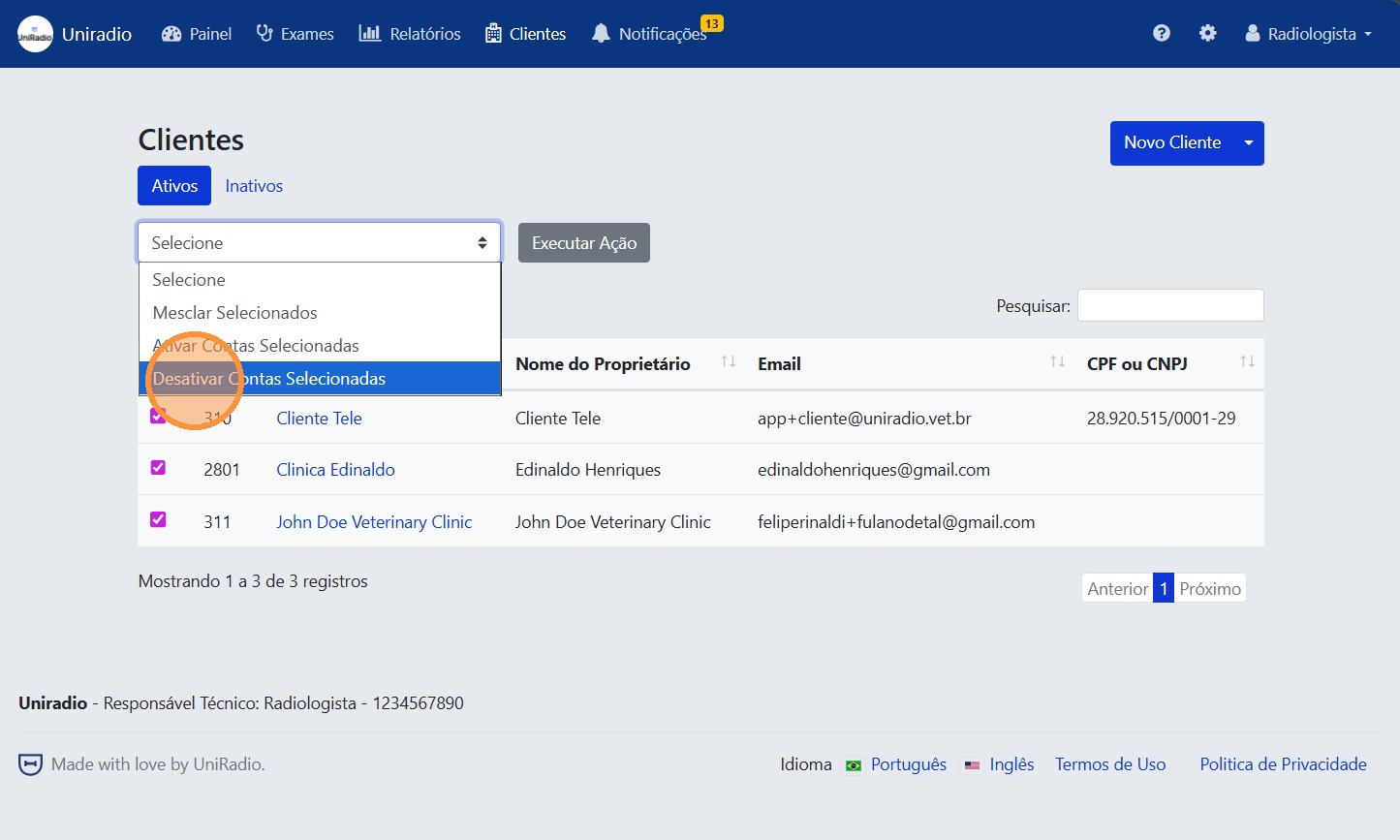
5. Select "Deactivate selected accounts"
Choose the option to deactivate the selected accounts from the menu.
6. Click "Execute Action"
Click "Execute Action" to proceed with the bulk deactivation.
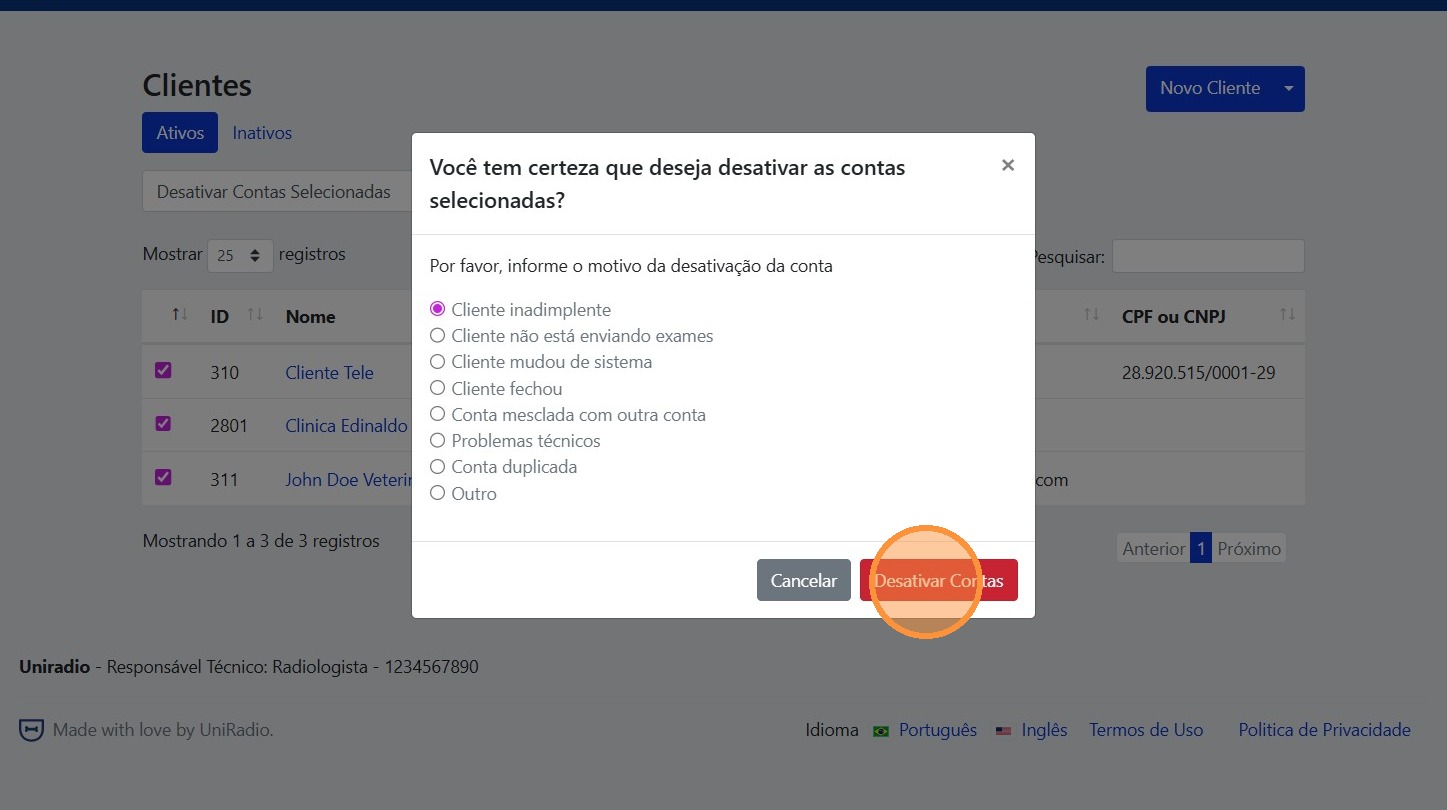
7. Confirm by clicking "Deactivate Accounts"
Click "Deactivate Accounts" to confirm. All selected accounts will be deactivated immediately.
Need Help?
Check our FAQ or contact support if you have issues deactivating accounts in bulk.