
How to Create a New Tag
Learn how to create custom tags on the UniRadio platform to better organize your exams and clients.
Step by Step
1. Access the UniRadio platform
Sign in to your account and go to app.uniradio.vet.br/exams
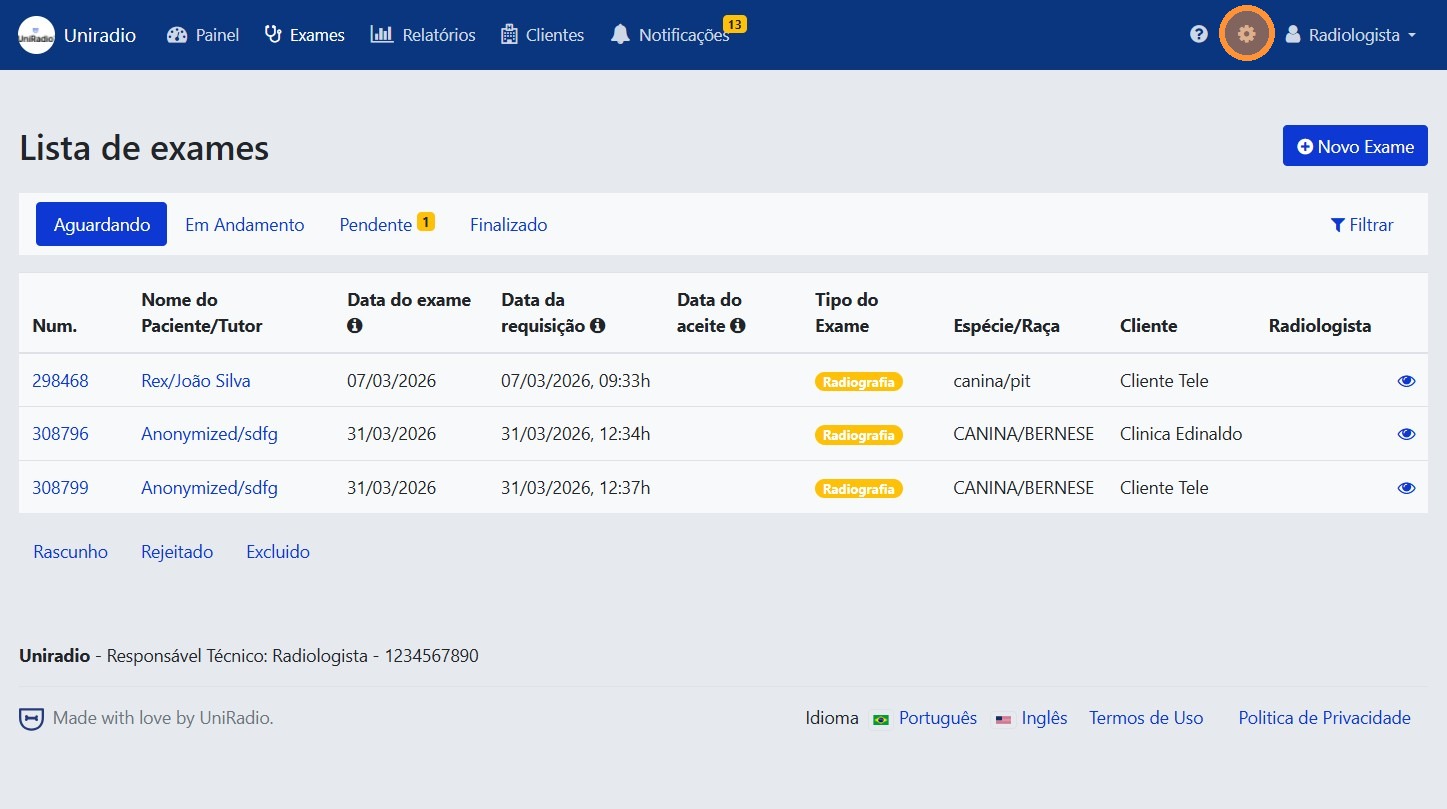
2. Open the settings menu
In the side menu, click the settings icon to open the account options.
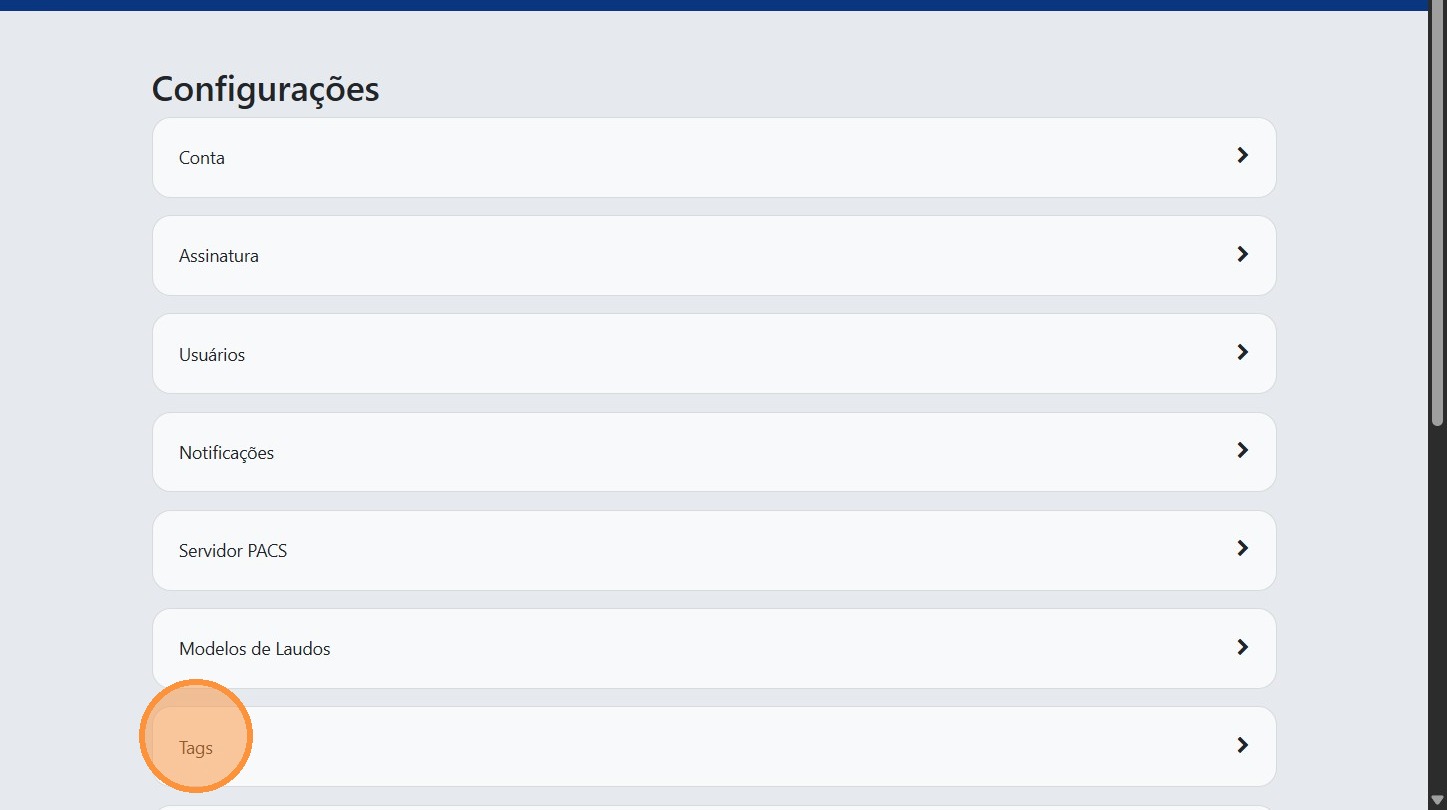
3. Click "Tags"
In the settings menu, click "Tags" to manage the account tags.
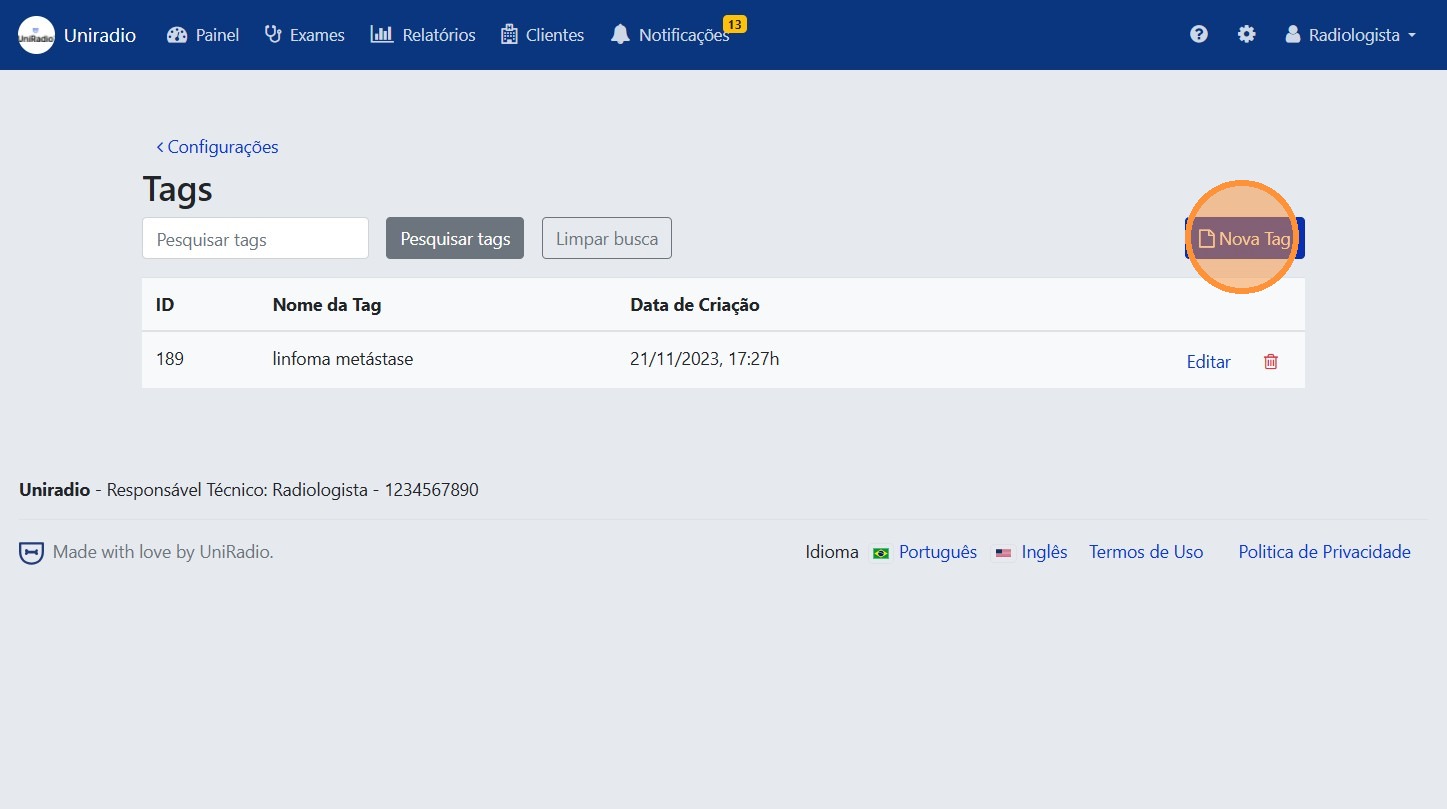
4. Click "New Tag"
Click the "New Tag" button to start creating a new tag.
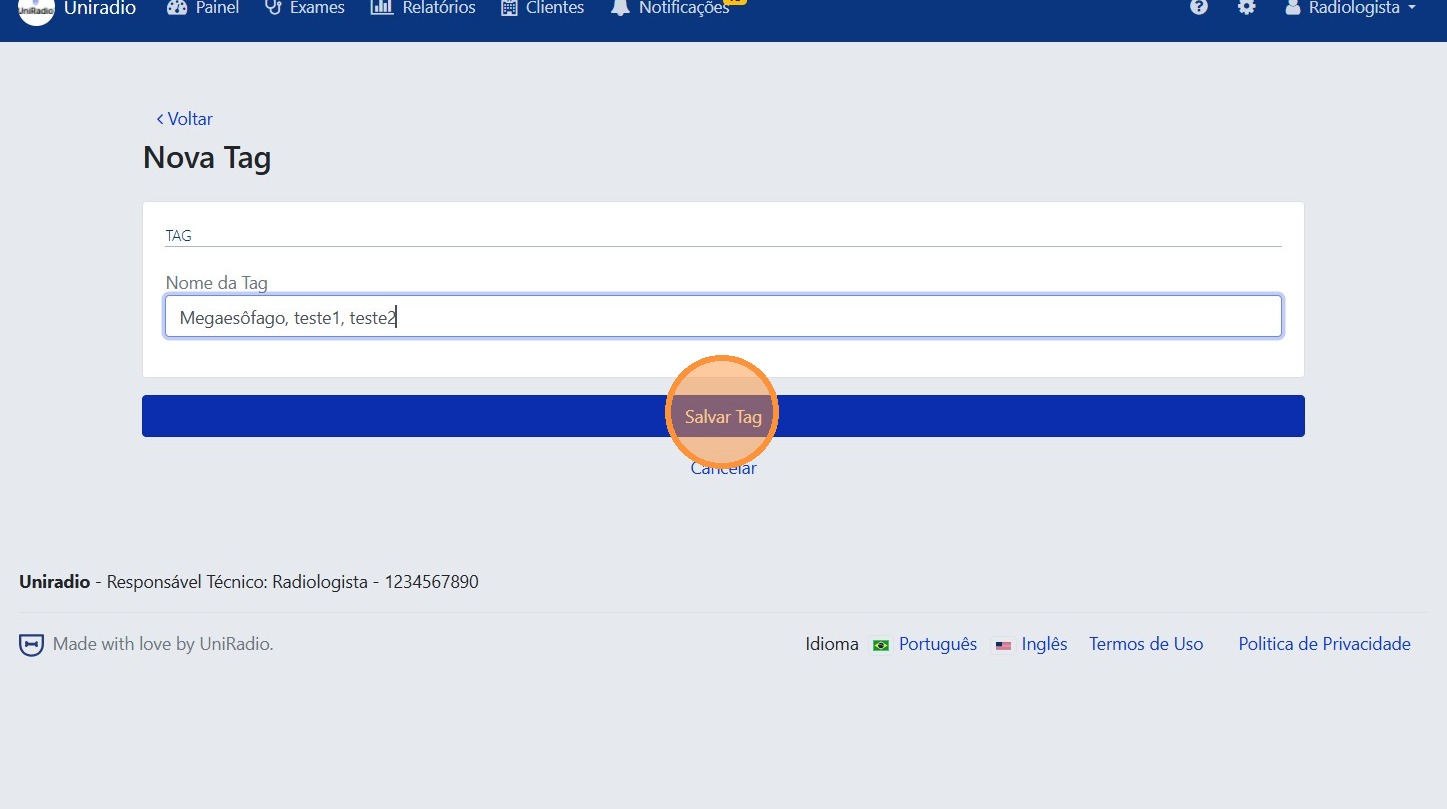
5. Enter the tag name
Enter the name of the tag you want to create.
Create multiple tags at once
You can create multiple tags at the same time by separating the names with commas. For example: Urgent, Follow-up, Pending
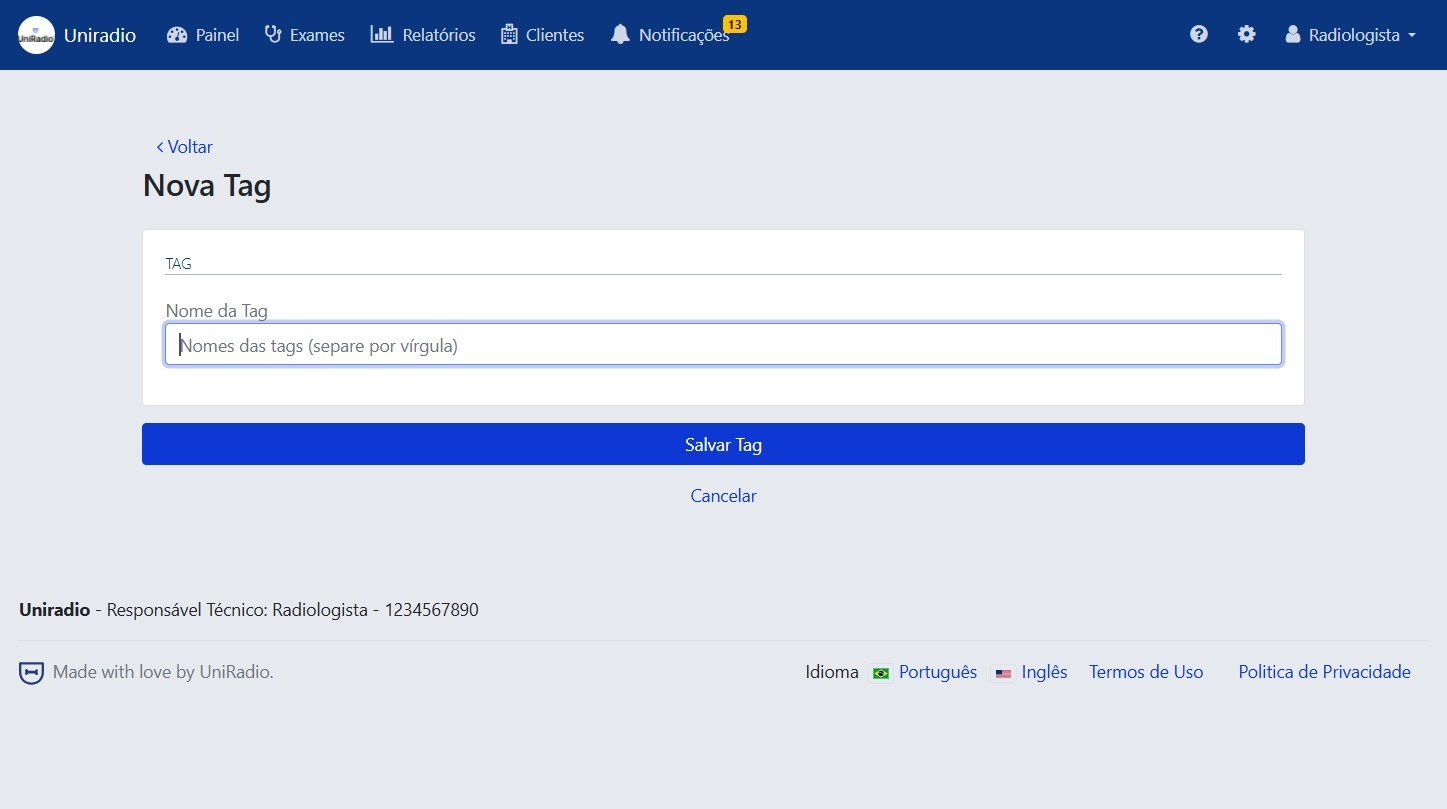
6. Click "Save Tag"
After entering the name, click "Save Tag" to confirm the creation.
Need Help?
Check our FAQ or contact support if you have trouble creating tags.