
How to Merge Duplicate Client Accounts
Learn how to consolidate duplicate client accounts on the UniRadio platform, keeping a single profile with all data unified.
Step by Step
1. Access the UniRadio platform
Sign in to your account and go to app.uniradio.vet.br/exams
2. Open the client list
In the side menu, click "Clients" to view all registered accounts.
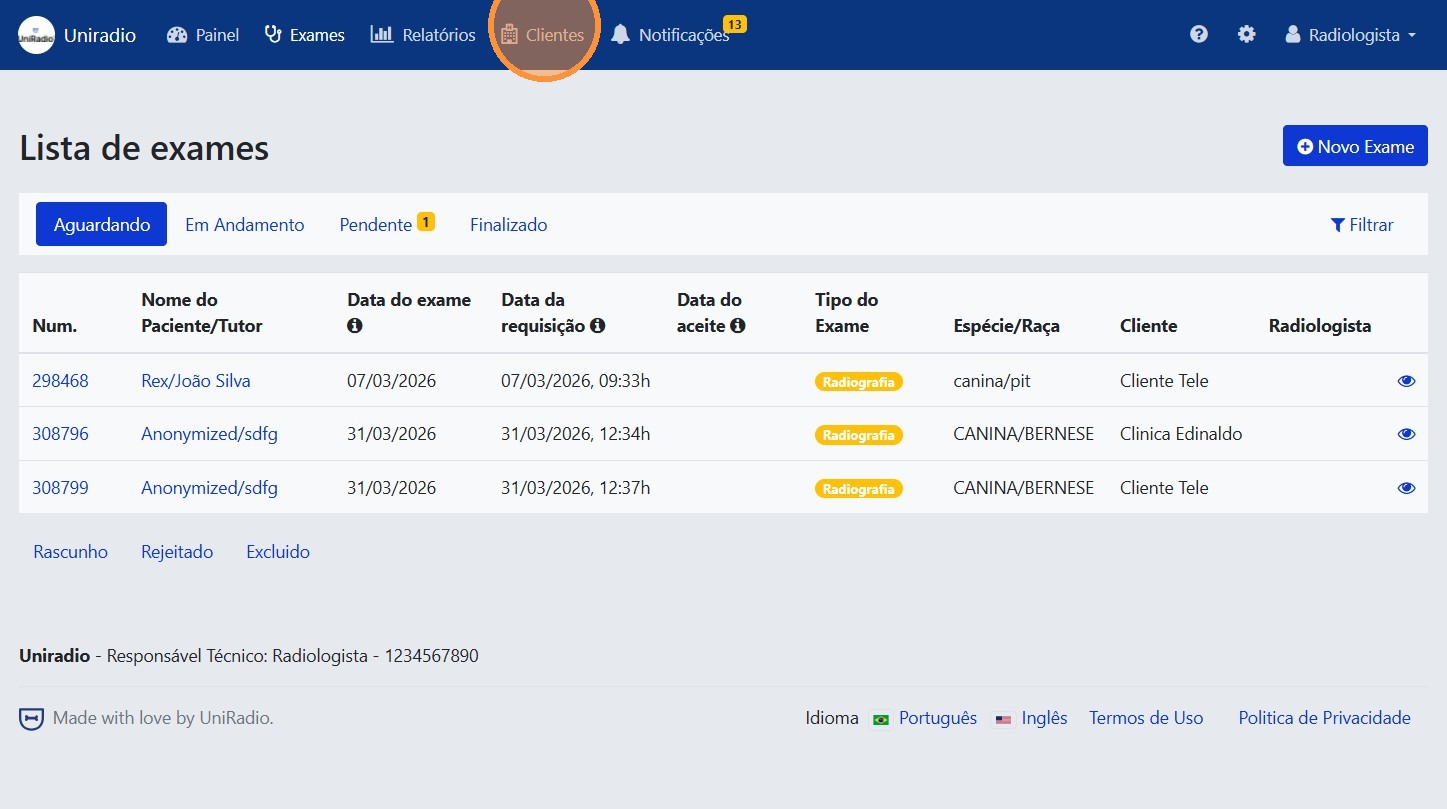
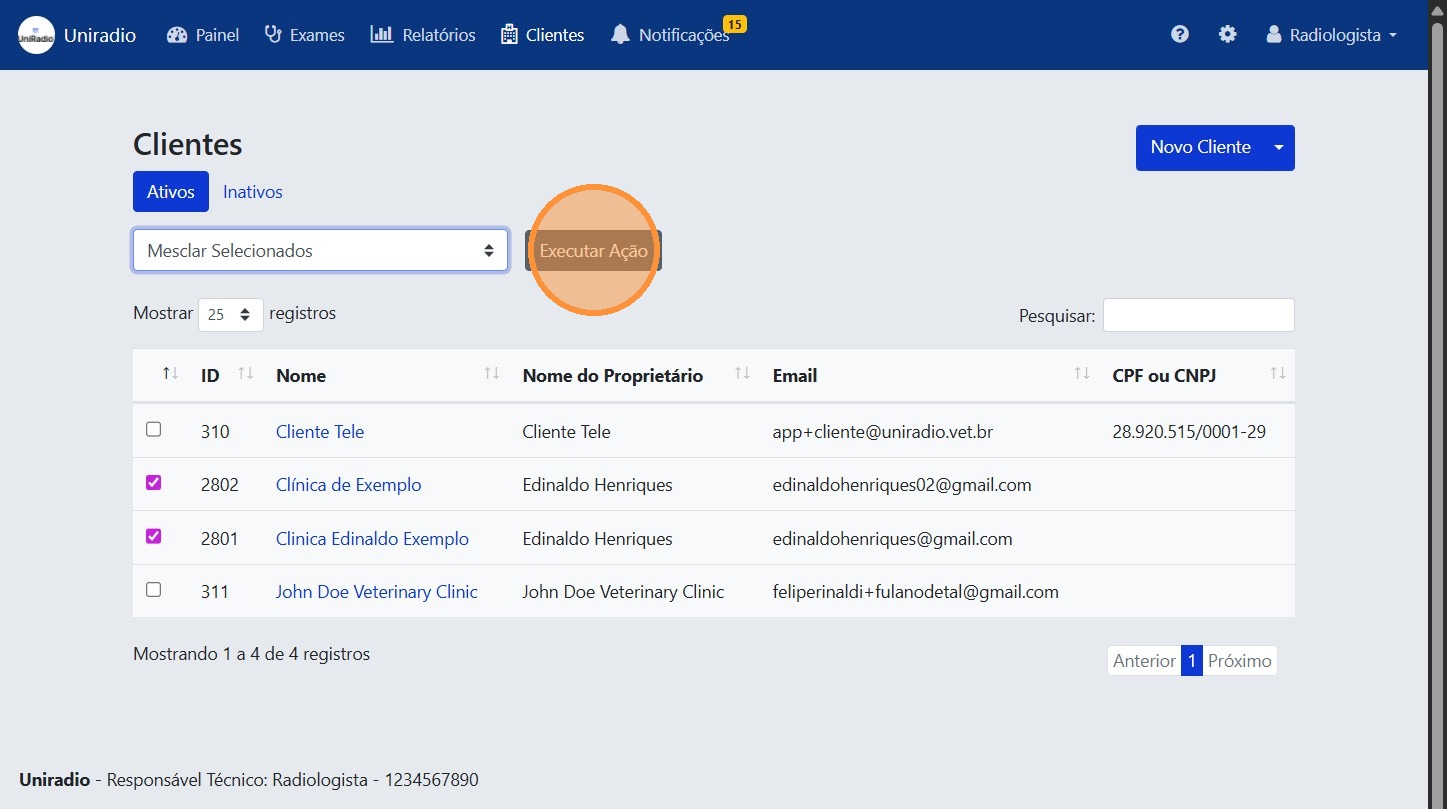
3. Select the duplicate accounts
Check the selection boxes for the accounts you want to merge.
WARNING
You must select at least two accounts to perform a merge.
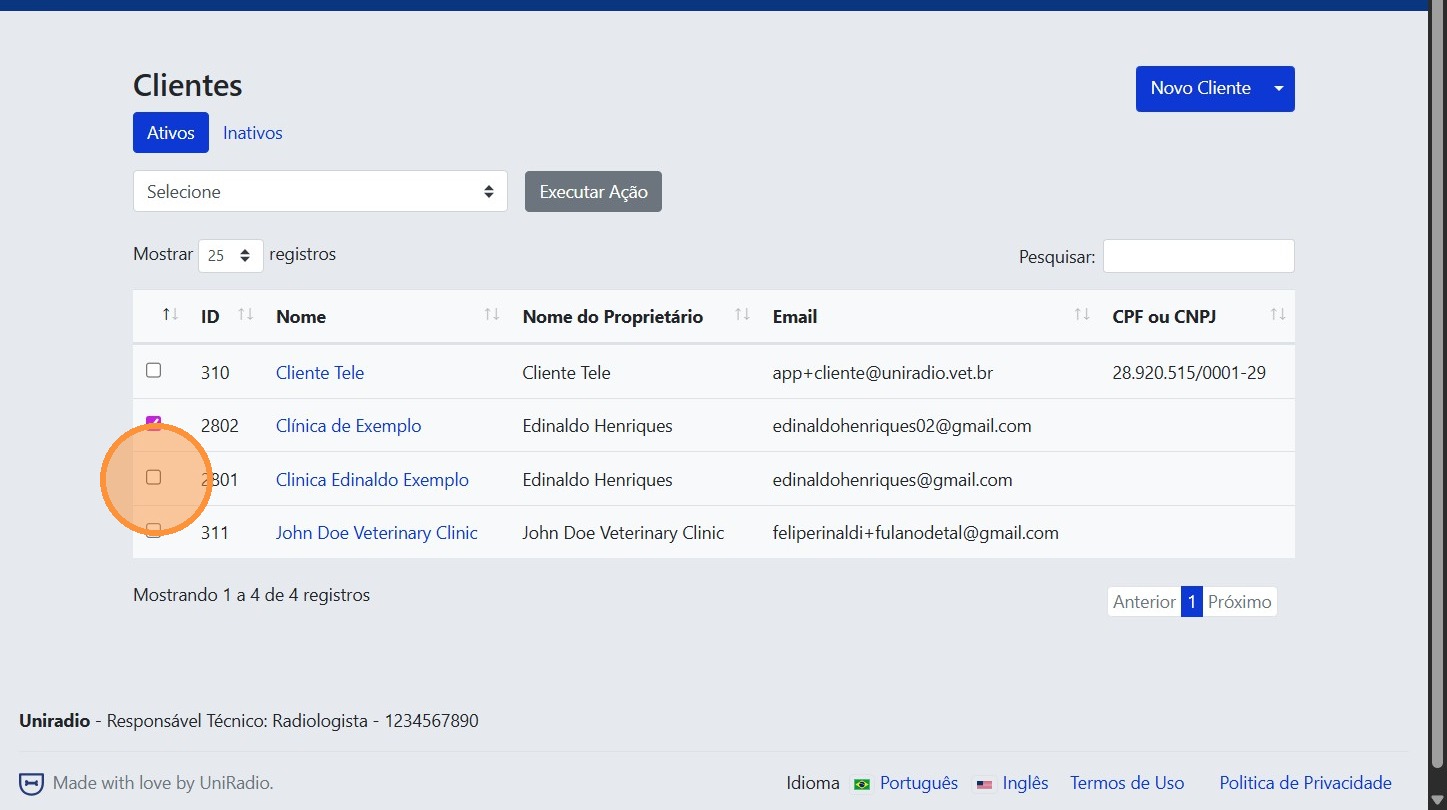
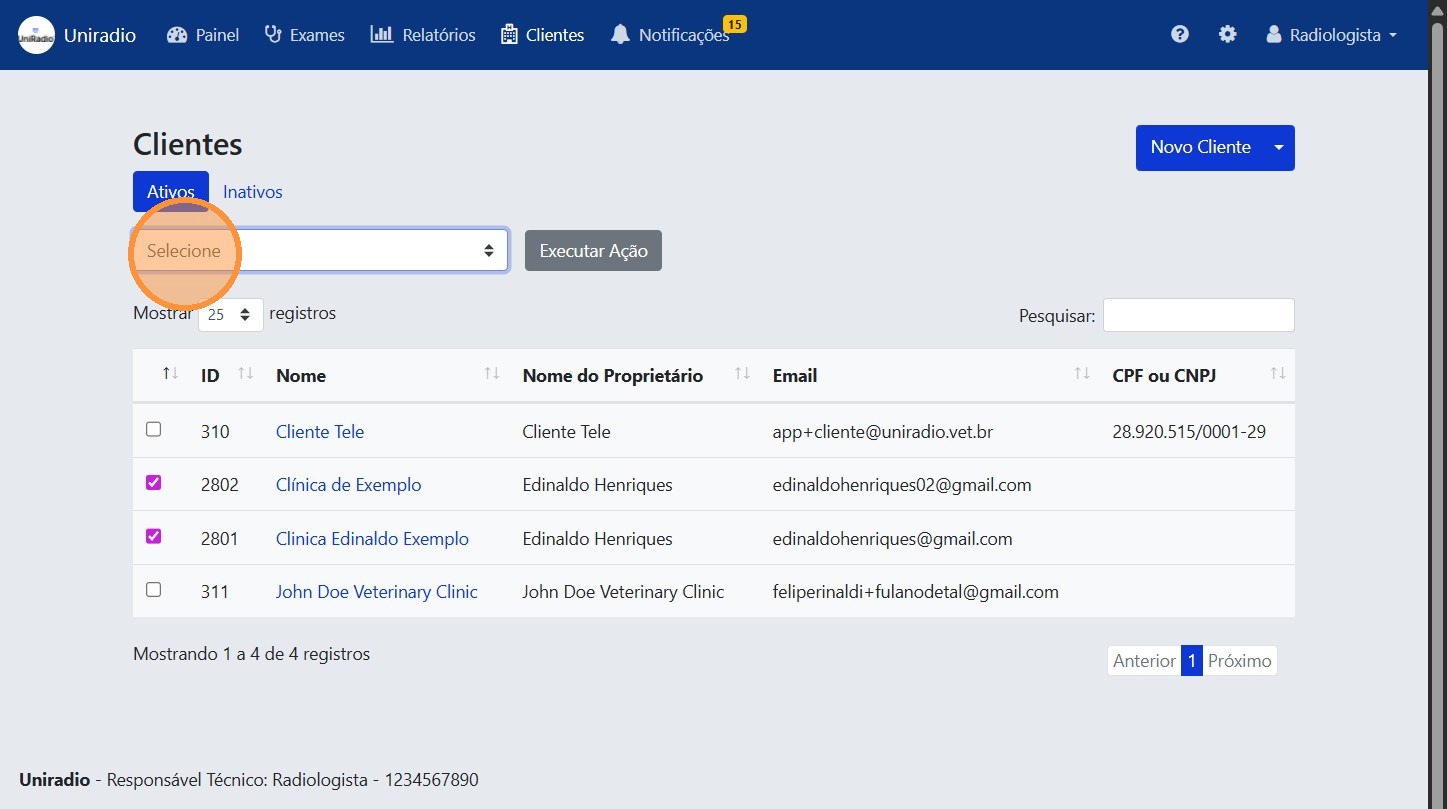
4. Click the actions dropdown
With the accounts selected, click the bulk actions dropdown menu.
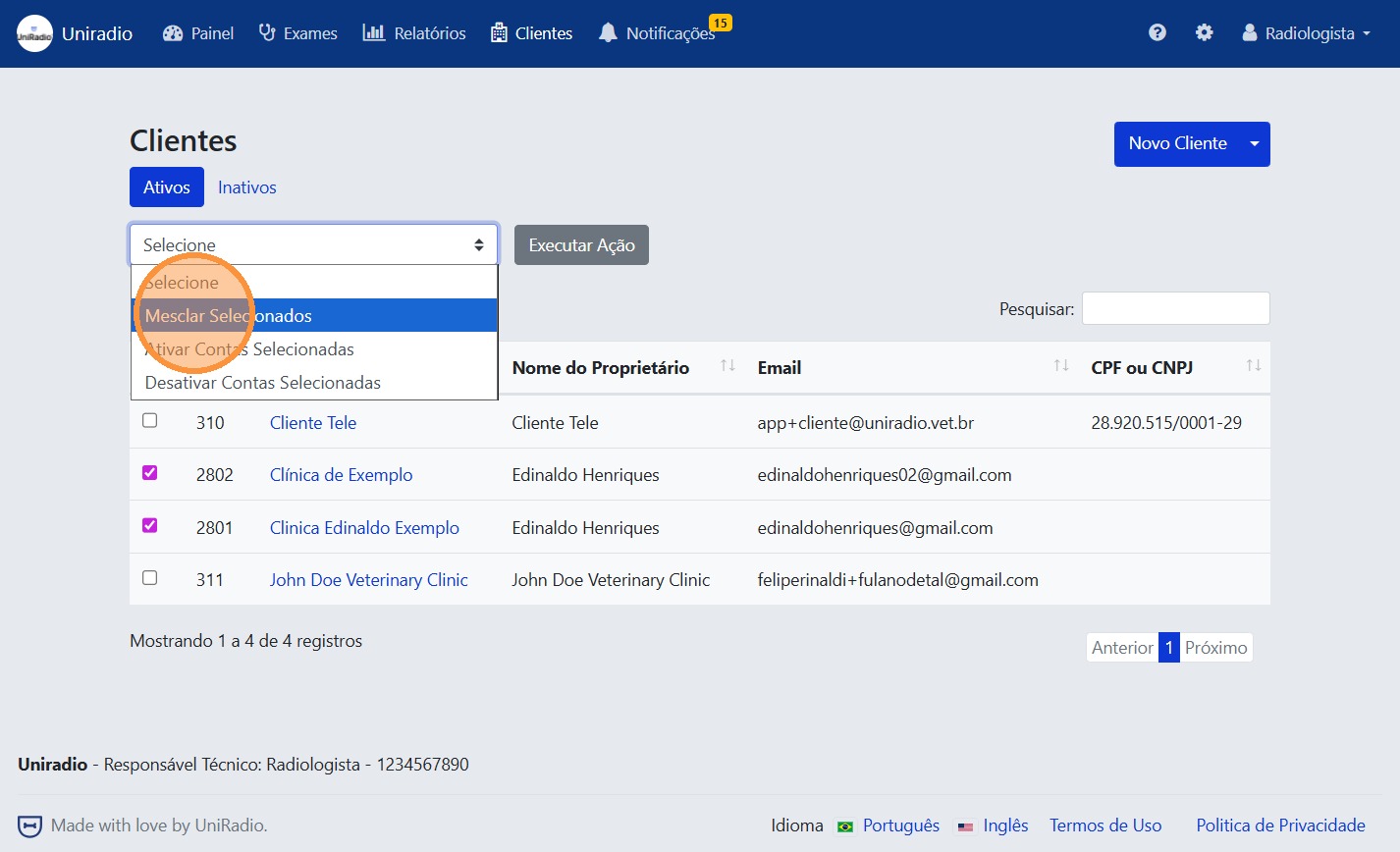
5. Select "Merge Selected"
From the menu, choose the "Merge Selected" option.
6. Click "Execute Action"
Confirm the operation by clicking "Execute Action".
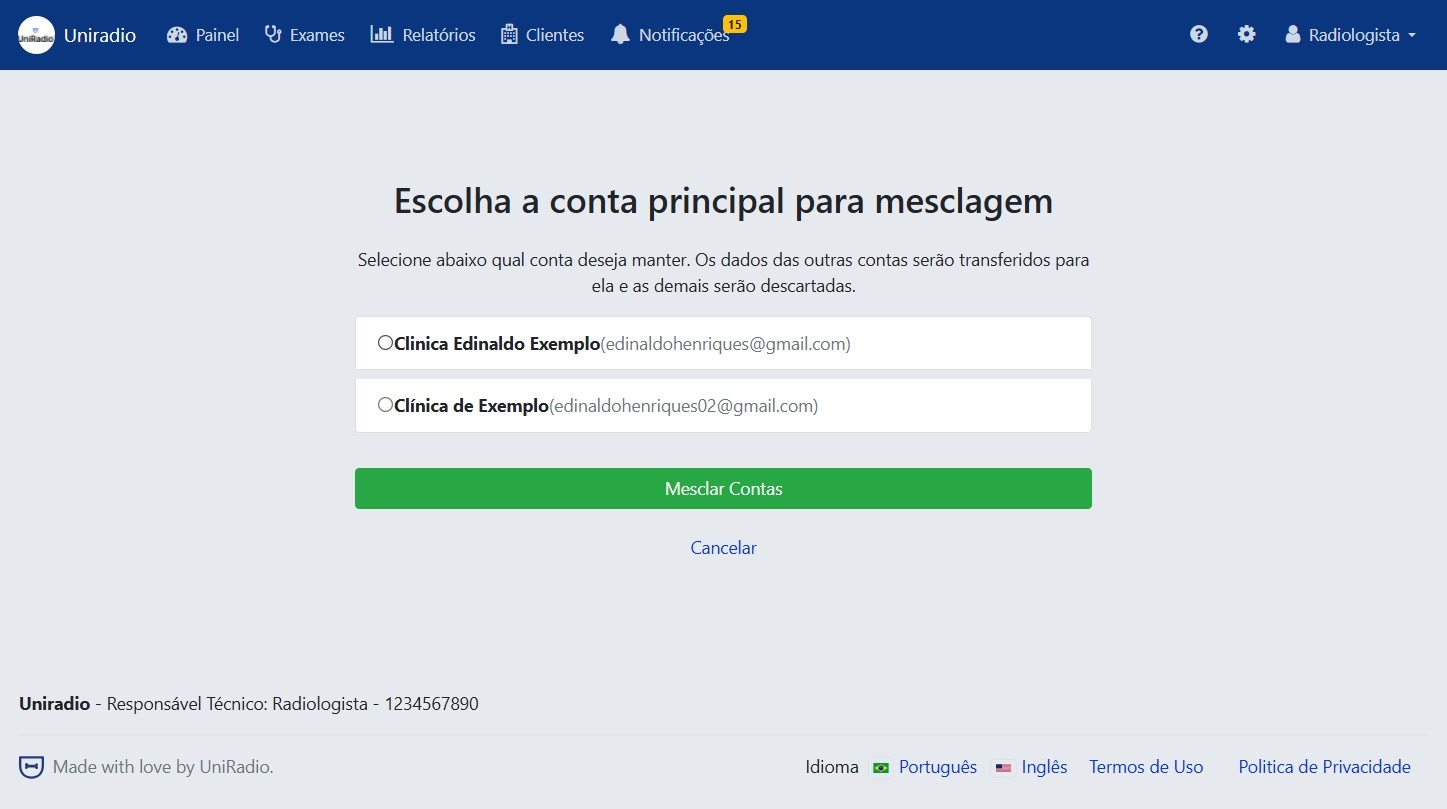
7. Select the account you want to keep
Choose which account will be the primary account after the merge.
WARNING
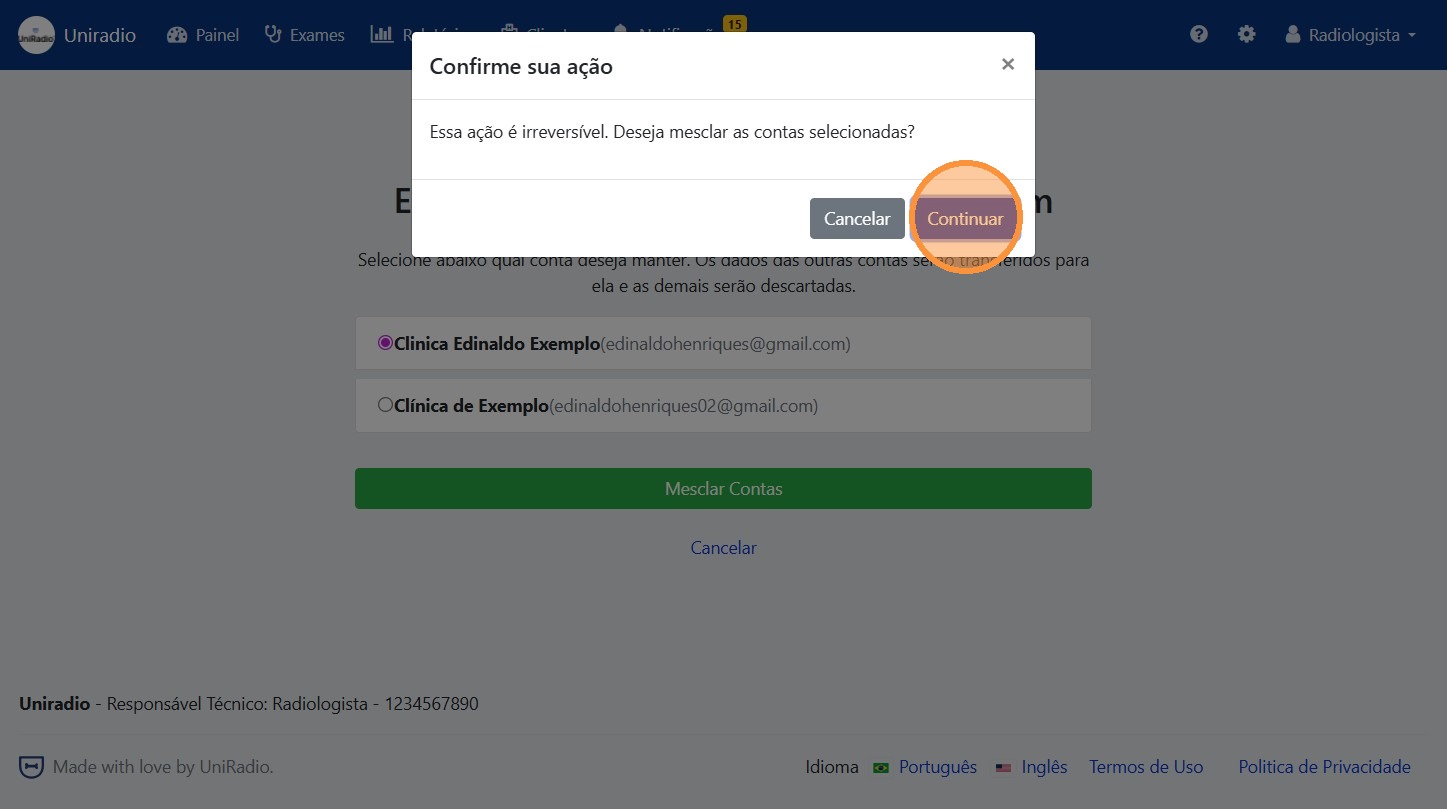
The selected account will be kept. All data from the other accounts will be transferred to it, and duplicate records will be discarded. This action is irreversible.
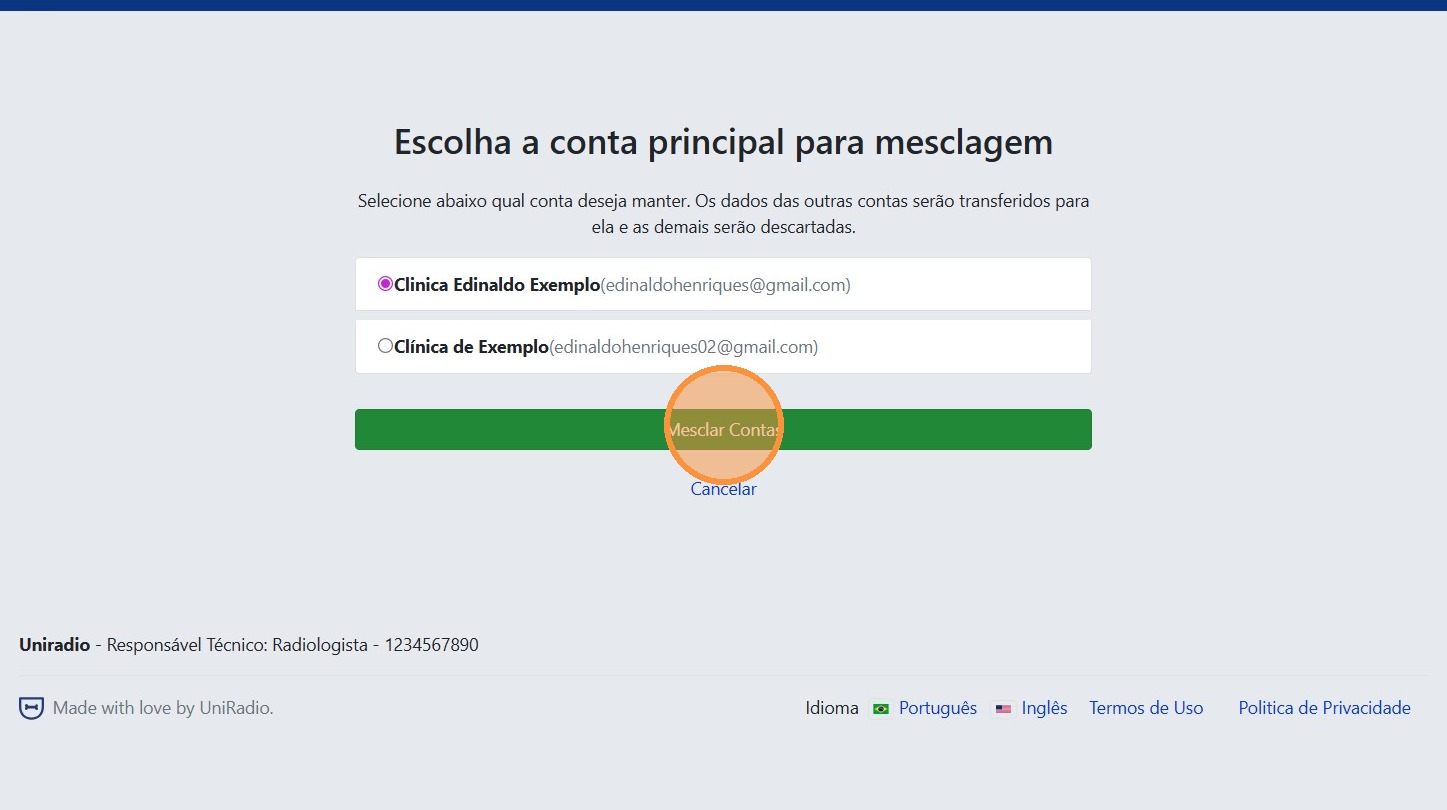
8. Click "Merge Accounts"
9. Click "Continue" to confirm
Need Help?
Check our FAQ or contact support if you have issues merging client accounts.