
Dictate Report
The Dictate Report feature lets you record the report by voice instead of typing. The audio is sent for automatic transcription and the recognized text is inserted directly into the report editor.
Tip for a good transcription
Speak close to the microphone, at a natural pace and without background noise. This helps capture the audio better and produces a more accurate transcription.
Step by Step
1. Access exams in progress
Go to app.uniradio.vet.br/exams and click the "Em Andamento" (In Progress) tab.
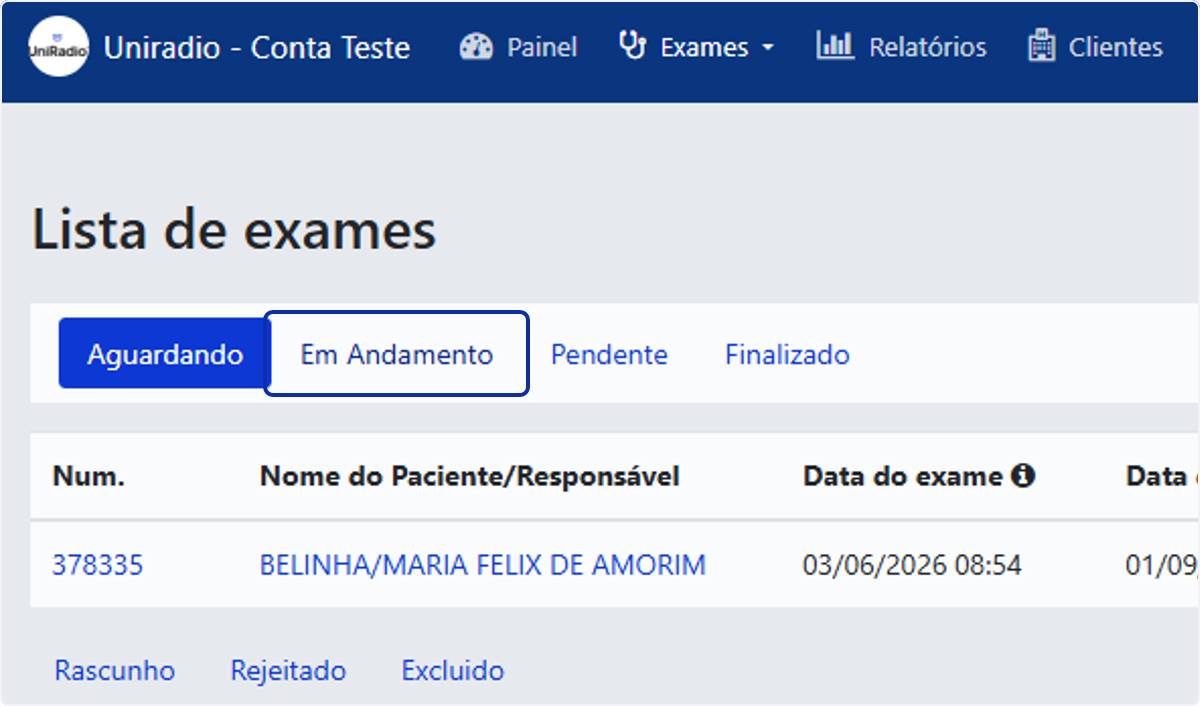
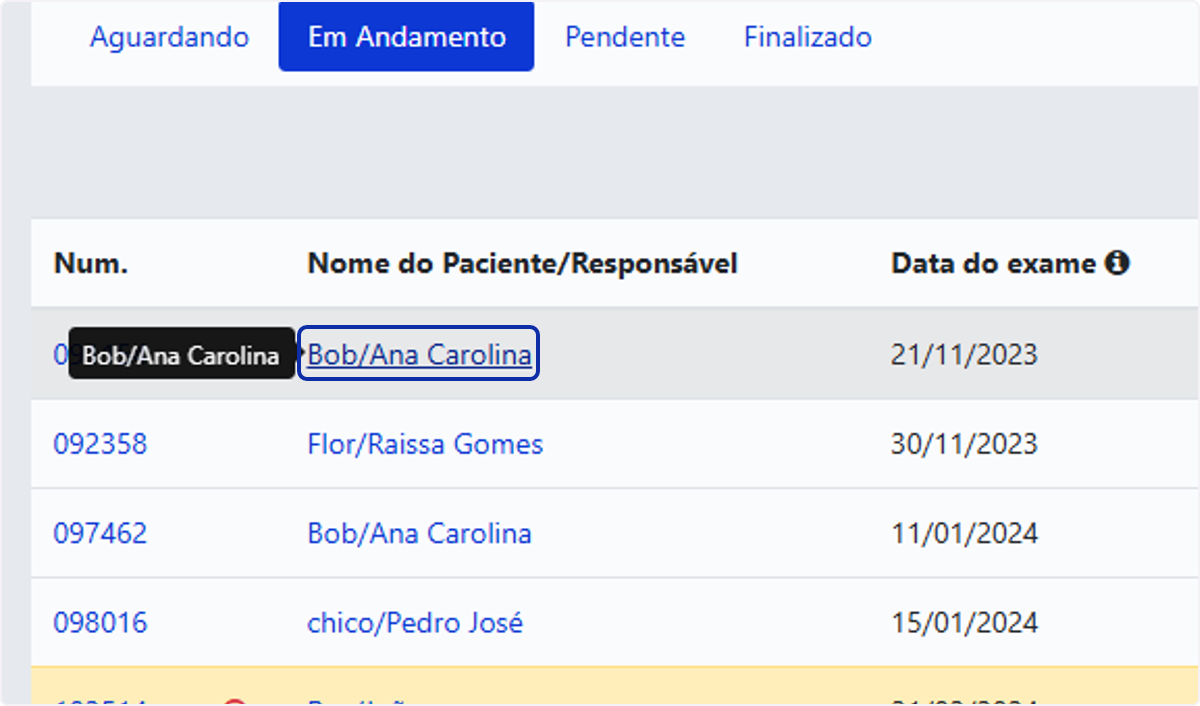
2. Select the exam
Click the exam for which you want to dictate the report.
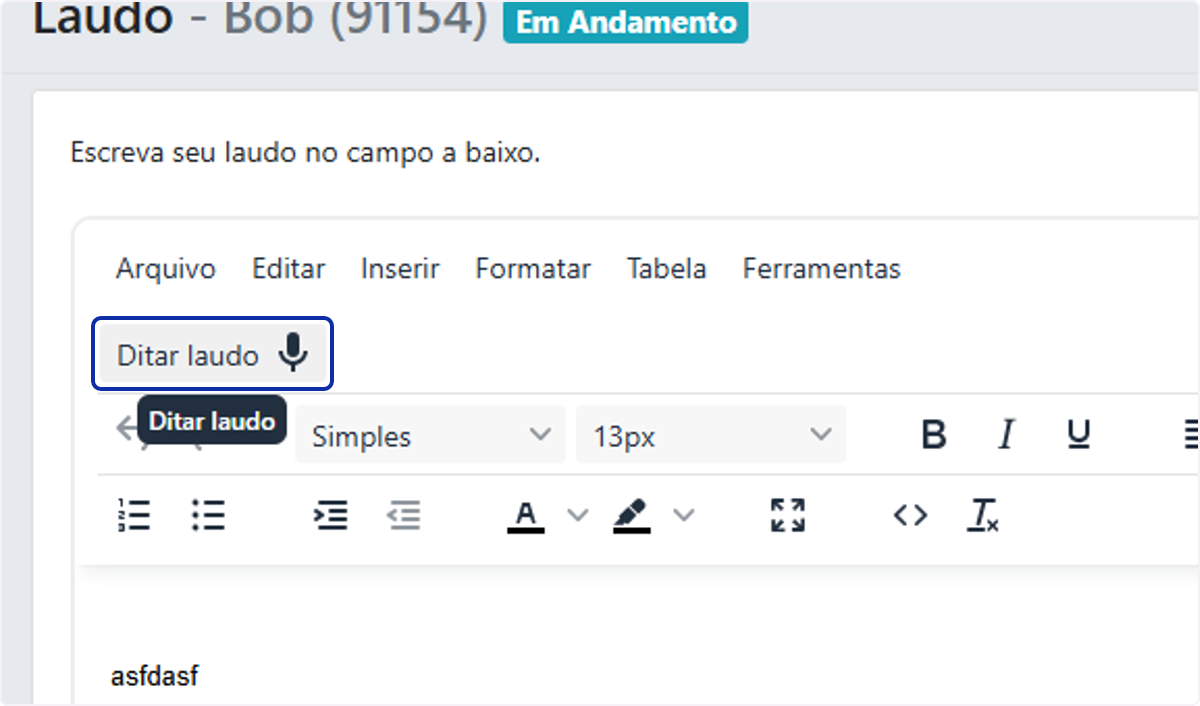
3. Click "Ditar laudo" (Dictate report)
On the report page, click the "Ditar laudo" (Dictate report) button to start voice recording.
4. Record the report
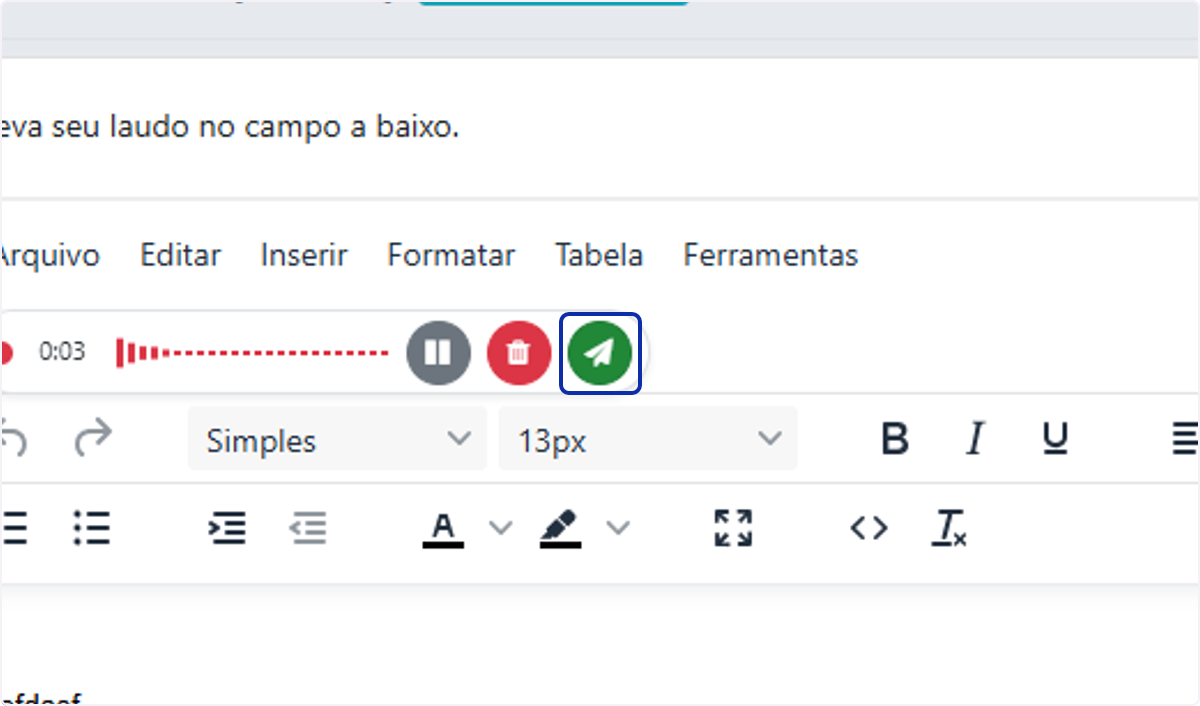
While recording, you can pause, discard the audio, or finish and send the recording for transcription.
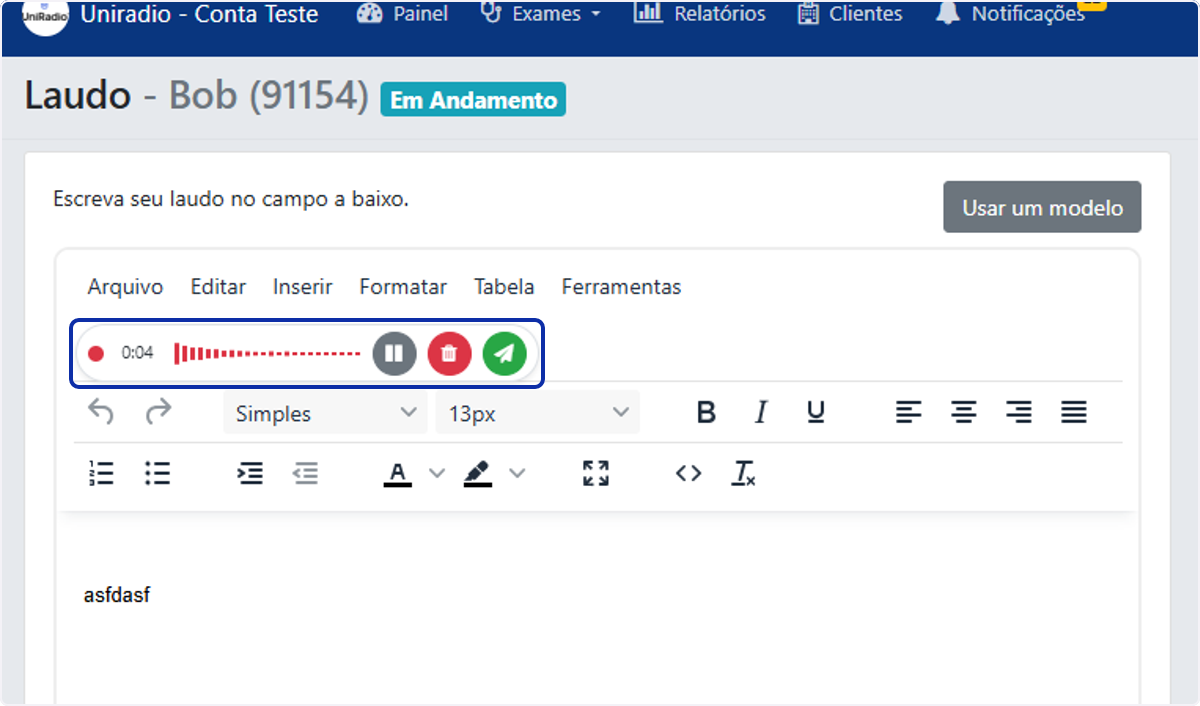
5. Send for transcription
Click "Enviar" (Send) to transcribe the audio. The transcription is automatically inserted into the report editor.
Voice Commands
Besides the report text itself, you can dictate commands to automatically structure and format the text. The commands below are recognized in Portuguese (the platform's primary dictation language); the equivalent English phrases are also listed where supported.
Text structure
| Say | Result |
|---|---|
| "novo parágrafo" / "outro parágrafo" / "próximo parágrafo" / "new paragraph" | New paragraph |
| "nova linha" / "quebra de linha" / "new line" | Line break |
Dictated symbols
These symbols are recognized regardless of automatic punctuation.
| Say | Result |
|---|---|
| "abre parênteses" / "fecha parênteses" (open/close parenthesis) | ( ) |
| "abre aspas" / "fecha aspas" (open/close quotes) | " |
| "mais ou menos" (plus or minus) | ± |
| "hífen" / "traço" (hyphen/dash) | - |
| "barra" (slash) | / |
| "graus" (degrees) | ° |
Editor commands
These commands only trigger when the entire dictation is the command itself, with no other content spoken alongside it.
| Say | Action |
|---|---|
| "novo tópico" / "outro tópico" / "próximo tópico" / "novo item" / "novo marcador" / "mais um tópico" / "mais um item" | Creates a new list item |
| "lista numerada" / "lista numérica" / "numerada" / "numbered list" | Applies an ordered (numbered) list |
| "lista com marcadores" / "lista de marcadores" / "tópicos" / "bullet list" | Applies an unordered (bulleted) list |
| "alinhar à esquerda" / "à esquerda" / "align left" | Aligns text to the left |
| "alinhar à direita" / "à direita" / "align right" | Aligns text to the right |
| "centralizar" / "centralizado" / "ao centro" / "center" | Centers the text |
| "justificar" / "justificado" / "justify" | Justifies the text |
| "negrito" / "bold" | Applies bold |
| "itálico" / "italic" | Applies italics |
| "sublinhado" / "underline" | Applies underline |
Chaining commands
You can combine more than one editor command in the same sentence using "e"/"em" ("and"/"in"). Example: "negrito e centralizar" (bold and center).
Formatting a passage
To format only a specific passage, dictate the passage first and then the formatting command — for example, "lesão hepática em negrito" wraps "lesão hepática" in bold. The same logic applies to italics and underline. The one exception is list markers, whose command must be spoken before the content.
Spelled-out acronyms
When you spell out an acronym with two or more elements — letters, numbers spelled out from 0 to 20, or "hífen"/"traço"/"barra" (hyphen/dash/slash) — dictation automatically assembles the acronym. For example, saying "S um traço S três" results in "S1-S3". Some mixed-case acronyms are already recognized automatically, such as CRCD → CrCd and DPA → DPa.
Spoken measurements
| Say | Result |
|---|---|
| "dois ponto cinco" / "dois vírgula cinco" | 2.5 / 2,5 |
| "30 por cento" (30 percent) | 30% |
| "dois por três" (two by three) | 2×3 (can be chained for 3D measurements) |
| "cinco centímetros" / "cinco milímetros" (five centimeters/millimeters) | 5cm / 5mm |
Need Help?
Check our FAQ or contact support if you run into any issues dictating a report.