
How to Edit a Tag
Learn how to change the name of an existing tag on the UniRadio platform.
Step by Step
1. Access the UniRadio platform
Sign in to your account and go to app.uniradio.vet.br/exams
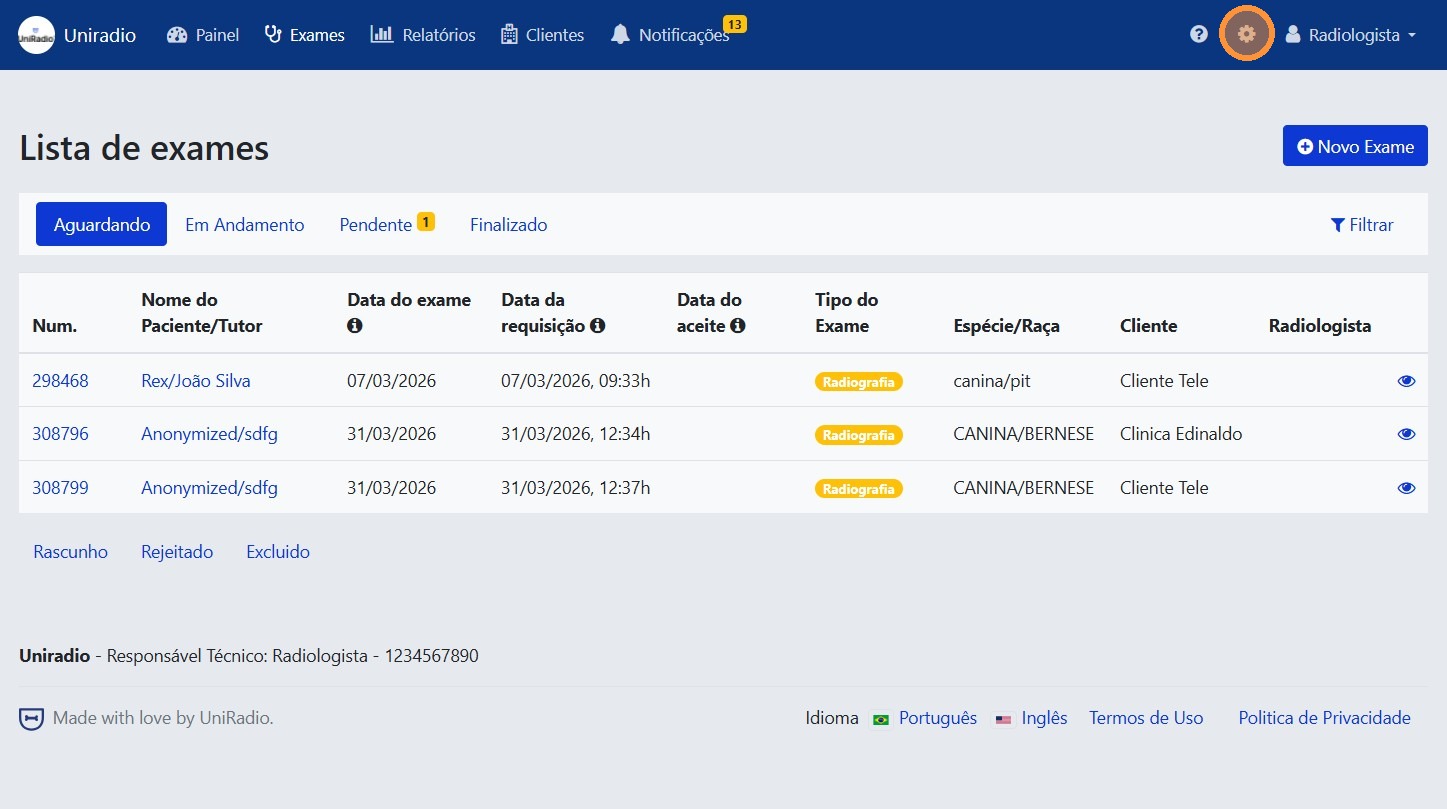
2. Open the settings menu
In the side menu, click the settings icon to open the account options.
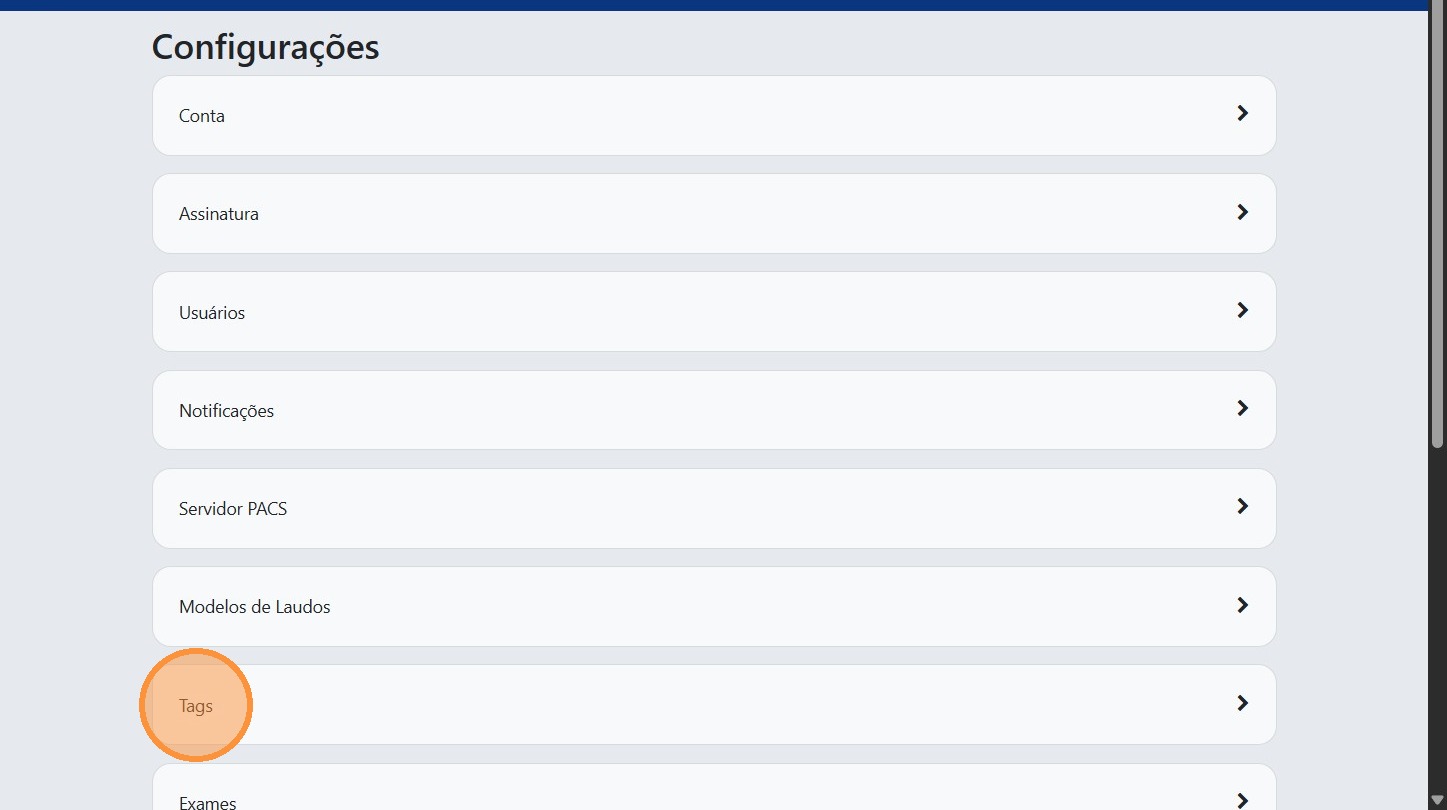
3. Click "Tags"
In the settings menu, click "Tags" to view the registered tags.
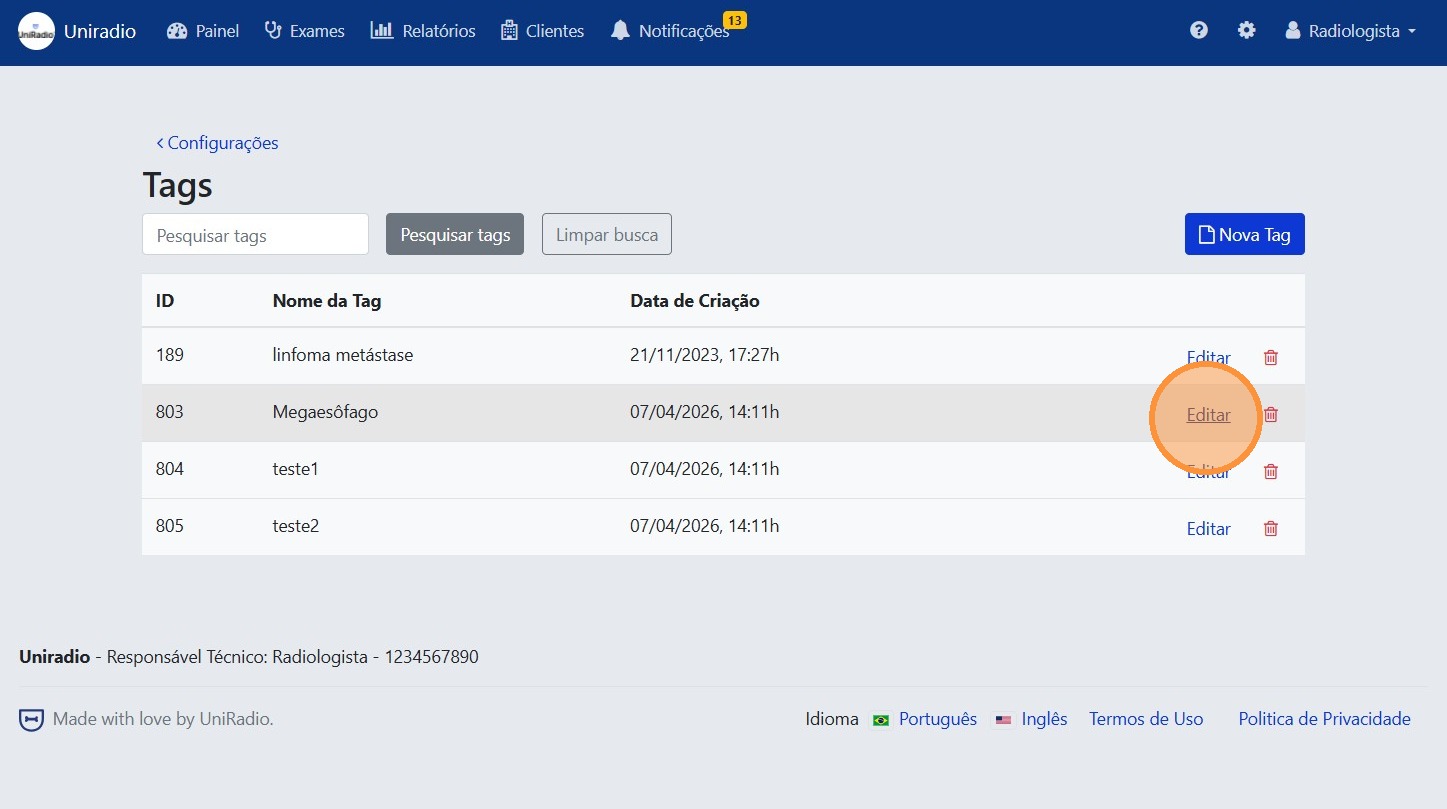
4. Click "Edit"
Next to the tag you want to modify, click "Edit".
5. Edit the tag name
Change the tag name as desired.
Note
When editing a tag, it is not possible to add other tags by separating with a comma. To create multiple tags at once, follow this tutorial: Create Tags
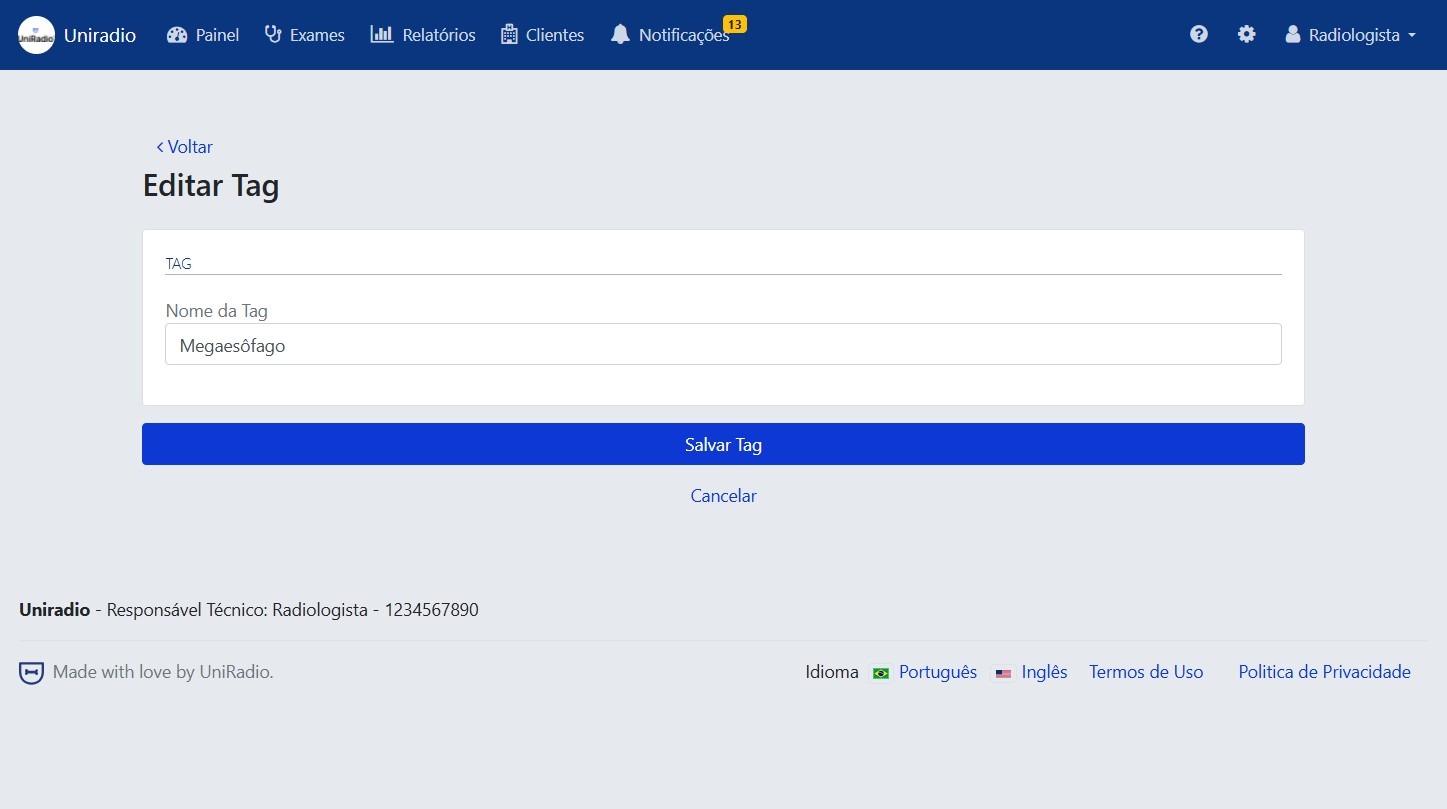
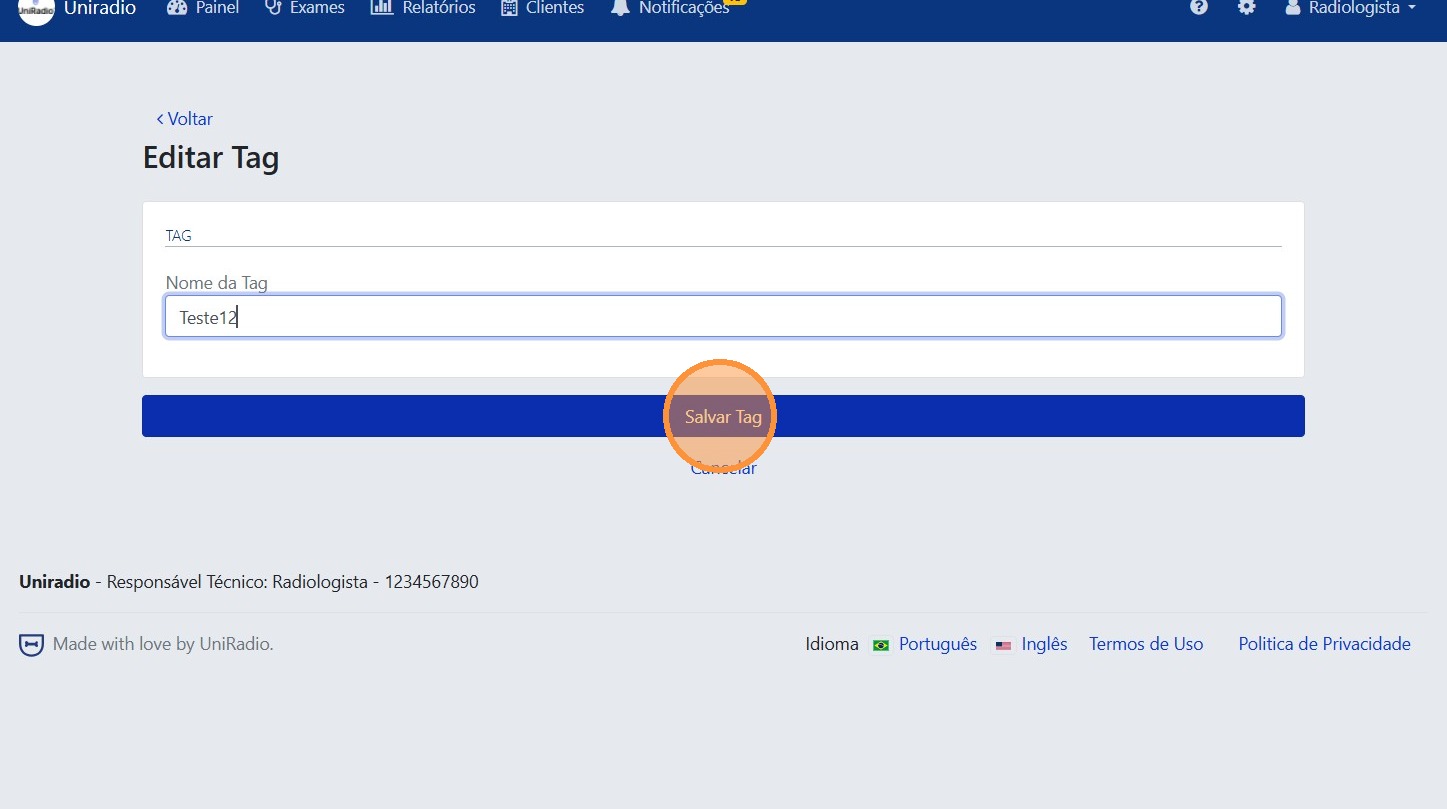
6. Click "Save"
After making the change, click "Save" to confirm.
Need Help?
Check our FAQ or contact support if you have trouble editing tags.