
How to Access the Analytics Dashboard
Learn how to access the UniRadio platform dashboard to track your practice's performance metrics, such as reports issued, response time, NPS, and ratings.
Step by Step
1. Access the UniRadio platform
Sign in to your account and go to app.uniradio.vet.br/exams
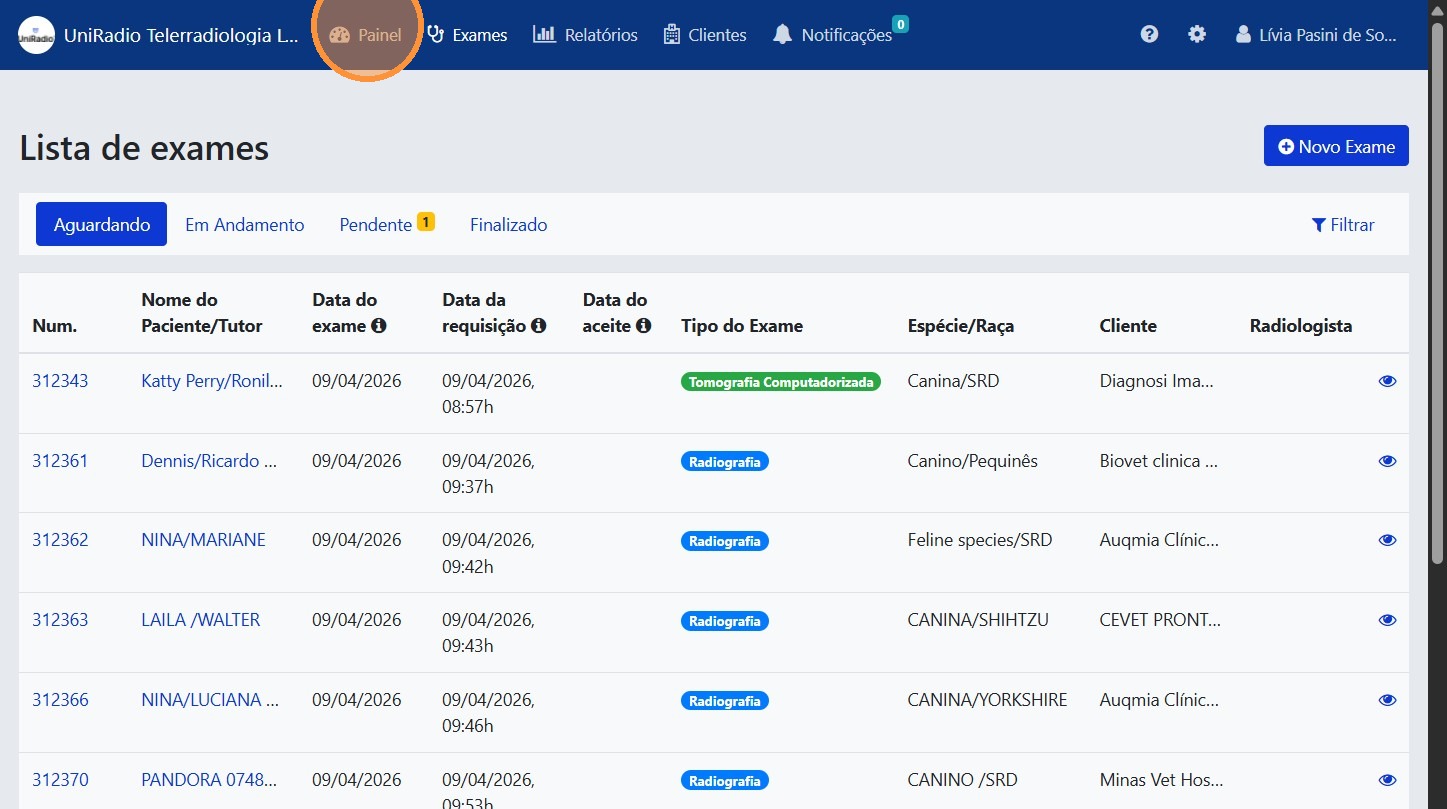
2. Click "Dashboard"
In the side menu, click "Dashboard" to access the analytics dashboard for your account.
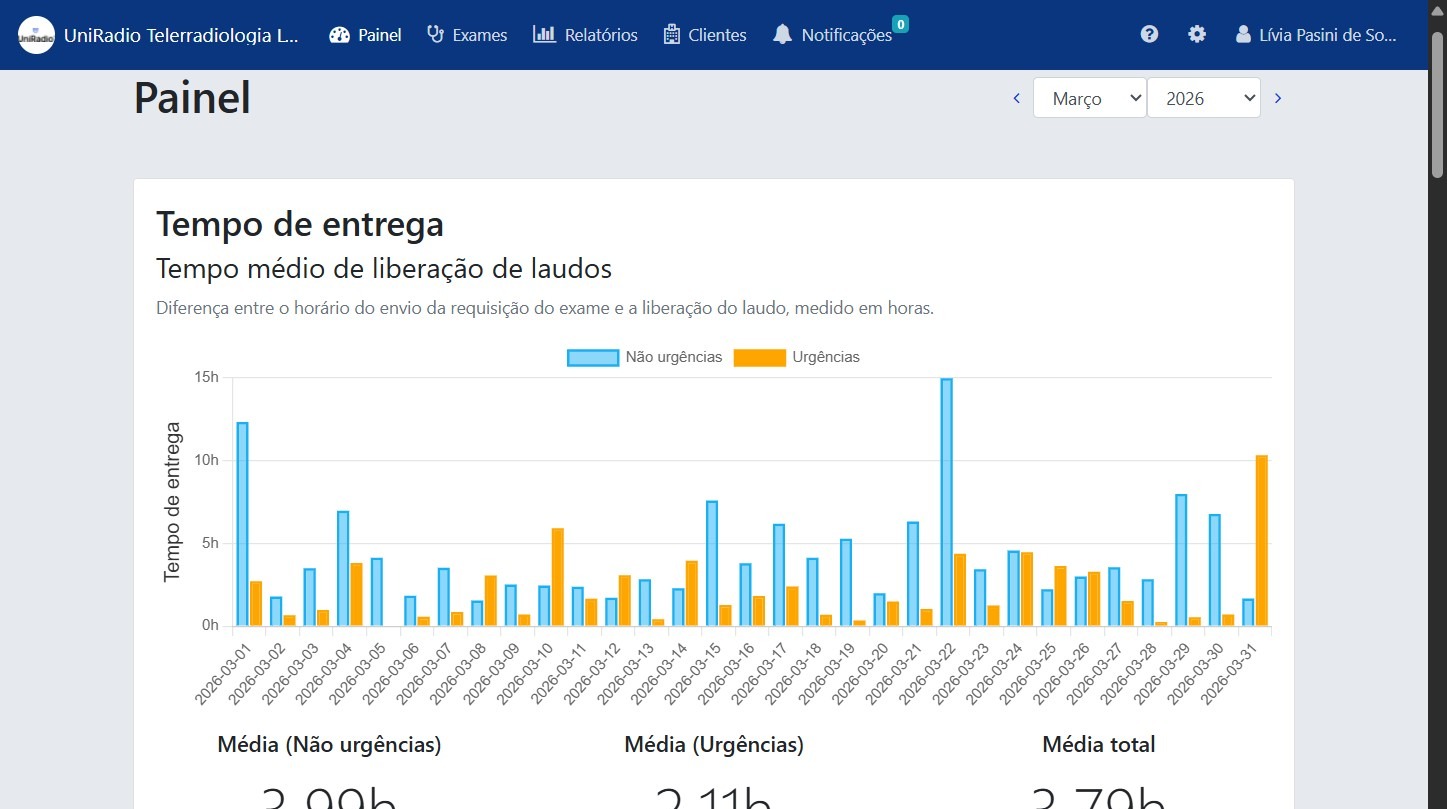
3. Average report turnaround time
Displays the average time your team takes to issue a report from the moment the exam is received. This indicator helps monitor responsiveness.
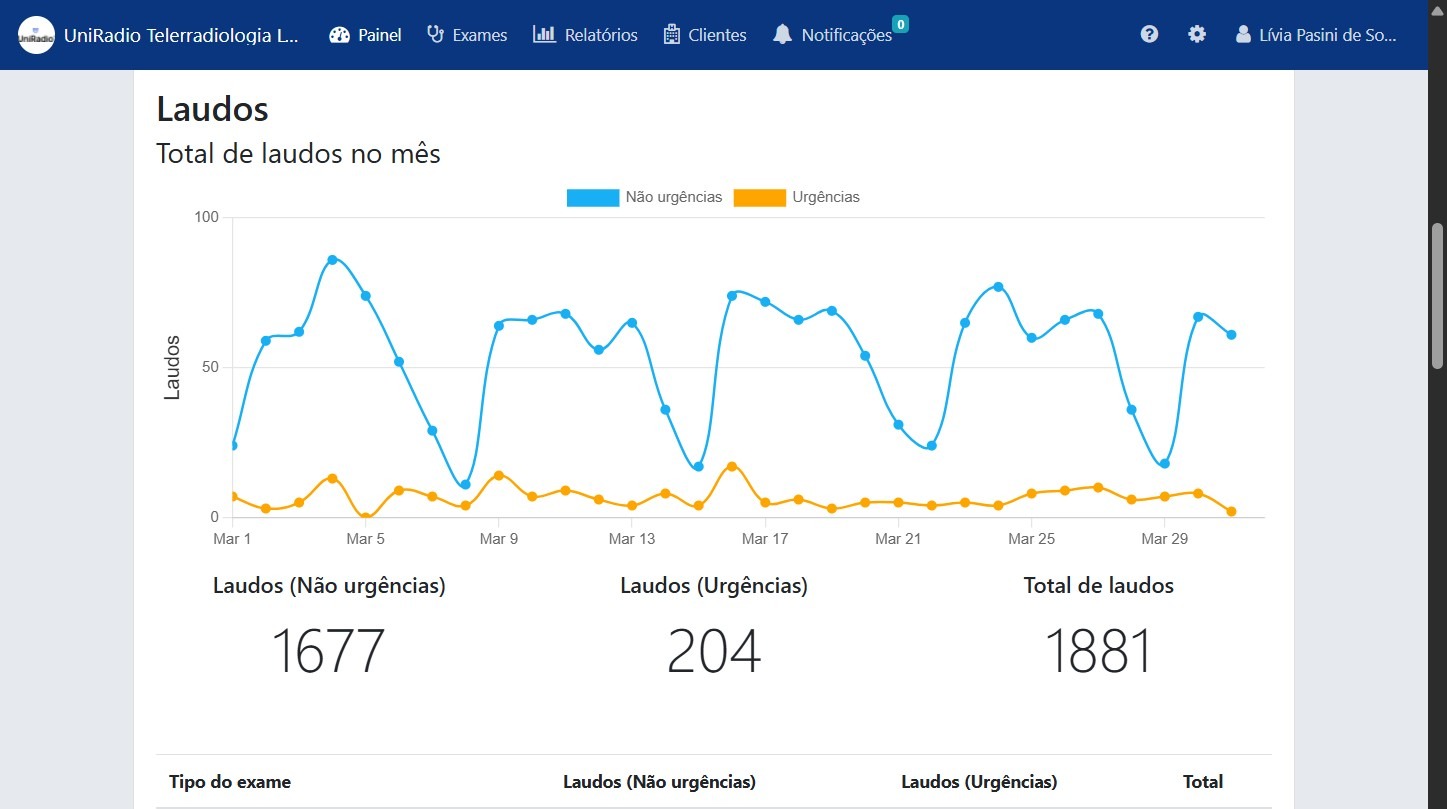
4. Total reports issued this month
Shows the total number of reports issued in the current month, allowing you to track the team's production volume over the period.
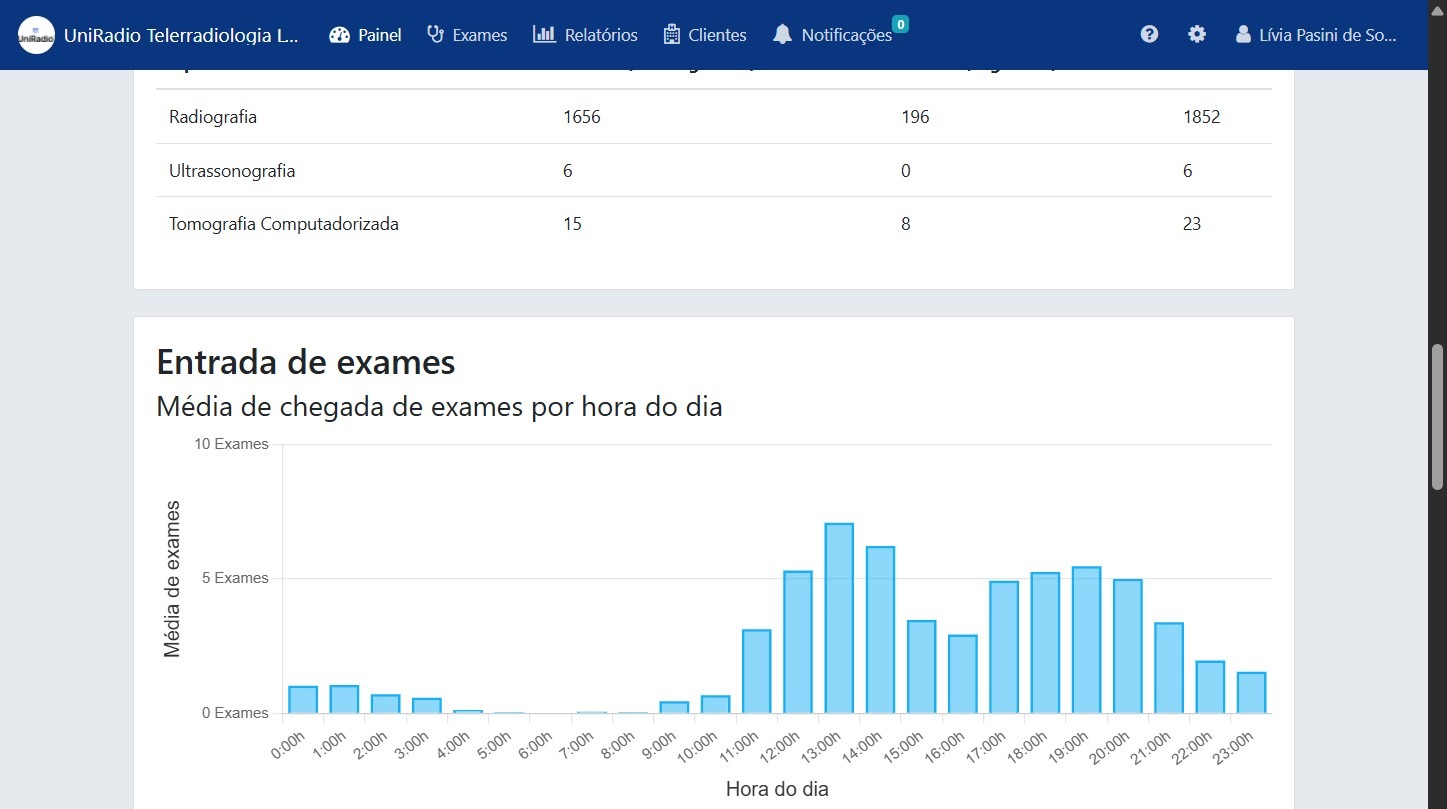
5. Exams received by time of day
Shows the distribution of exams received throughout the day, identifying peak and low-volume hours. Useful for planning team work schedules.
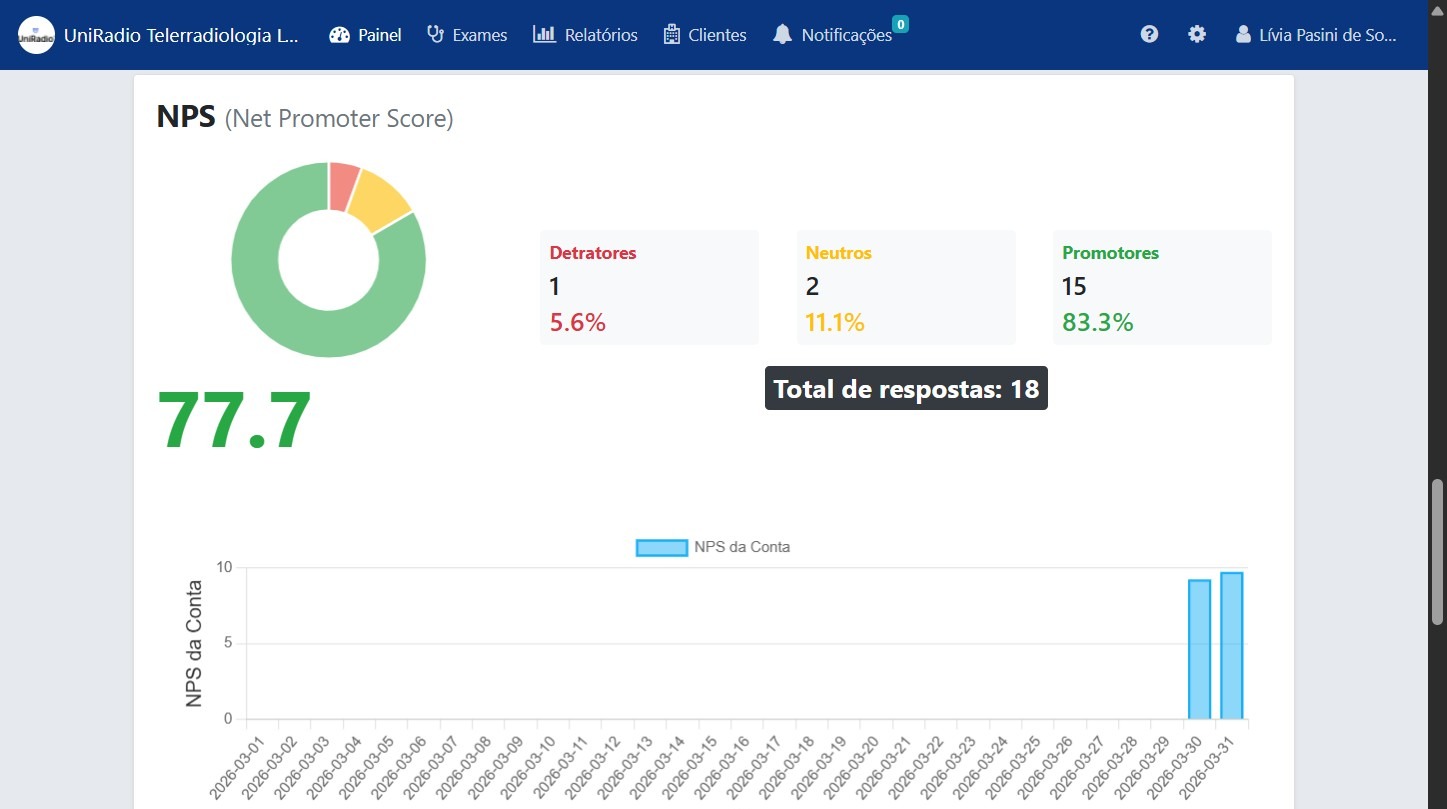
6. NPS (Net Promoter Score)
Displays the NPS score collected from client ratings. NPS measures the level of satisfaction and the likelihood of your practice being recommended, serving as a strategic quality indicator.
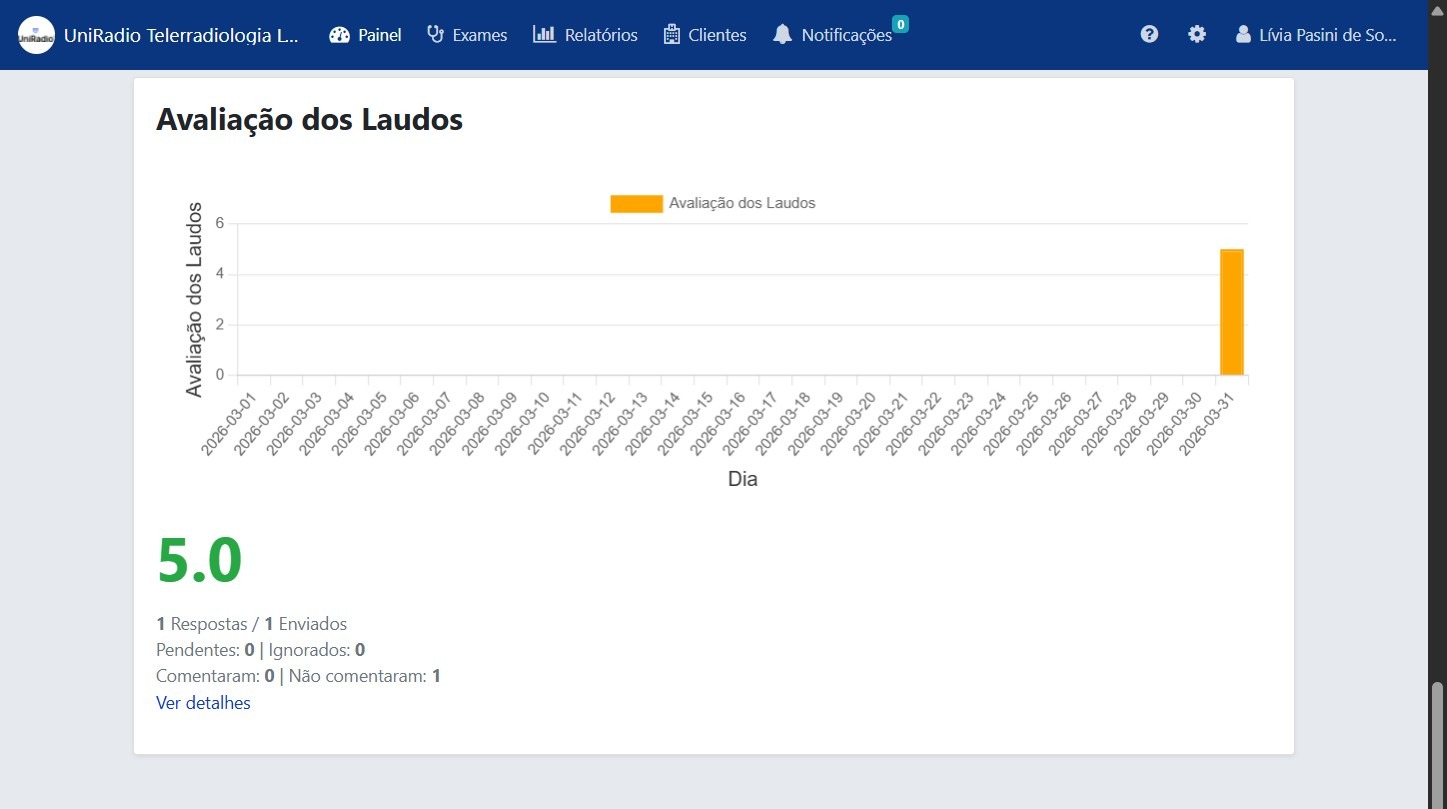
7. Report Ratings
Shows ratings submitted by clients on the issued reports. Allows you to identify areas for improvement in report quality based on direct client feedback.
Need Help?
Check our FAQ or contact support if you have trouble accessing the analytics dashboard.