
How to Import Client Accounts
Learn how to import client data from a CSV file in UniRadio by mapping fields correctly to ensure records are synced.
Step by Step
1. Access the UniRadio platform
Sign in to your account and go to app.uniradio.vet.br/exams
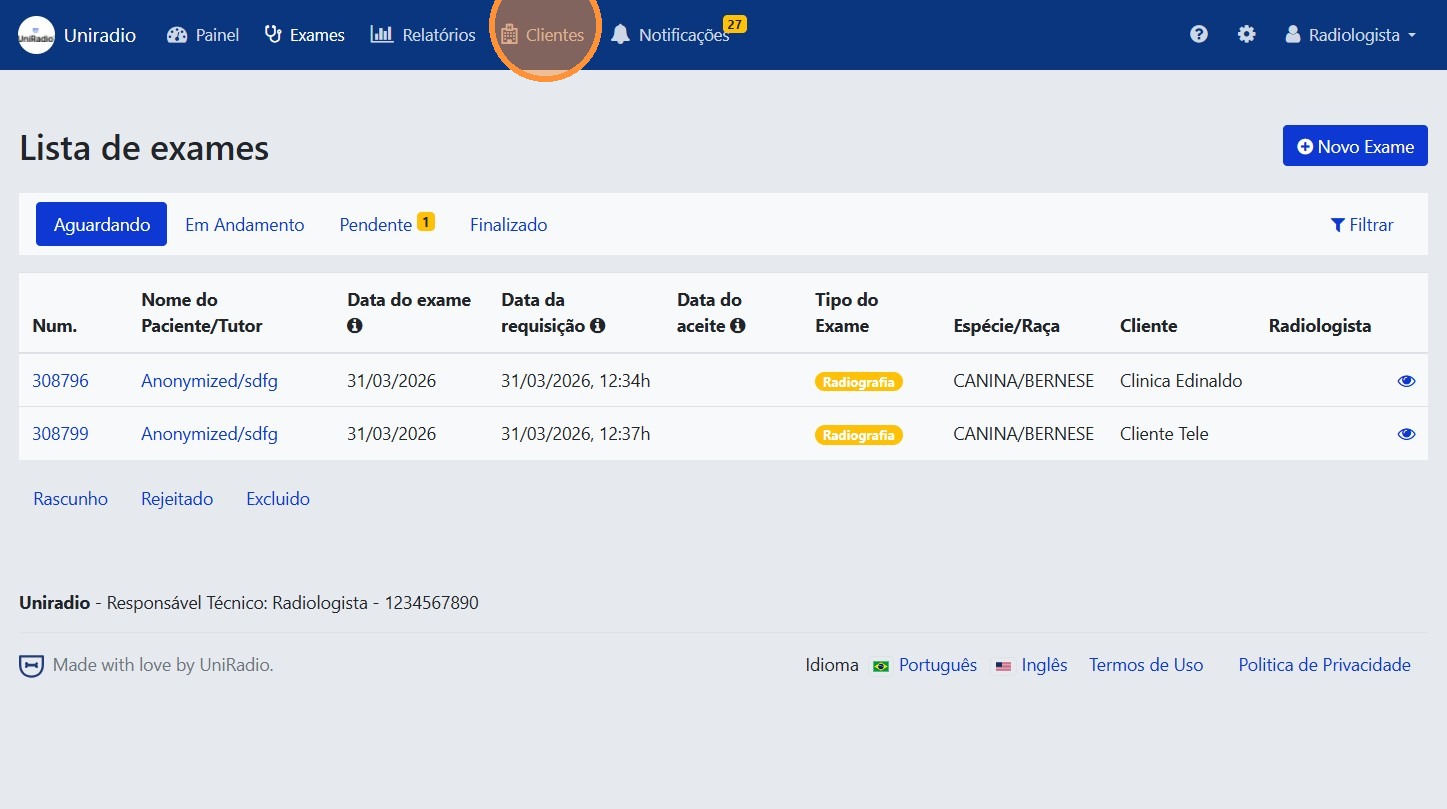
2. Open the Clients section
Click "Clients" in the navigation menu to open your client account list.
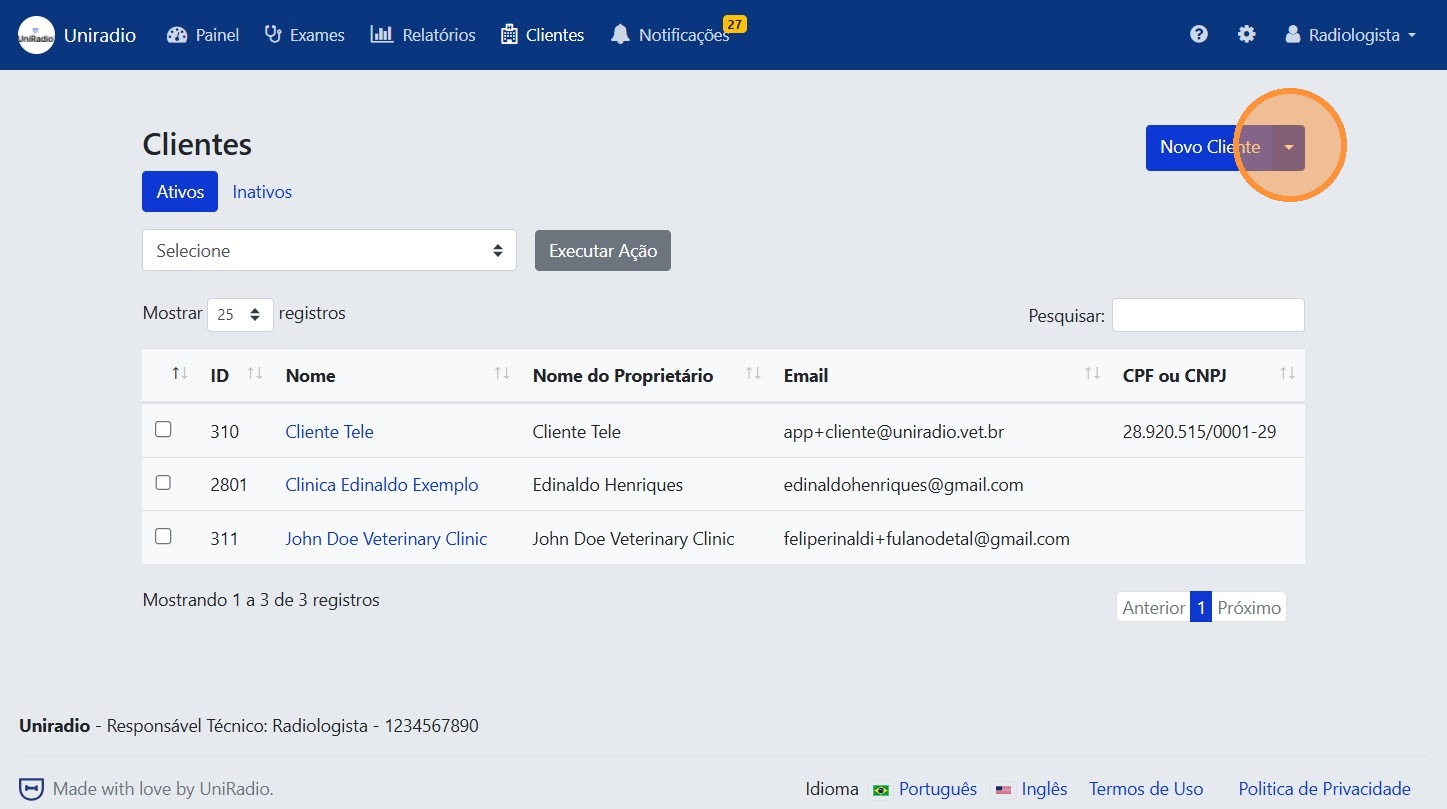
3. Open the options menu
Click the options button (dropdown) to display available actions for the client list.
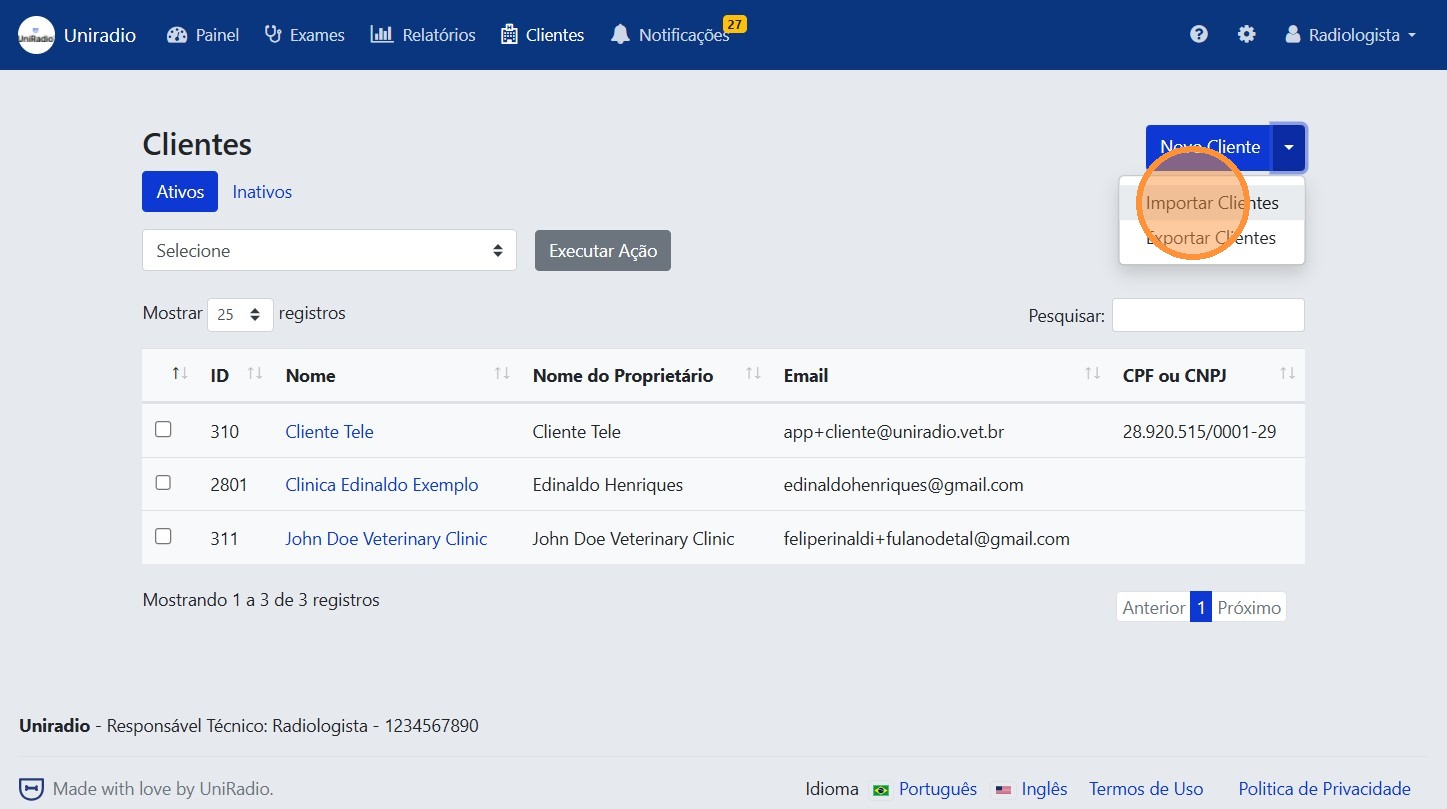
4. Click "Import Clients"
Select "Import Clients" in the menu to open the import panel.
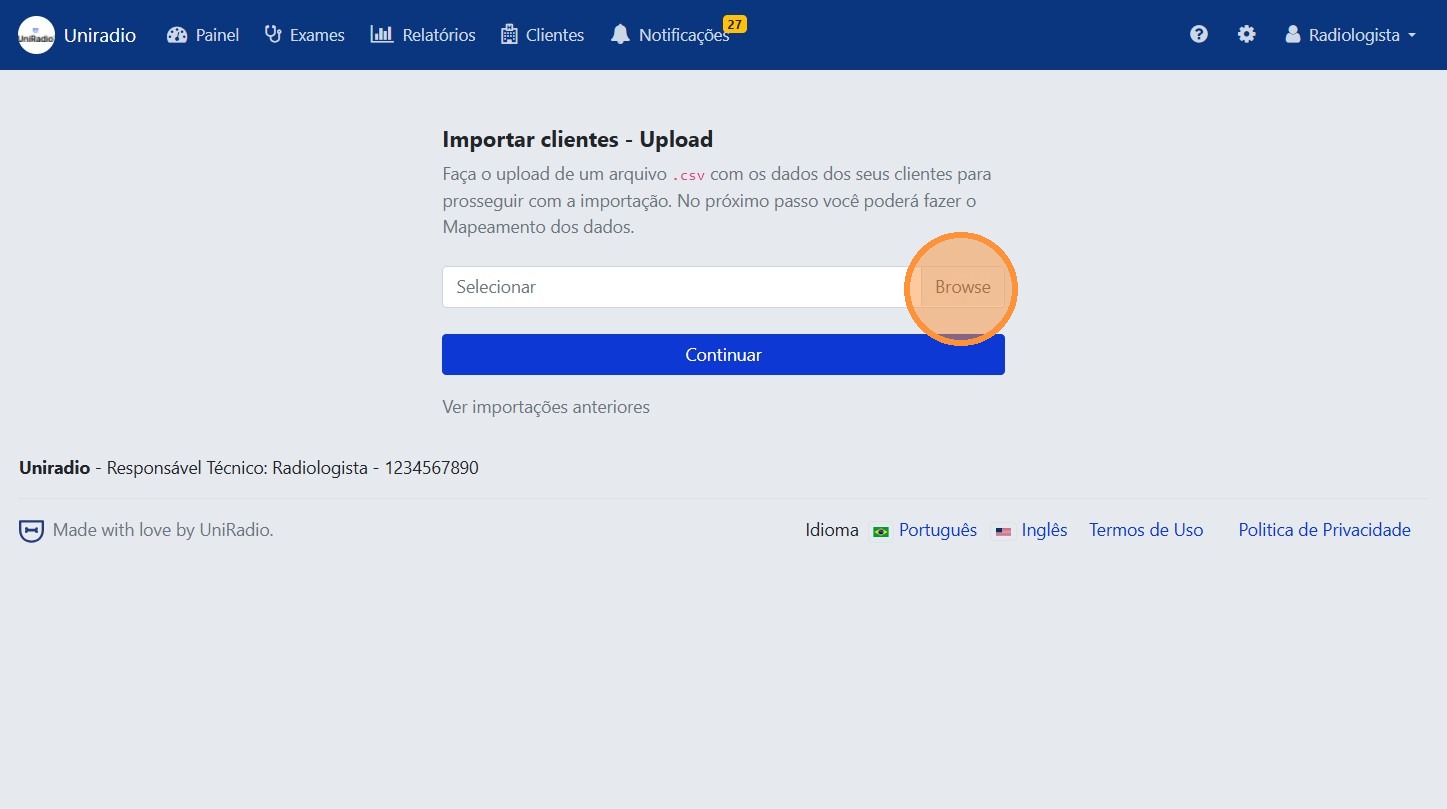
5. Select the CSV file
Click "Select" and choose the CSV file with the client data you want to import.
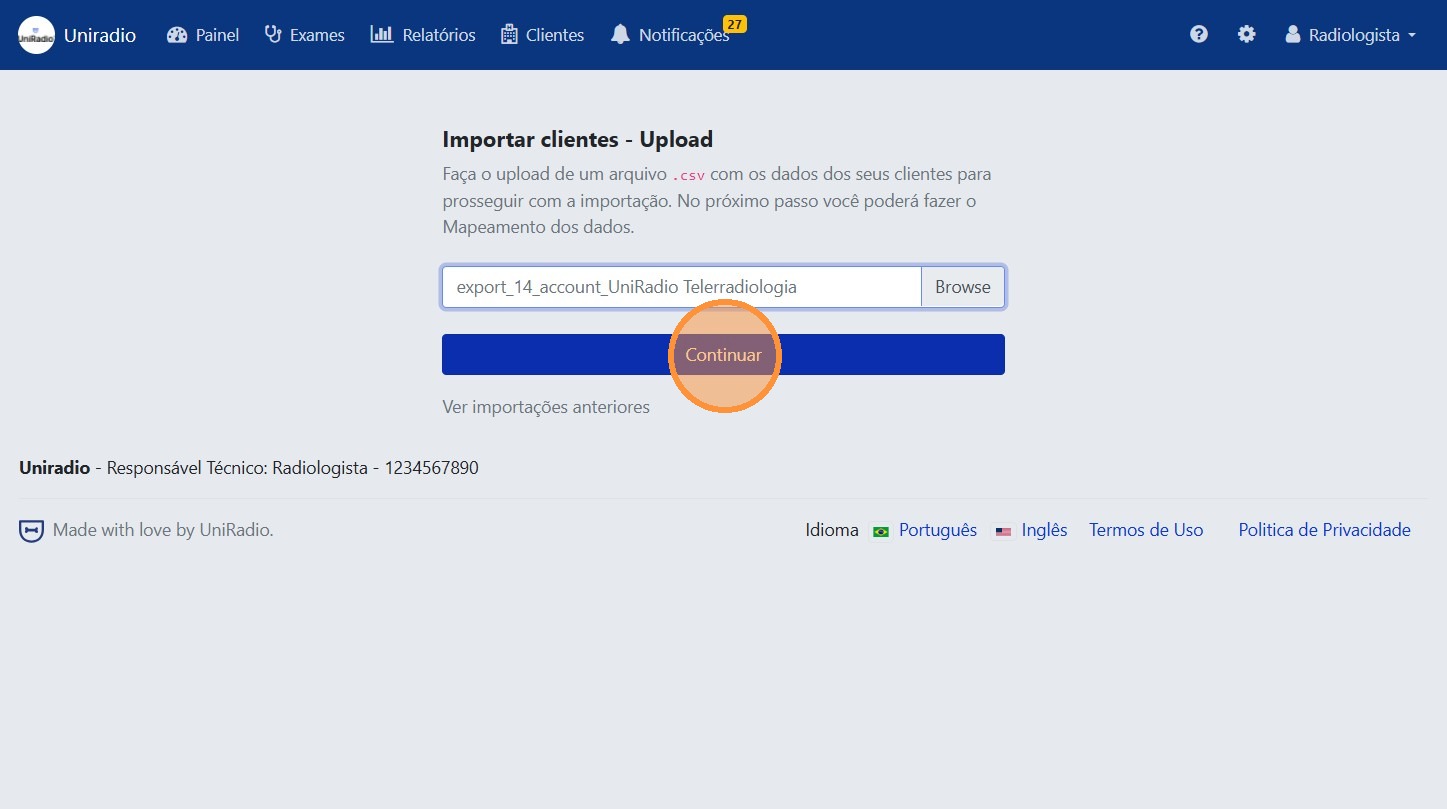
6. Upload the file
Click "Submit" to upload the selected file.
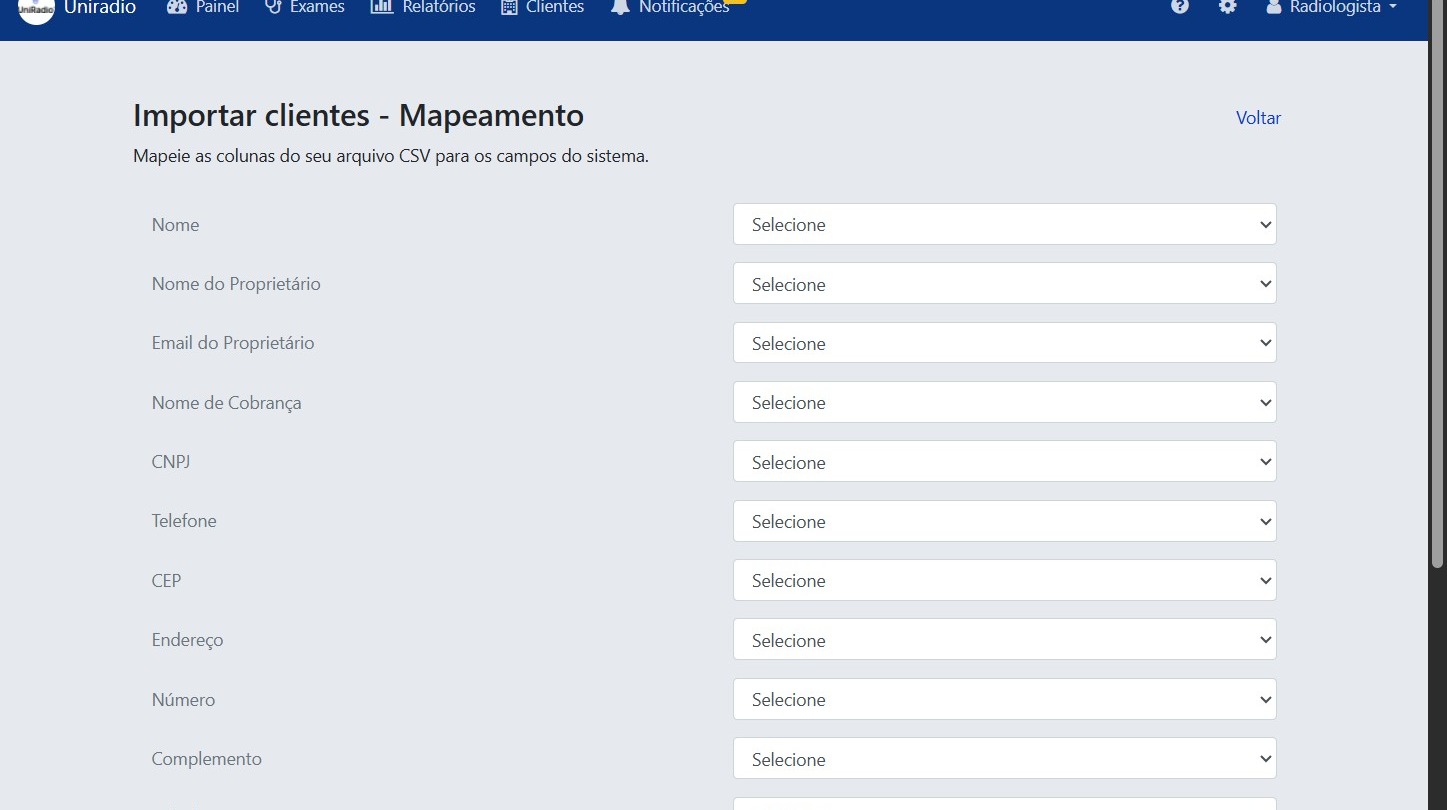
7. Map the fields
Match CSV columns to the corresponding system fields. Make sure each column is mapped correctly for accurate imports.
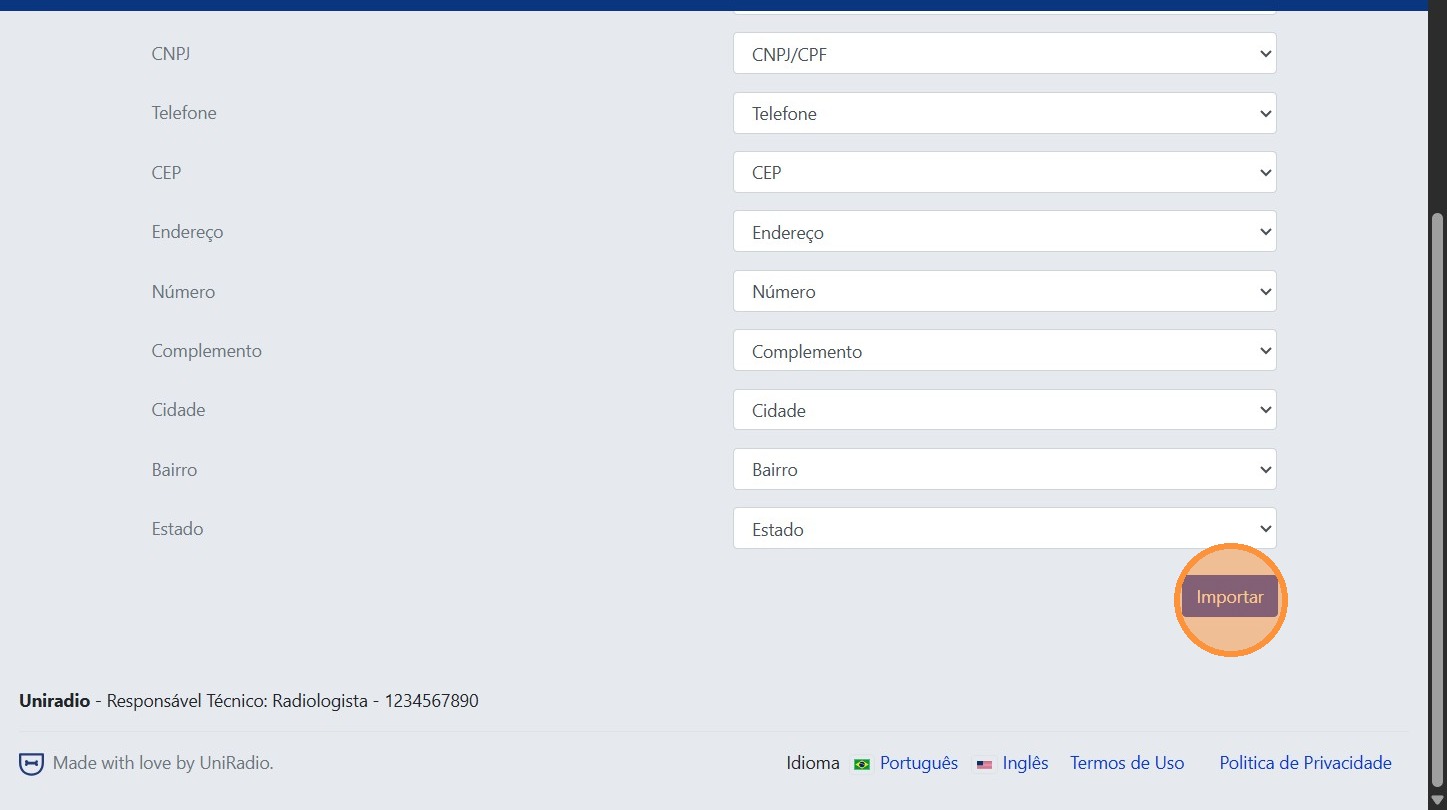
8. Click "Import"
Click "Import" to start the process. The import runs in the background and you will be notified when it finishes.
To understand what each import mapping field means, see Mapping Field Definitions.
Tip
You can track previous imports in Previous Imports.
Need Help?
Check our FAQ or contact support if you have issues while importing data.