
How to Create an Exam via PACS Server
Learn how to create and submit a new exam in the UniRadio platform using the PACS server to synchronize image files.
Step by Step
1. Access the UniRadio platform
Sign in to your account and go to app.uniradio.vet.br/exams
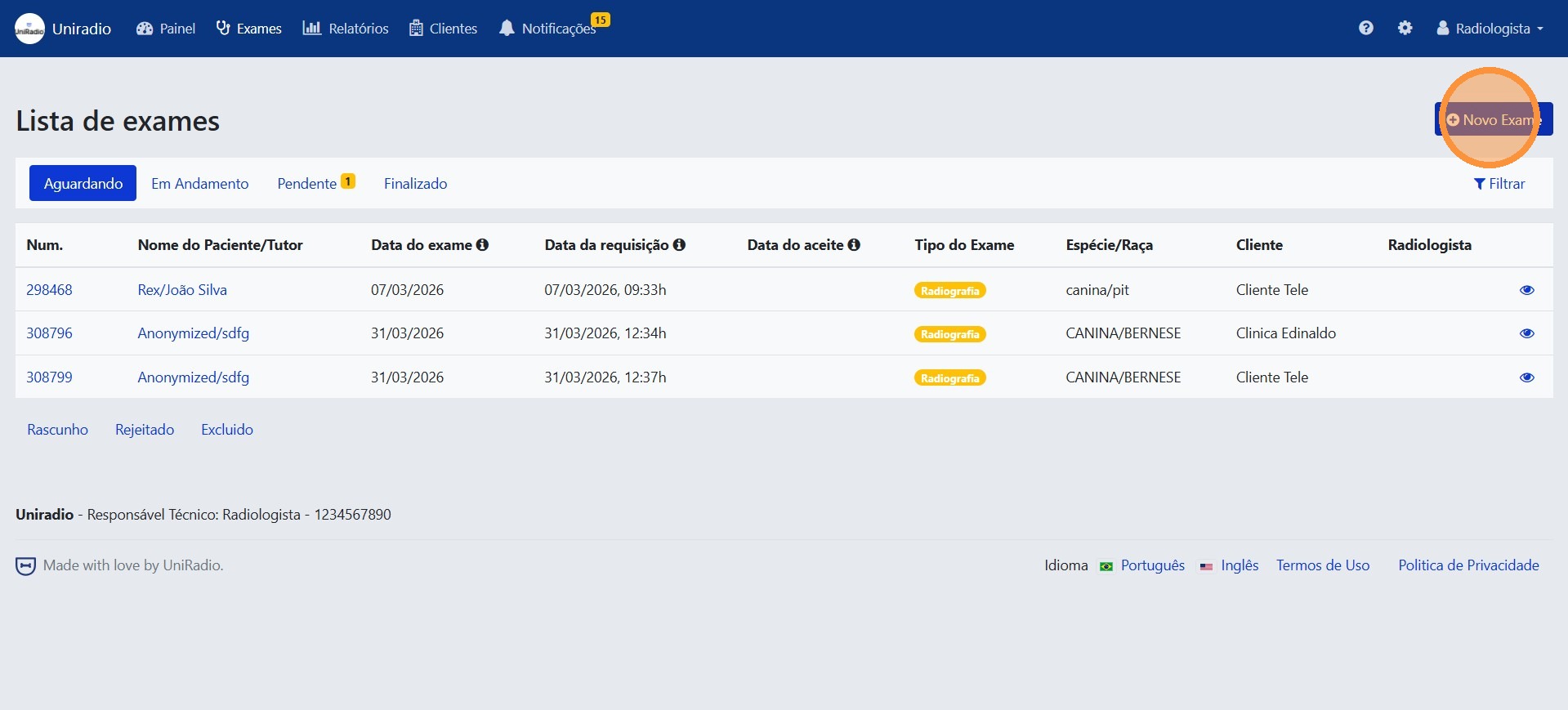
2. Click on "New Exam"
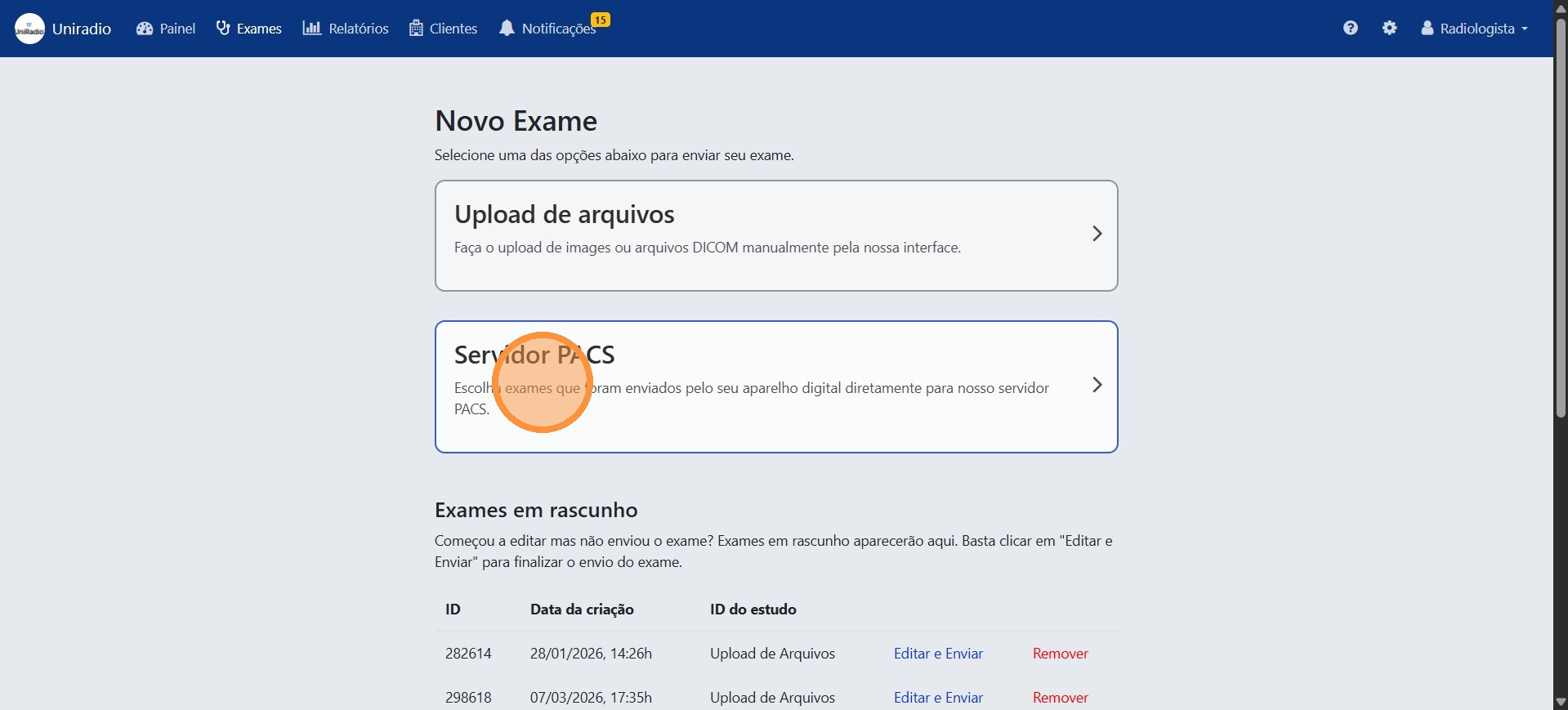
3. Click on "PACS Server"
Select the submission option via PACS server.
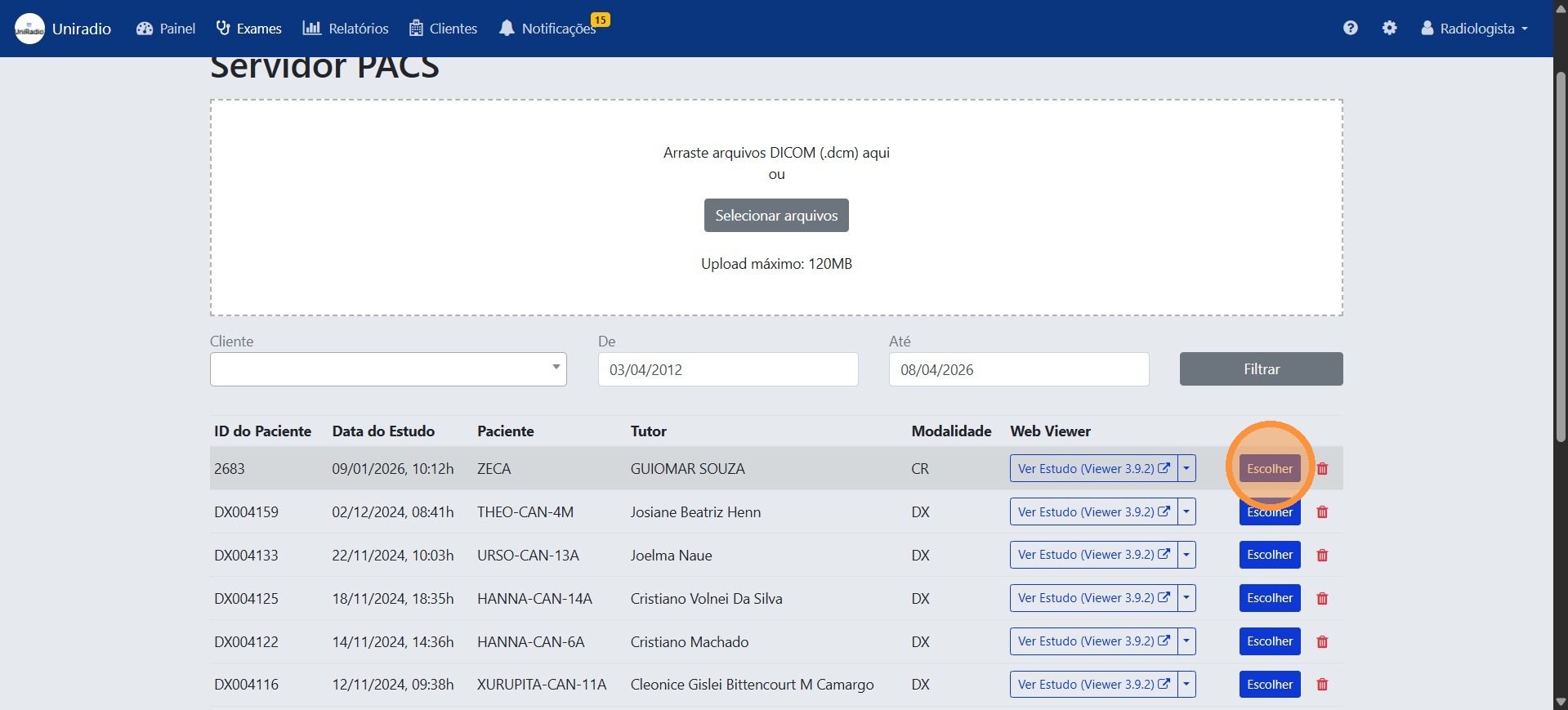
4. Click on "Choose"
Select the exam available on the PACS server that you want to import.
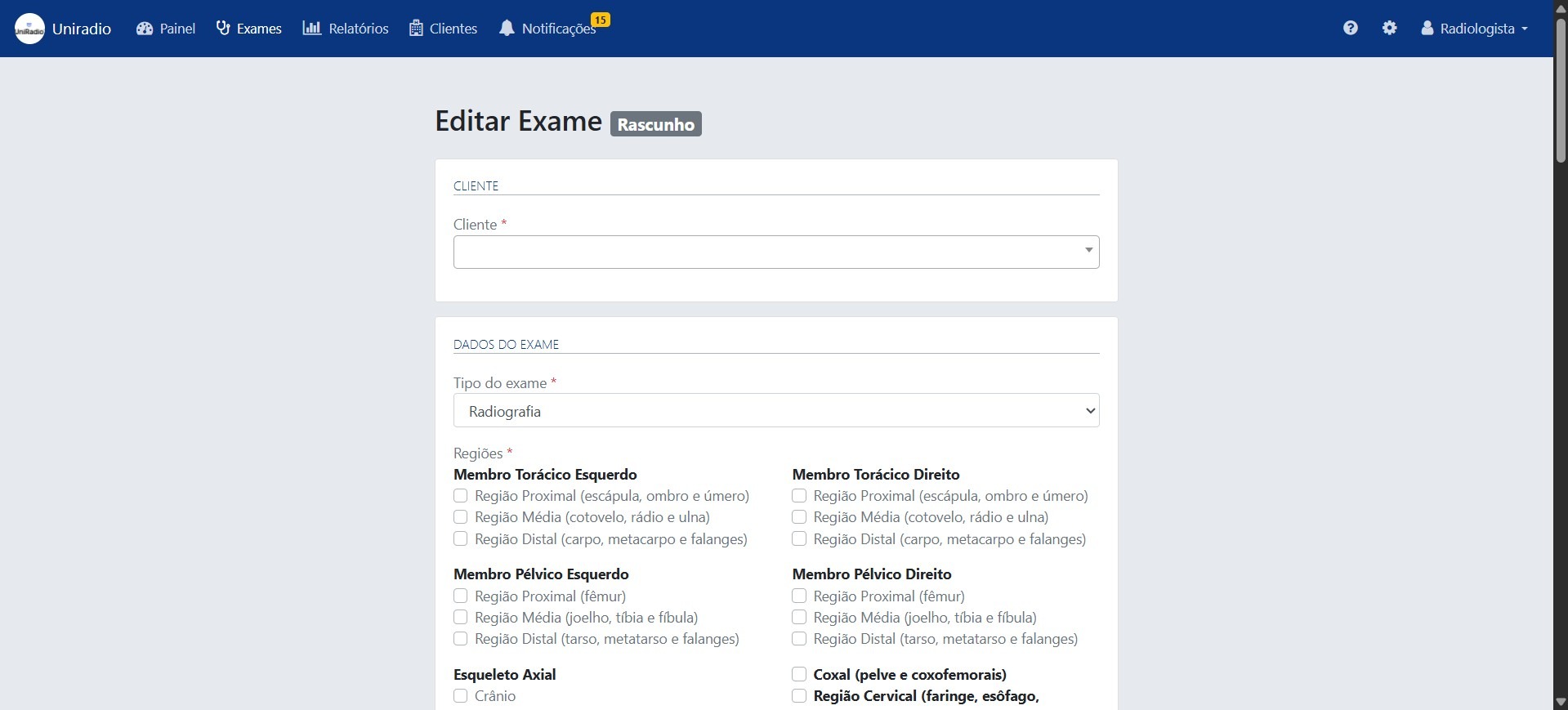
5. Fill in the exam information
Fill in all required fields in the form, such as exam type, regions, patient data, and clinical history.
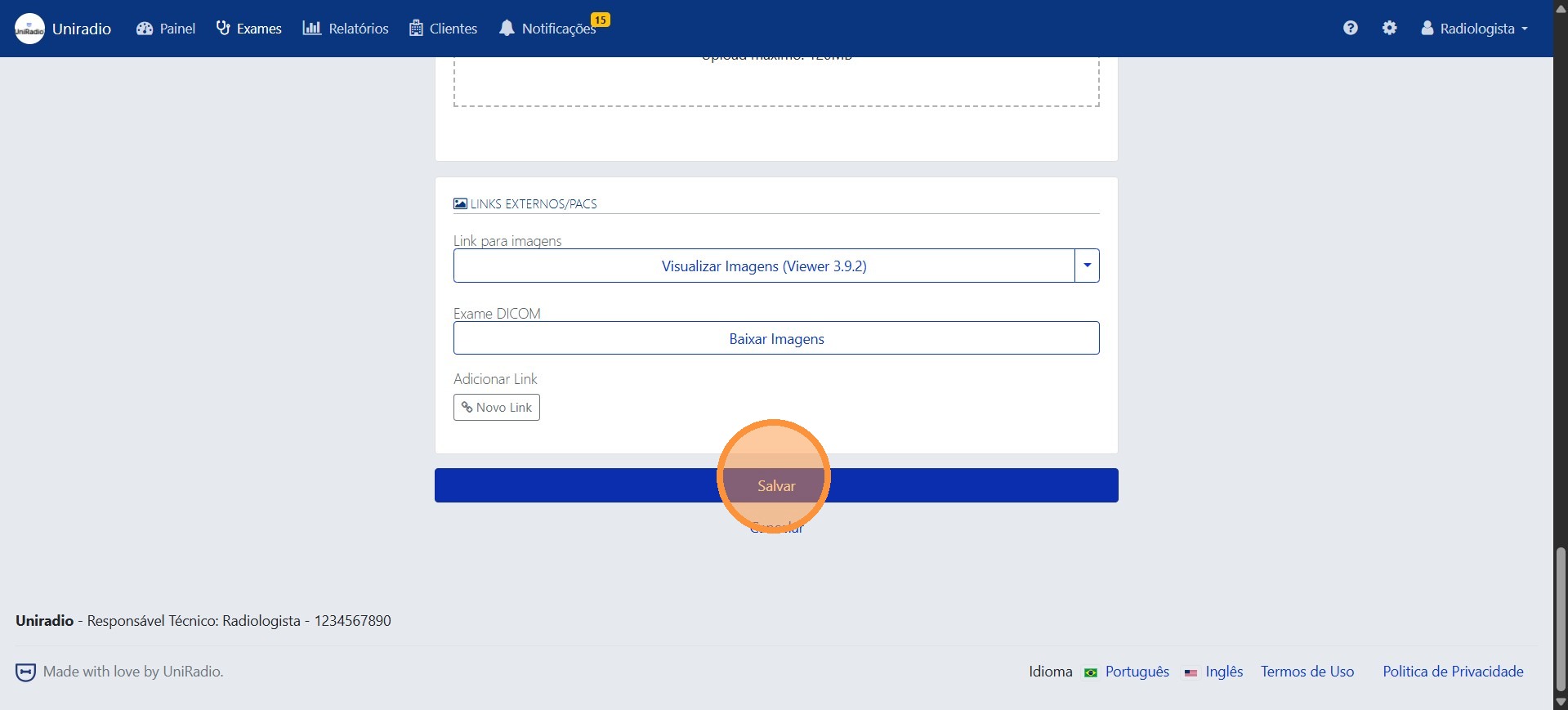
6. Click "Save" to submit the exam
Tip
After saving, the exam will be created as a draft. Open it in a new tab to monitor the synchronization progress with the PACS server.
Field descriptions
To understand the meaning of each field in this form, see Exam creation fields.
Need Help?
Check our FAQ or contact support if you encounter any issues when creating an exam via PACS.