
How to View Webhook Logs
Learn how to access and analyze the event records of a webhook on the UniRadio platform for monitoring or troubleshooting purposes.
Step by Step
1. Access the UniRadio platform
Sign in to your account and go to app.uniradio.vet.br/exams
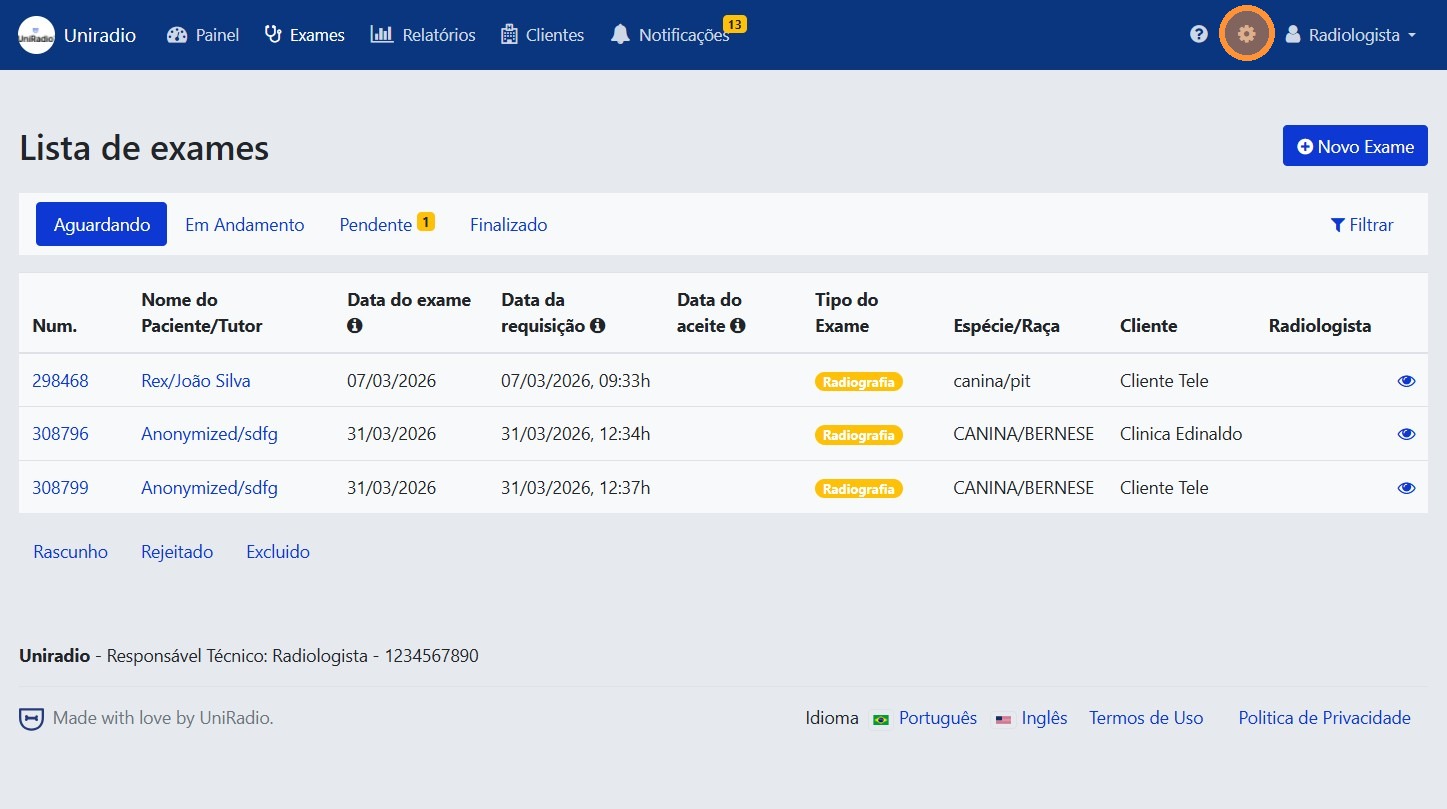
2. Open the settings menu
In the side menu, click the settings icon to open the account options.
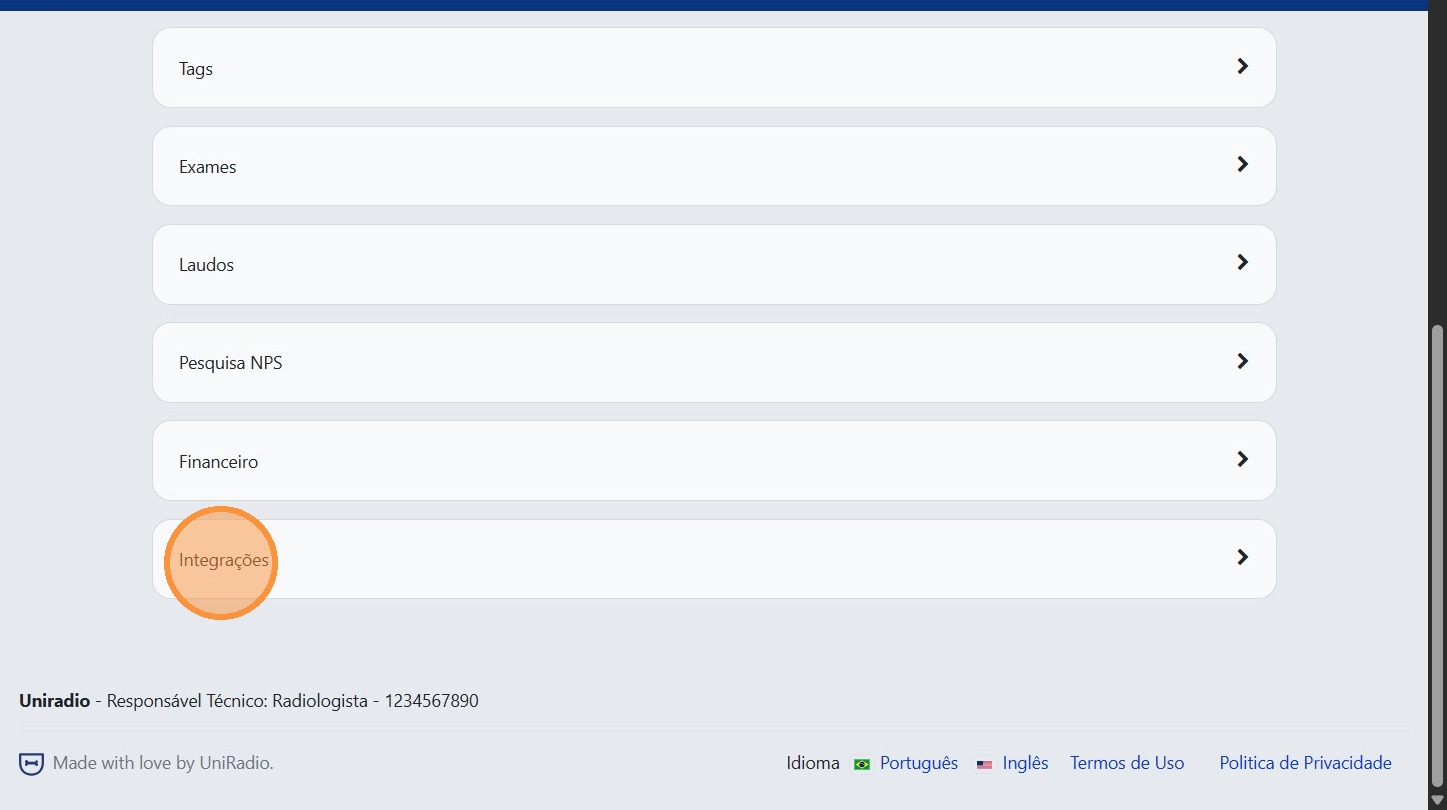
3. Click "Integrations"
In the settings menu, click "Integrations" to access the integration options.
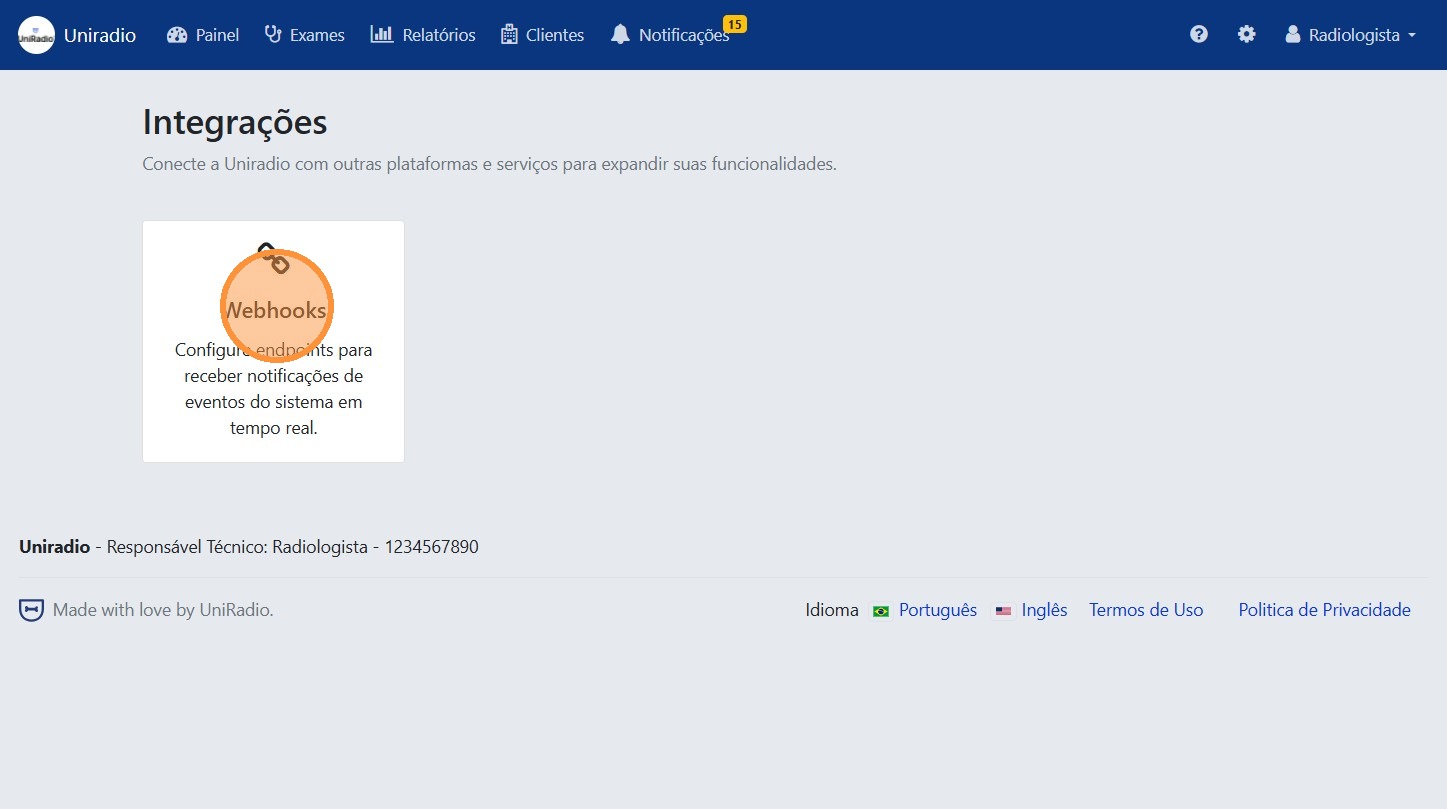
4. Click "Webhooks"
Inside integrations, click "Webhooks" to view the registered webhooks.
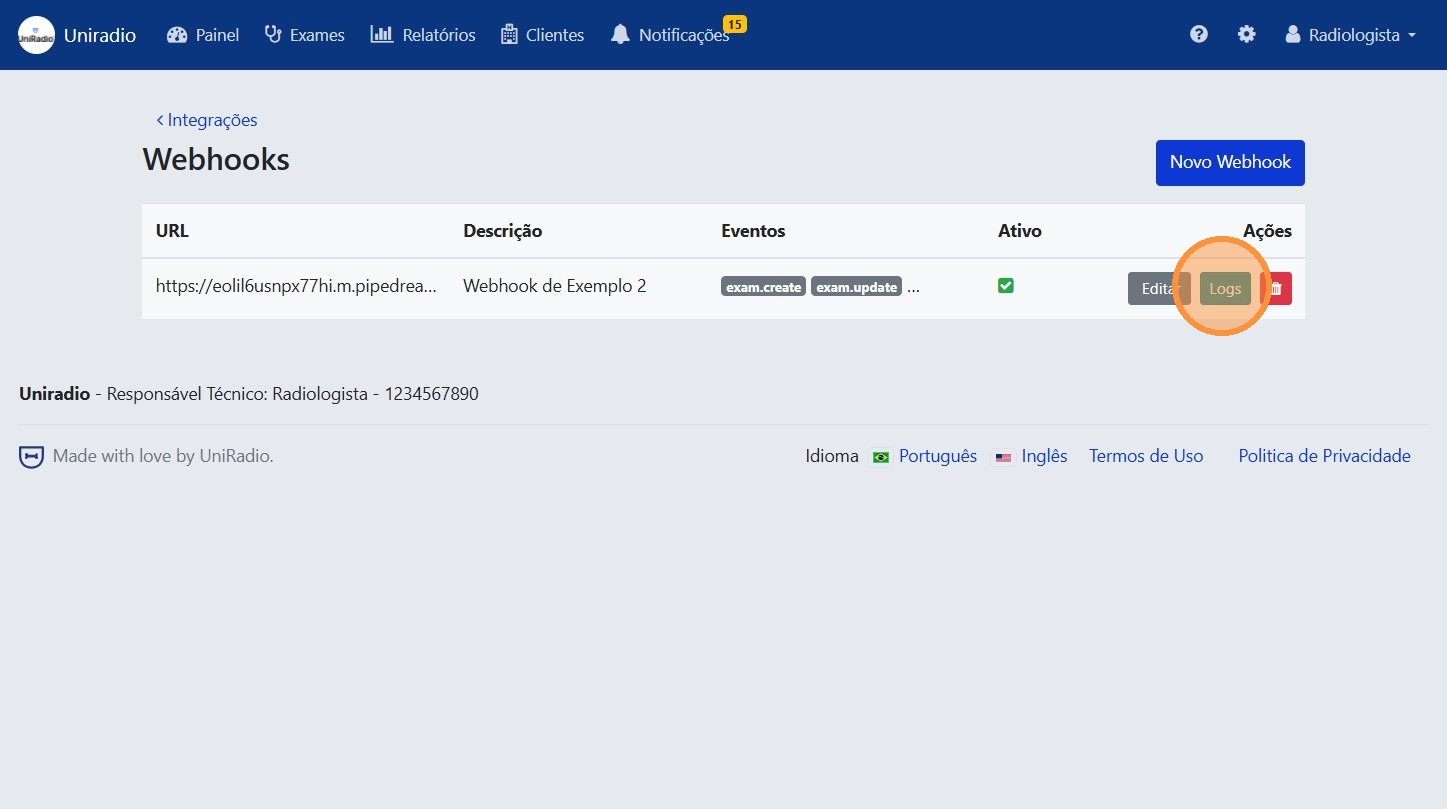
5. Click "Logs"
Open the logs tab for the desired webhook.
6. View the event records
The list shows a quick summary of recent events fired by the webhook, including status and the response returned by the server.
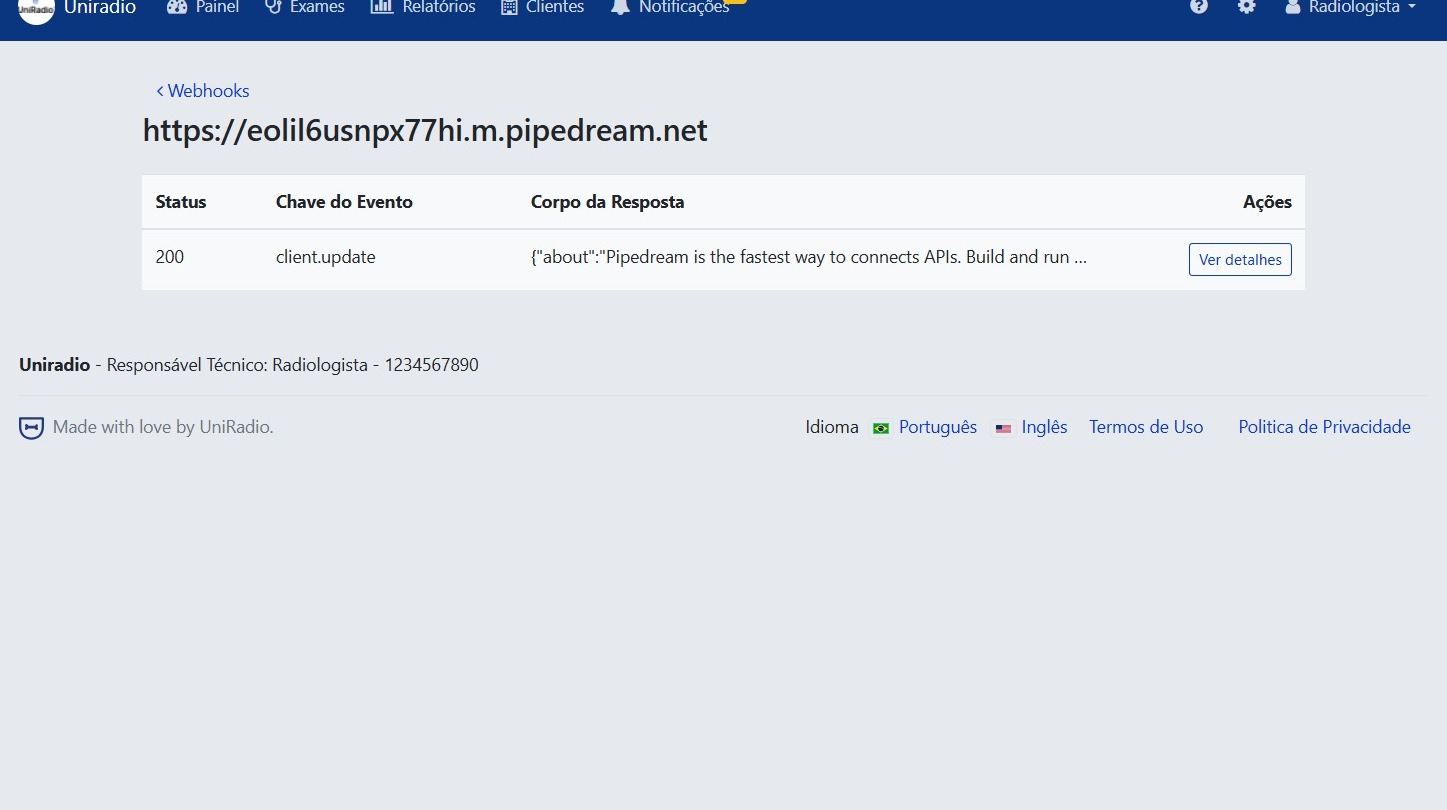
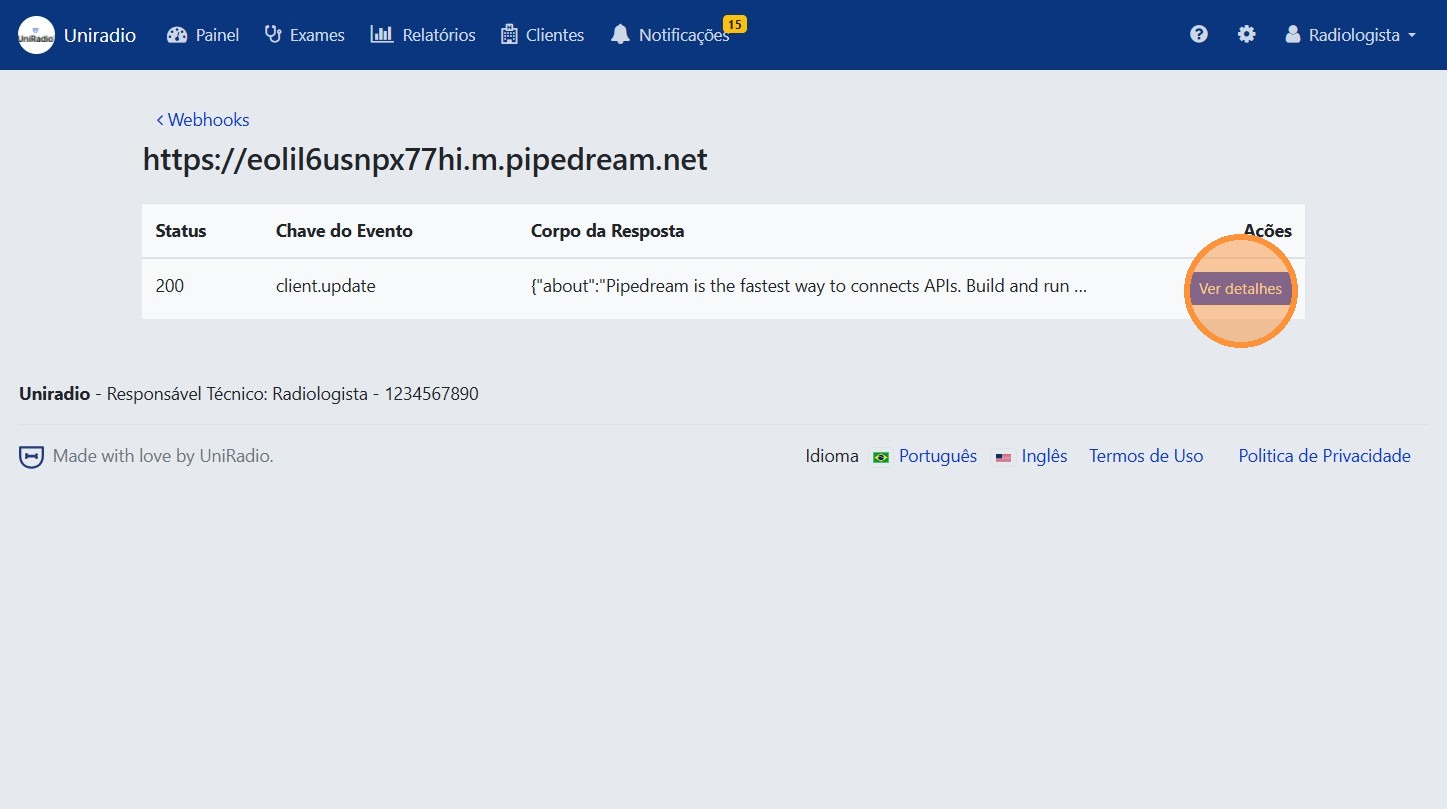
7. Click "View details" to inspect an event
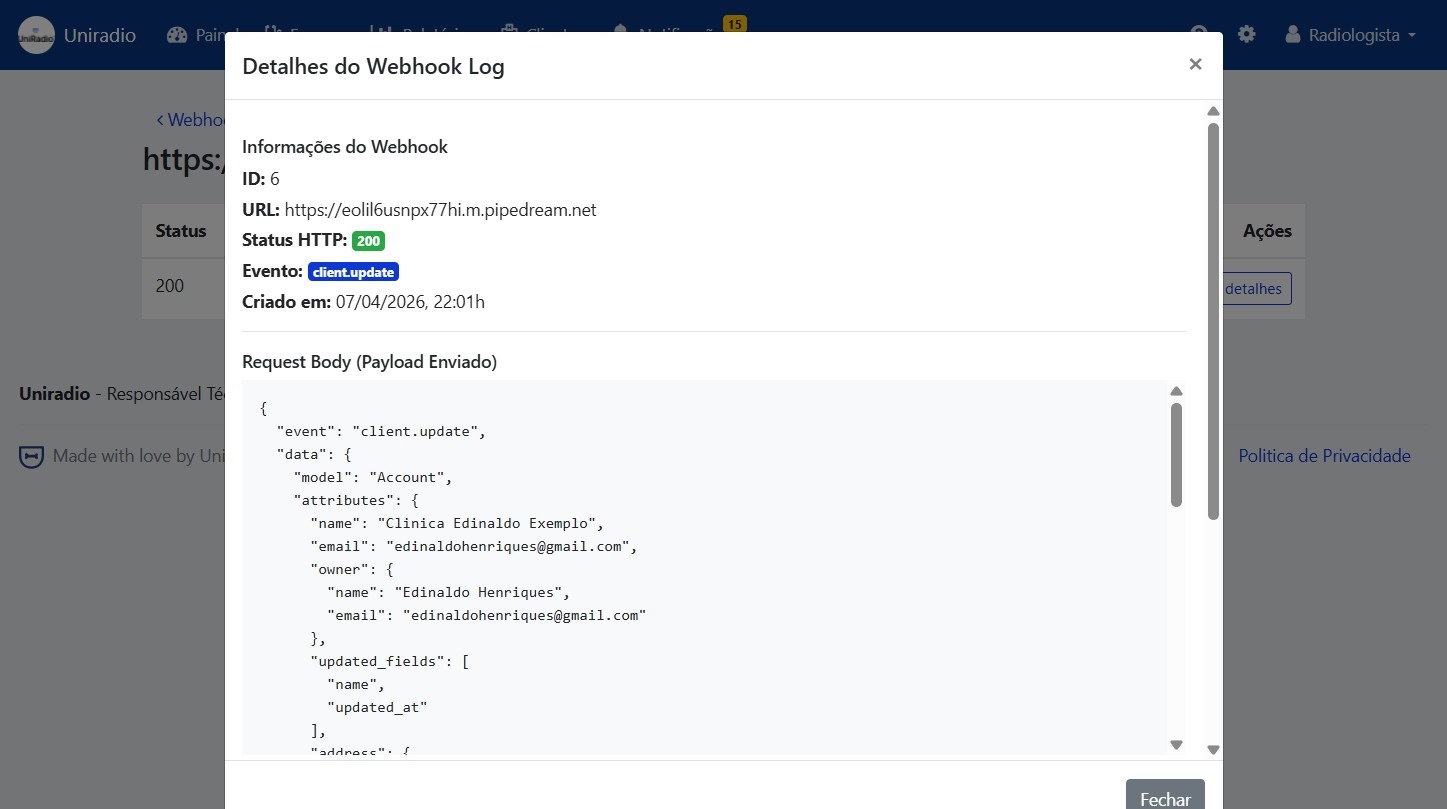
8. Analyze the full event details
View the complete technical information of the selected event, such as the payload sent, response code, and timestamp.
Need Help?
Check our FAQ or contact support if you have trouble viewing webhook logs.