
How to Restore a Previous Report Version
Learn how to access, compare, and restore previous versions of a report on the UniRadio platform, ensuring your records are always accurate.
Step by Step
1. Access the UniRadio platform
Sign in to your account and go to app.uniradio.vet.br/exams
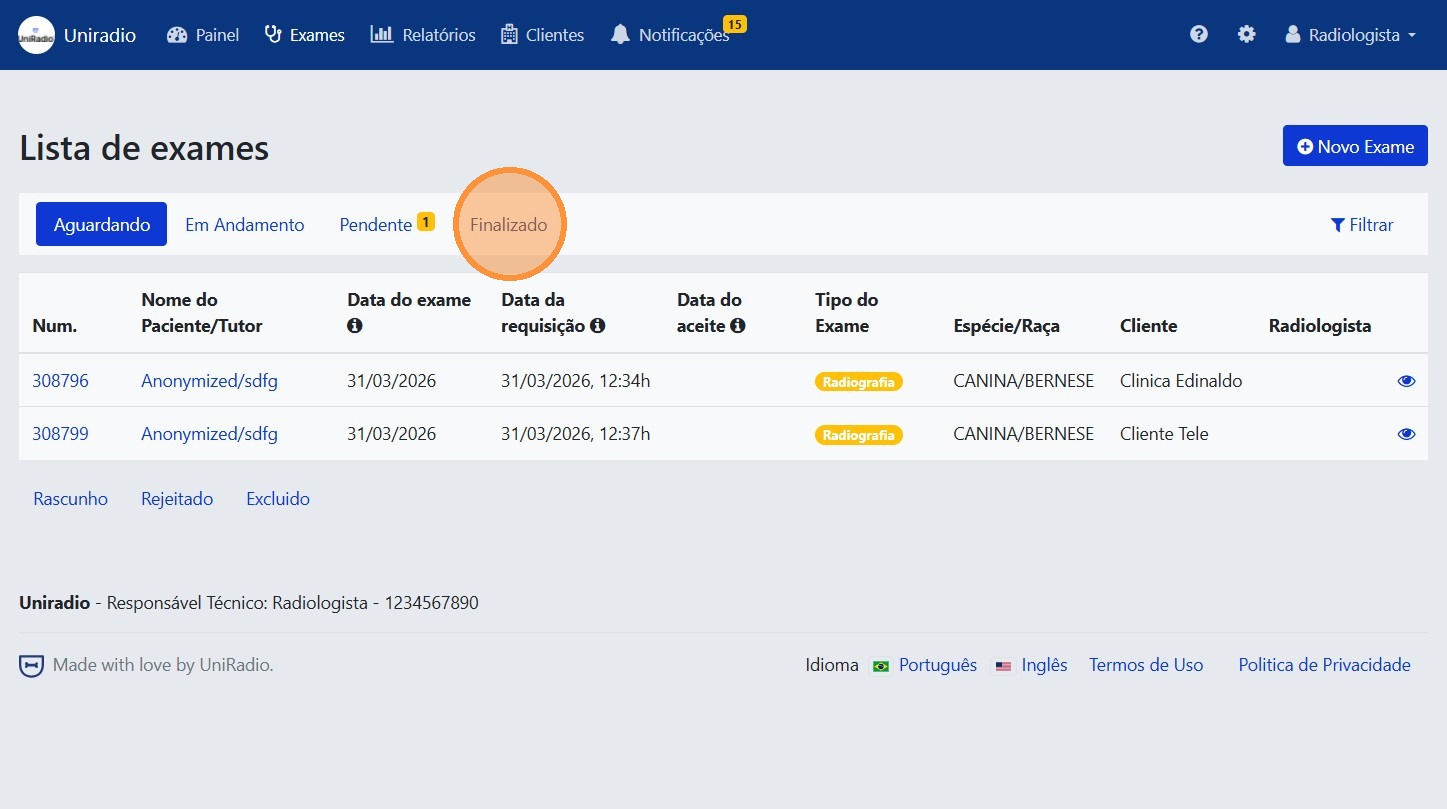
2. Click "Completed"
Filter exams by the "Completed" status to locate the exam whose report you want to restore.
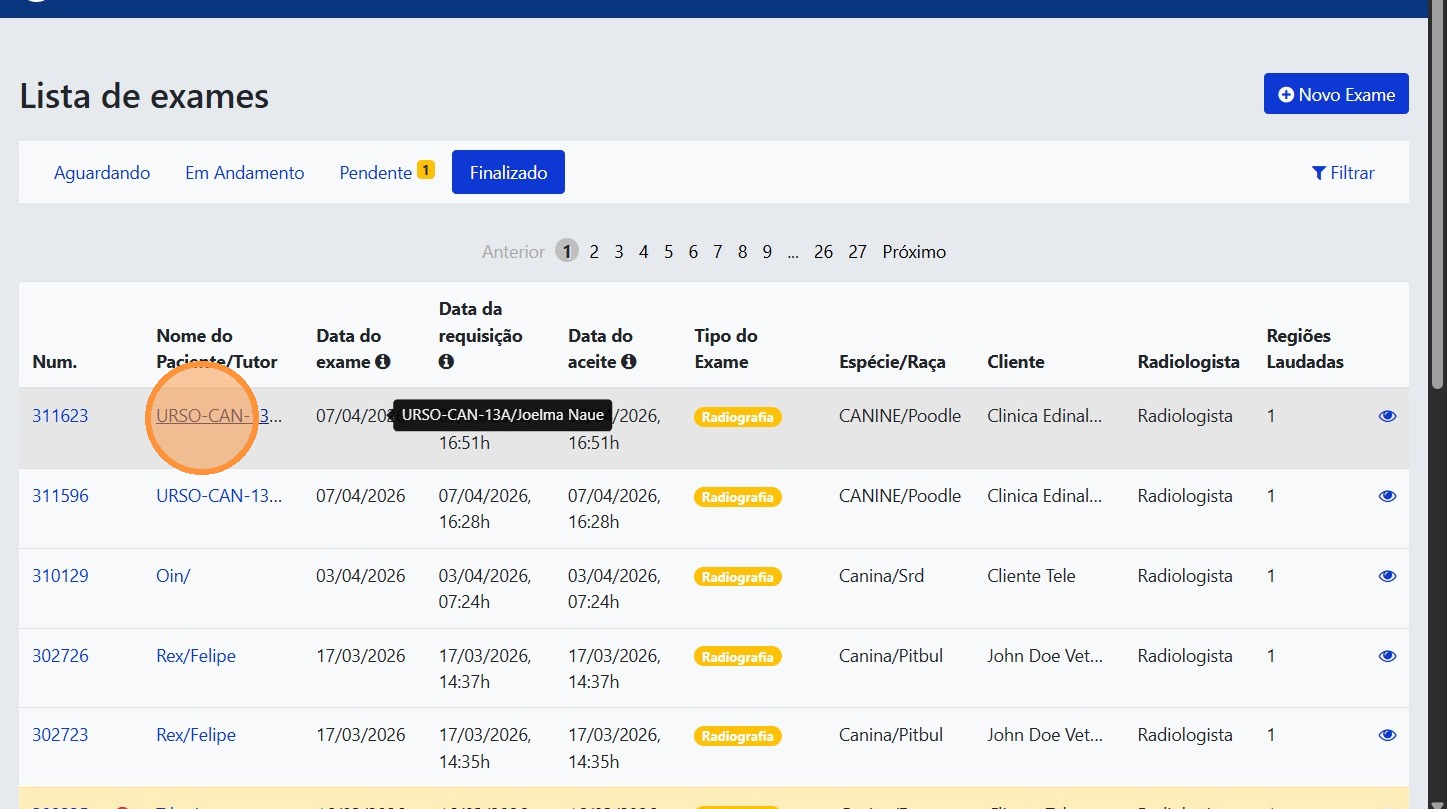
3. Select the desired exam
Click the exam to open the case details.
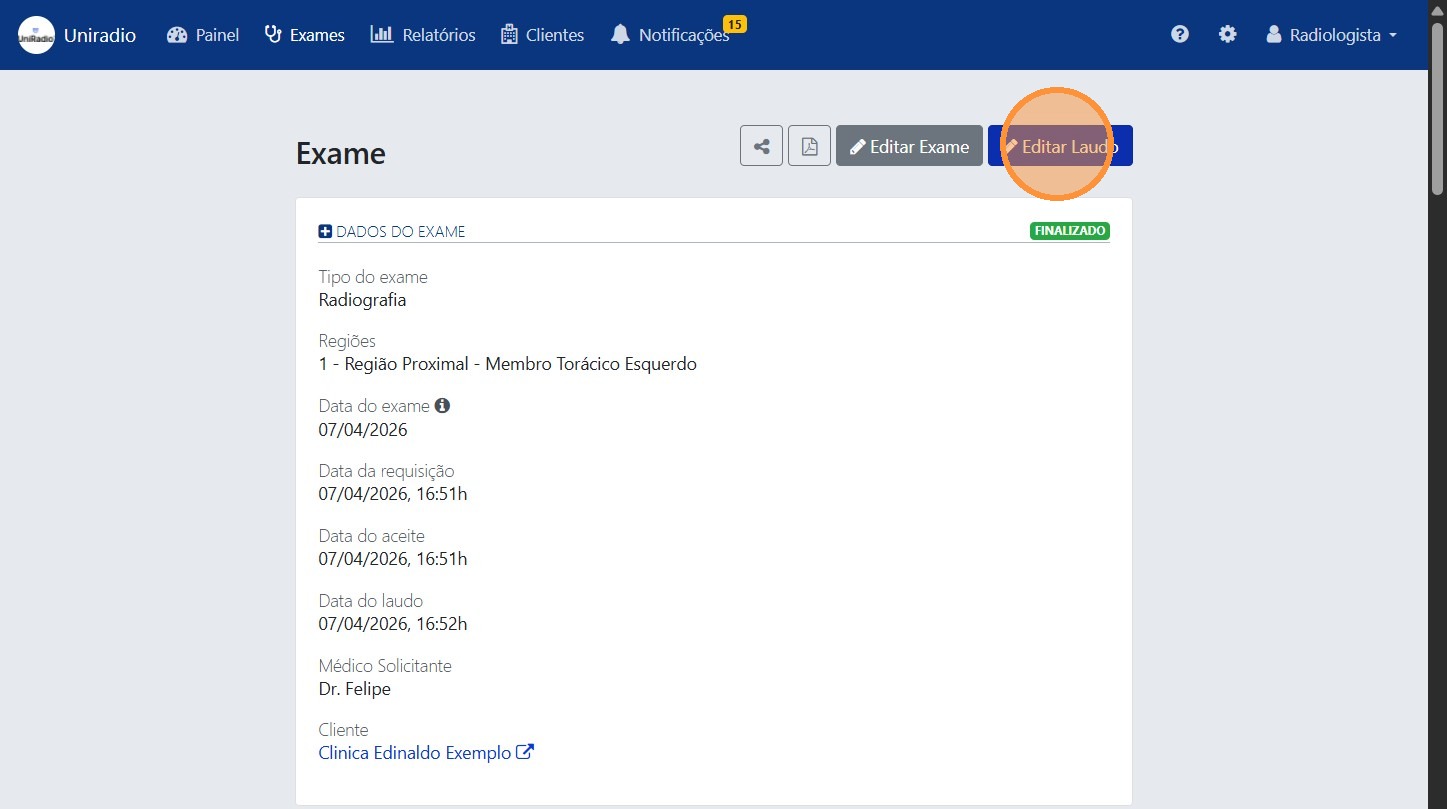
4. Click "Edit Report"
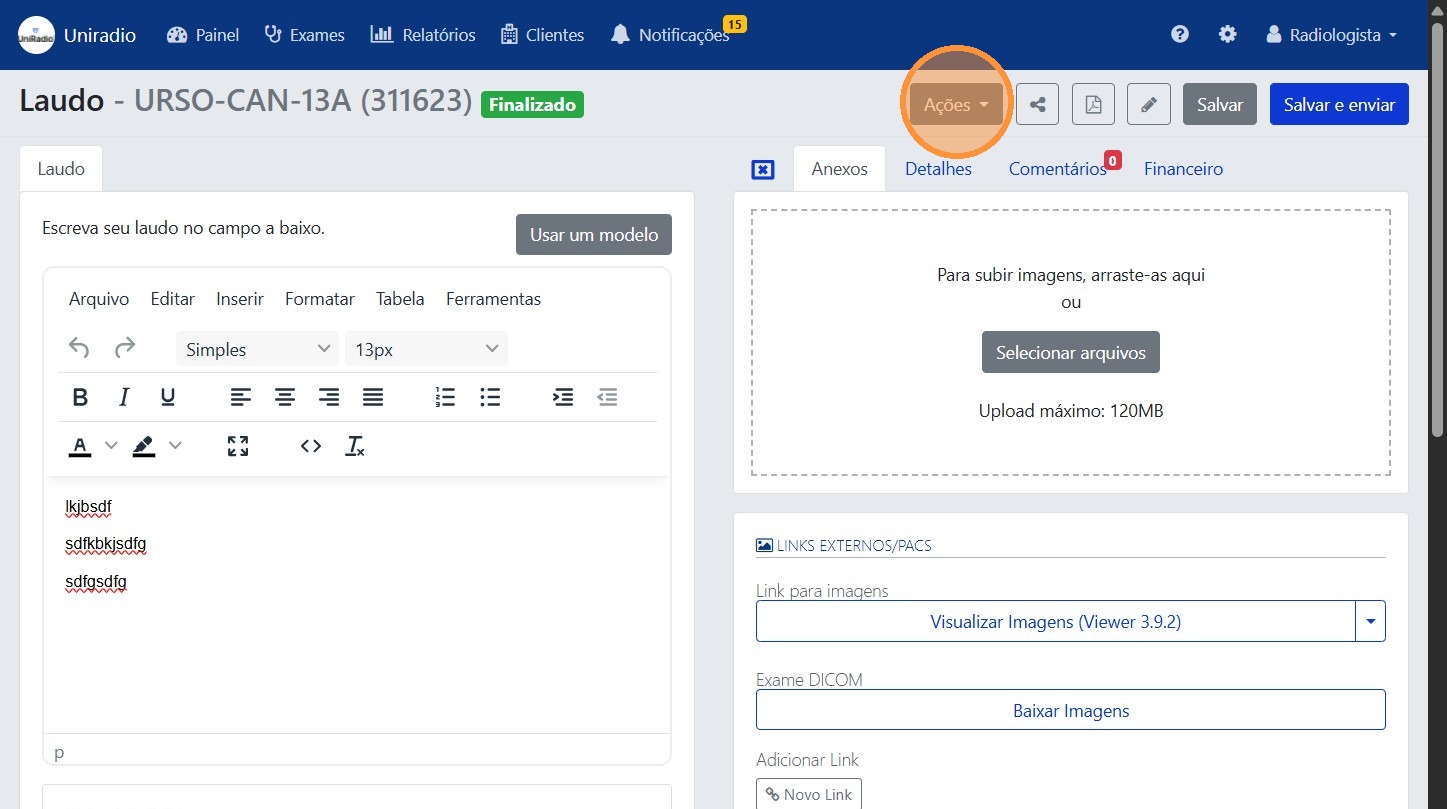
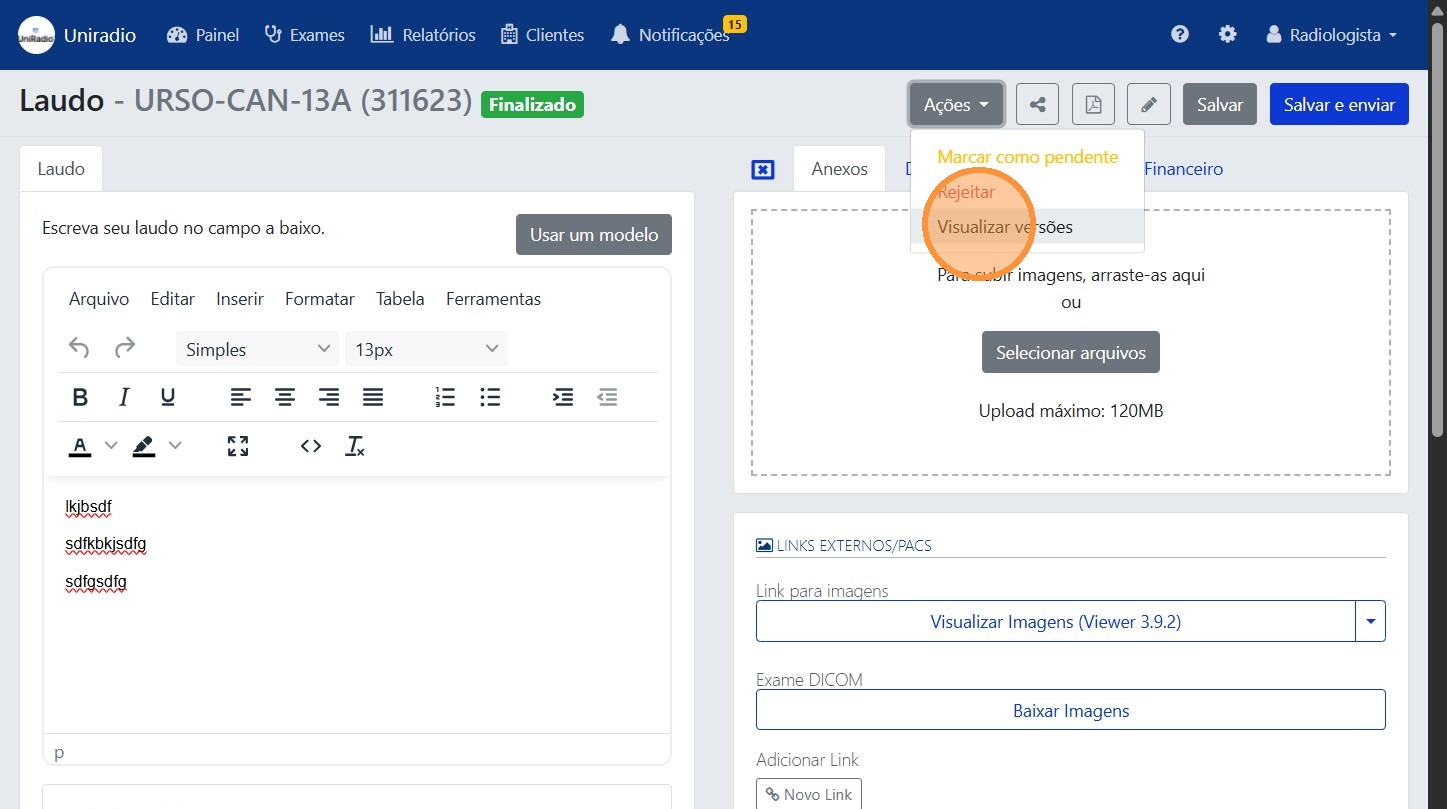
5. Click "Actions"
Open the actions menu available in the report editor.
6. Click "View versions"
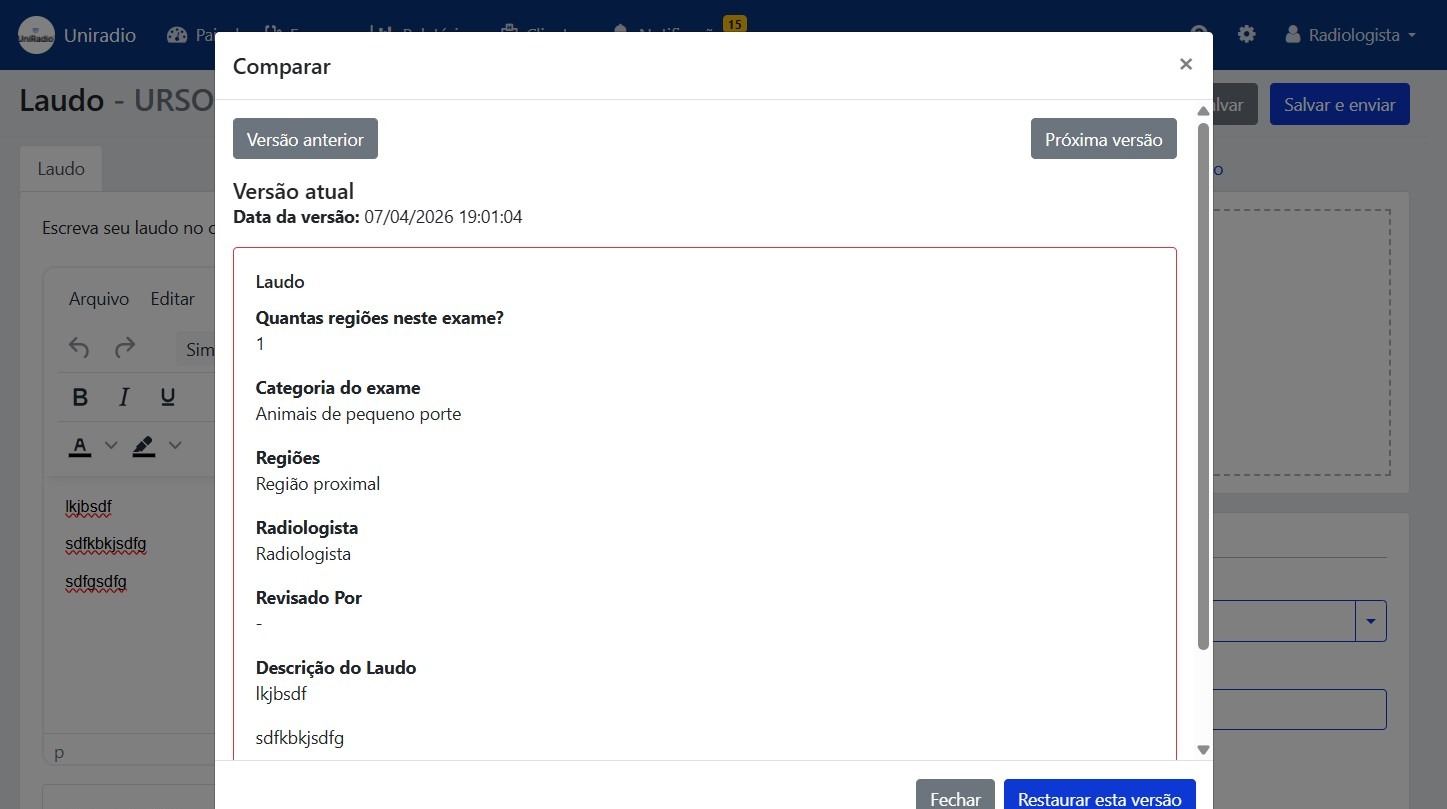
7. Compare the available versions
Browse through the previously saved report versions. Each version displays the content recorded at that time, allowing you to compare changes made over time.
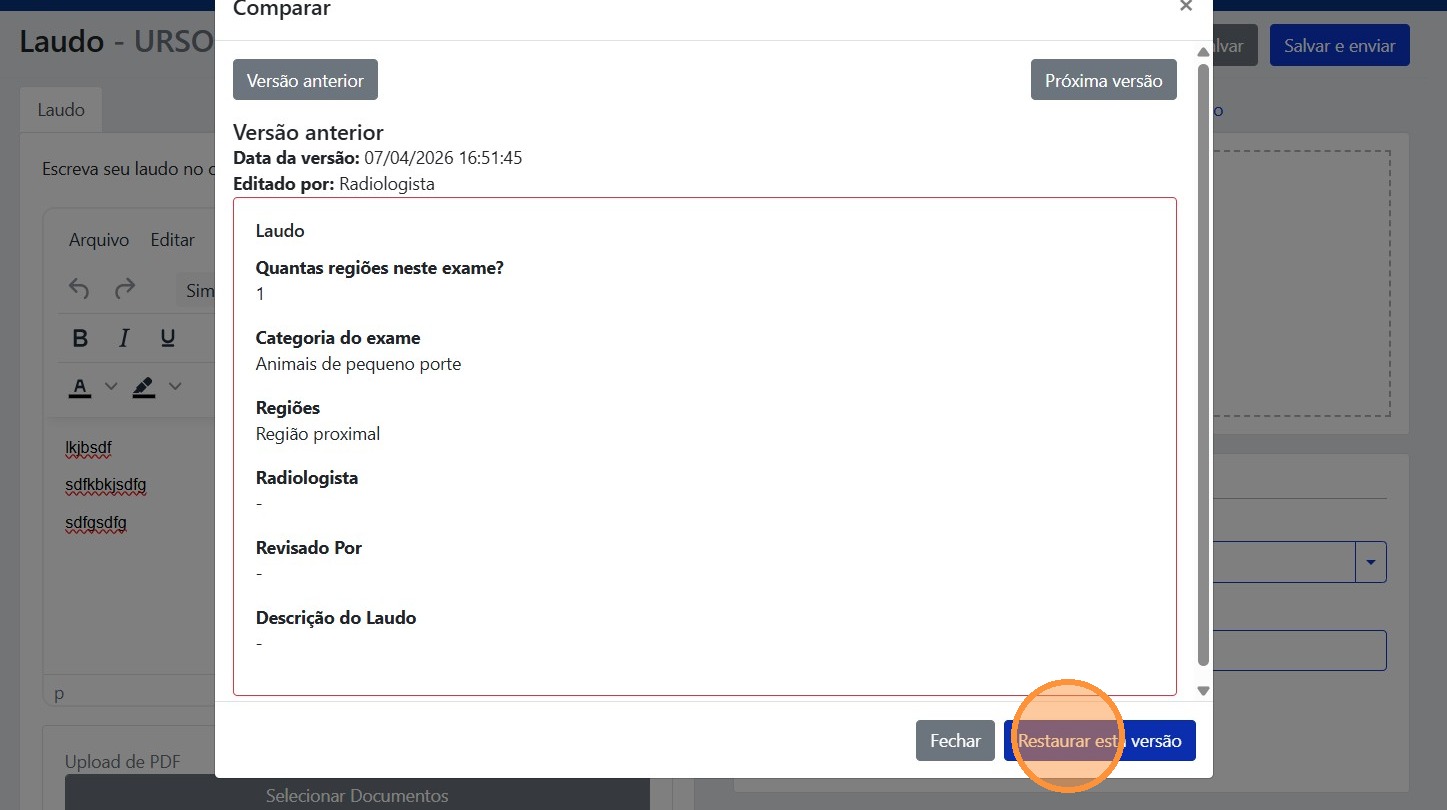
8. Click "Restore this version"
Tip
When restoring a previous version, the system automatically creates a new version. This ensures that your current changes are not lost.
Select the desired version and click "Restore this version" to revert the report to the content saved at that point.
Need Help?
Check our FAQ or contact support if you have trouble restoring a report version.