
How to Attach Images to an Exam
Learn how to select and attach image files to an in-progress exam in the UniRadio platform.
Step by Step
1. Access the UniRadio platform
Sign in to your account and go to app.uniradio.vet.br/exams
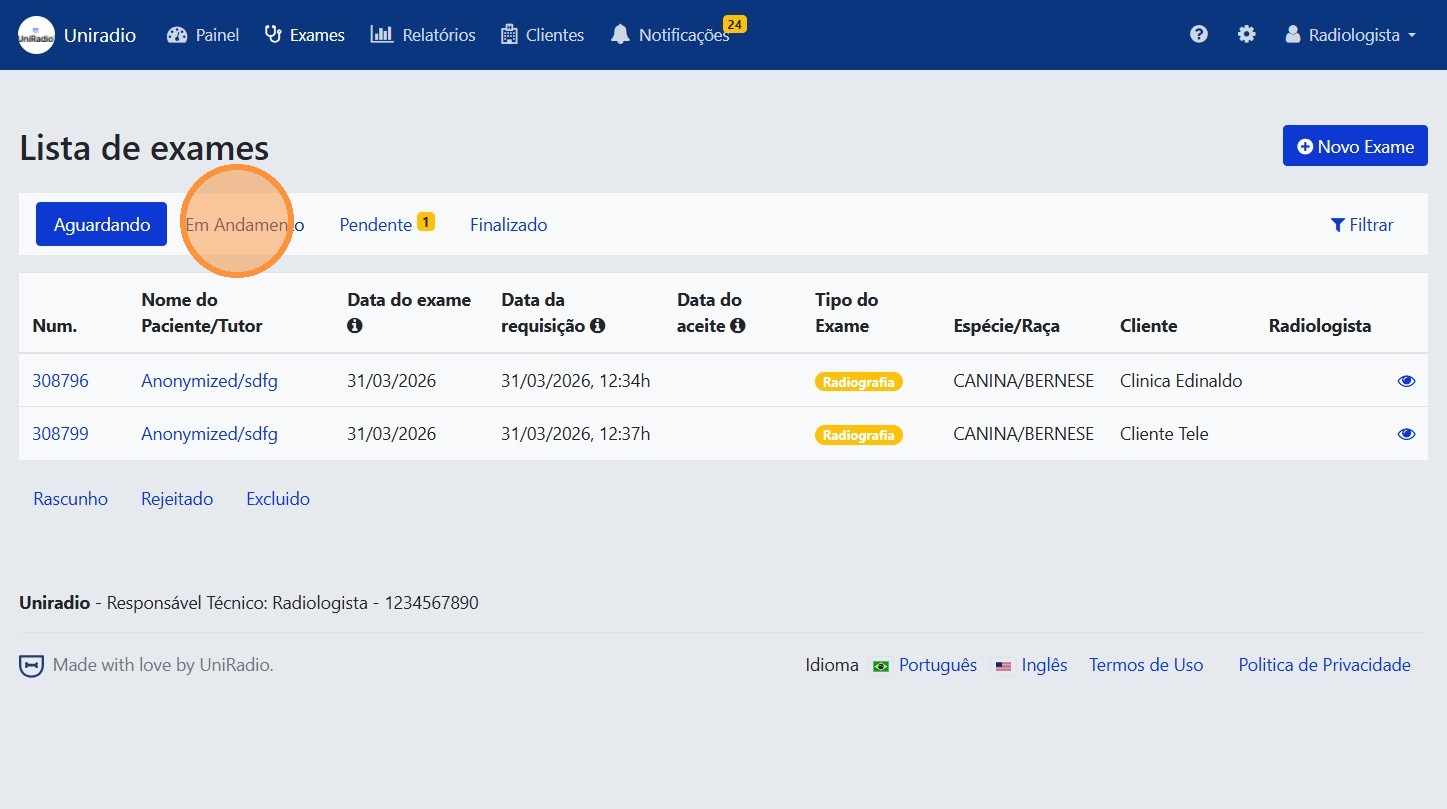
2. Click on "In Progress"
Filter exams by the "In Progress" status to locate the exam to which you want to attach images.
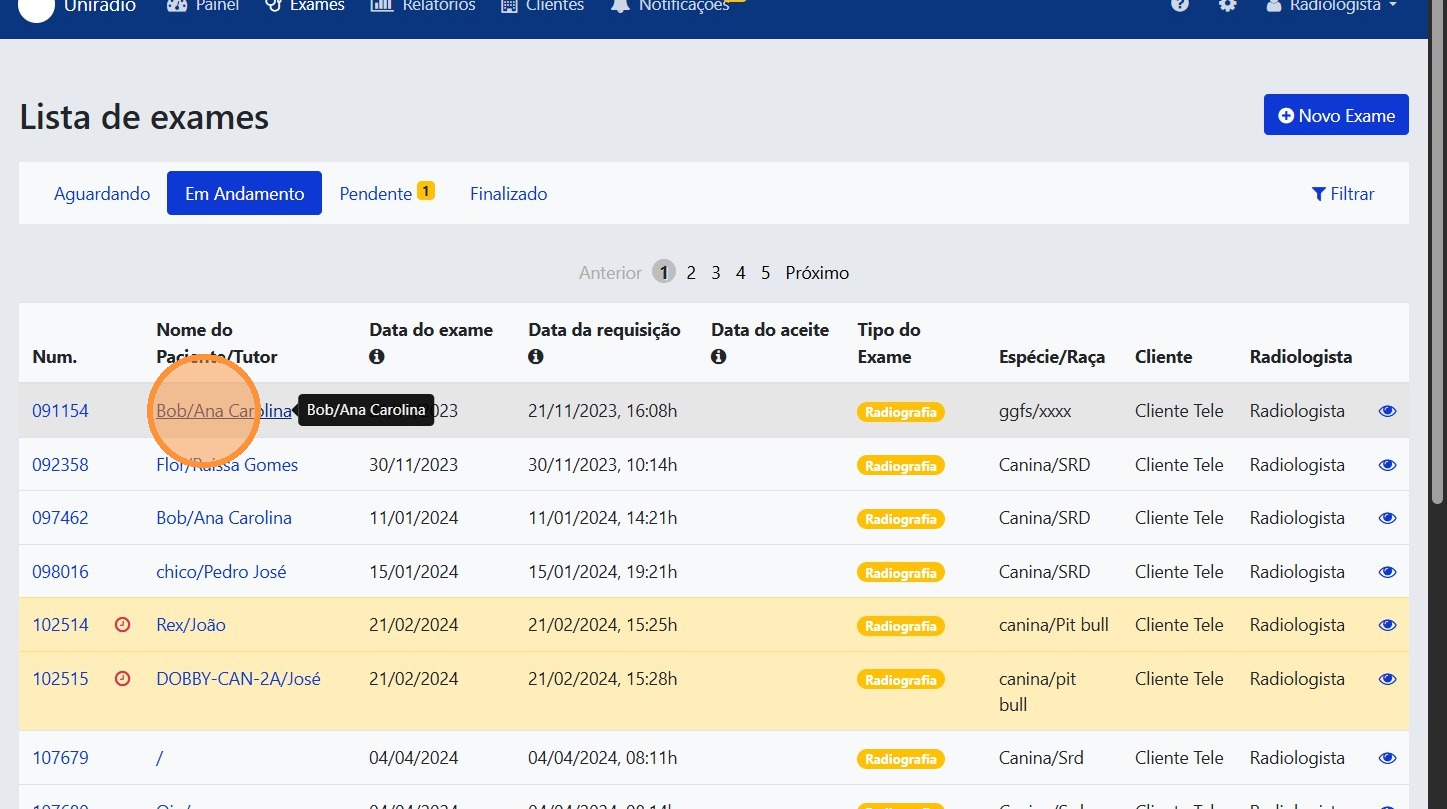
3. Select the desired exam
Click on the exam to open the case details.
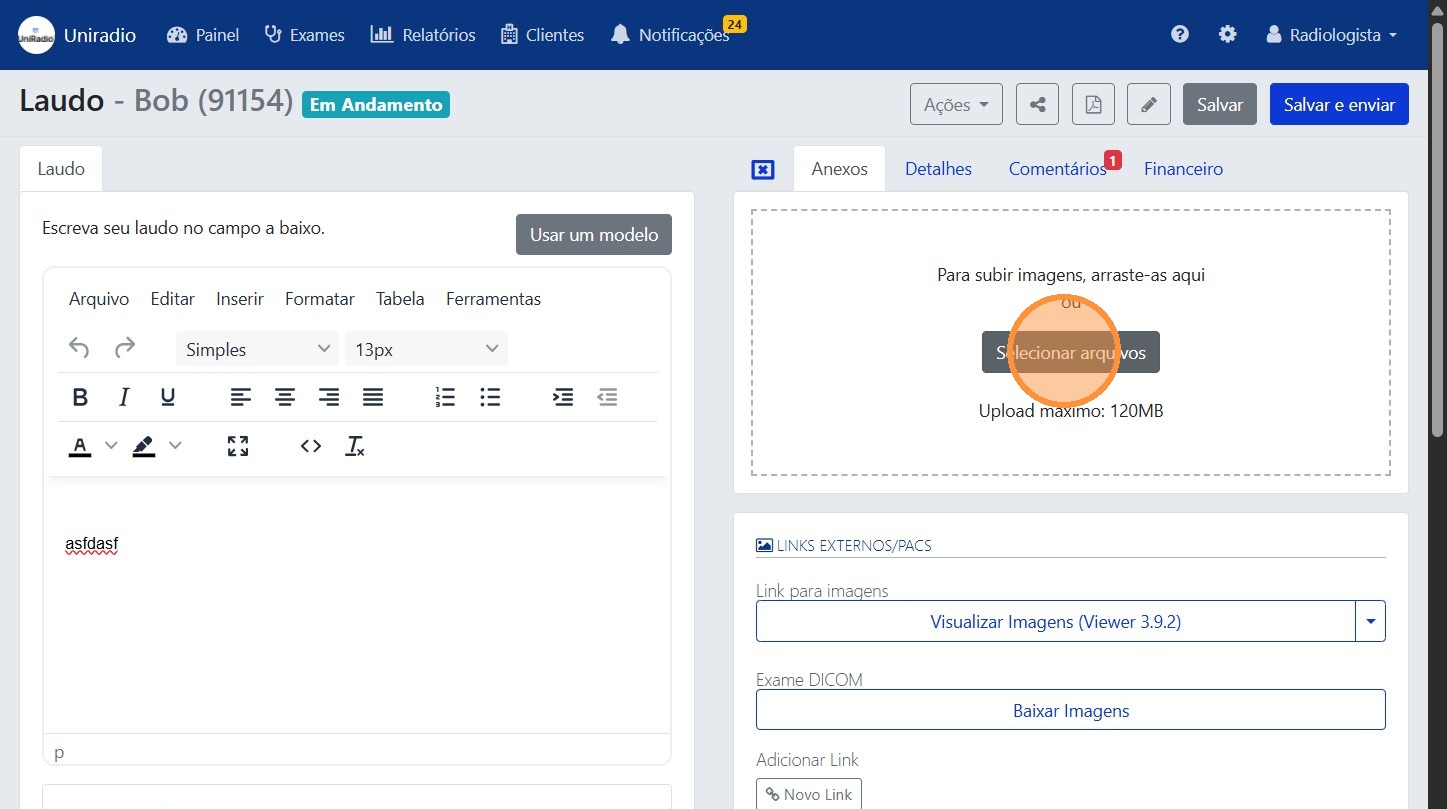
4. Click "Select files" and choose the images
In the attachments section of the exam, click "Select files" and select the images you want to attach.
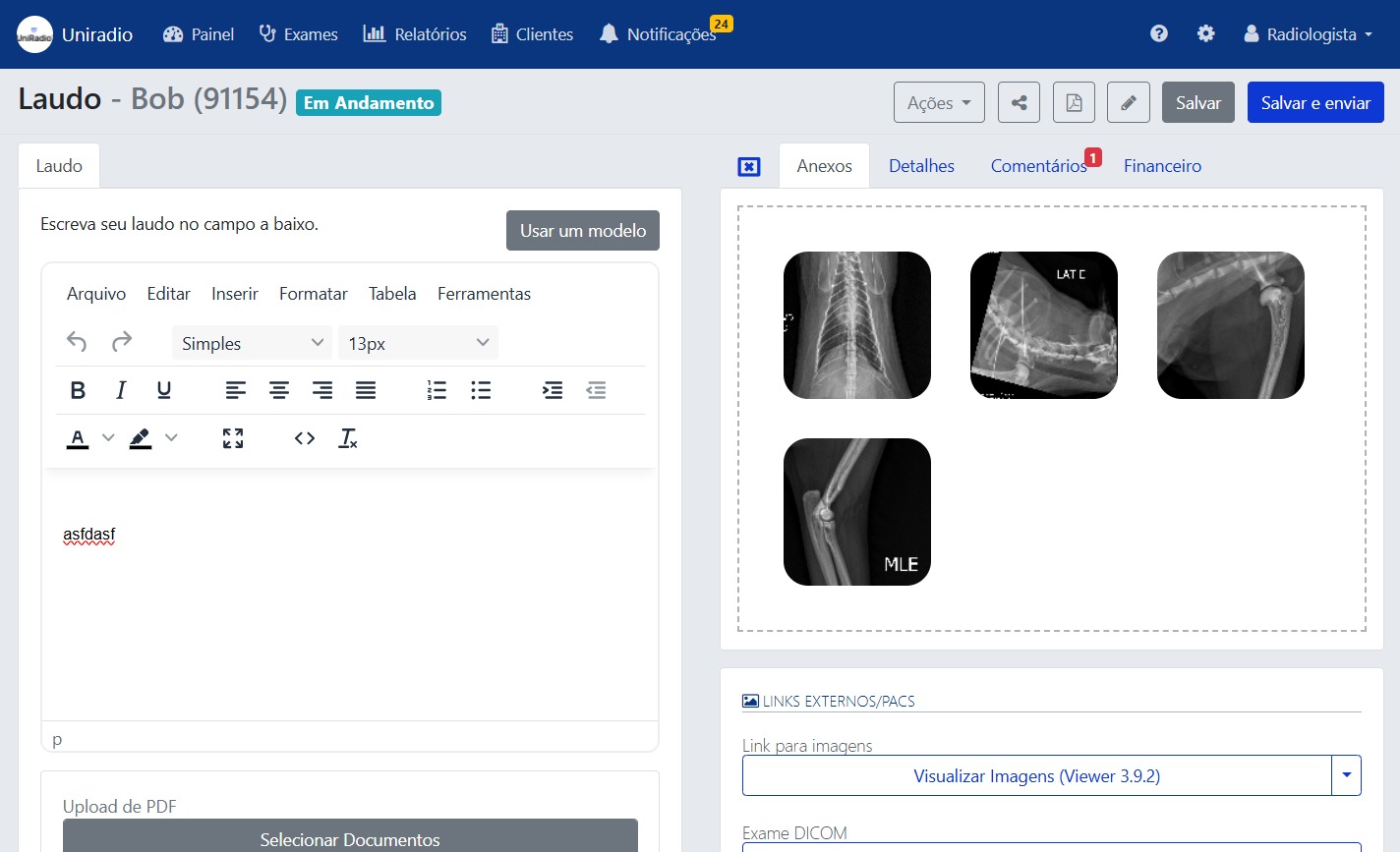
5. The images will be attached to the exam
After selection, the images will be uploaded and displayed as exam attachments.
Need Help?
Check our FAQ or contact support if you encounter any issues when attaching images to an exam.