
How to Generate Reports
Learn how to access and generate exam reports on the UniRadio platform to assist with management and billing for your clients.
Step by Step
1. Access the UniRadio platform
Sign in to your account and go to app.uniradio.vet.br/exams
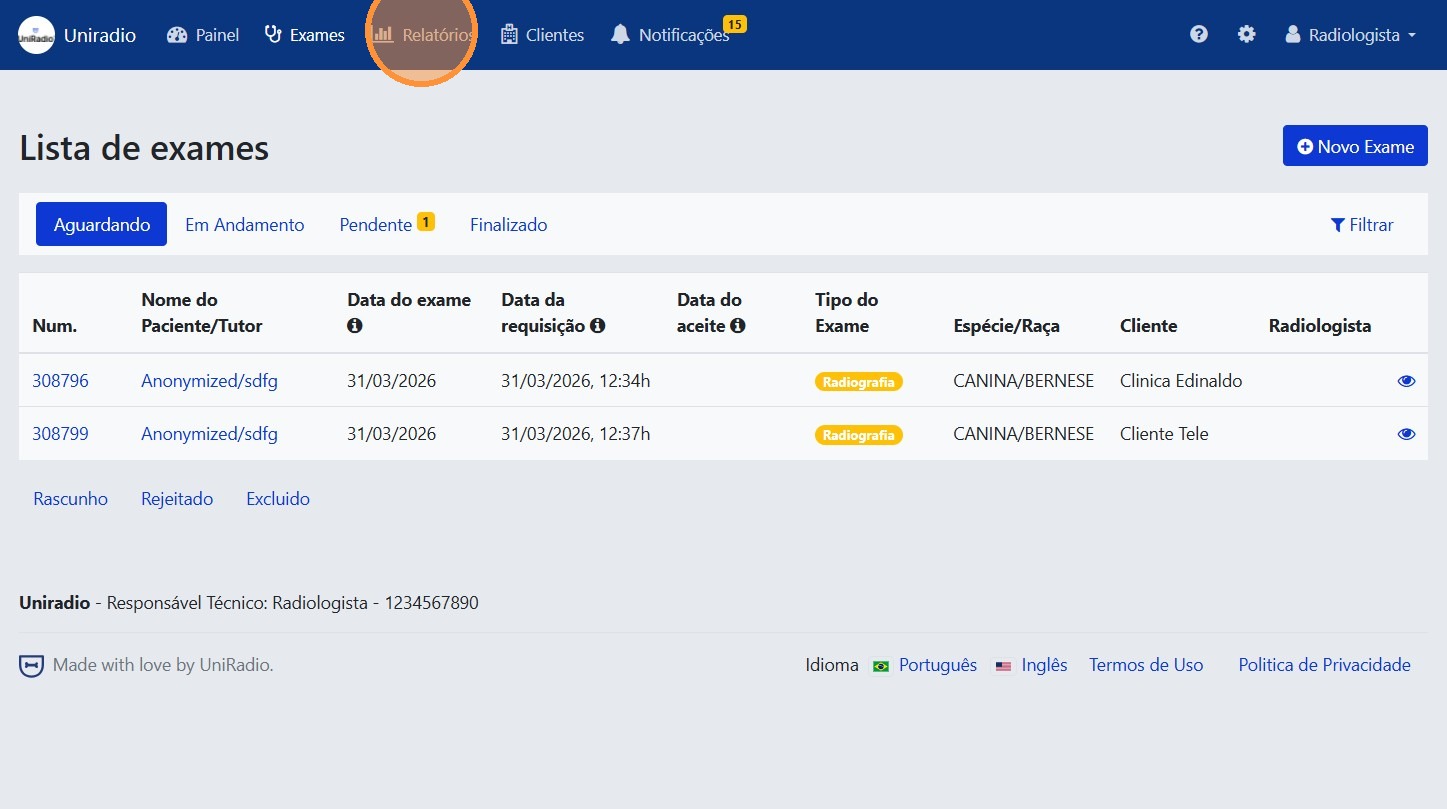
2. Click "Reports"
In the side menu, click "Reports" to access the report generation area.
3. Choose the report type
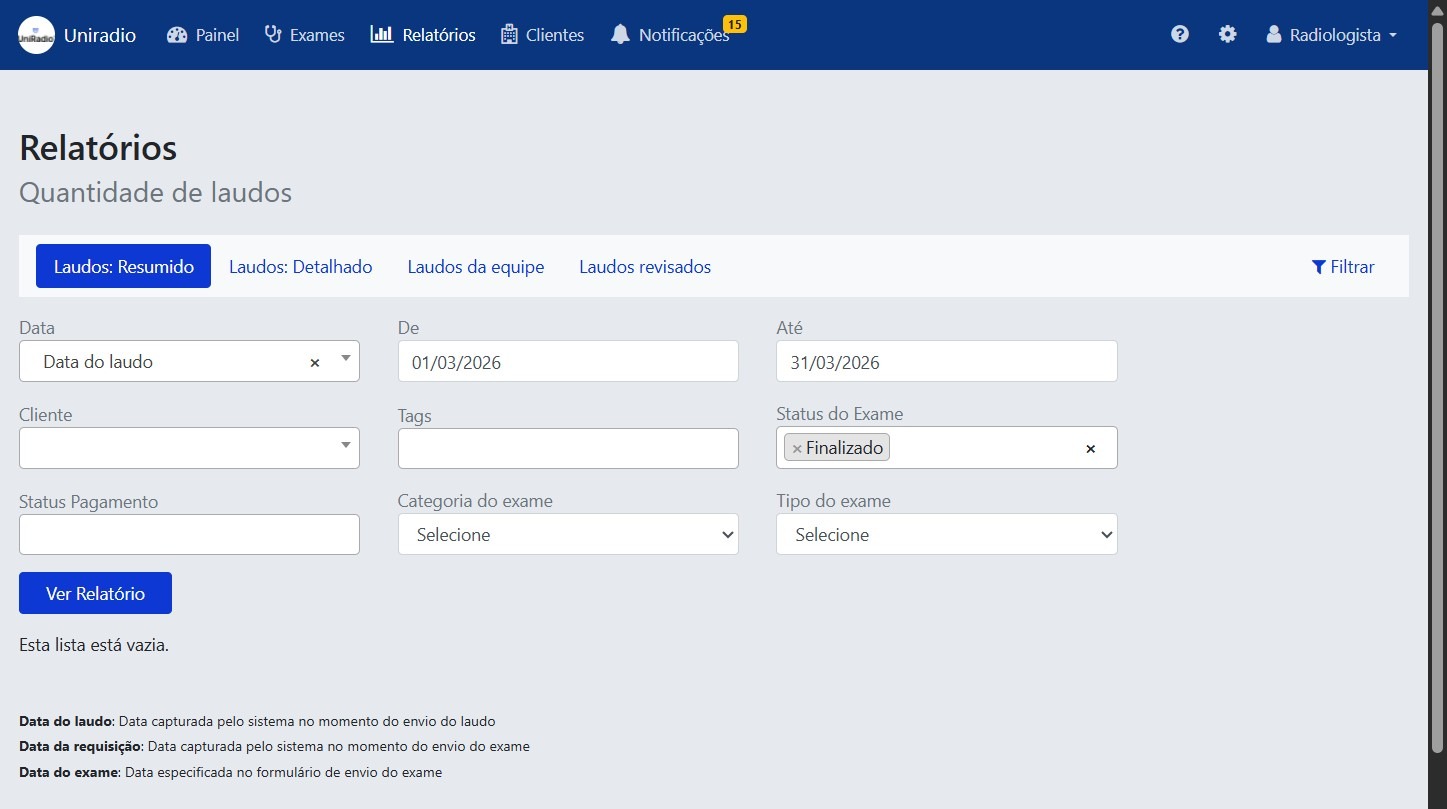
Select the type of report you want to generate.
Available report types
- Reports: Summary — displays a summary of reports issued during the period, ideal for a quick overview of billing per client.
- Reports: Detailed — presents complete information for each report, including patient data, exam type, and values, useful for detailed client billing.
4. Configure the filters and click "View Report"
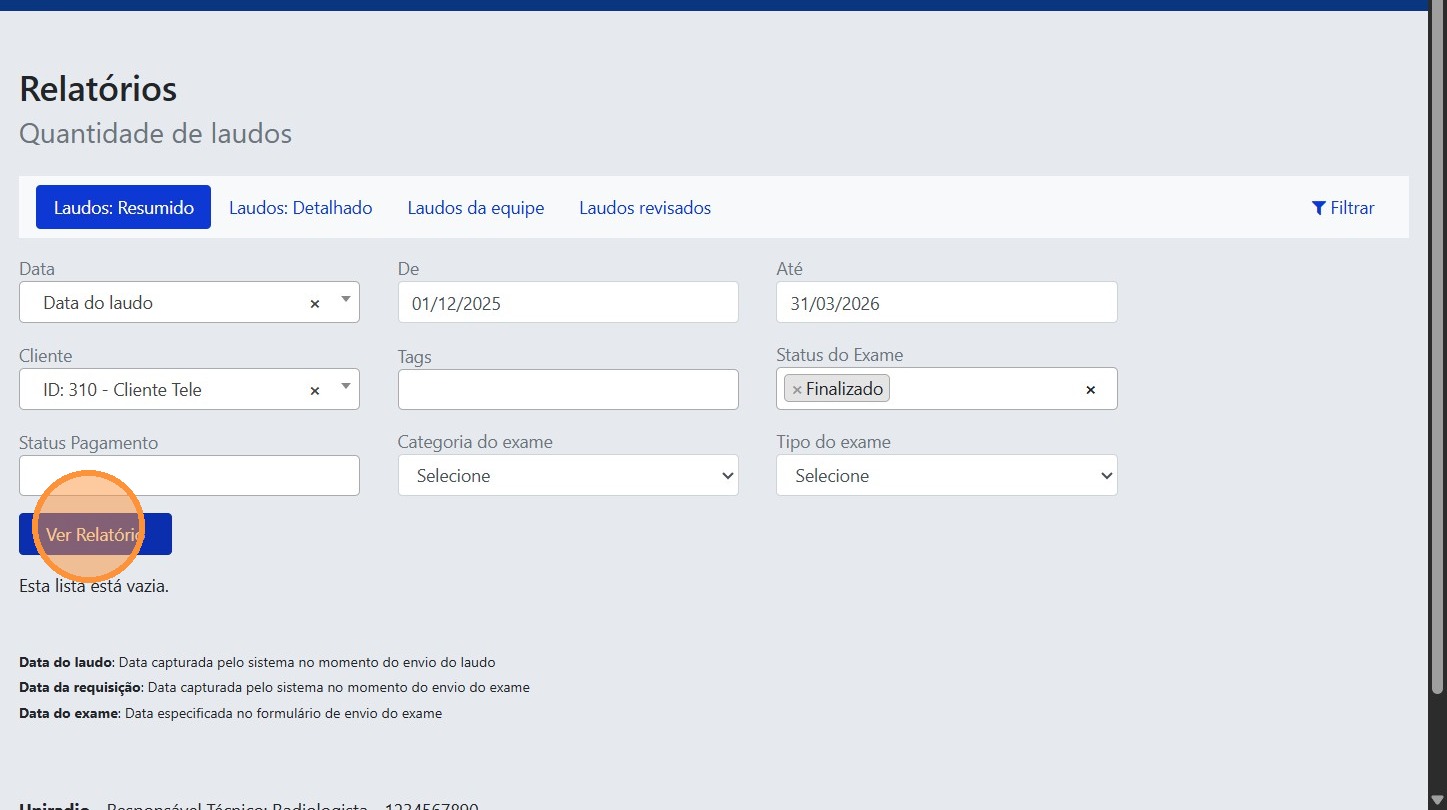
Fill in the desired filters to refine the results and click "View Report".
Available filters
- Date — defines the type of date used as a reference for the filter:
- Report date — date the report was issued.
- Request date — date the exam was submitted.
- Exam date — date specified in the exam submission form.
- From — start date of the period.
- To — end date of the period.
- Client — filters by exams from a specific clinic or institution.
- Tags — filters by tags assigned to reports.
- Exam Status — filters by the current exam status (e.g., In Progress, Completed).
- Payment Status — filters by the payment status of the report (e.g., Paid, Pending).
- Exam Category — filters by the classification assigned to the exam.
- Exam Type — filters by the exam modality (e.g., Radiography, Ultrasound).
Need Help?
Check our FAQ or contact support if you have trouble generating reports.