
How to View Previous Client Imports
Learn how to access your client import history in UniRadio to review past uploads and manage account records.
Step by Step
1. Access the UniRadio platform
Sign in to your account and go to app.uniradio.vet.br/exams
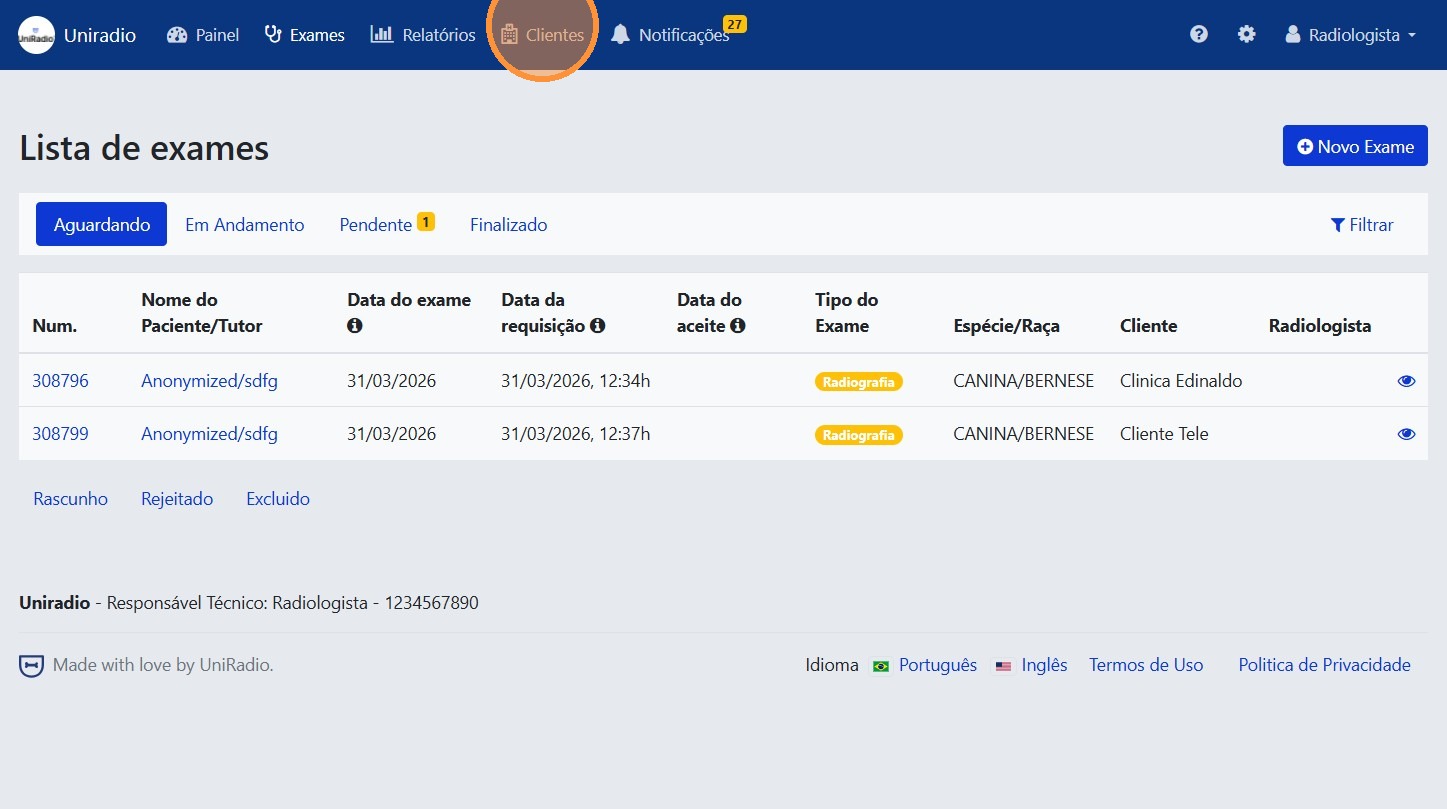
2. Open the Clients section
Click "Clients" in the navigation menu to open your client account list.
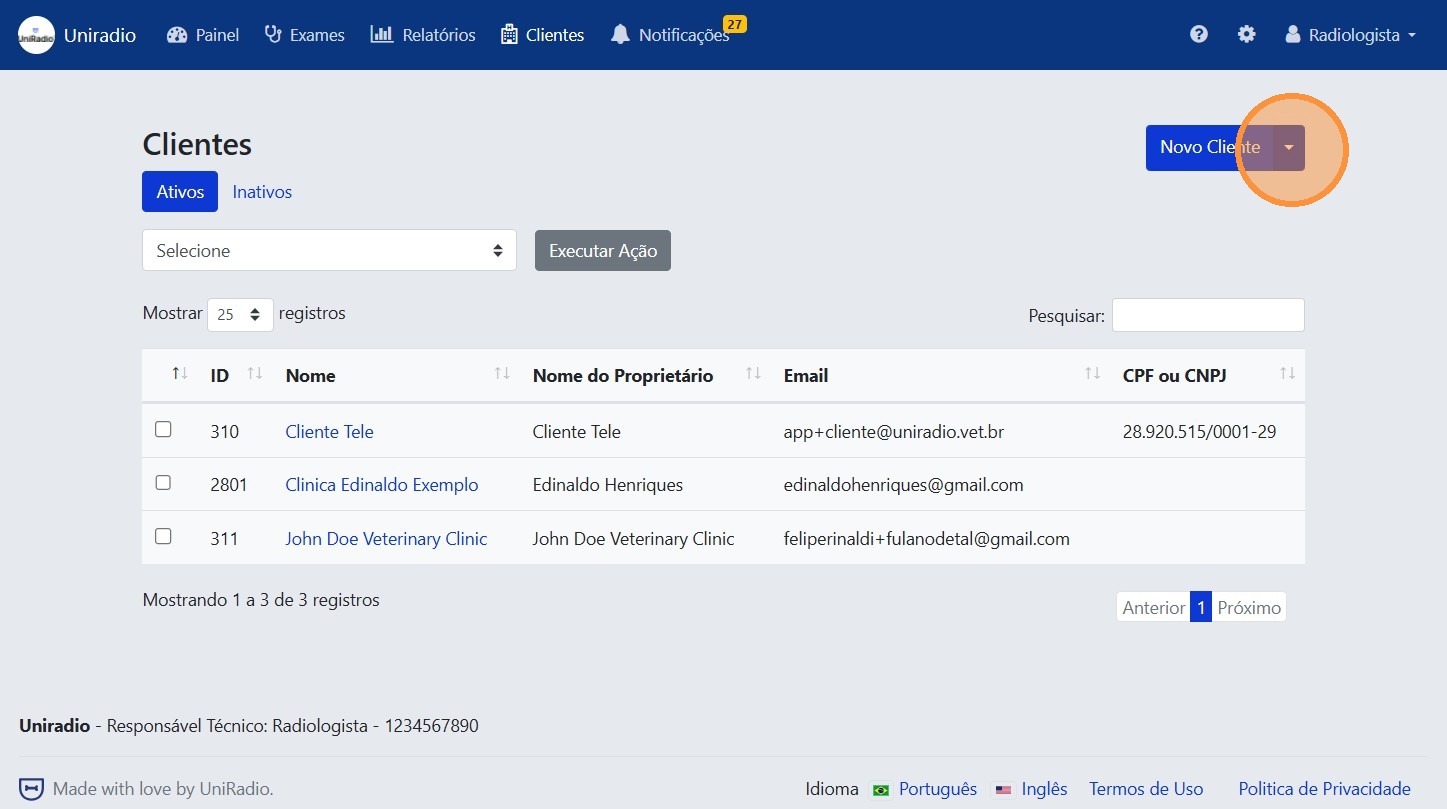
3. Open the options menu
Click the options button (dropdown) to display available actions for the client list.
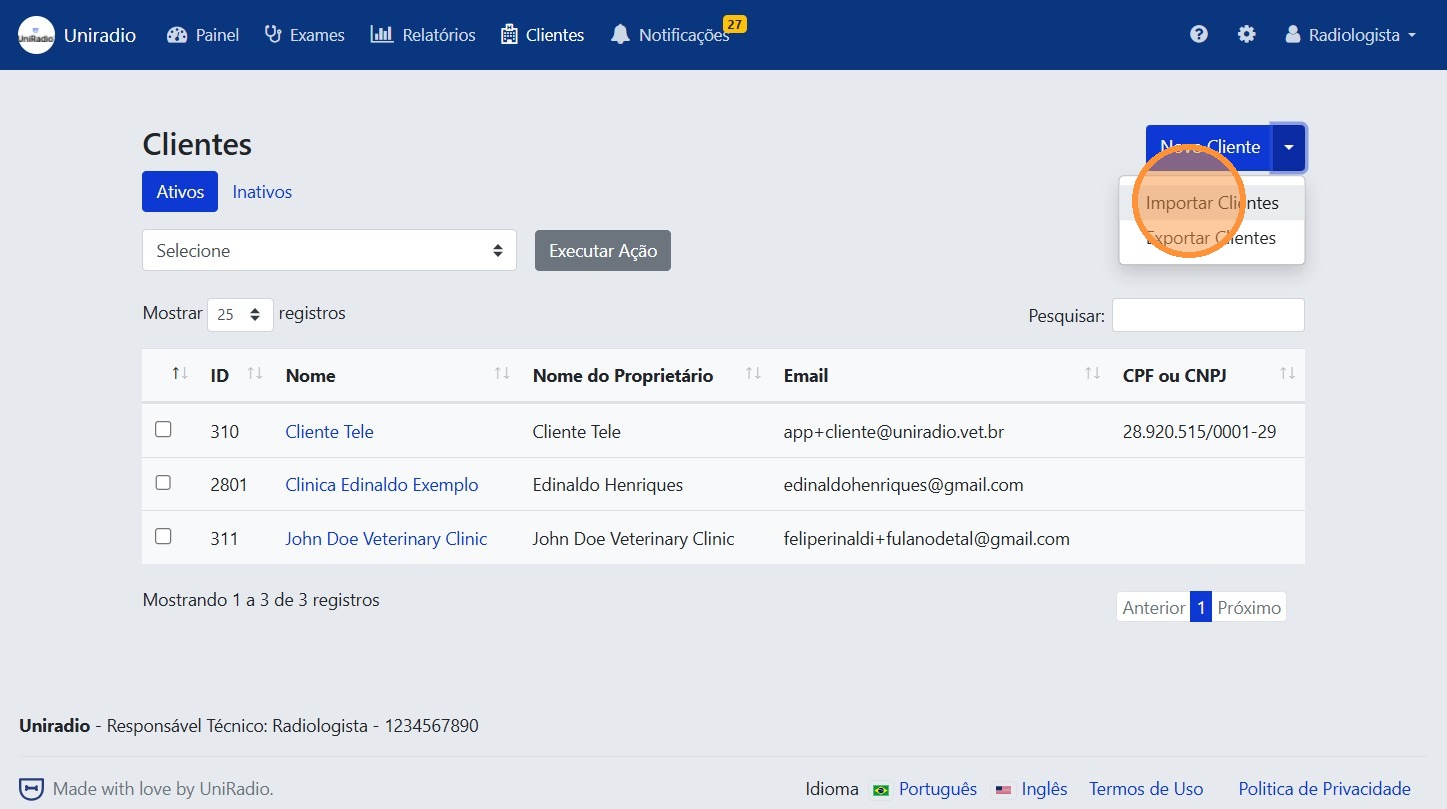
4. Click "Import Clients"
Select "Import Clients" in the menu to open the import panel.
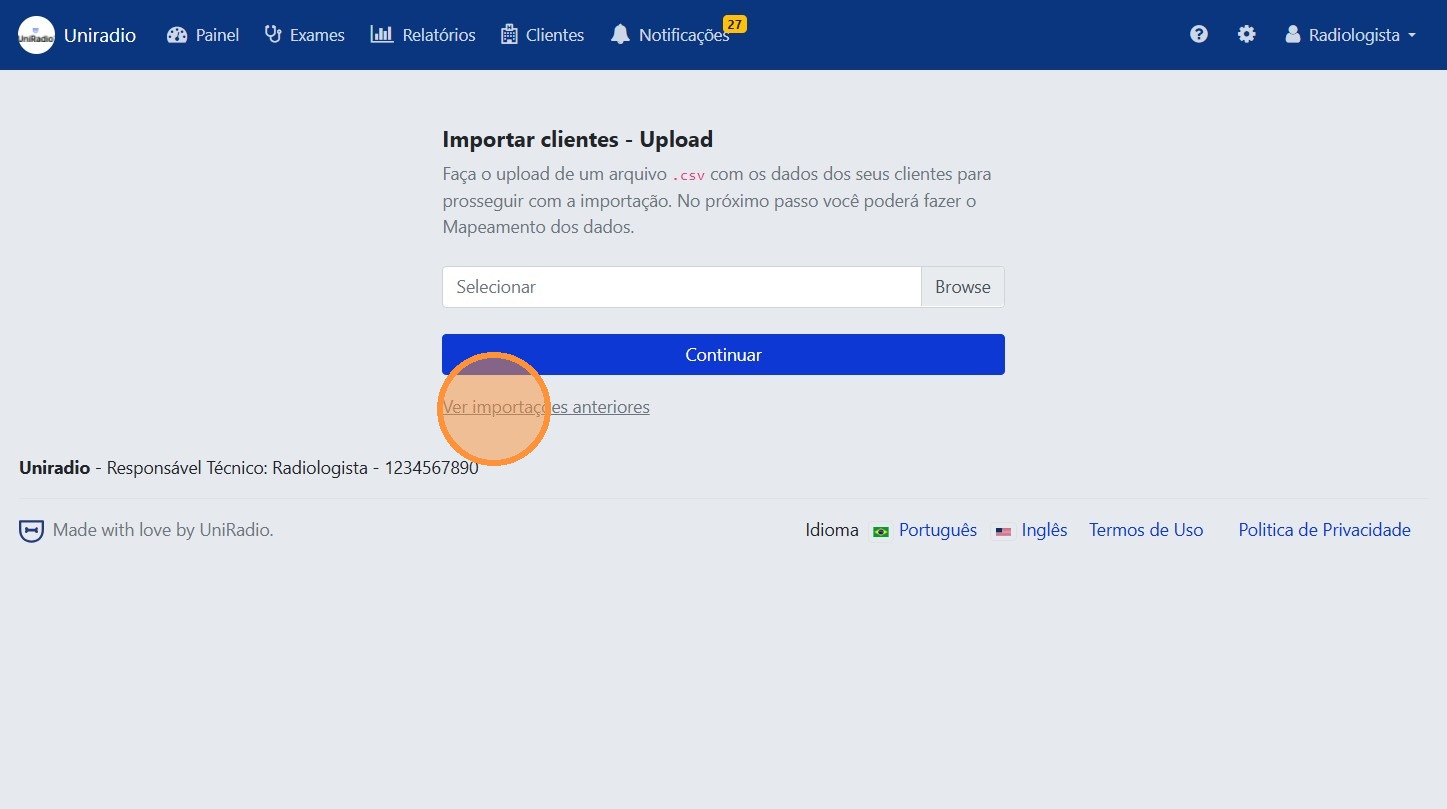
5. Click "View previous imports"
Click "View previous imports" to open the history page.
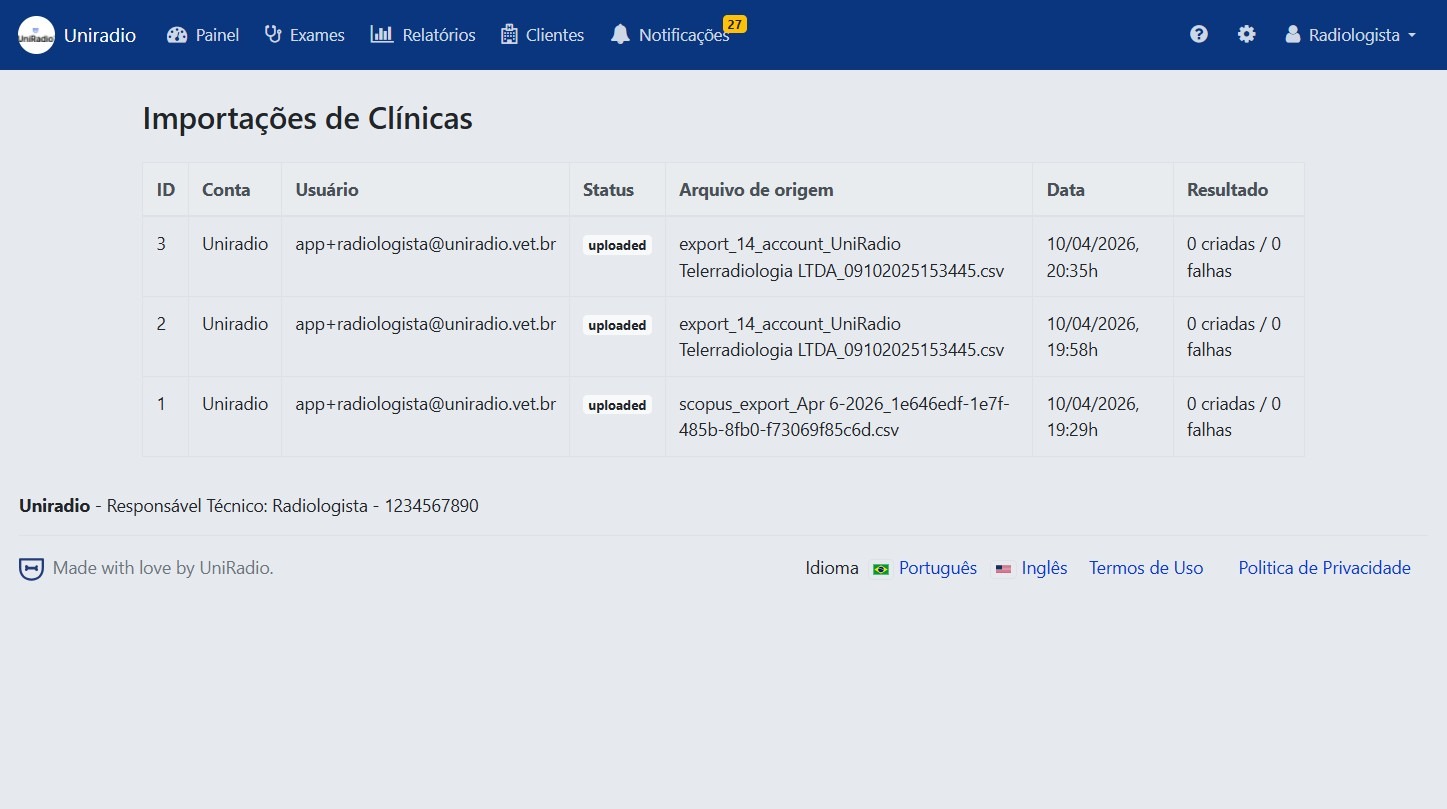
6. Review the import list
The list shows all previous imports with details such as date, status, and number of processed records.
Need Help?
Check our FAQ or contact support if you have issues accessing import history.