
How to Configure Report Settings
Learn how to access and customize report settings on the UniRadio platform, including logo, email signature, report title, and other branding options.
Step by Step
1. Access the UniRadio platform
Sign in to your account and go to app.uniradio.vet.br/exams
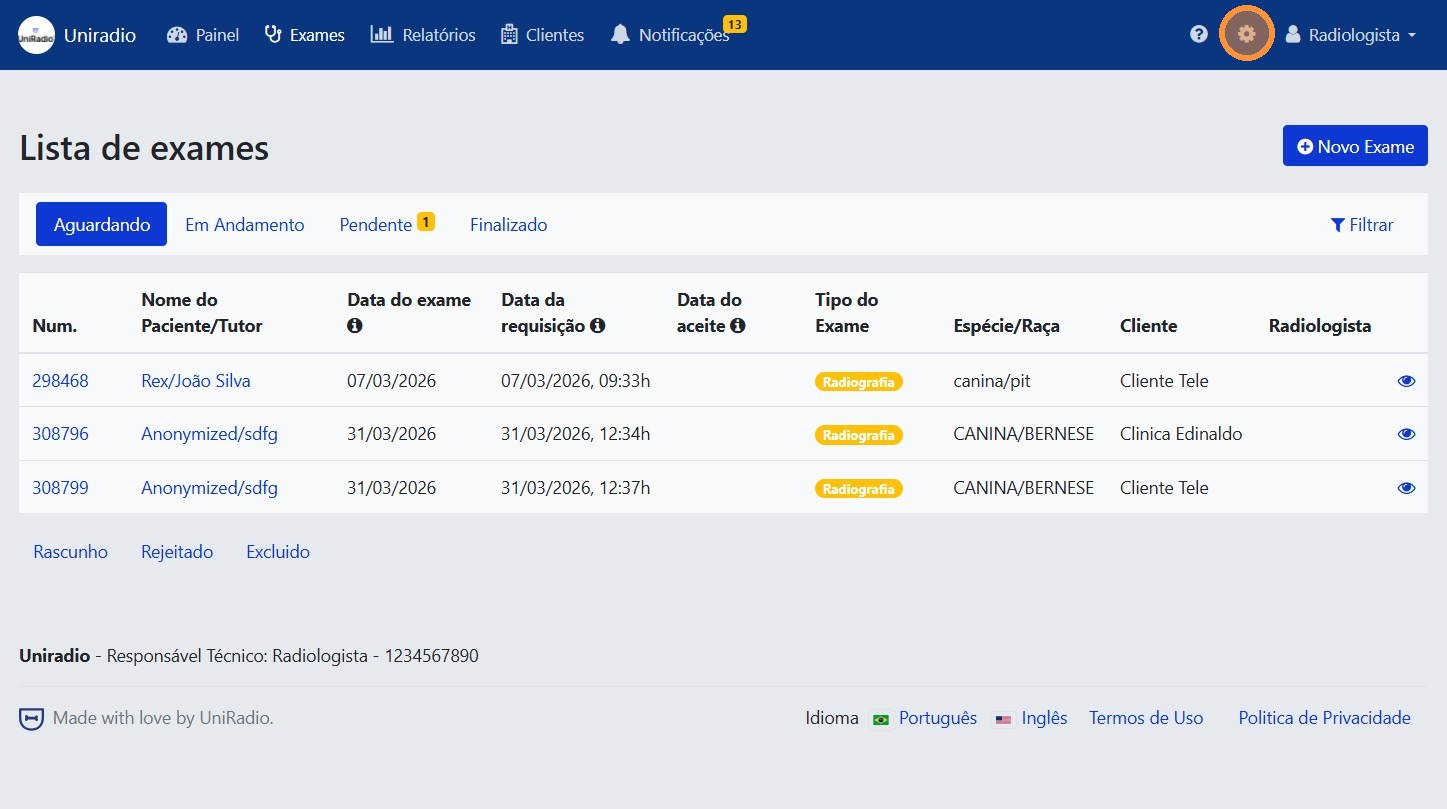
2. Open the settings menu
In the side menu, click the settings icon to open the account options.
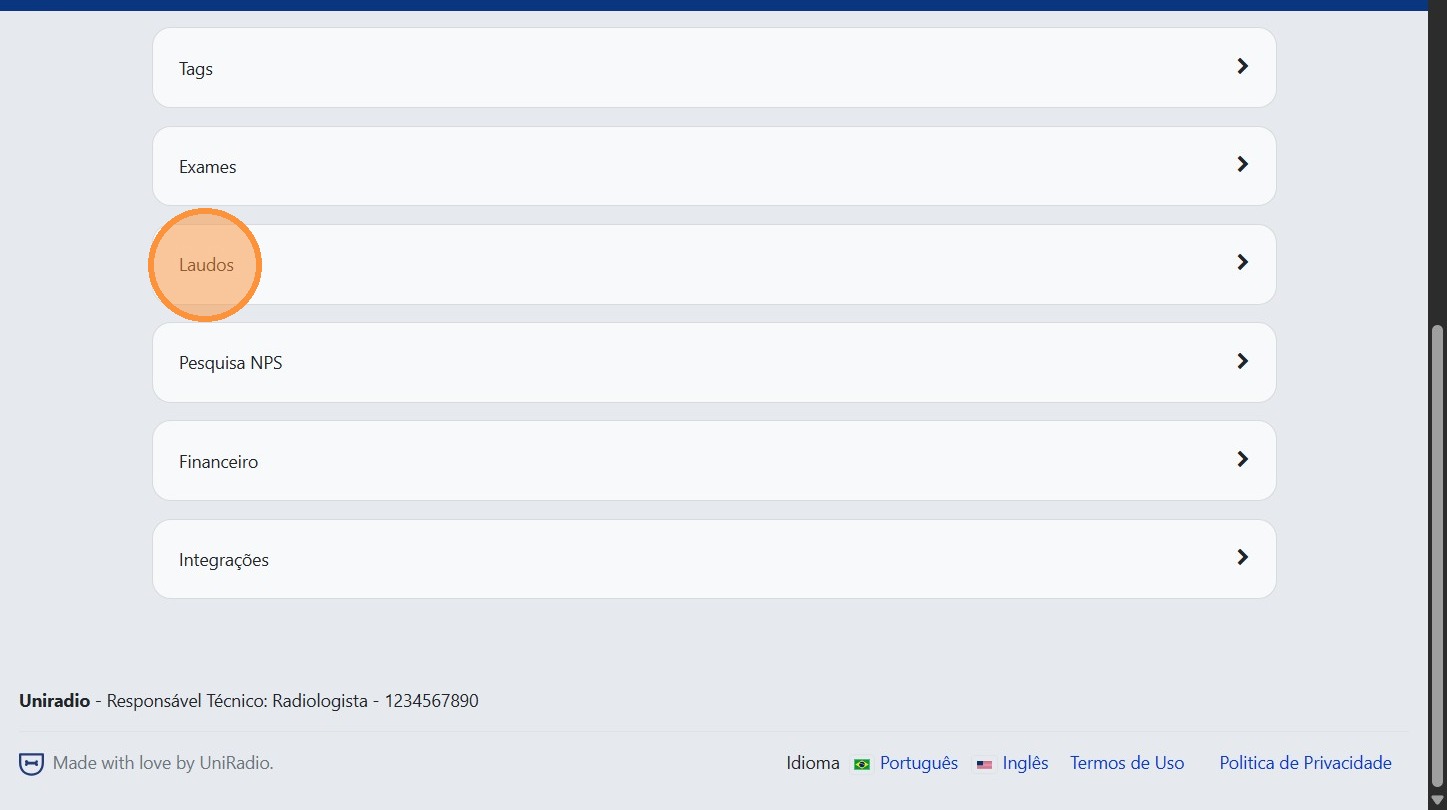
3. Click "Reports"
In the settings menu, click "Reports" to access the report settings.
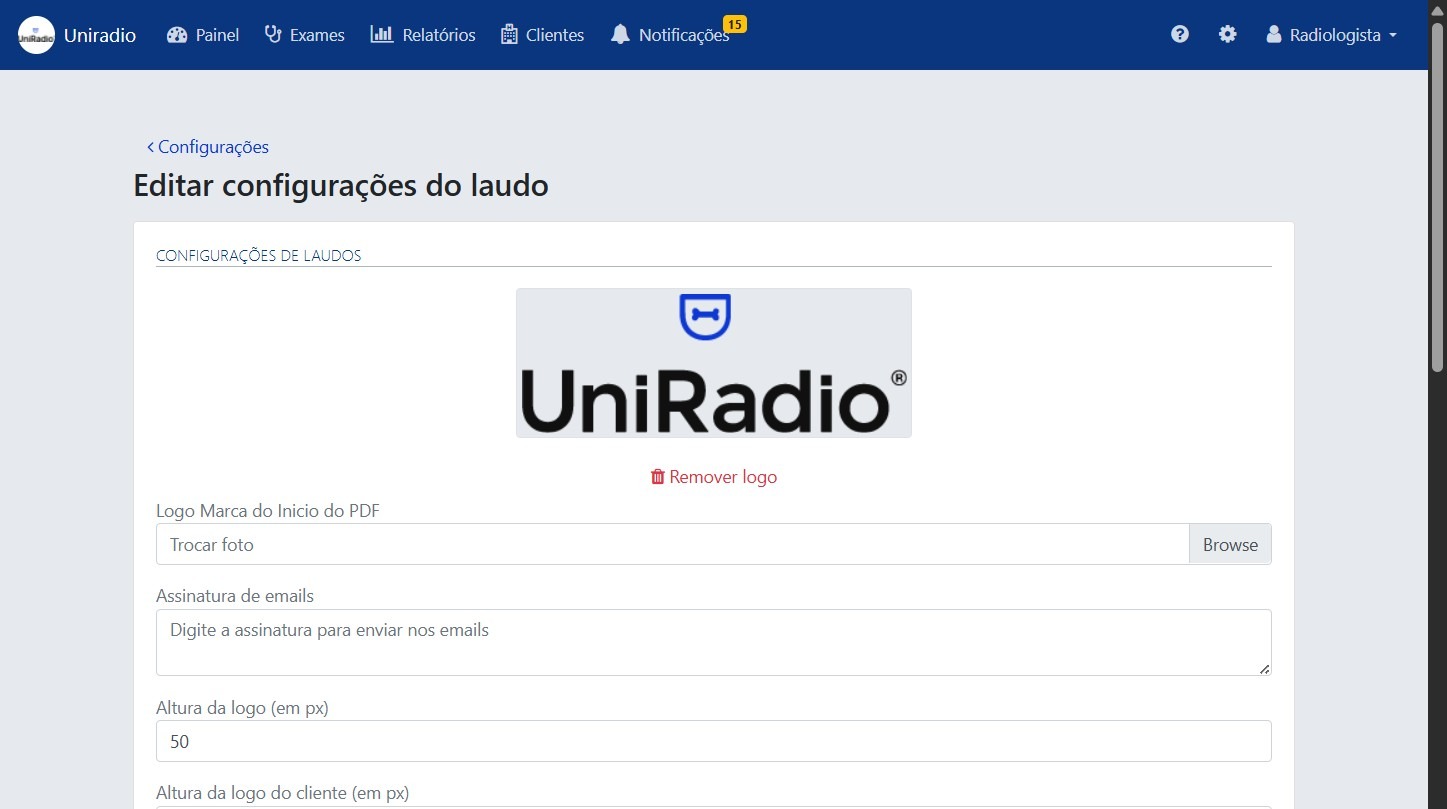
4. Edit the desired information
Adjust the settings according to your account's needs.
Available options
- PDF header logo — Add the image that will be displayed in the header of PDF reports.
- Email signature — Customize the signature shown in emails sent to clients.
- Report title — Set the default title that will appear on issued reports.
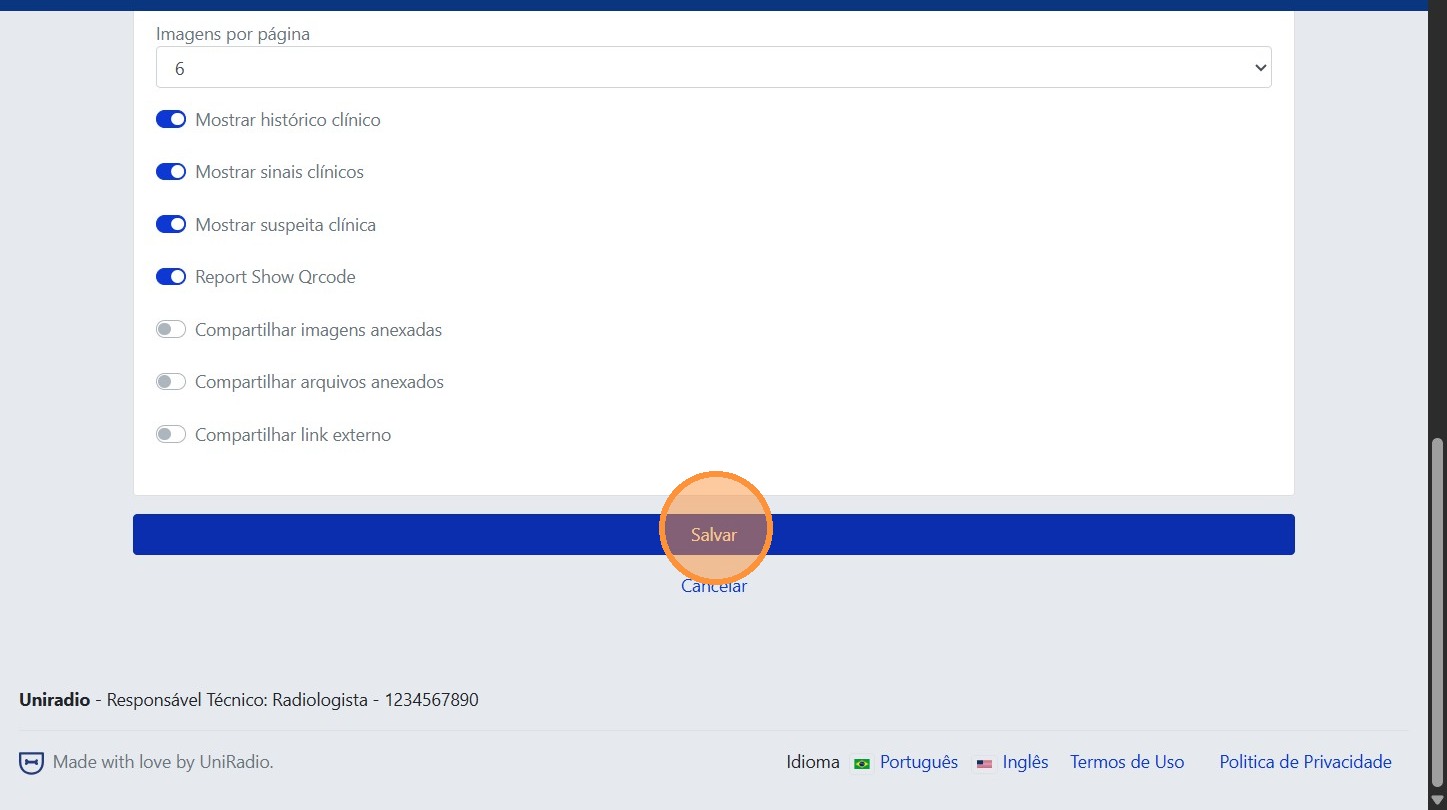
5. Click "Save"
After making the desired changes, click "Save" to confirm the settings.
Need Help?
Check our FAQ or contact support if you have trouble configuring report settings.