
How to Issue a Report
Learn how to access, review, and release reports to your clients on the UniRadio platform.
Step by Step
1. Access the UniRadio platform
Go to app.uniradio.vet.br/exams
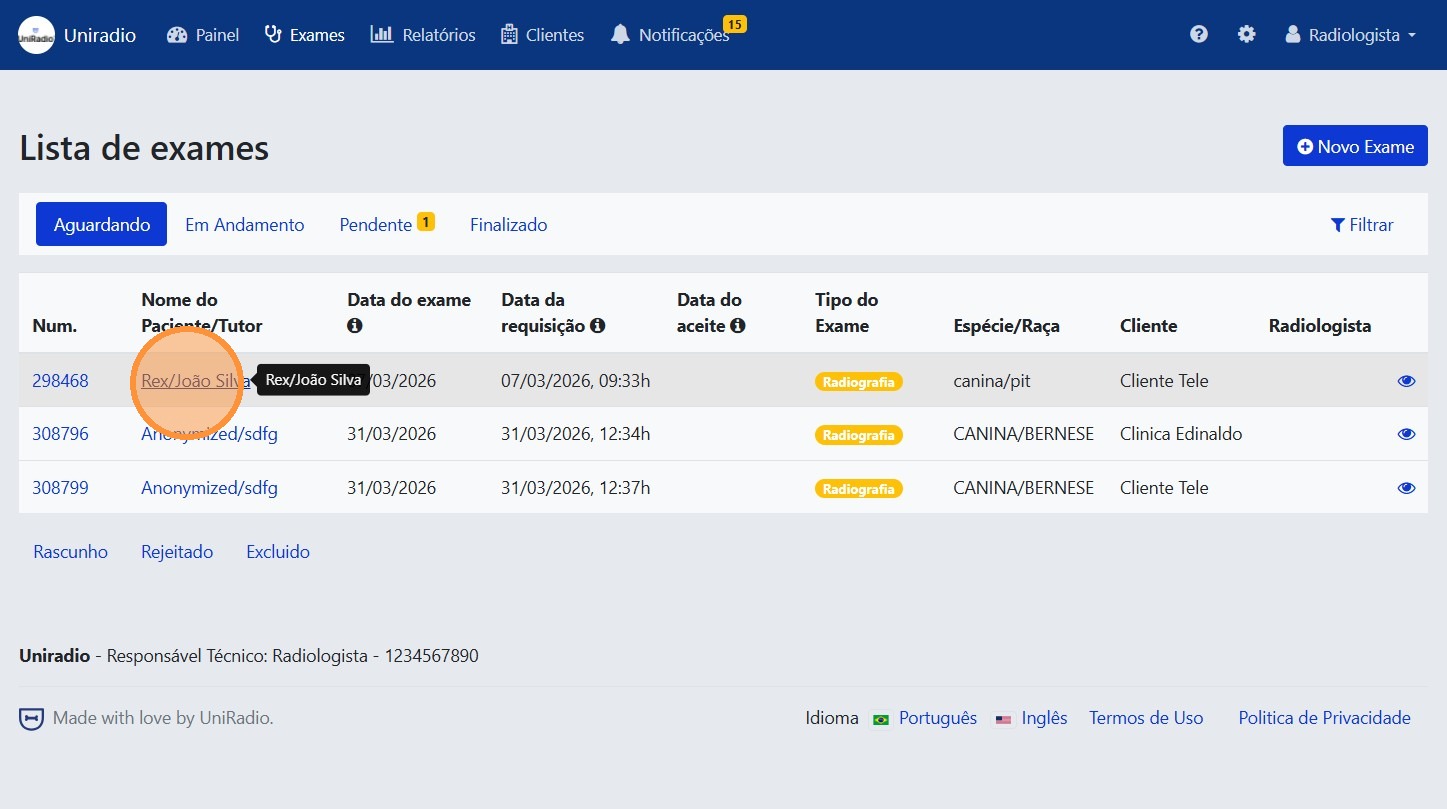
2. Click "Rex/João Silva"
In the exam list, click the exam you want to review.
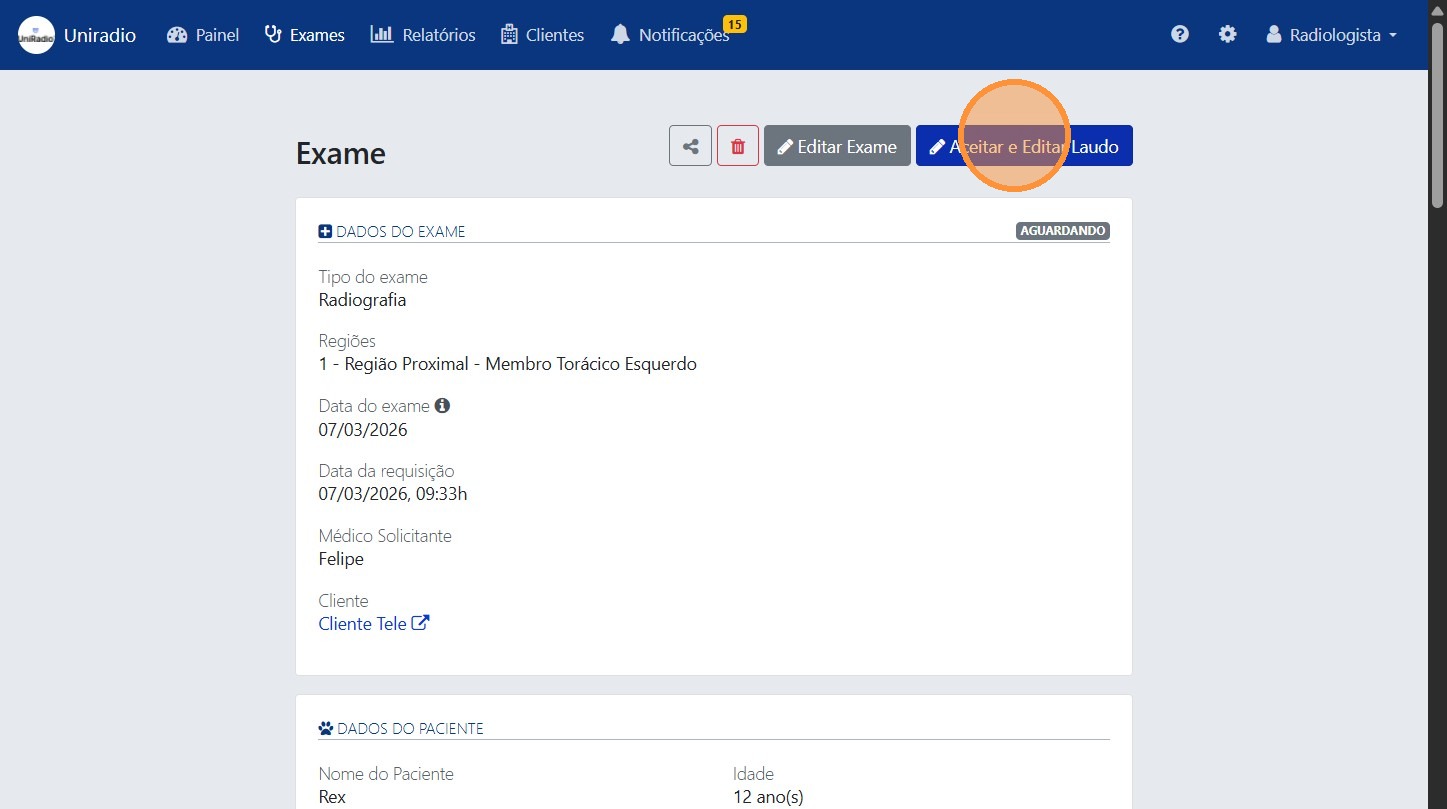
3. Click "Accept and Edit Report"
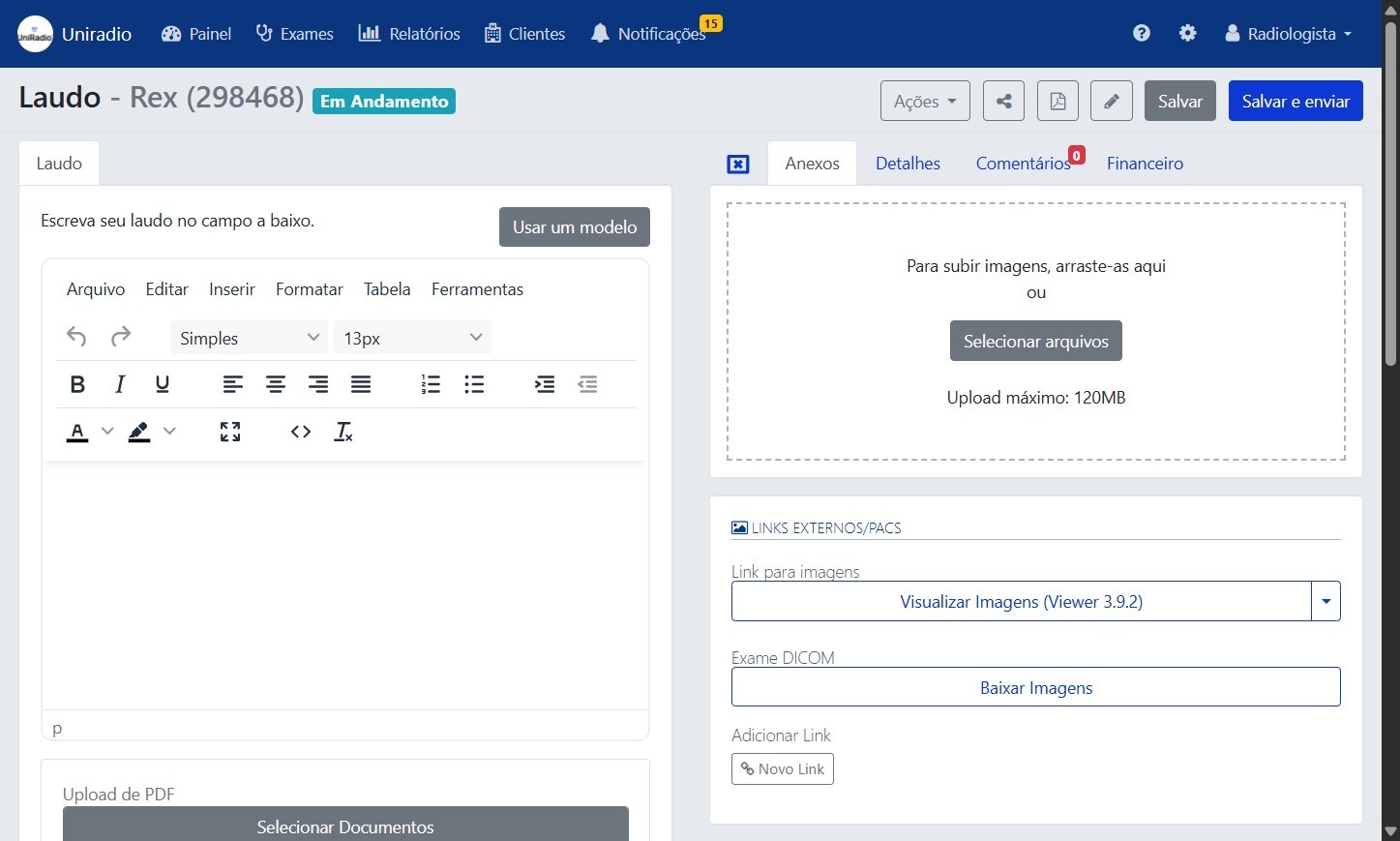
4. Fill in the patient report
Use the editor to write the patient report, filling in all the required information.
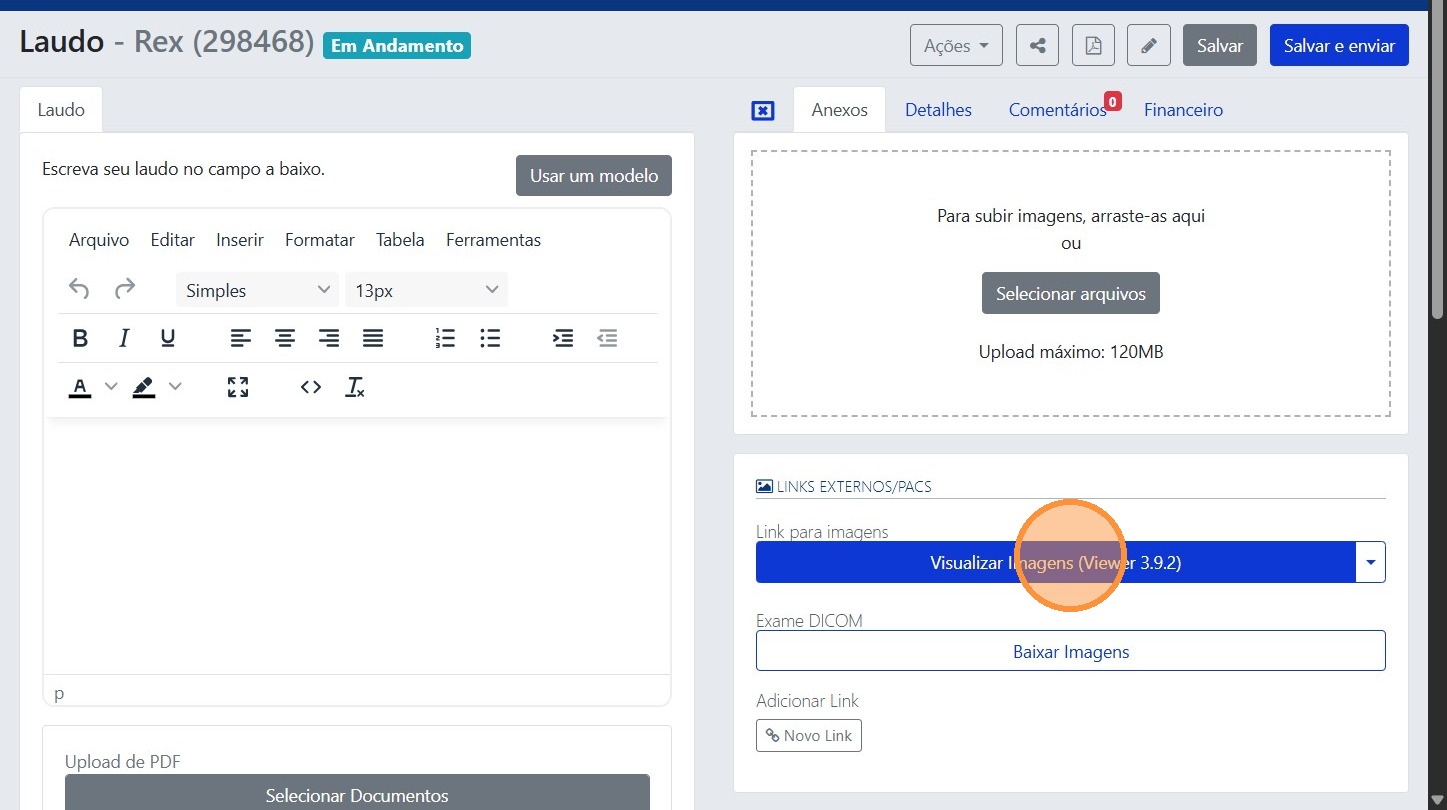
5. Click "View Images (Viewer 3.9.2)"
The radiologist can view images if it is a PACS exam.
6. Click the image to view attachments
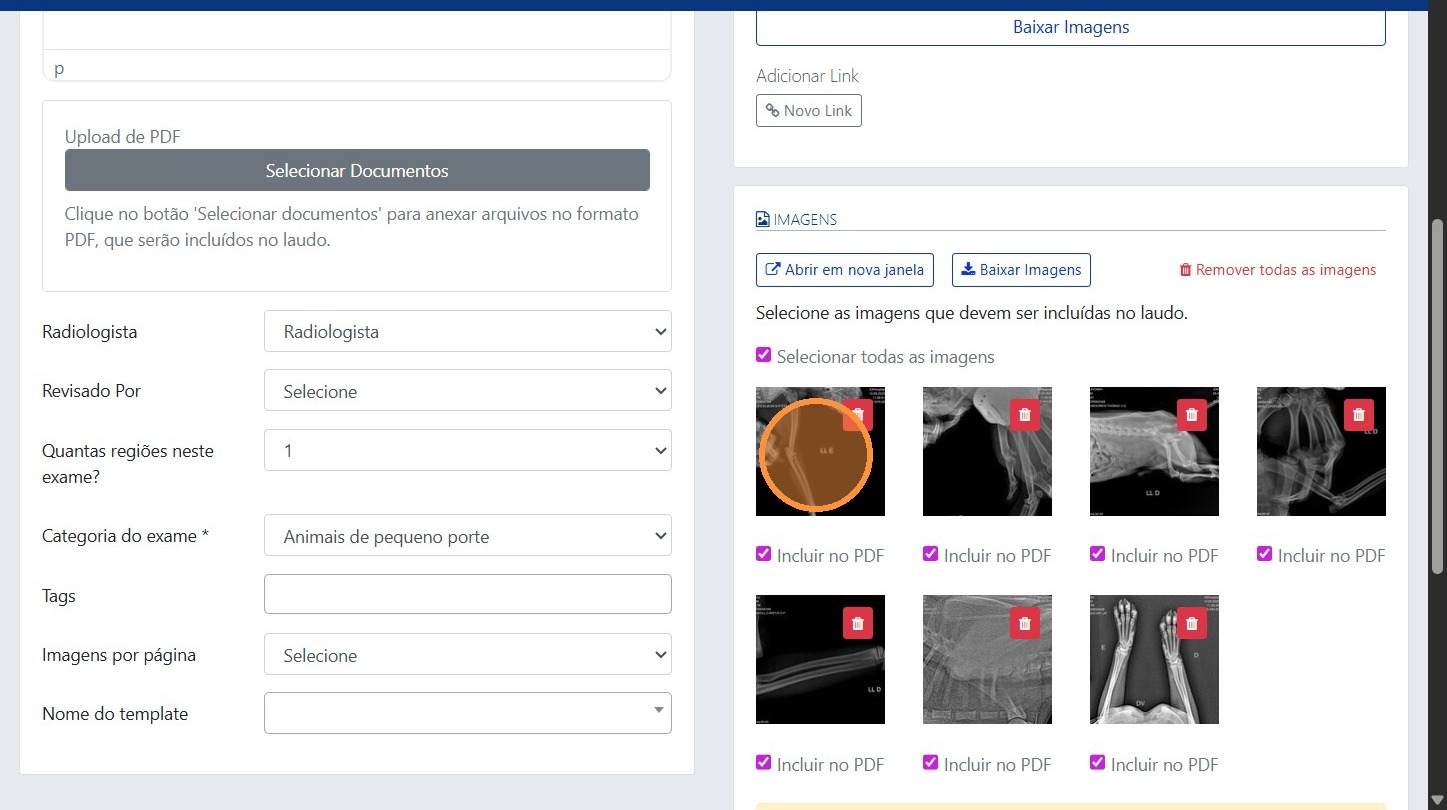
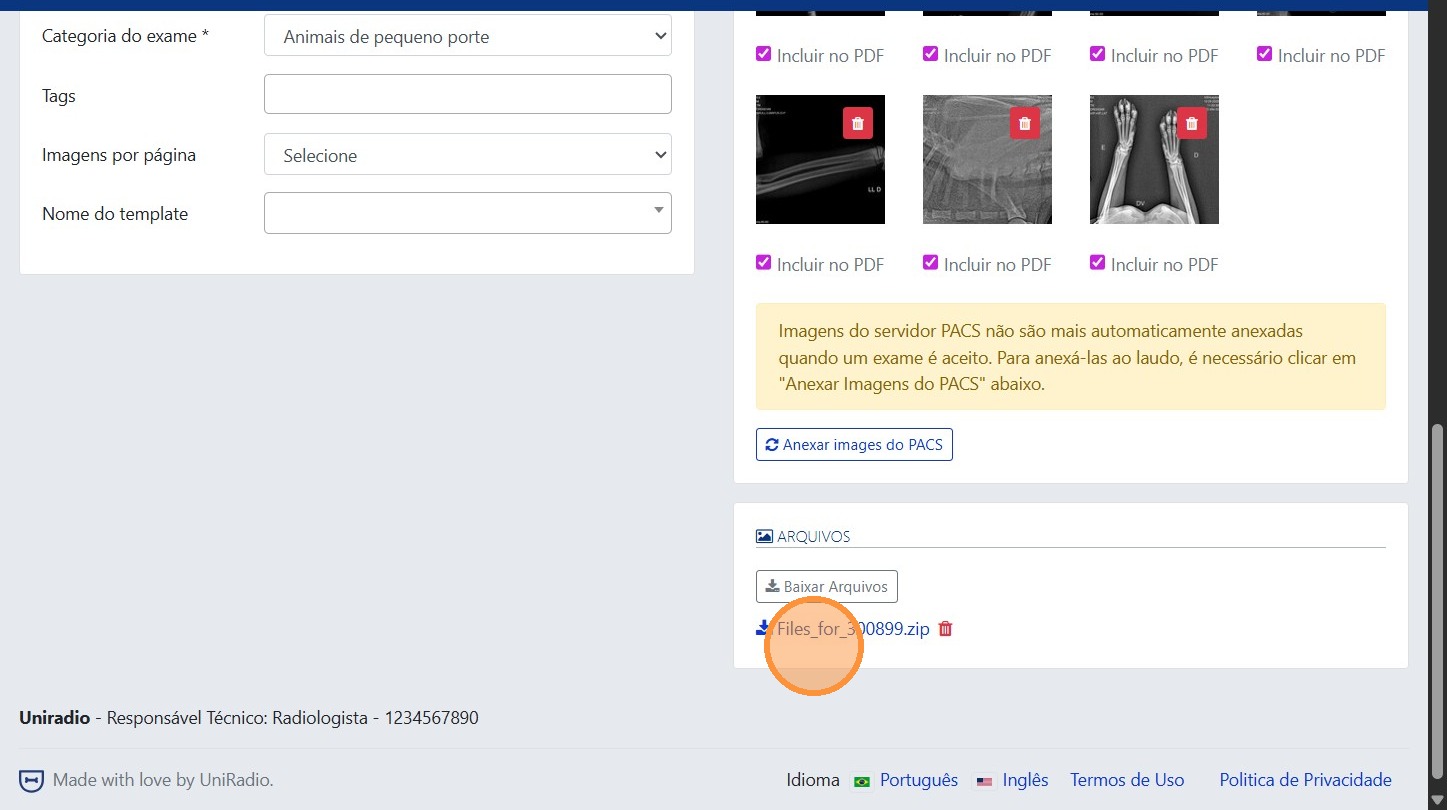
7. Click the attached file
To view files attached to the exam, click the file to download it.
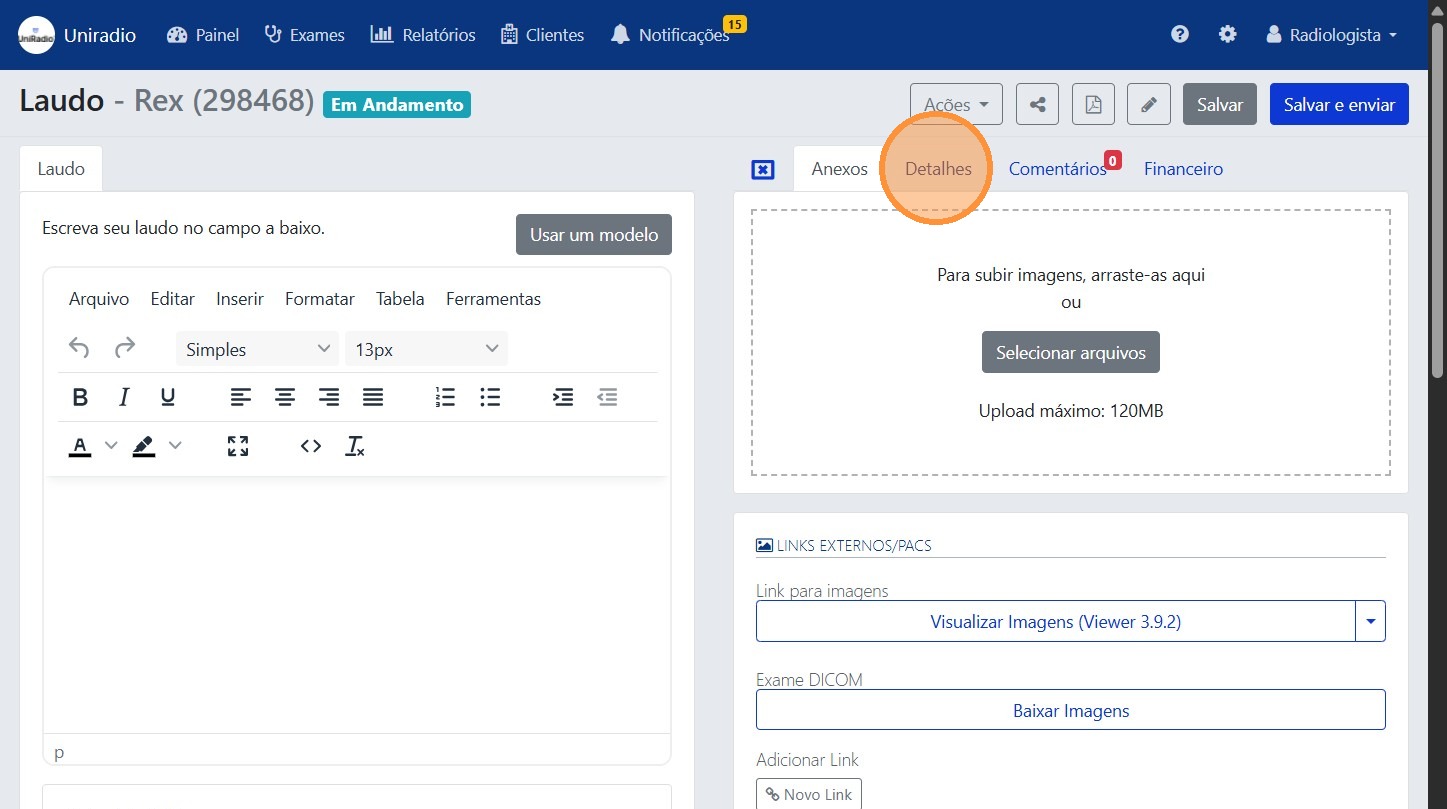
8. Click "Details"
To view exam information, click the "Details" tab.
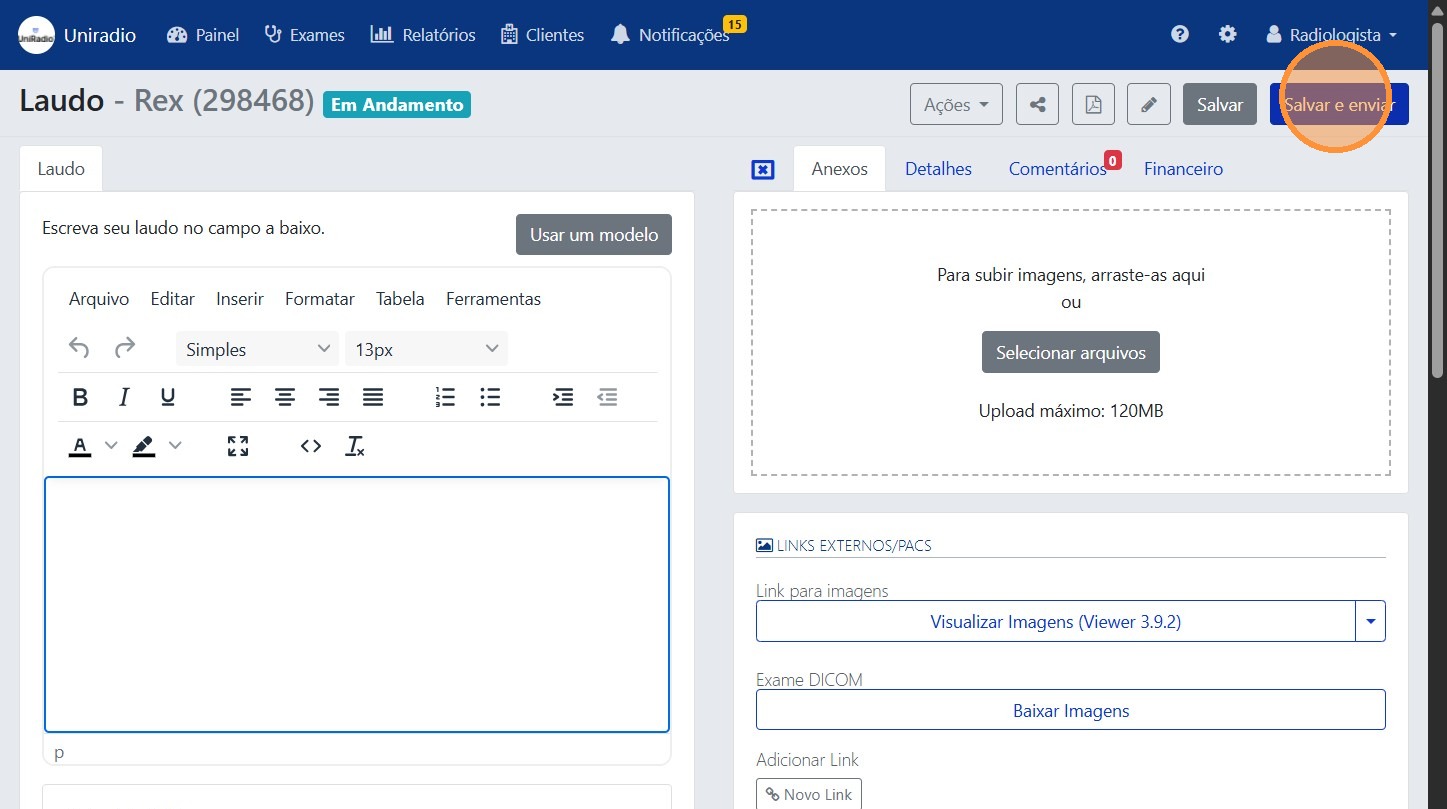
9. Click "Save and send"
After completing the report, click the "Save and send" button to submit the report.
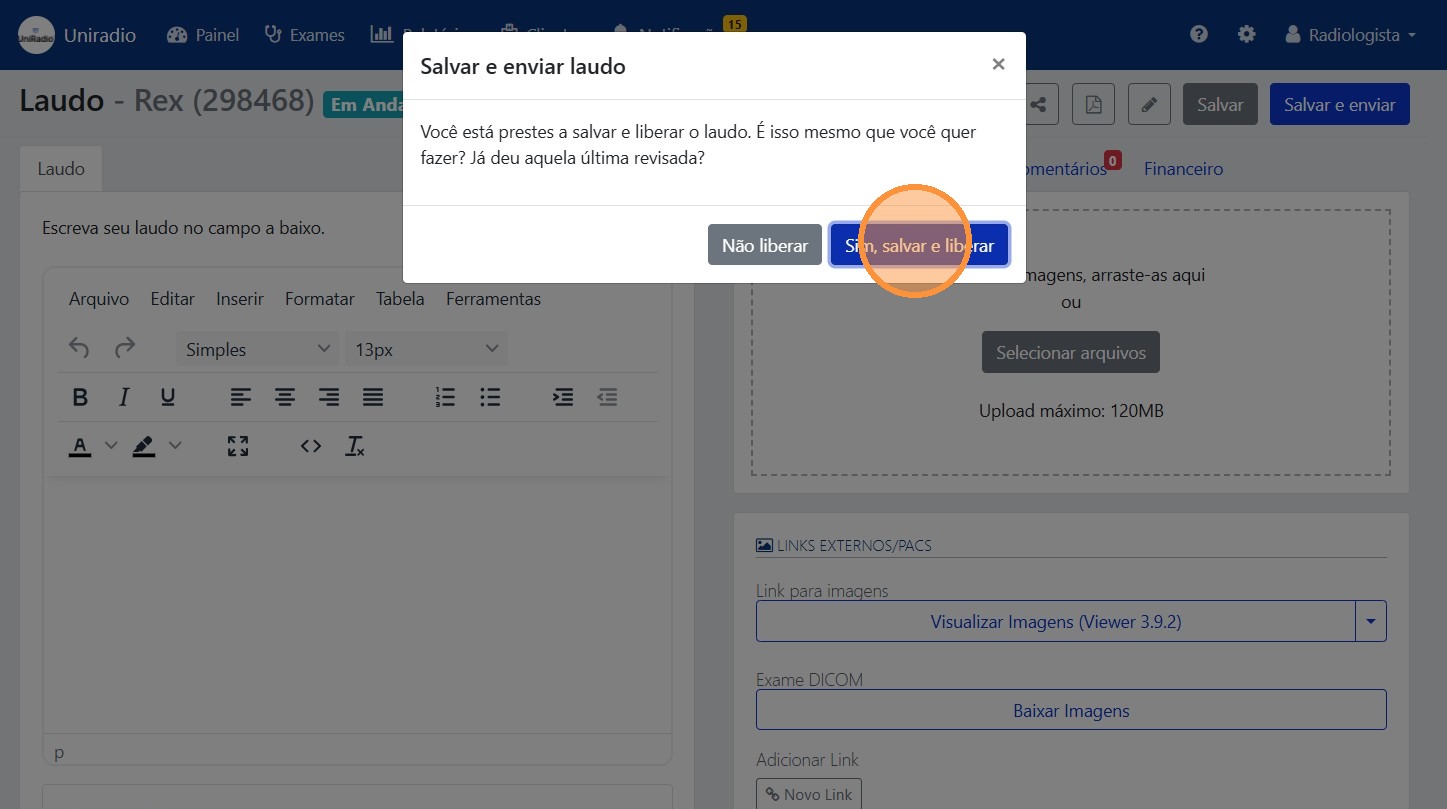
10. Click "Yes, save and release" to confirm
Click the save and release button to confirm and release the report to your client.
Field Descriptions
To understand the meaning of each field in the report editor, see Report Fields.
Need Help?
If you have trouble issuing reports, check our FAQ or contact support.