
How to Export Client Accounts
Learn how to export client and user data from your account on the UniRadio platform for reporting or backup purposes.
Step by Step
1. Access the UniRadio platform
Sign in to your account and go to app.uniradio.vet.br/exams
2. Open the Clients section
Click "Clients" in the navigation menu to open your client account list.
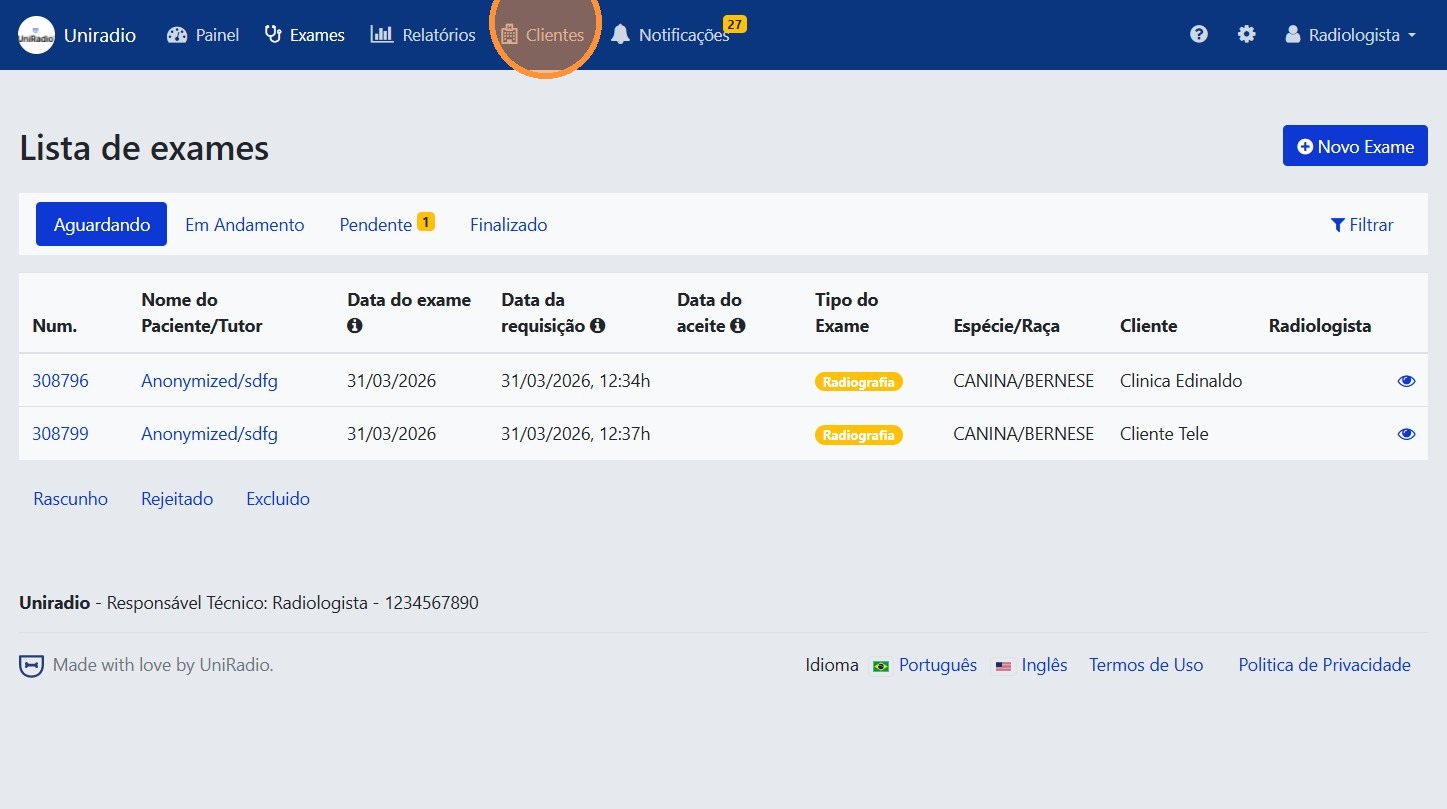
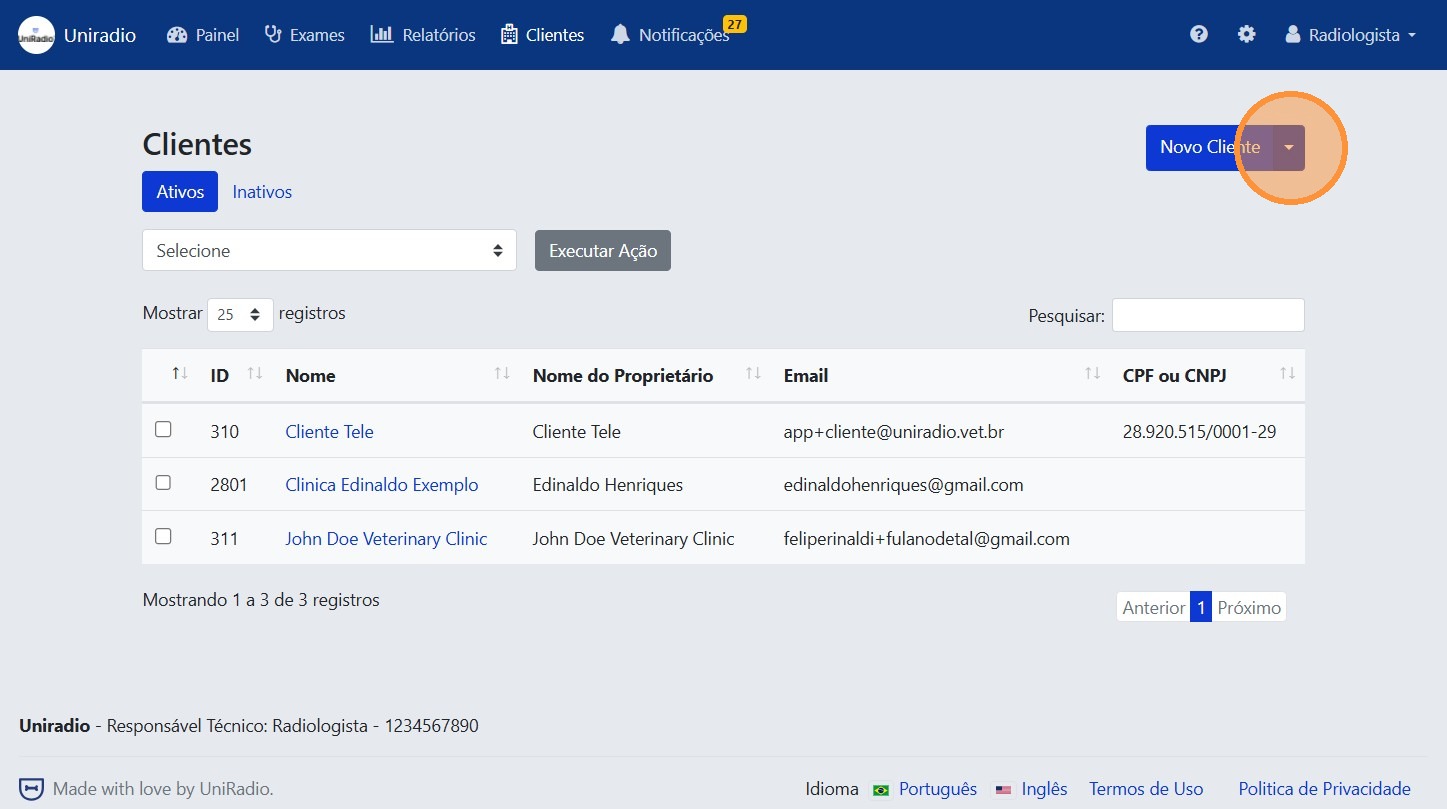
3. Open the options menu
Click the options button (dropdown) to display the available actions for the client list.
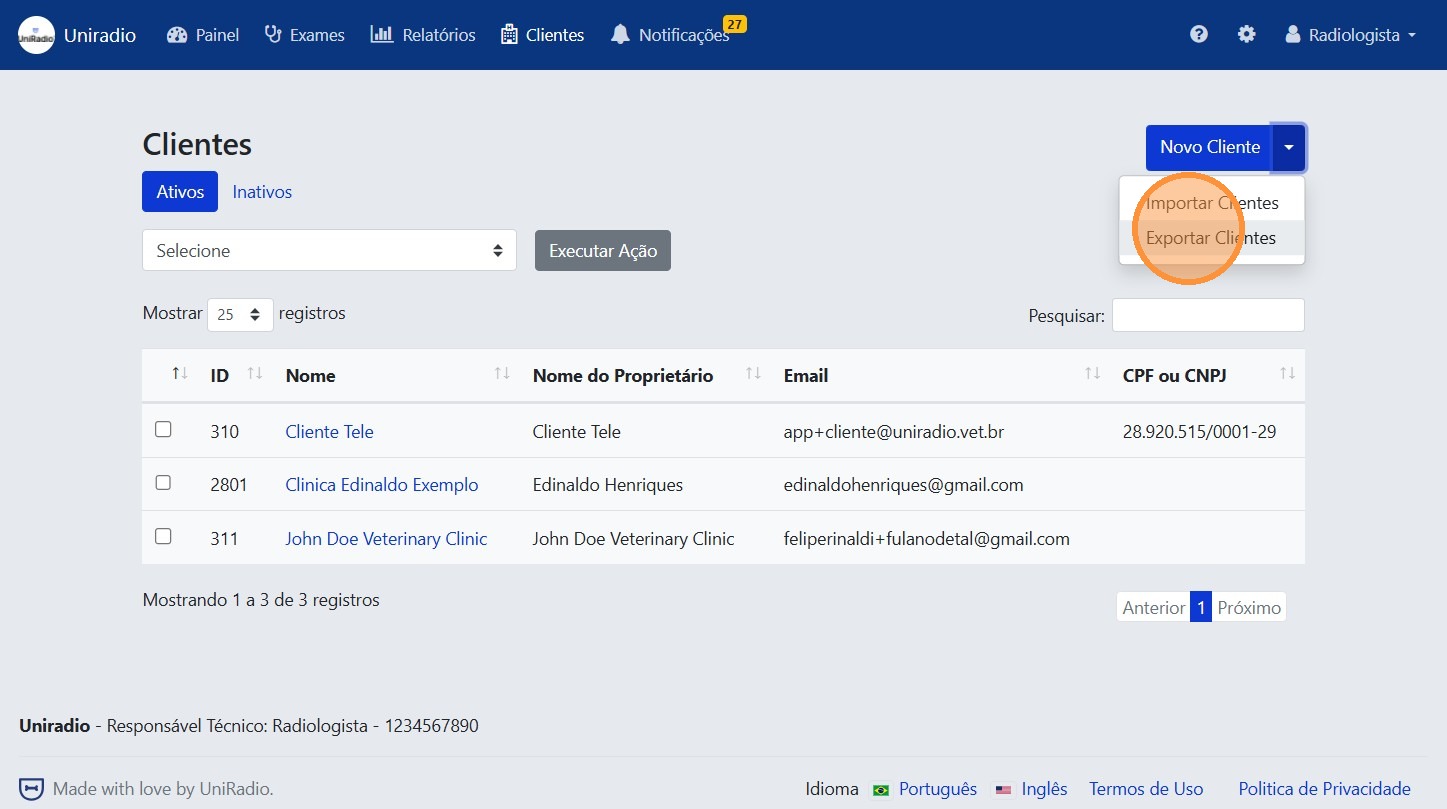
4. Click "Export Clients"
Select the "Export Clients" option from the menu to start the export process.
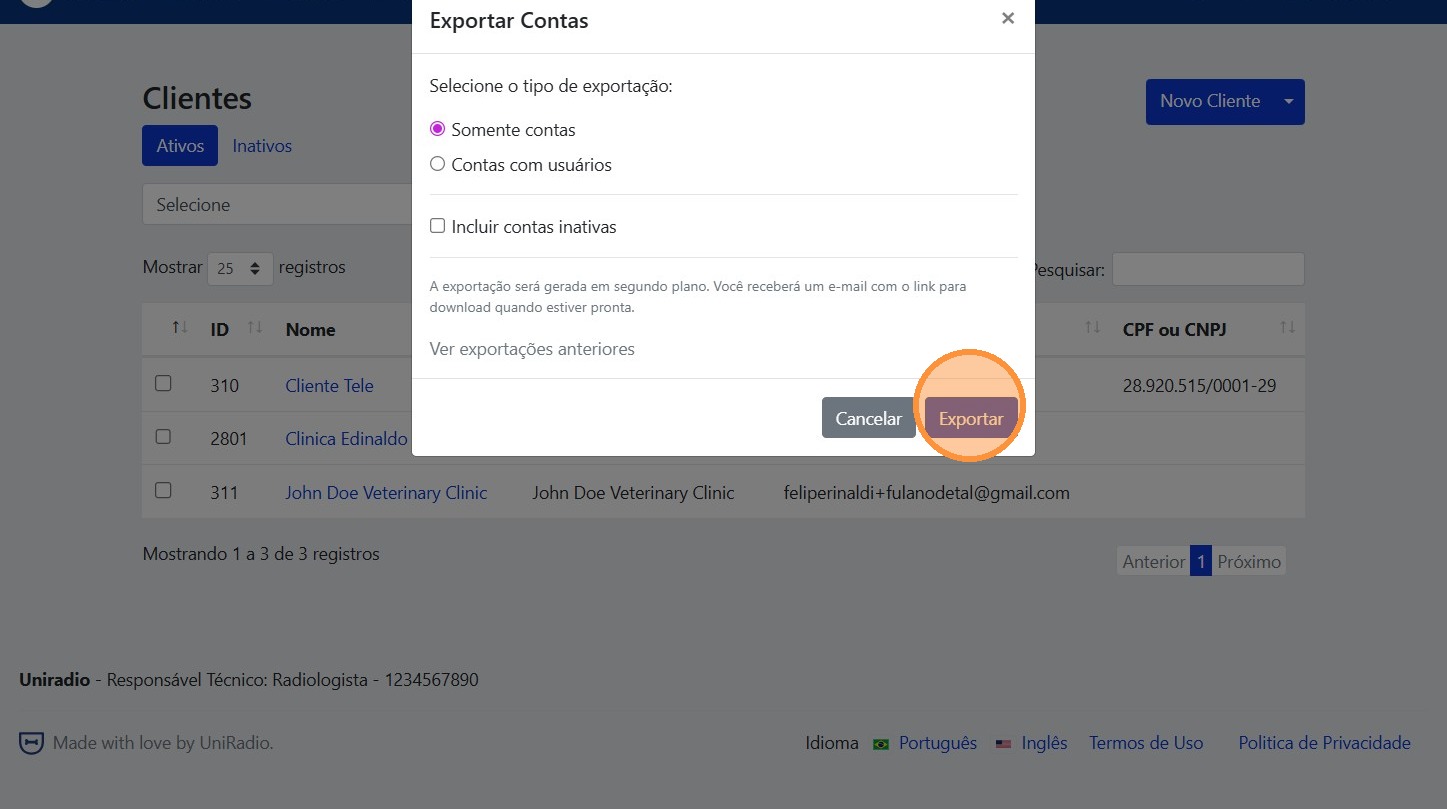
5. Select the export type
Choose the export format according to your needs:
- Accounts only — exports only the registration data for each client account.
- Accounts with users — exports account data along with the users linked to each account.
You can also check the "Include inactive accounts" option to include deactivated accounts in the export. If this option is not checked, only active accounts will be exported.
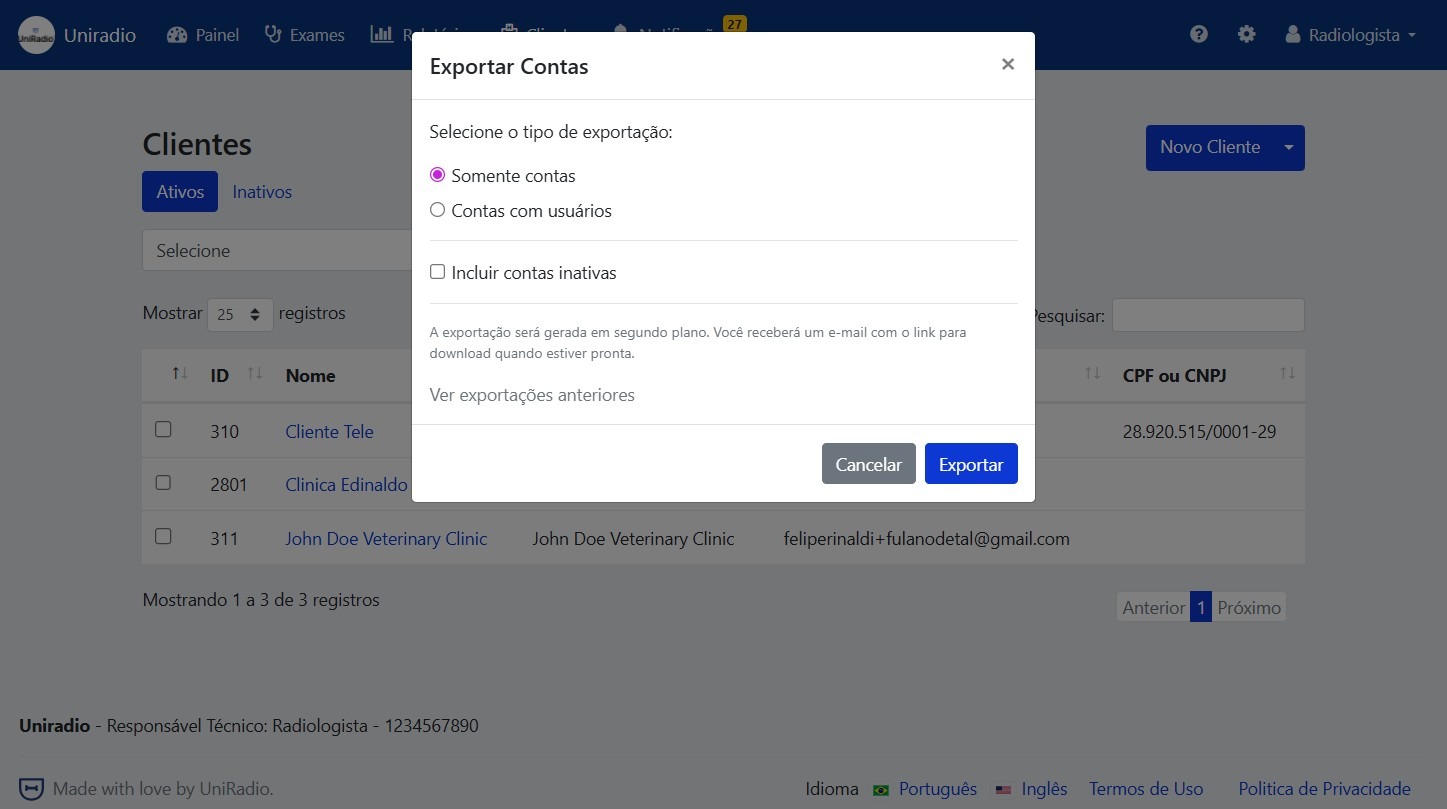
6. Click "Export"
Click the "Export" button to confirm. The export will be processed in the background and, when complete, you will receive an email with the exported file as an attachment.
Tip
You can view the list of completed exports in the Previous Exports section.
Need Help?
Check our FAQ or contact support if you have issues exporting data.